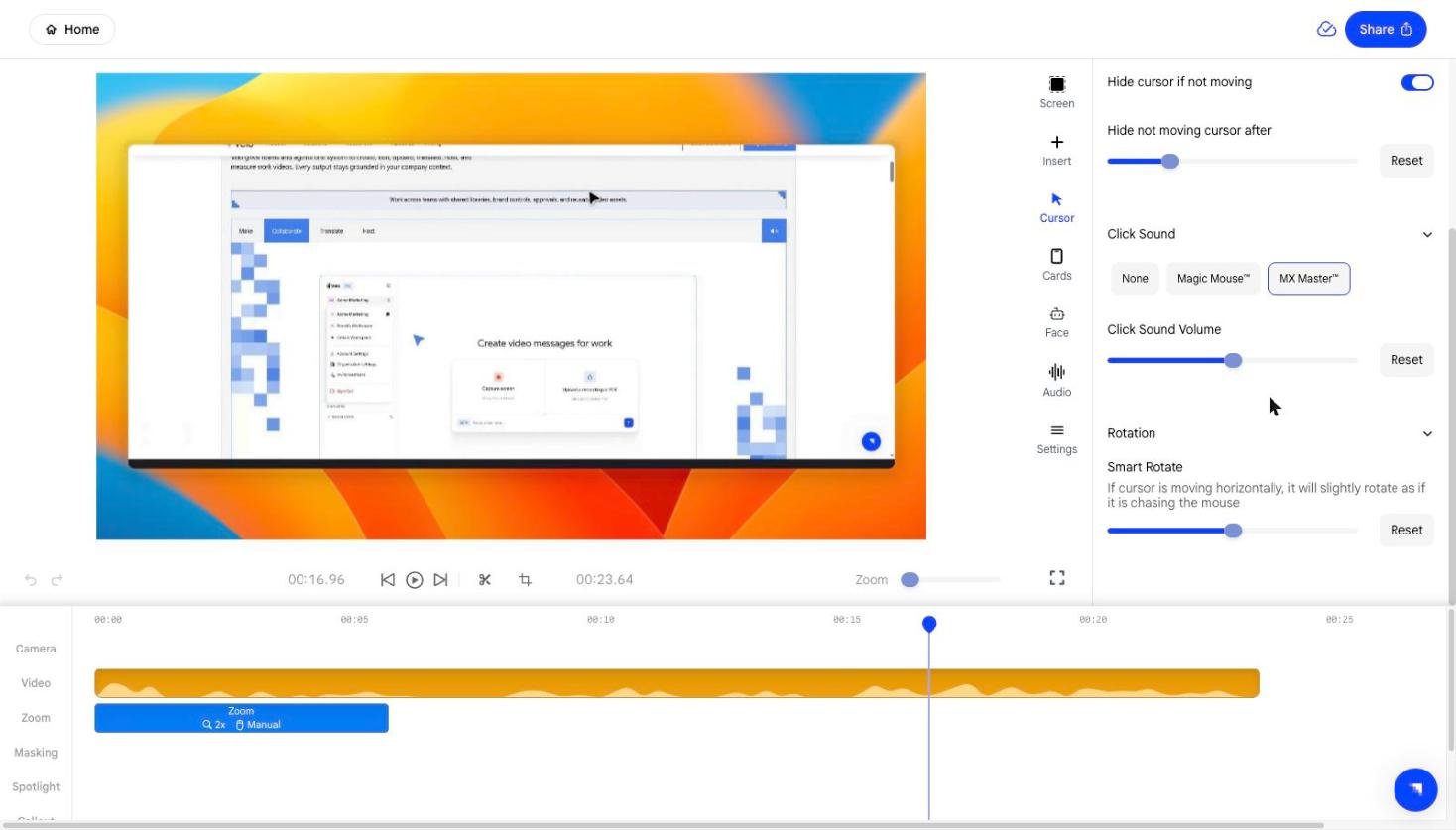
The Cursor panel appears for videos made with Paste a link.
Screen recordings and uploaded videos already contain a real cursor, so there
is nothing to restyle and the panel is not shown.
Hiding the cursor
Turn on Hide cursor at the top of the panel to remove the pointer from the video completely. Everything below it stops applying.Cursor style and size
Cursor Style offers eight pointers — arrows in several weights, a hand, a grab, and higher-contrast variants. Click one to swap it in; the preview updates immediately. Cursor Size scales the pointer up or down. Larger sizes read better when the finished video will be watched on a phone or embedded small.Hiding an idle cursor
Hide cursor if not moving fades the pointer out when nothing is happening, so a stationary arrow doesn’t sit on top of the thing you’re explaining. Hide not moving cursor after sets how many seconds of stillness pass before it disappears.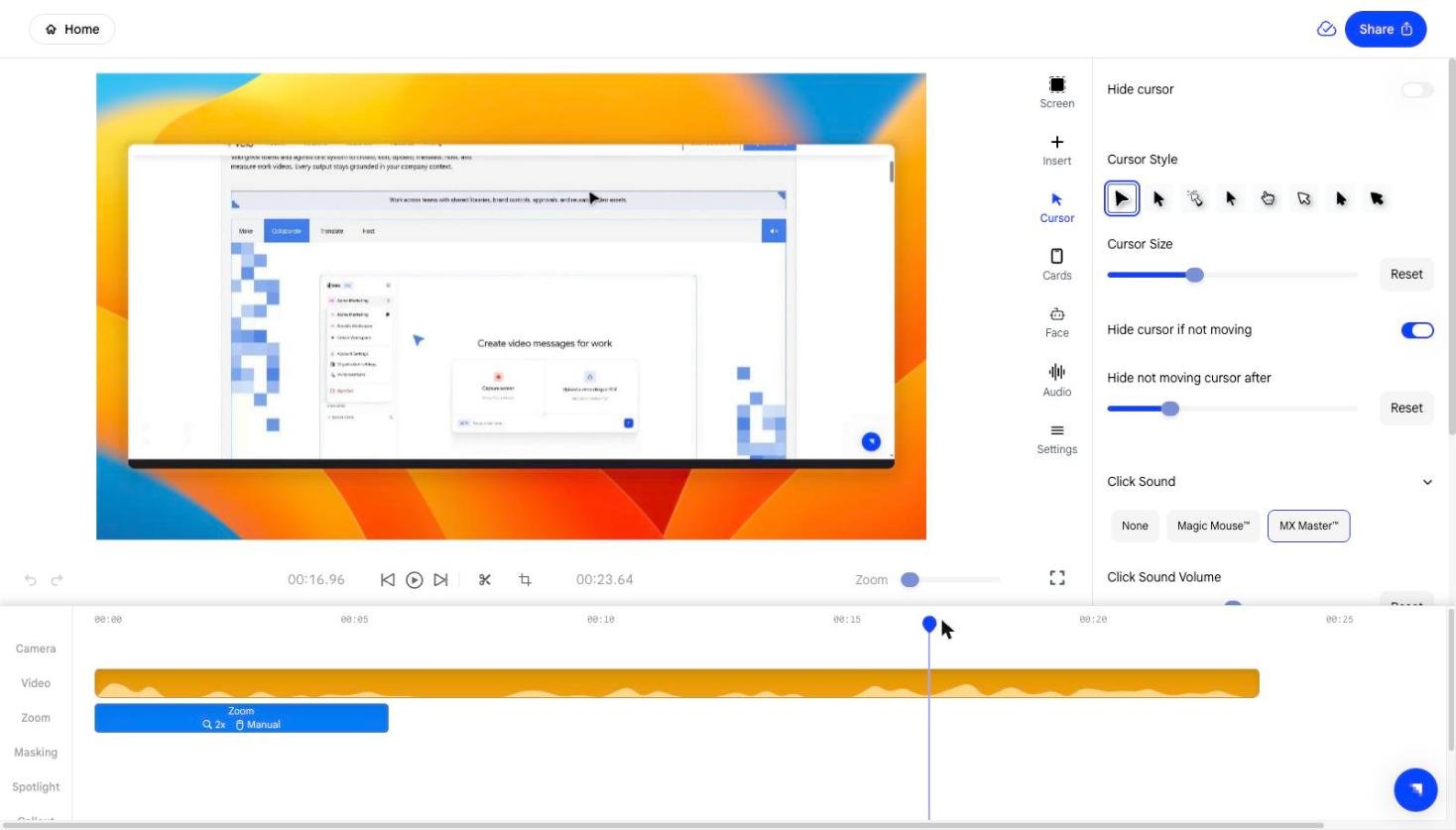
Click sound
Click Sound adds an audio cue every time the cursor clicks. Three options:
Click Sound Volume balances it against the narration. Keep it low; the
click is a cue, not a beat.
Rotation
Open Rotation and turn on Smart Rotate to have the pointer tilt slightly in the direction it’s travelling, the way a cursor does when it’s chasing something. The slider sets how far it tilts.