

How to invite members
Step 1: Open the workspace dropdown by clicking the workspace name at the top of the sidebar, then select Invite members. You can also navigate to Settings → Members and click the Invite button. Step 2: Enter the email address of the person you want to invite. Step 3: Choose a role — Admin or Member. You can change roles later.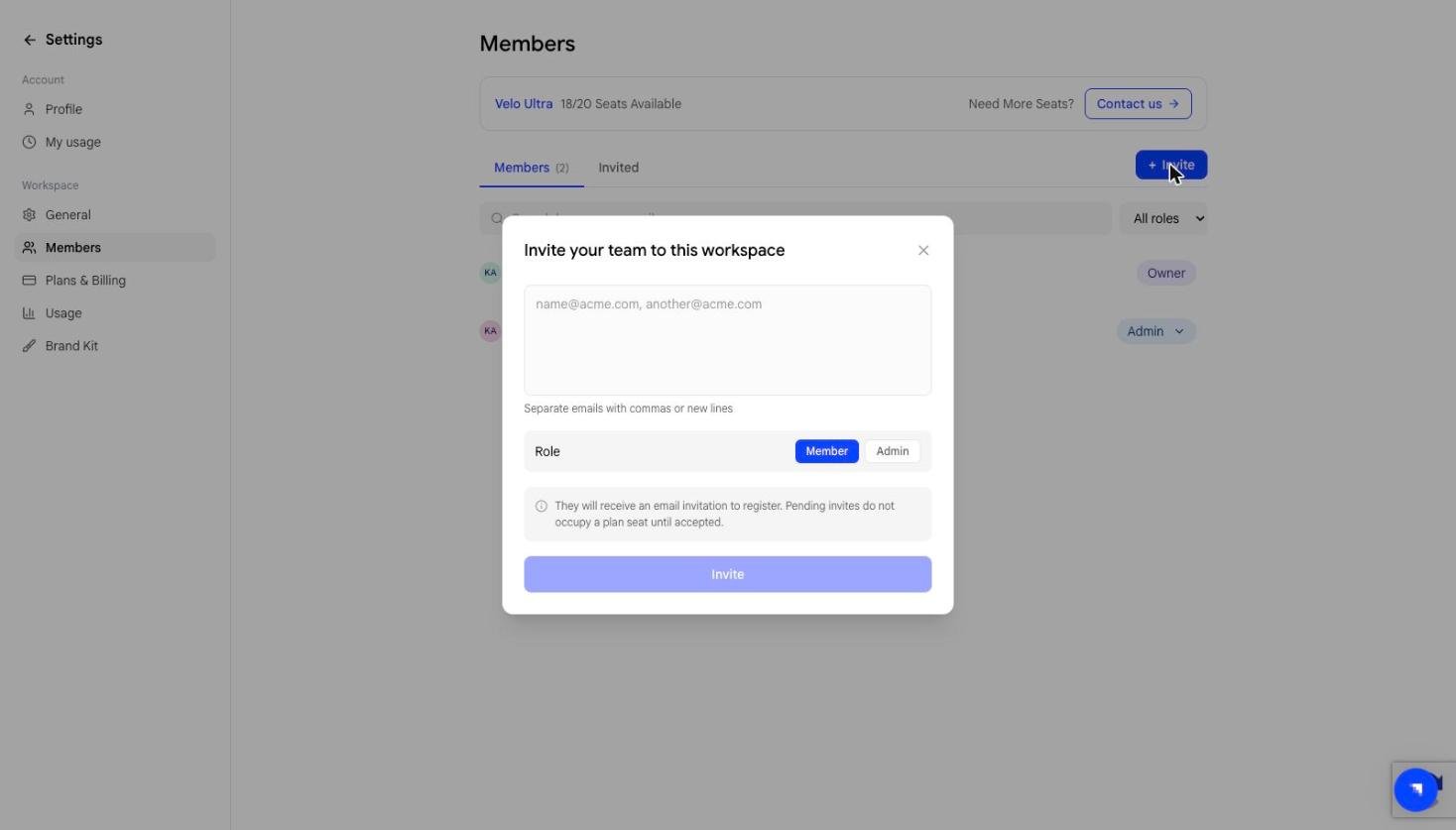
Managing members
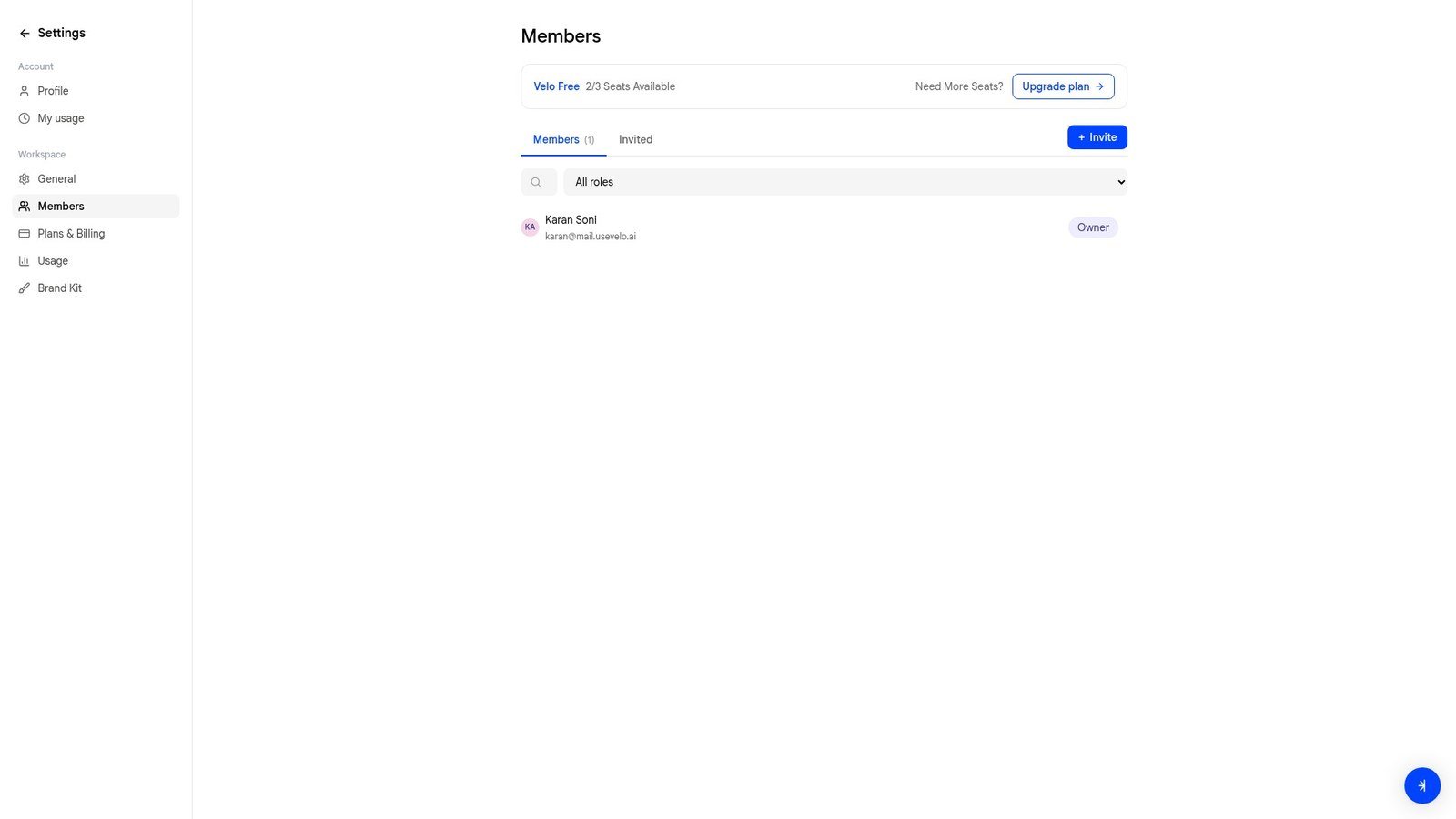
From Settings → Members, you can:- View all current members and their roles
- Switch to the Invited tab to see pending invitations
- Search members by name or email
- Change a member’s role by clicking the role badge next to their name
Seat limits
Each plan includes a set number of seats:
The Members page shows how many seats are available — for example, “19/20 Seats Available” on Ultra. If you have reached your seat limit, upgrade your plan or use the Contact us link next to the counter.