1. What Is the Spotlight Effect?
The Spotlight effect dims the area around a selected region of your screen, drawing the viewer’s attention to a specific part of the recording. It is useful for focusing viewers on a particular UI element, button, or section without cutting away from the rest of the screen.
2. Adding a Spotlight to Your Velo
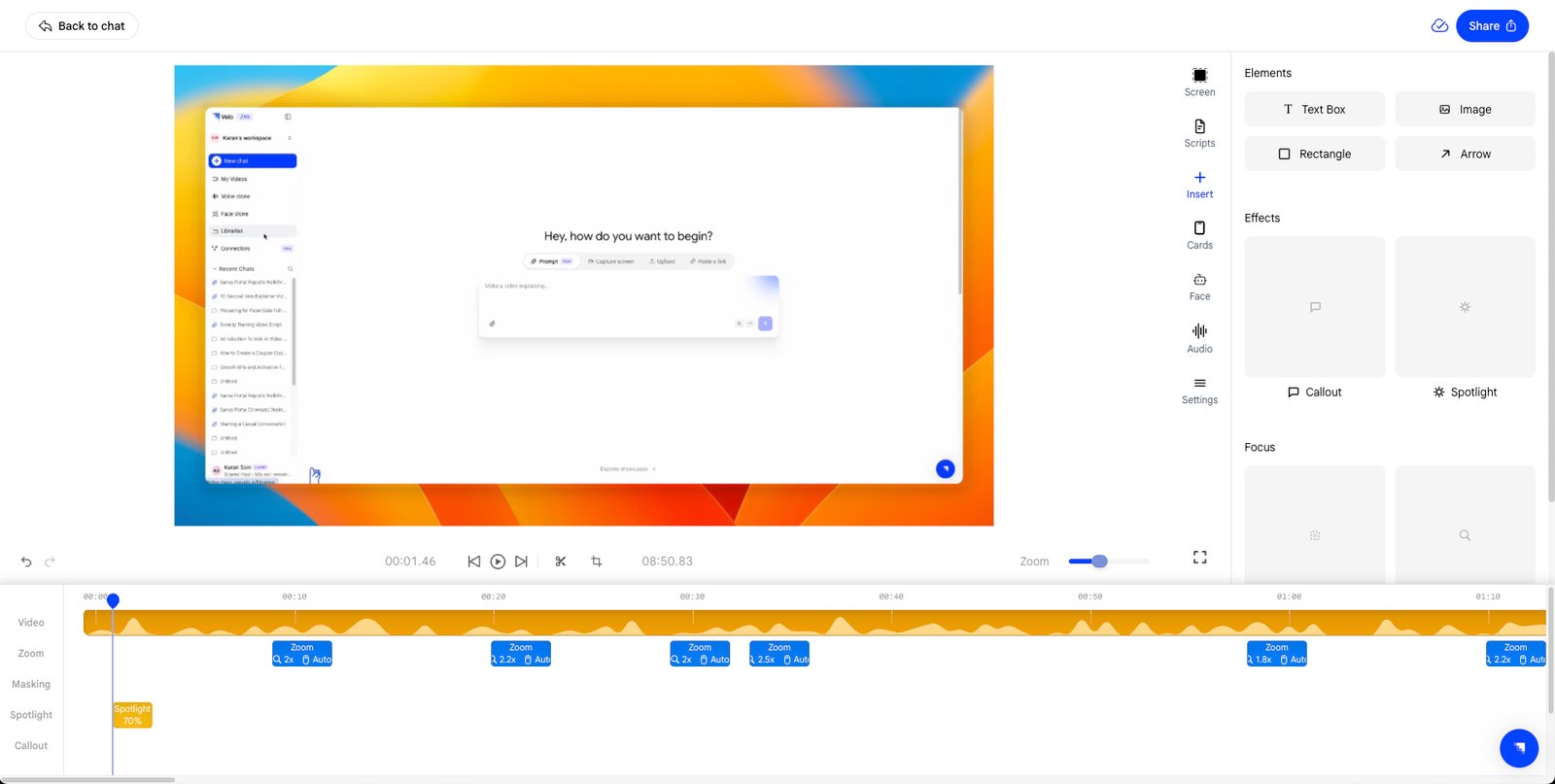
To add a Spotlight:- Open the Insert panel from the right sidebar.
- Under the Effects section, click Spotlight.
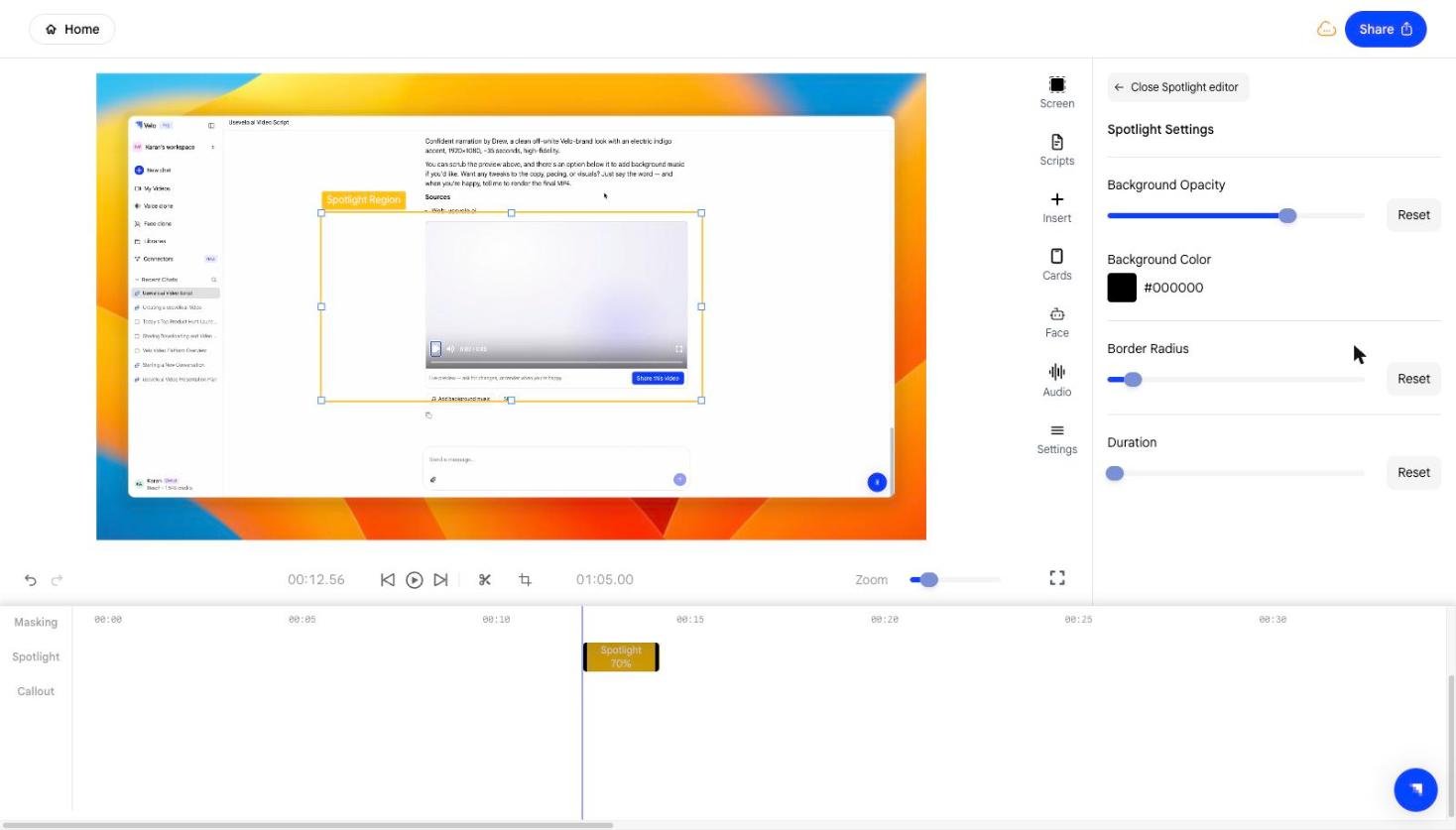
- A spotlight region will appear on the canvas and a corresponding block will be added to the Spotlight track in the timeline.
- Drag the spotlight region on the canvas to position it over the area you want to highlight.

3. Adjusting the Dimmed Background Opacity
The Background Opacity slider controls how dark the surrounding area becomes when the spotlight is active.- Slide right to darken the background more, making the highlighted area stand out more strongly.
- Slide left for a subtler dimming effect.

4. Changing the Spotlight Background Color
The Background Color picker allows you to change the color of the dimmed area surrounding the spotlight region.- Click the color swatch to open the color picker and choose your preferred tint.
- The default is black, which creates a classic darkened focus effect.

5. Rounding the Spotlight Corners
Use the Border Radius slider to adjust how rounded the corners of the spotlight region appear.- Slide right for a pill or oval shape.
- Slide left to keep the spotlight region as a sharp rectangle.

6. Setting the Spotlight Duration
The Duration field controls how long the spotlight effect remains active in your video.- Adjust the value to match the segment of your demo you want to highlight.
- You can also drag the edges of the Spotlight block directly in the timeline to resize it.