Configuring Recording Settings
Step 1: Select Capture screen from the main dashboard to open the recording configuration panel.
Dashboard options for creating a new video message.
Step 2: Choose your preferred processing mode. Normal processing enhances the video after the recording is complete. Real-time processing starts processing as you record for faster delivery. Step 3: Verify your audio input is selected in the microphone dropdown and click Start Recording.
Selecting a Source and Recording
Step 4: Choose the content you wish to share from the browser’s media picker. You can select an Entire screen, a specific Window, or a Chrome tab.
Finalizing the Video
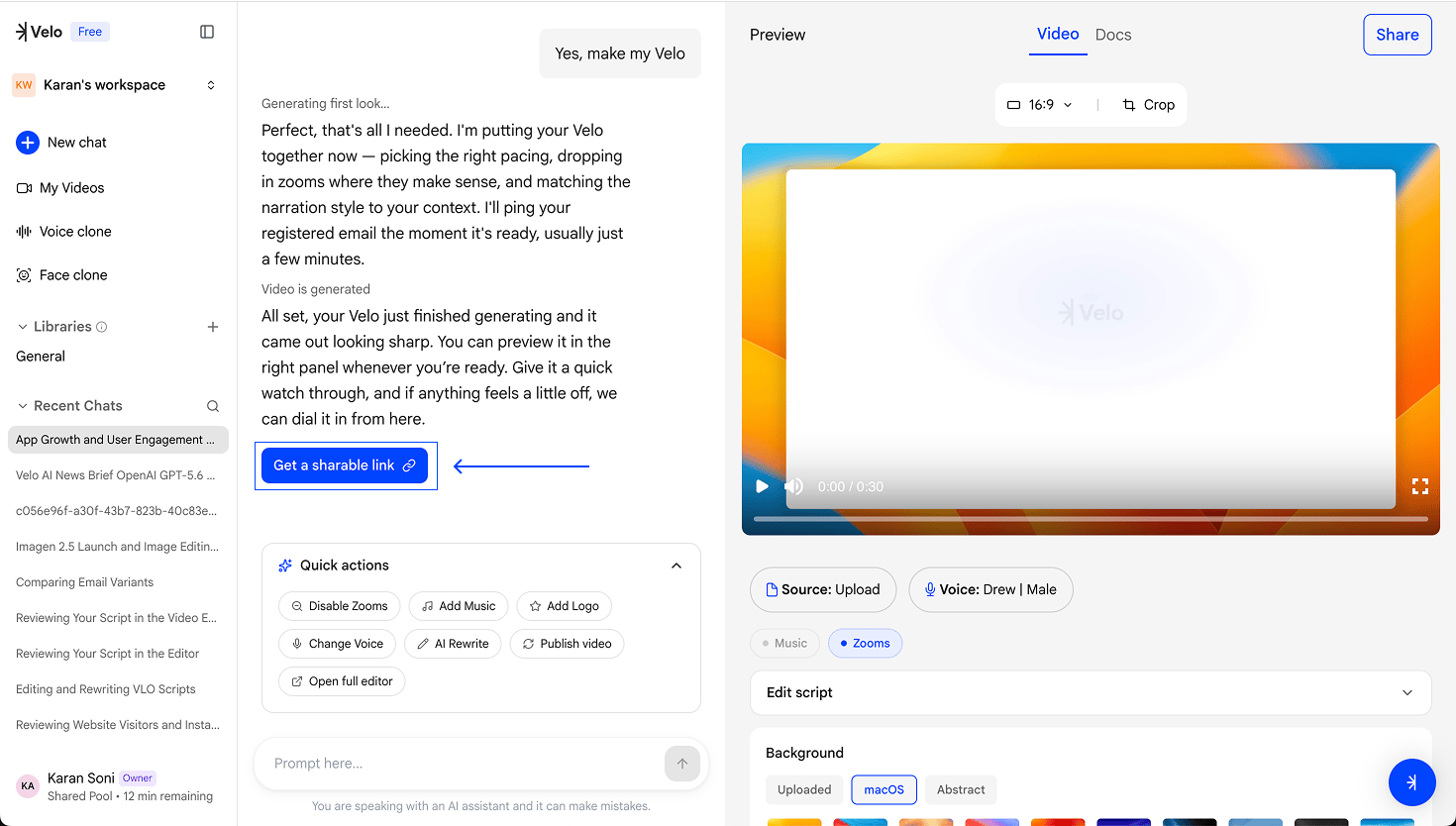
Step 7: Click “Stop sharing” in the browser’s recording banner to end the session. Step 8: Review the initial capture and click “Yes, make my Velo” to trigger the AI enhancement and generation process.