1. Changing the Background Style in Velo
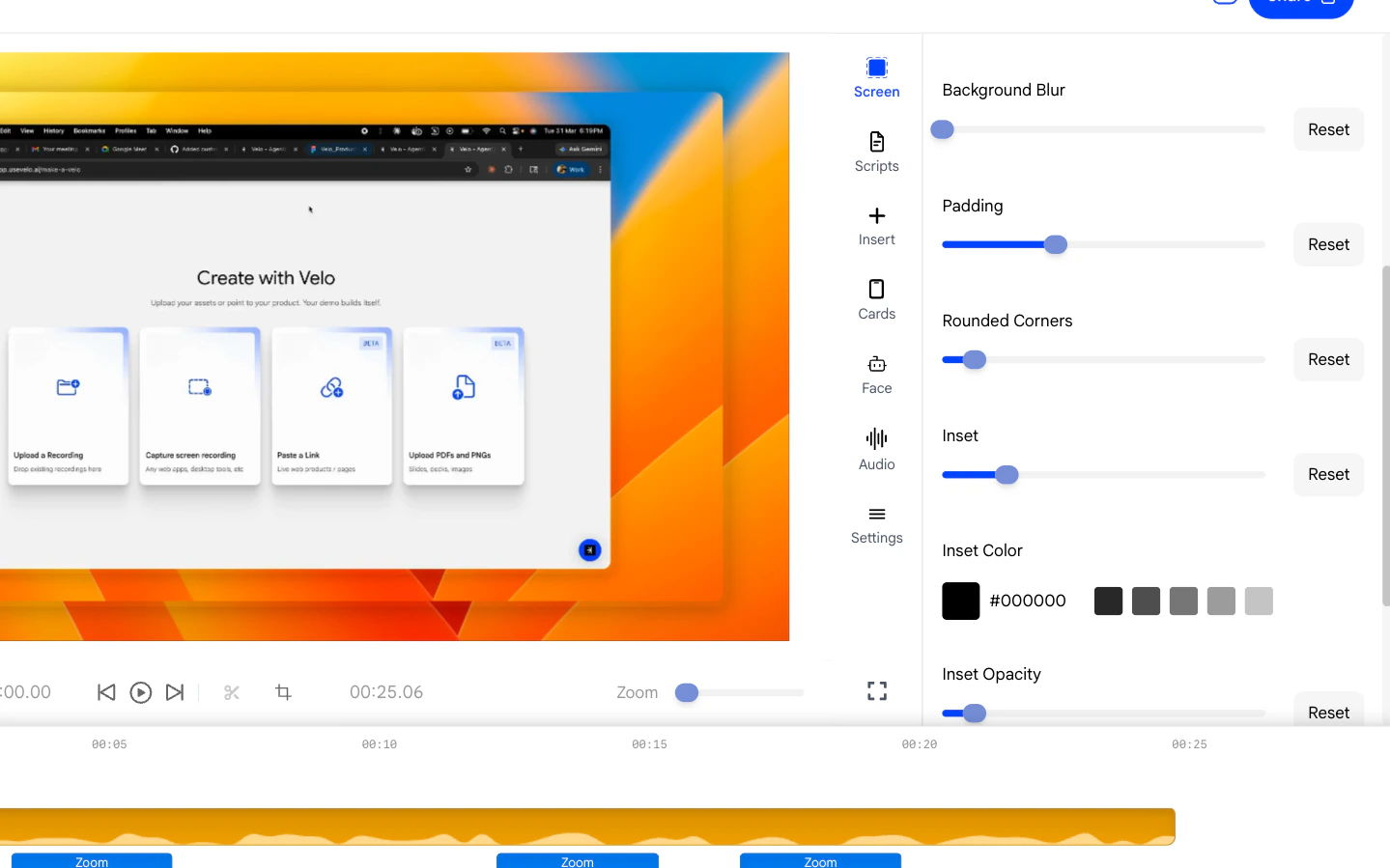
Open the Screen panel from the right sidebar to access background options. There are three style tabs at the top:- Wallpaper - Choose from uploaded images or built-in presets organized into categories such as macOS and Miscellaneous.
- Gradient - Pick a preset gradient or define your own by selecting two colors using the color pickers.
- Color - Apply a flat solid color using the color picker, hex input, or one of the preset swatches.
2. Setting the Output Format
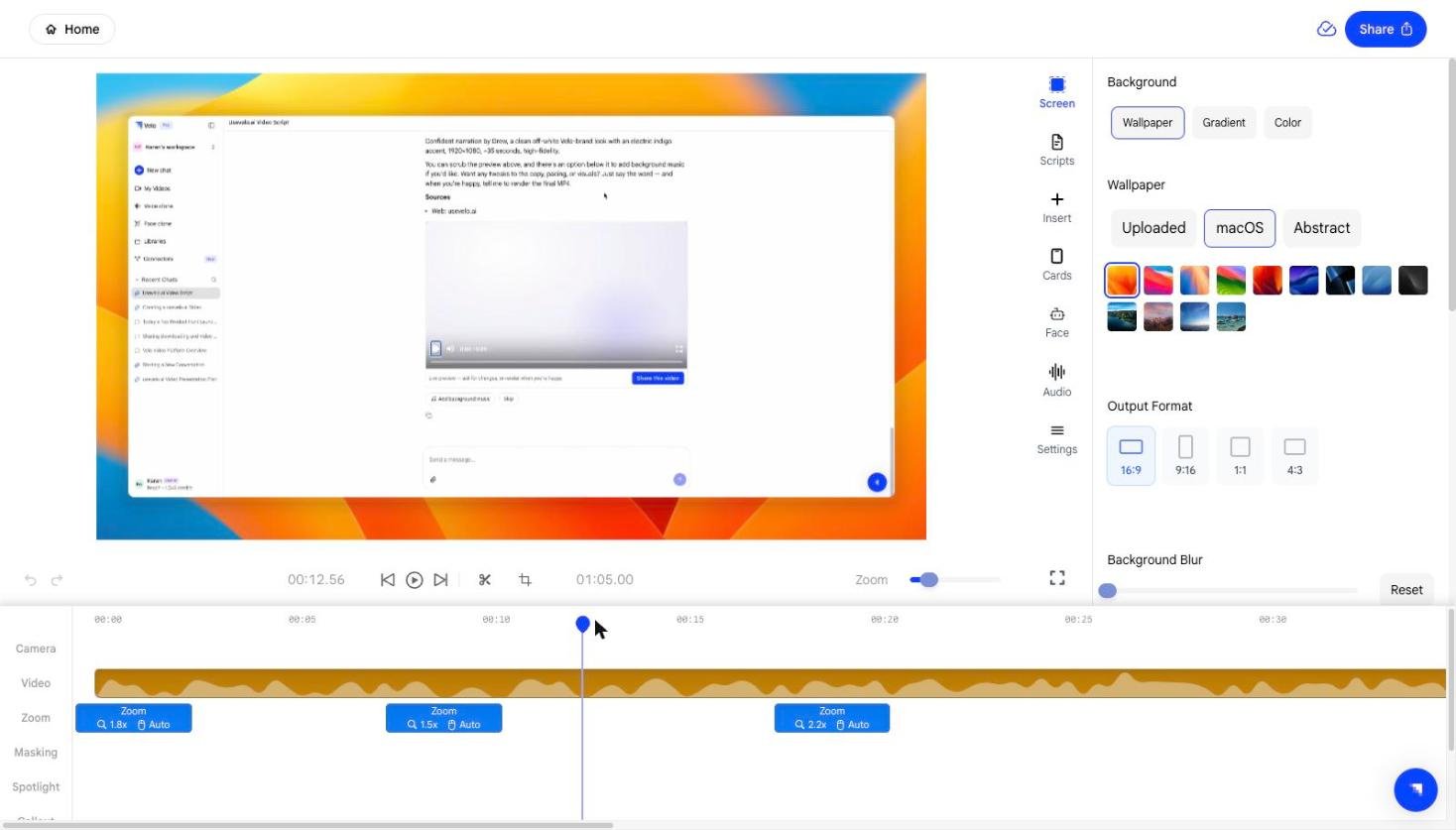
Below the style tabs, the Output Format dropdown controls the aspect ratio of the final video. The available options are:- 16:9 - Standard widescreen, suitable for most presentations and embeds.
- 9:16 - Vertical format, ideal for mobile or social media.
- 1:1 - Square format for platforms like LinkedIn.
- 4:3 - Classic presentation format.
3. Blurring the Background
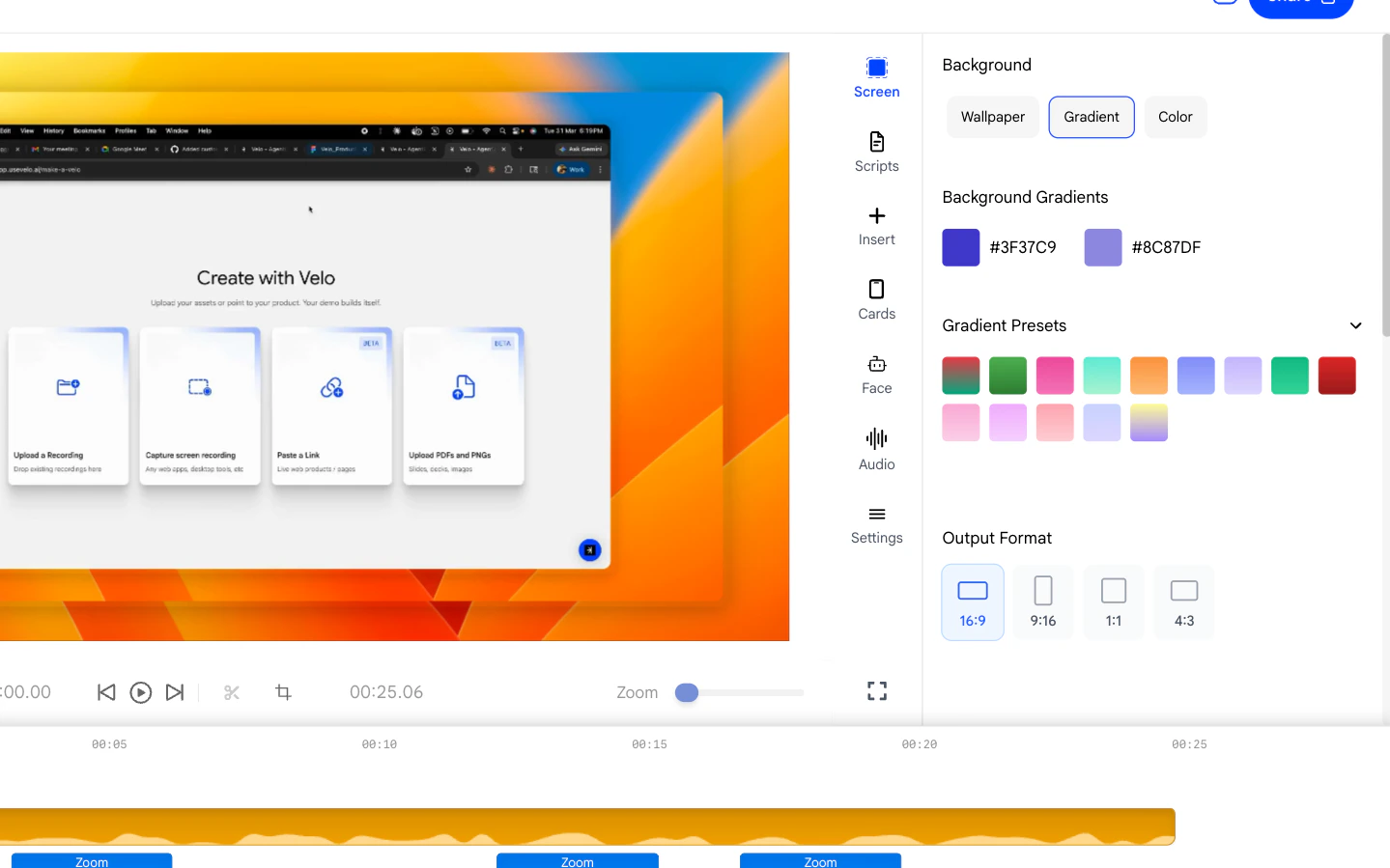
When a Wallpaper background is active, the Background Blur slider becomes available.- Drag the slider to the right to increase the blur amount.
- Click Reset to return to the original unblurred image.
4. Adjusting Padding Around the Recording
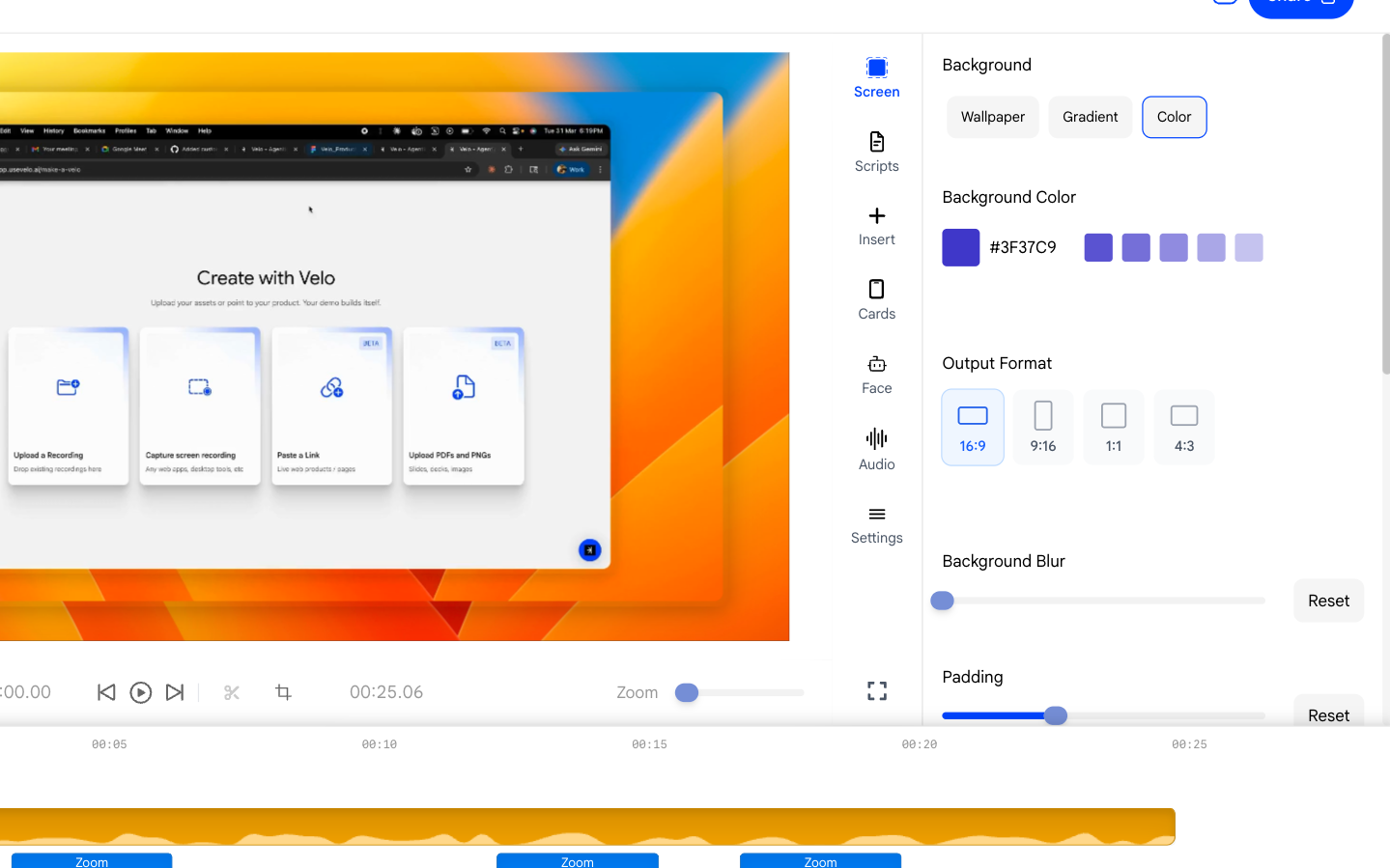
The Padding slider controls how much space appears between the screen recording and the edges of the background.- Slide right to add more breathing room around your product recording.
- Slide left to bring the recording closer to the edges.