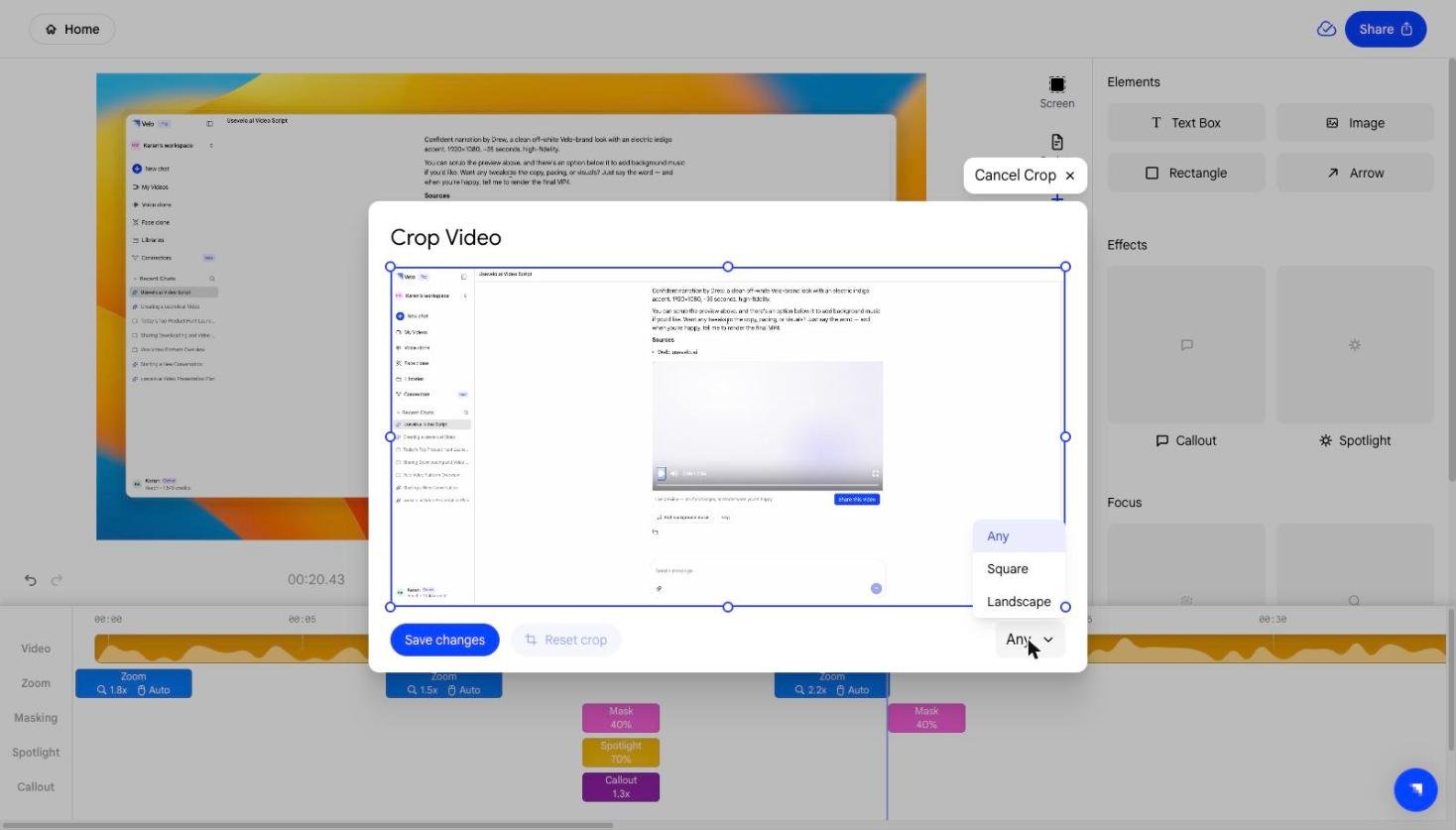
1. What Is the Difference Between Cut and Crop?
Velo provides two distinct tools for trimming your recording:- Cut (✂) - Splits the video at the exact position of the playhead, dividing it into two separate segments. Use this to remove a middle section of your recording.
- Crop (⊡) - Opens a modal where you can crop the height and width of the video using the drag handles.

2. Using Cut to Split Your Video
The Cut tool splits the video at the current playhead position.- Move the playhead to the exact moment where you want to make the cut.
- Click the ✂ Cut button in the toolbar.
- The video is divided into two segments at that point.
- Select either segment to move, delete, or trim it independently.
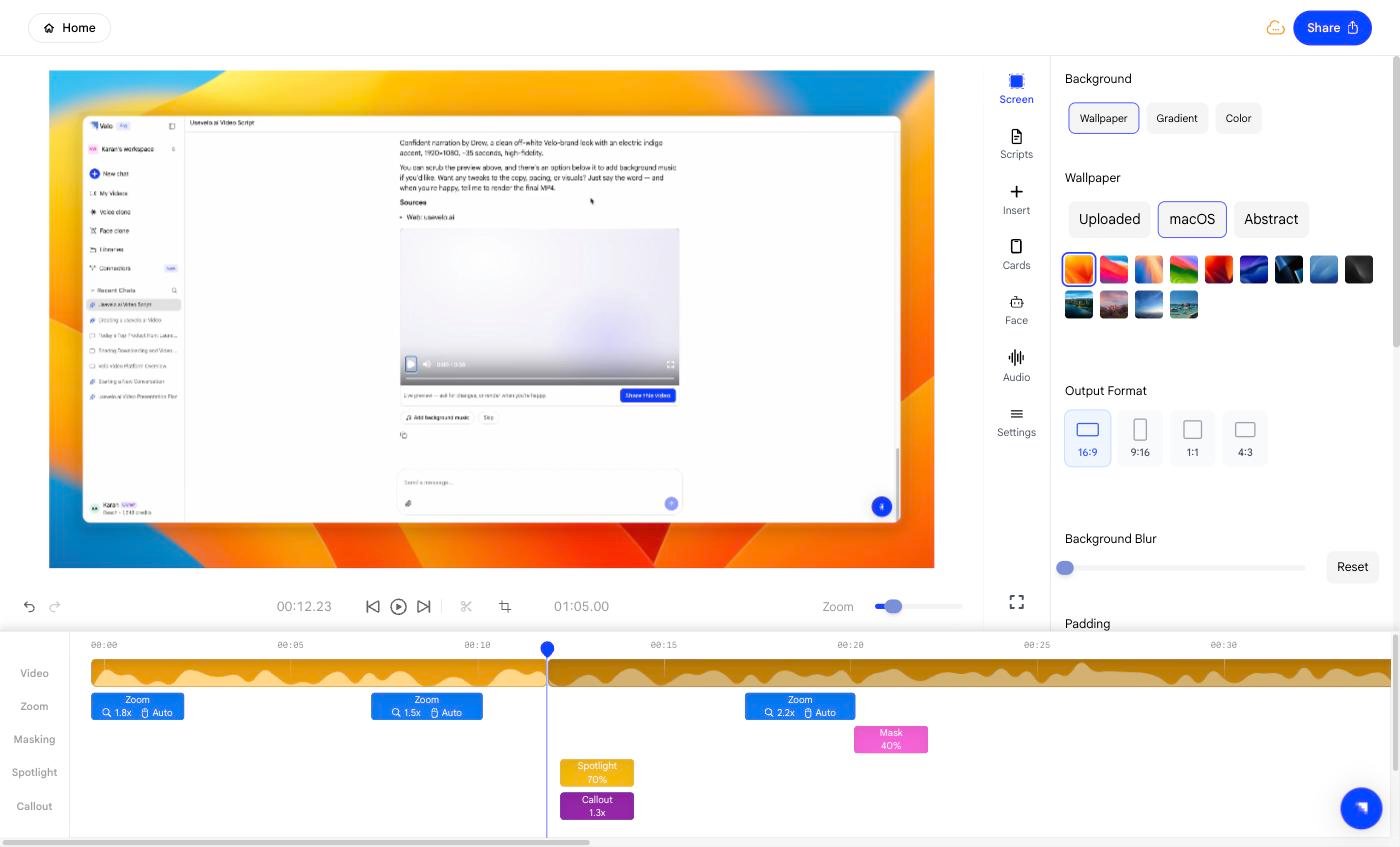
3. Removing a Section Using Cut
To remove a middle portion of your video:- Move the playhead to the start of the unwanted section and click Cut.
- Move the playhead to the end of the unwanted section and click Cut again.
- Select the segment between the two cuts and delete it.
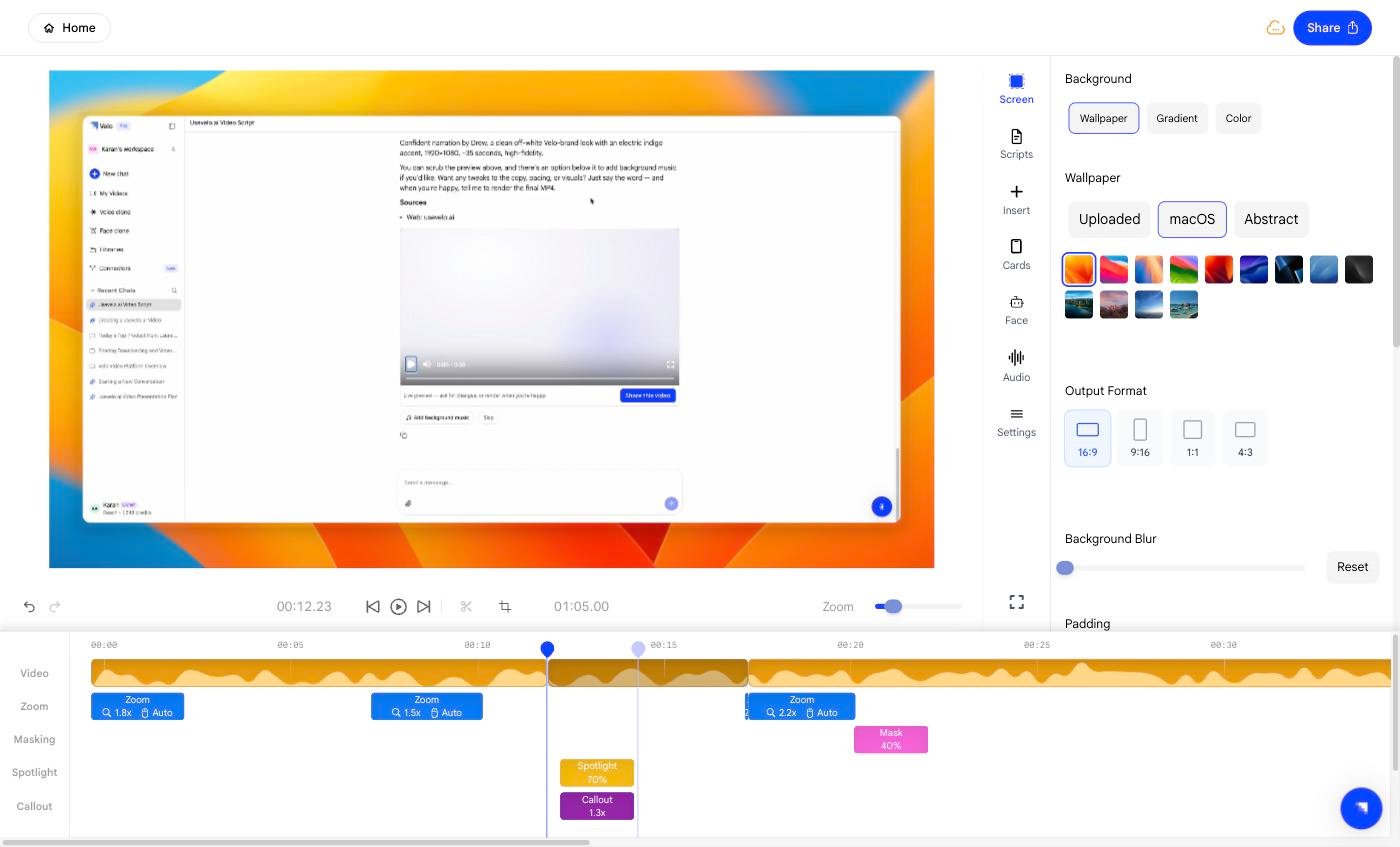
4. Using Crop to Trim the Start or End
The Crop tool lets you crop the height and width of video.- Click the ⊡ Crop button in the toolbar to open the crop modal.
- Drag the handles to select the region to keep in video.
- The preview updates in real time so you can see exactly how to cropped video will look like.
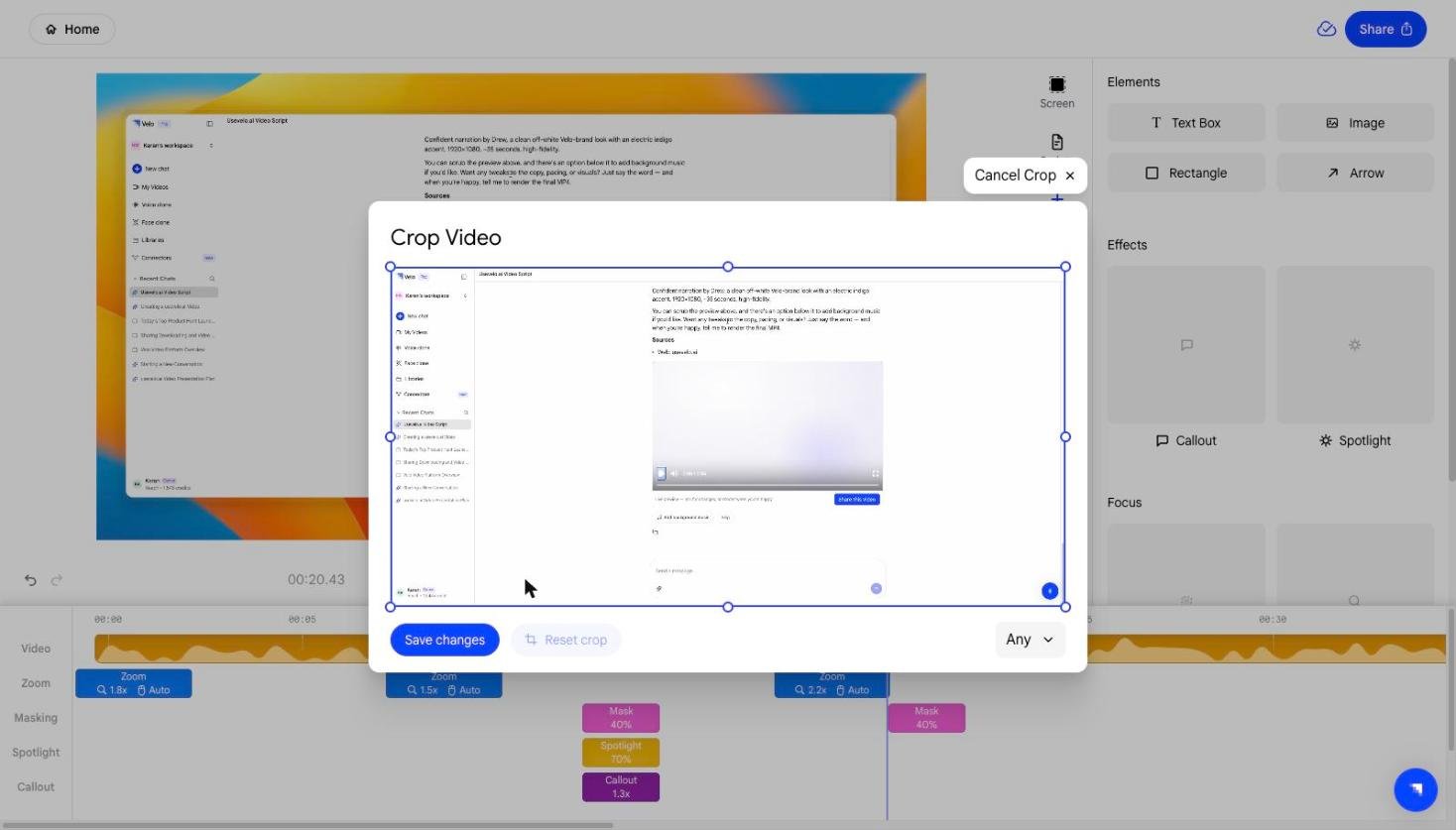
5. Setting a Custom Aspect Ratio in the Crop Modal
Inside the crop modal, an Aspect Ratio dropdown is available.- The default is Any, which lets you crop freely without constraints.
- Select a specific ratio to lock the crop region to a fixed proportion as you adjust the handles.