Applications are pre-built integrations with the tools your team runs on — connect one, and Prompt to Video can pull relevant context from it while writing a script.

Connecting an application

Step 1: Go to Connectors → Applications. Step 2: Find the app you want. The directory is long, so use the Search applications box, or narrow it with the category filters running along the top — Accounting, Ads & Conversion, AI Agents, AI Assistants, AI Chatbots, and many more. View All shows everything; Connected shows only what you have already authorized.
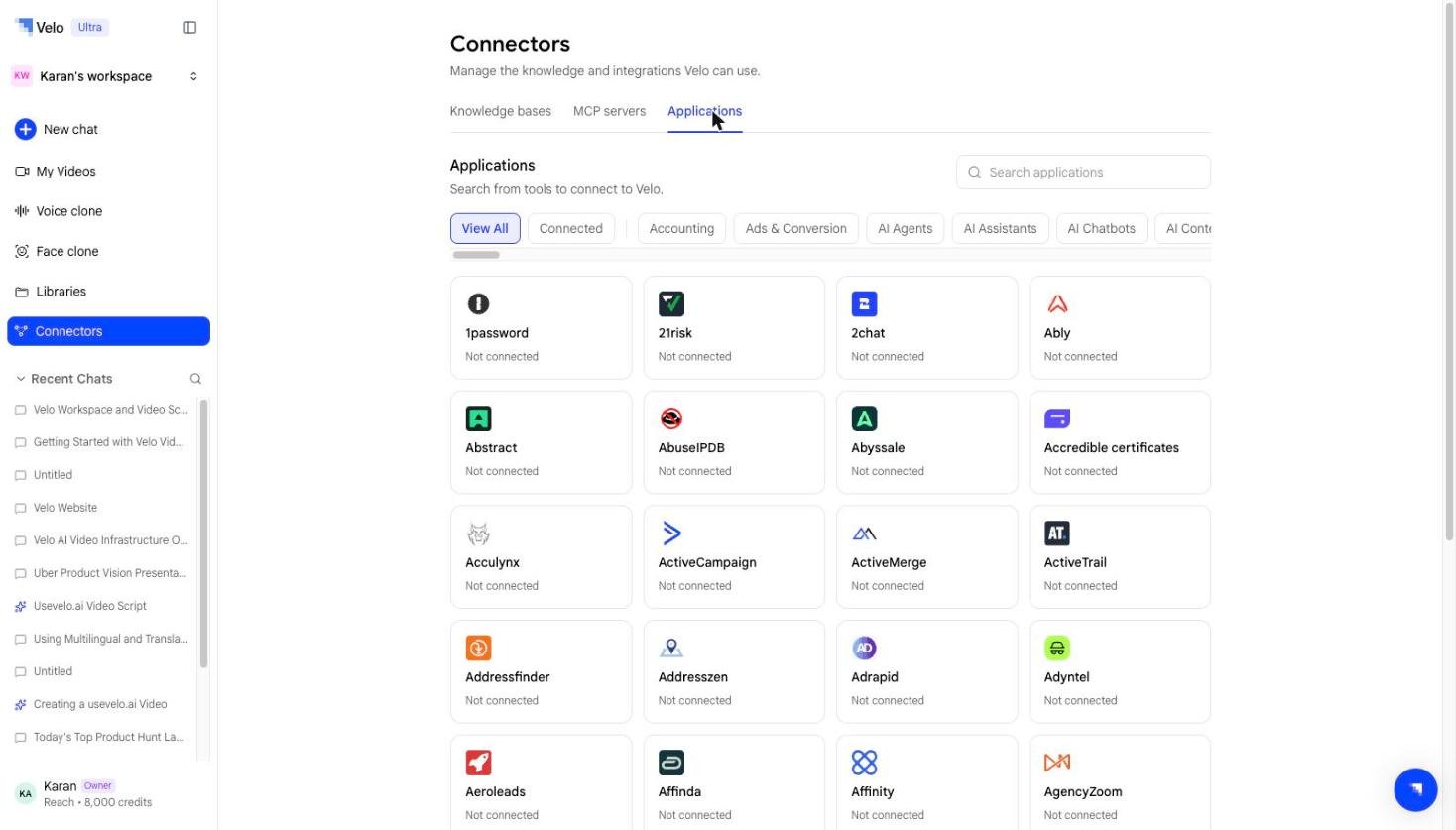
Applications directory with search and category filters
Step 3: Select the application and authorize access. Each card shows its current state, so anything you have not set up yet reads Not connected. Step 4: Once connected, it is available as a source you can attach to any Prompt to Video session.

What’s supported

The directory runs to several hundred applications and covers the common categories — communication, docs and knowledge, CRM and sales, engineering, and support — alongside a long tail of more specialised tools. Rather than reproduce the list here, search the Applications tab directly: it is the current, authoritative list and new integrations are added regularly.

Access and permissions

Each application connector authenticates with your own account for that tool, and only pulls data you already have access to. Disconnect a connector at any time from the Applications tab.