1. Overview of the Insert Panel
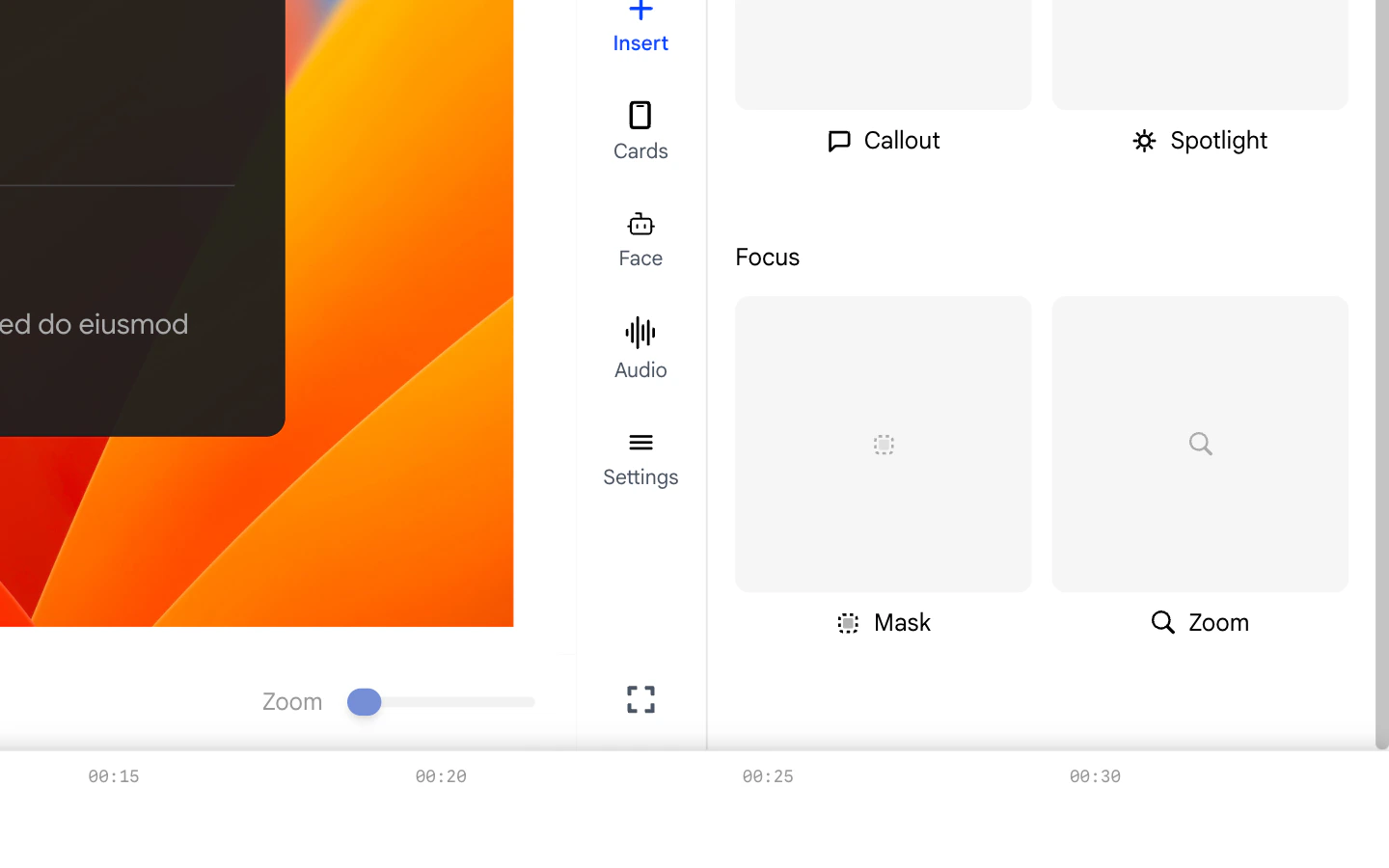
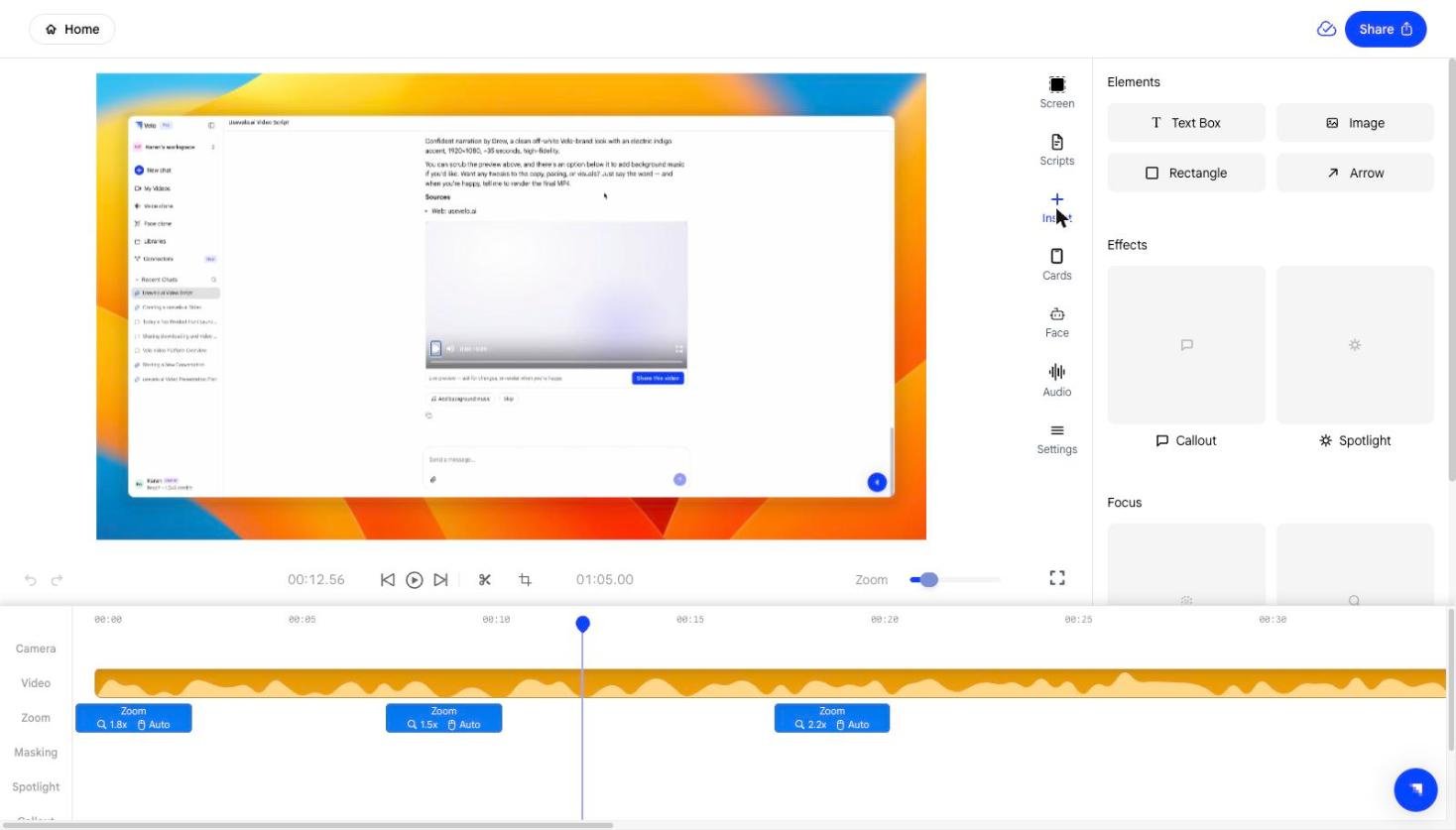
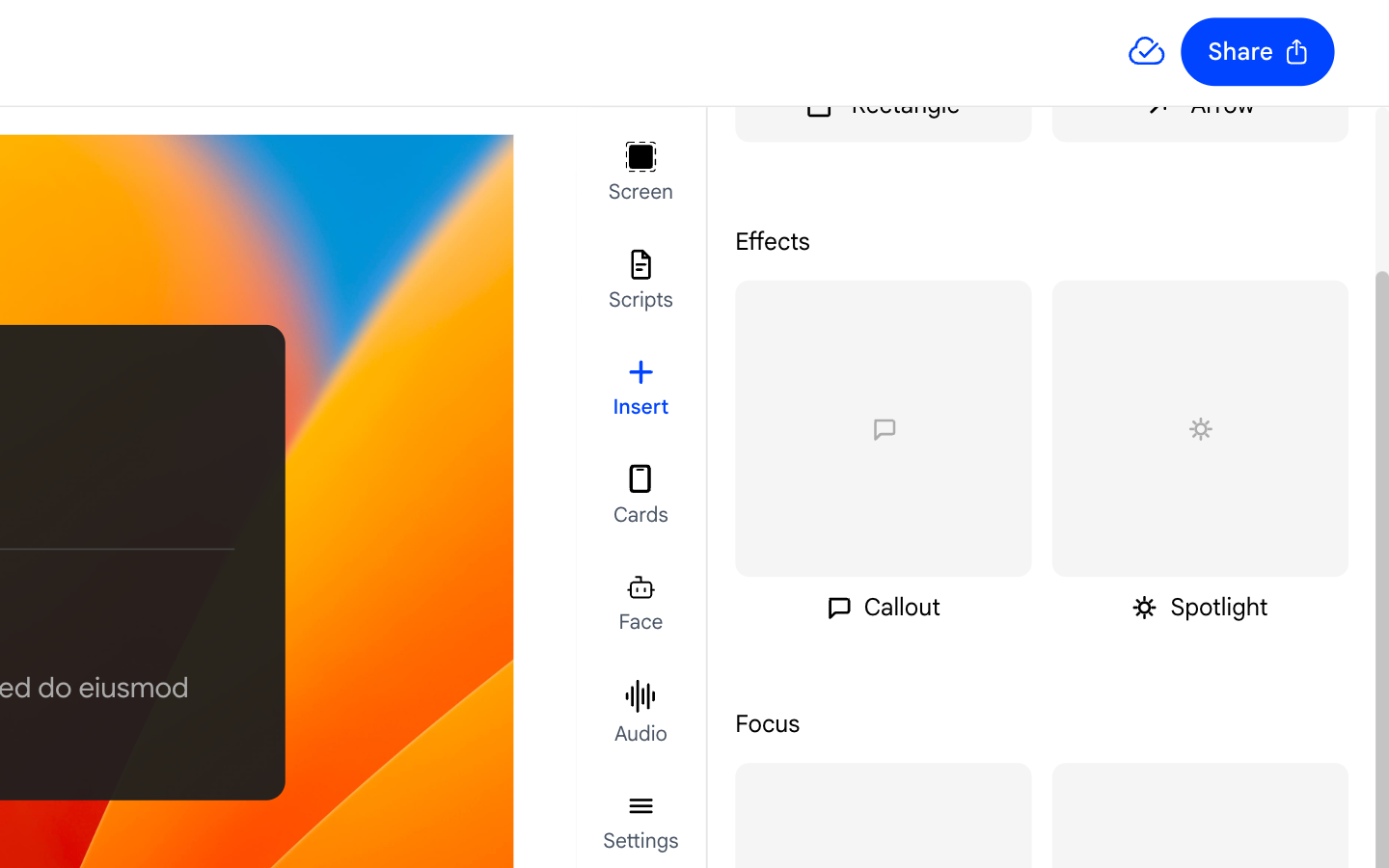
The Insert panel gives you access to all the overlay elements and effects you can add to your video. Open it by clicking the Insert icon in the right sidebar. The panel is divided into three sections:- Elements - Static visual additions like text, images, and shapes.
- Effects - Attention-directing overlays like Callout and Spotlight.
- Focus - Precision tools like Mask and Zoom.
2. Adding Elements
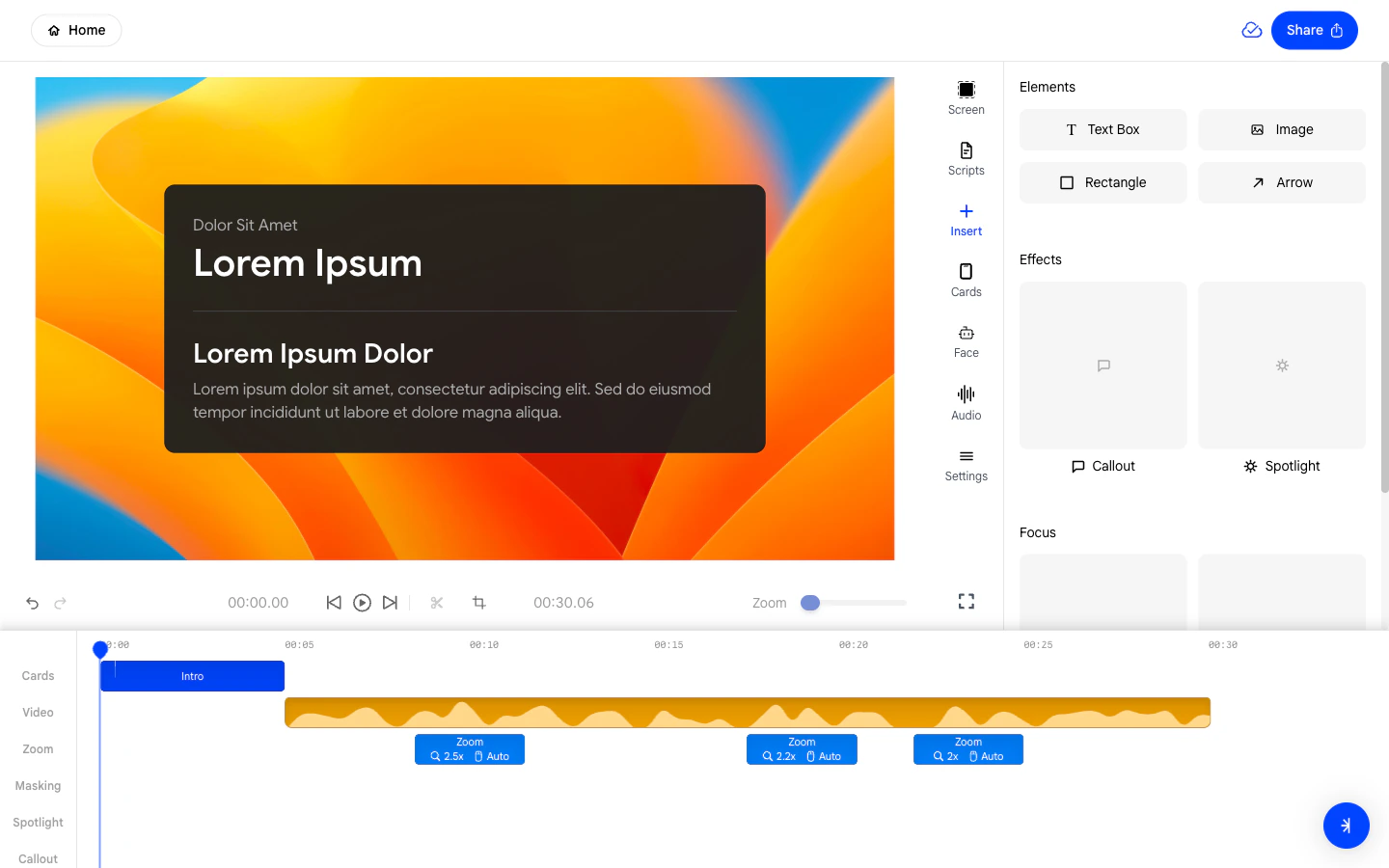
The Elements section contains the following items you can add directly to the canvas:- Text Box - Adds an editable text label you can drag anywhere on the frame.
- Image - Inserts an image file from your computer onto the canvas.
- Rectangle - Adds a filled or outlined rectangle shape.
- Arrow - Adds a directional arrow you can point at anything on screen.
3. Adding Effects
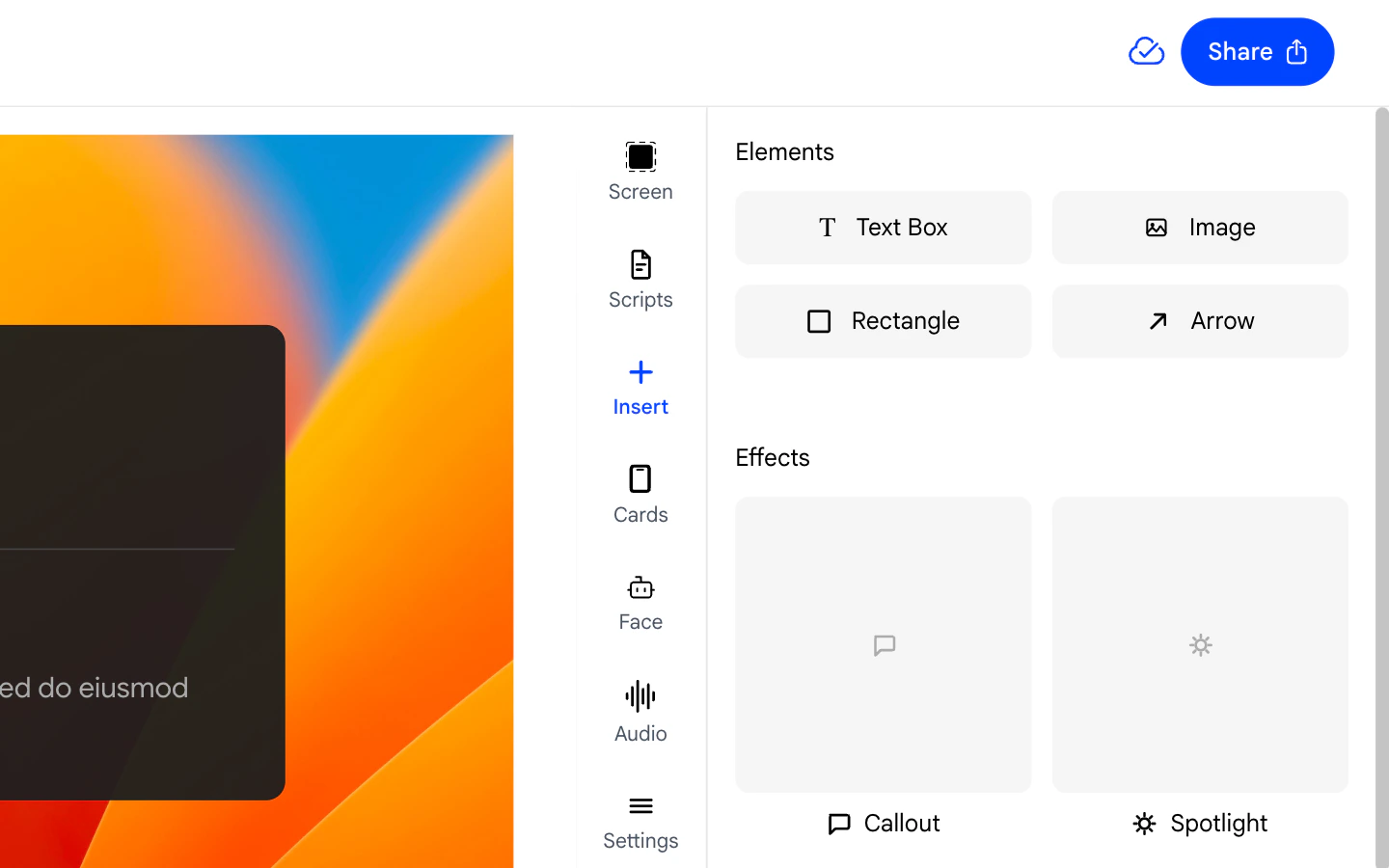
The Effects section contains overlay effects that direct viewer attention:- Callout - Draws a highlighted box around a region on screen. See the Callout page for full settings.
- Spotlight - Dims the area surrounding a focused region. See the Spotlight page for full settings.
4. Adding Focus Tools
The Focus section contains two precision tools:- Mask - Covers a sensitive area of the screen (such as a password or private email) with a blur or solid block. See the Masks page for details.
- Zoom - Adds a new zoom block to the timeline at the current playhead position. See the Zooms page for details.