

Create your account and workspace
Step 1: Sign up at app.usevelo.ai using your email or Google account. Step 2: After signing in, you’ll be prompted to set up your first workspace. Give it a name (you can rename it later) and optionally upload a logo.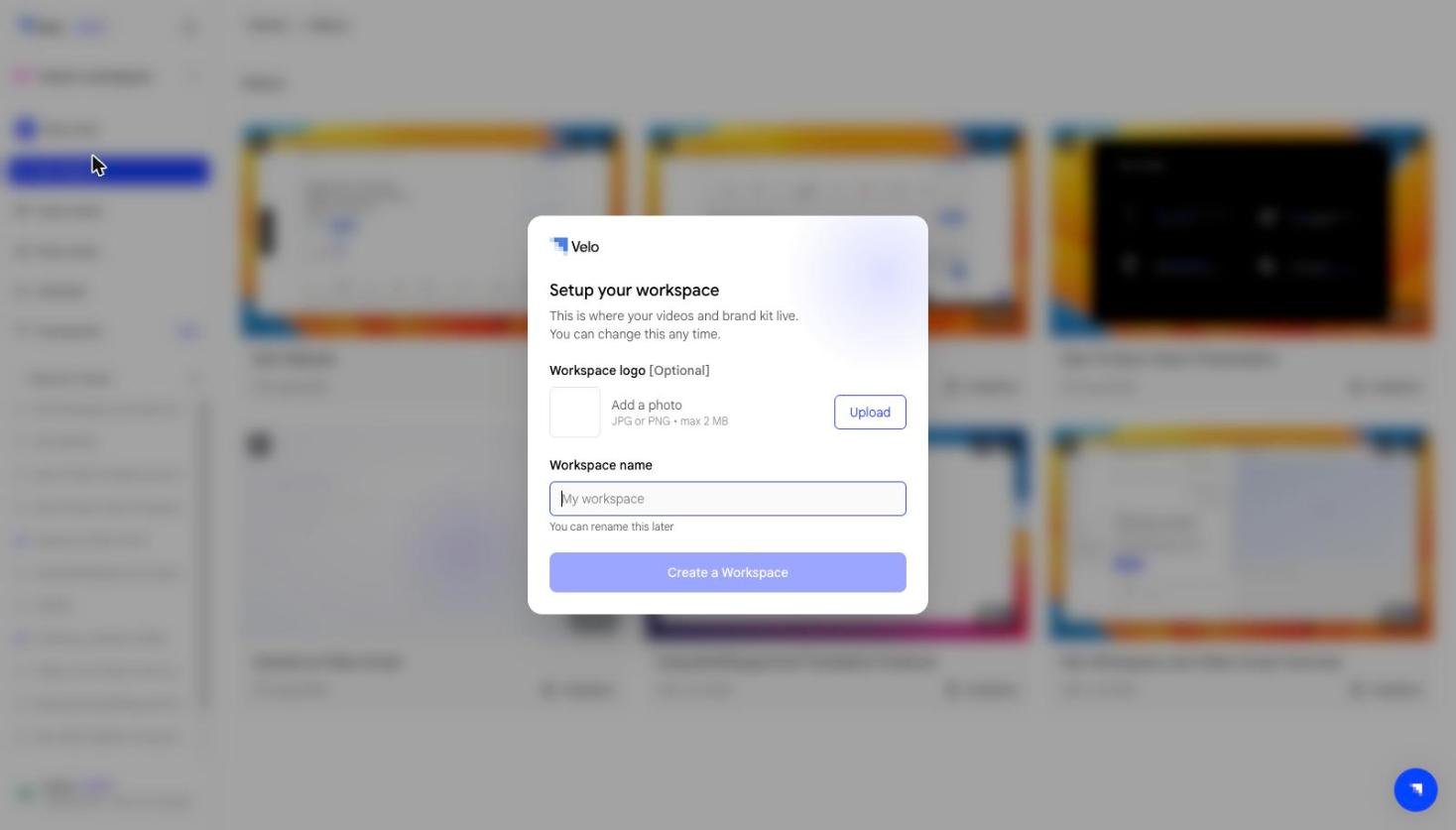
Choose where to start
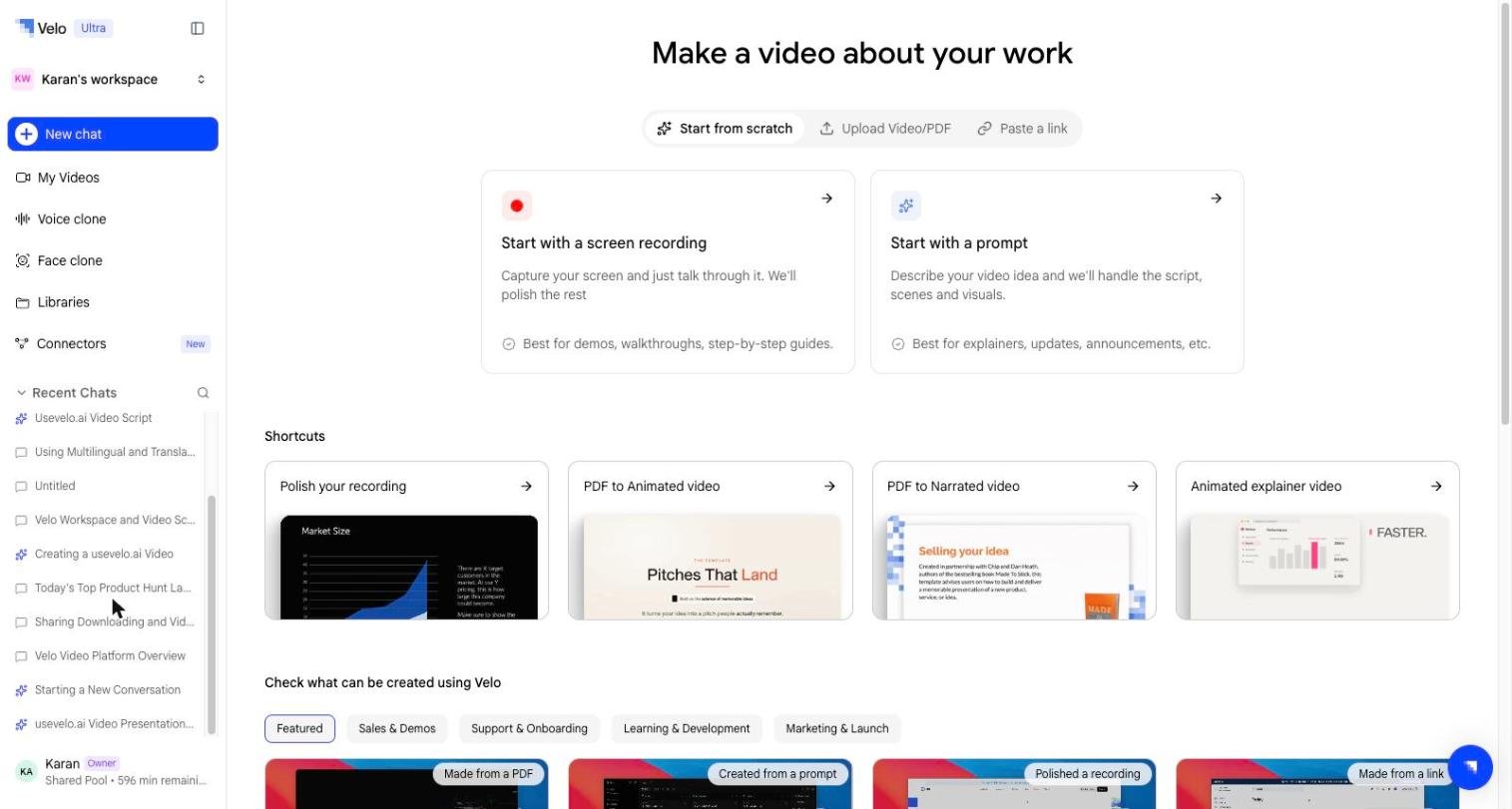
The home screen has three tabs, and each one opens a different way in:- Start from scratch — two cards. Start with a screen recording captures your screen live through the Velo extension. Start with a prompt builds a video from a description, with no source material at all.
- Upload Video/PDF — drop in an MP4, MOV or PDF you already have.
- Paste a link — hand Velo a URL and its browser agent walks the site for you.
Upload Content and Choose a Voice
After choosing to upload a recording, select the desired file from your local storage. Once the upload is confirmed, pick a voice. The picker has three tabs — My Voices (your own clones), Organisation Voices (ones a teammate has promoted for the workspace), and Public Voices, a ready-made set described by tone: Drew (casual, curious and fun), Charon (informative and clear), Kore (firm and confident), Puck (upbeat and friendly), Leda (youthful and bright), Orus (firm and steady), and Aoede (breezy and natural).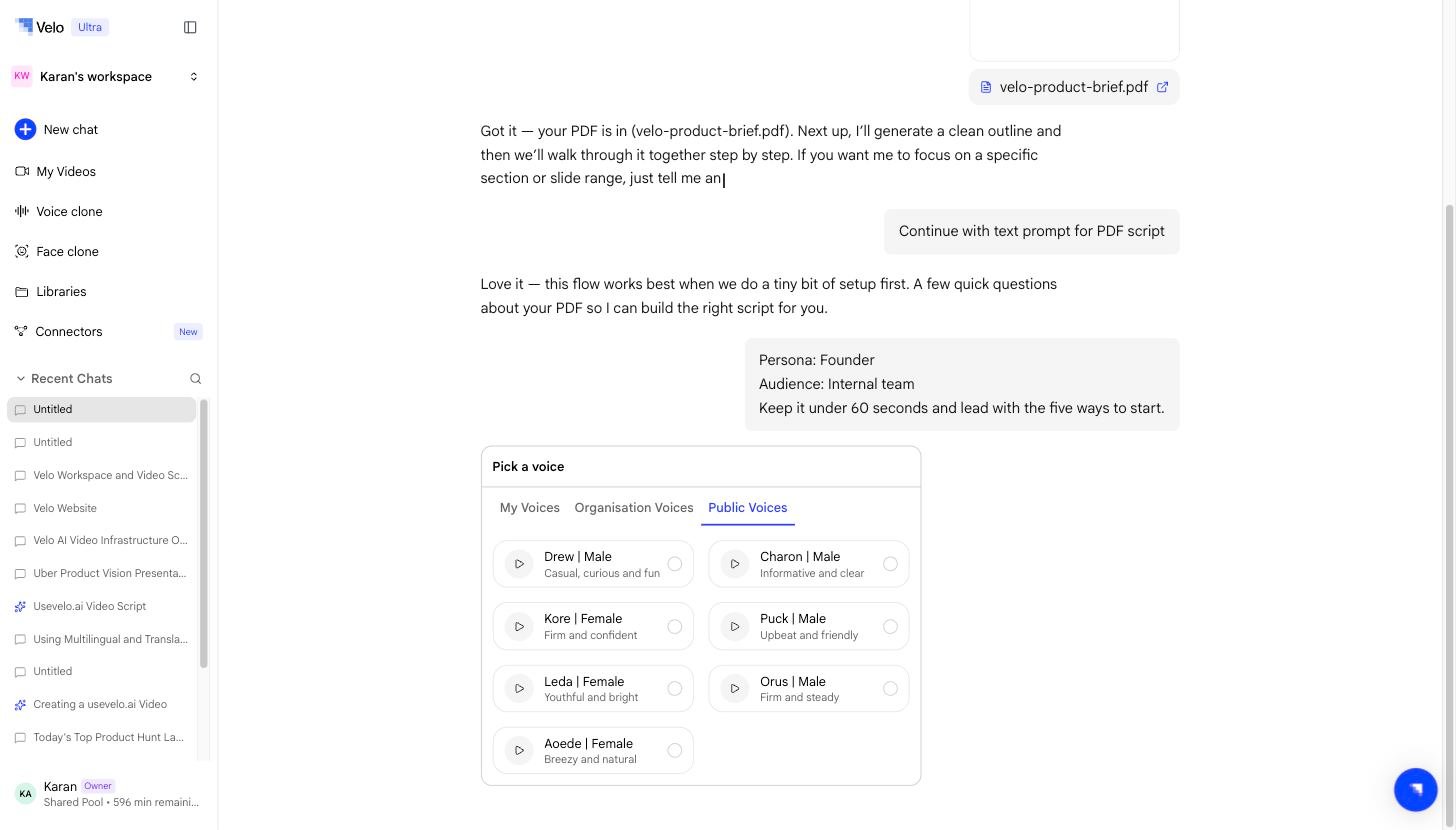
Process and Refine Your Video
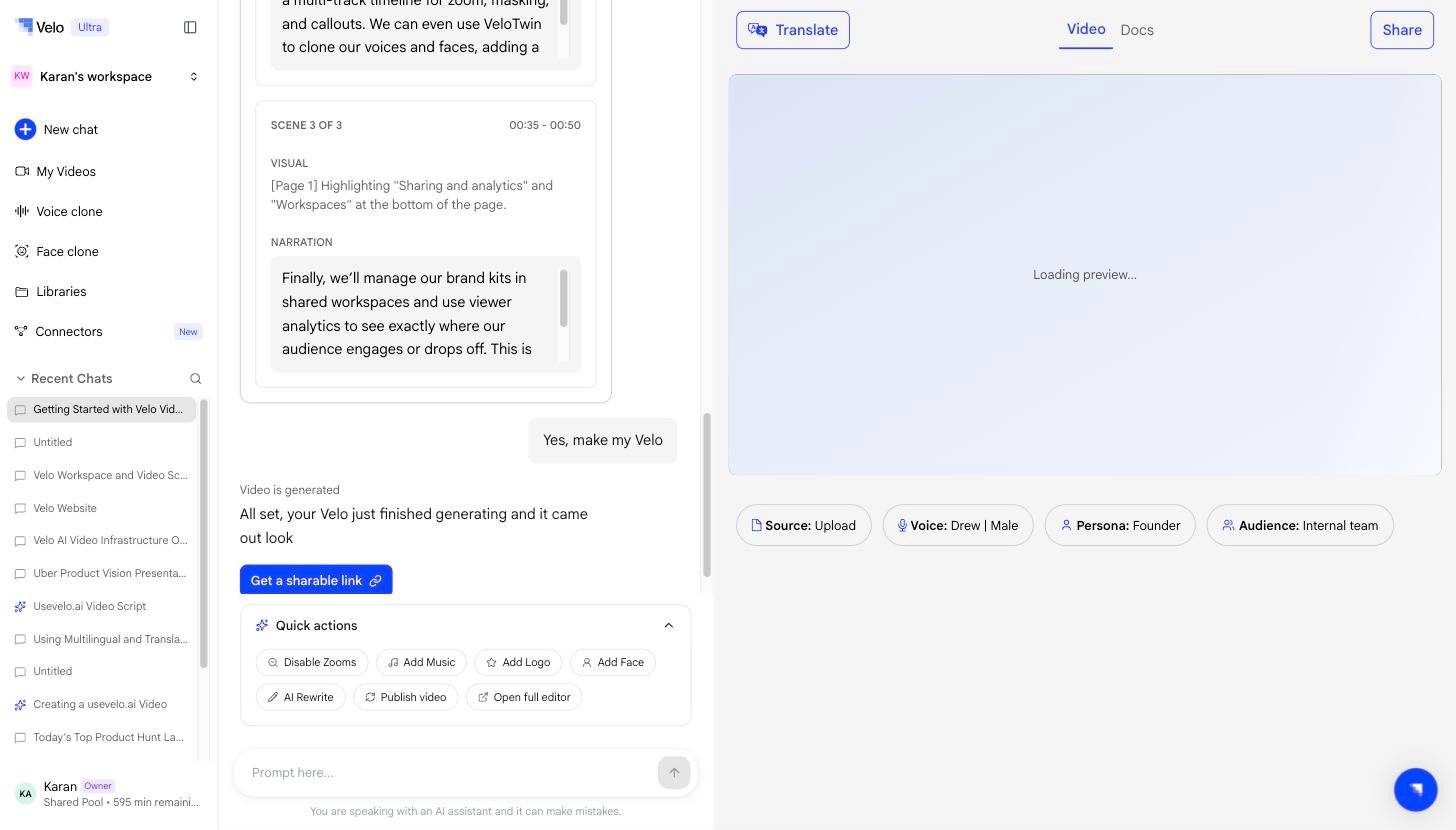
Velo drafts a script first, broken into scene cards you can edit, then builds the video once you select Go, Make my Velo. A progress card tracks the run — creating the voiceover, then matching the new audio to the video — and the preview appears in the right-hand panel when it’s done.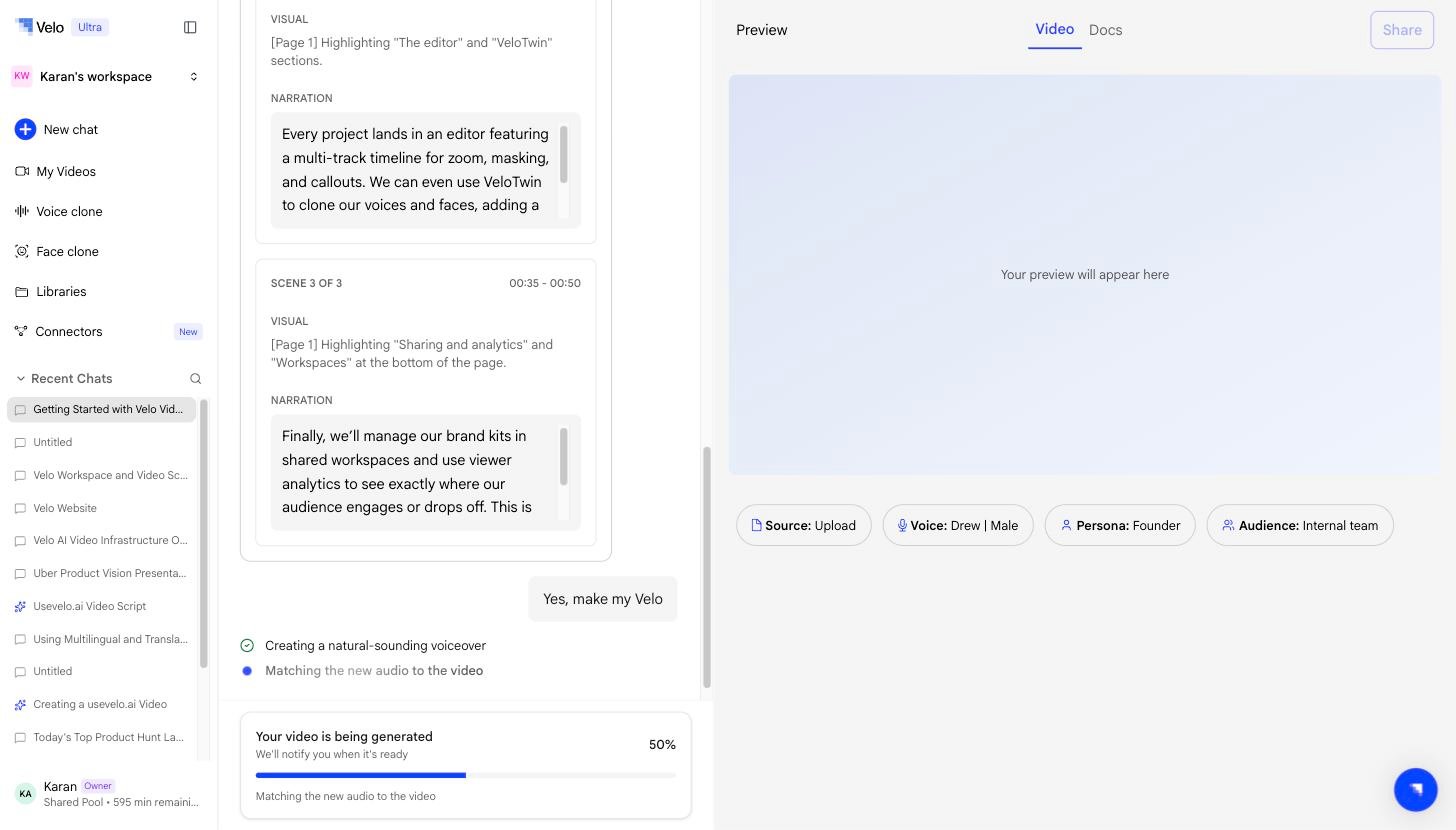
Next steps
Invite your team
Add teammates to your workspace.
Set up your VeloTwin
Create your voice clone and face clone.
Track performance
See who watched your video and for how long.