1. What Is the Timeline?
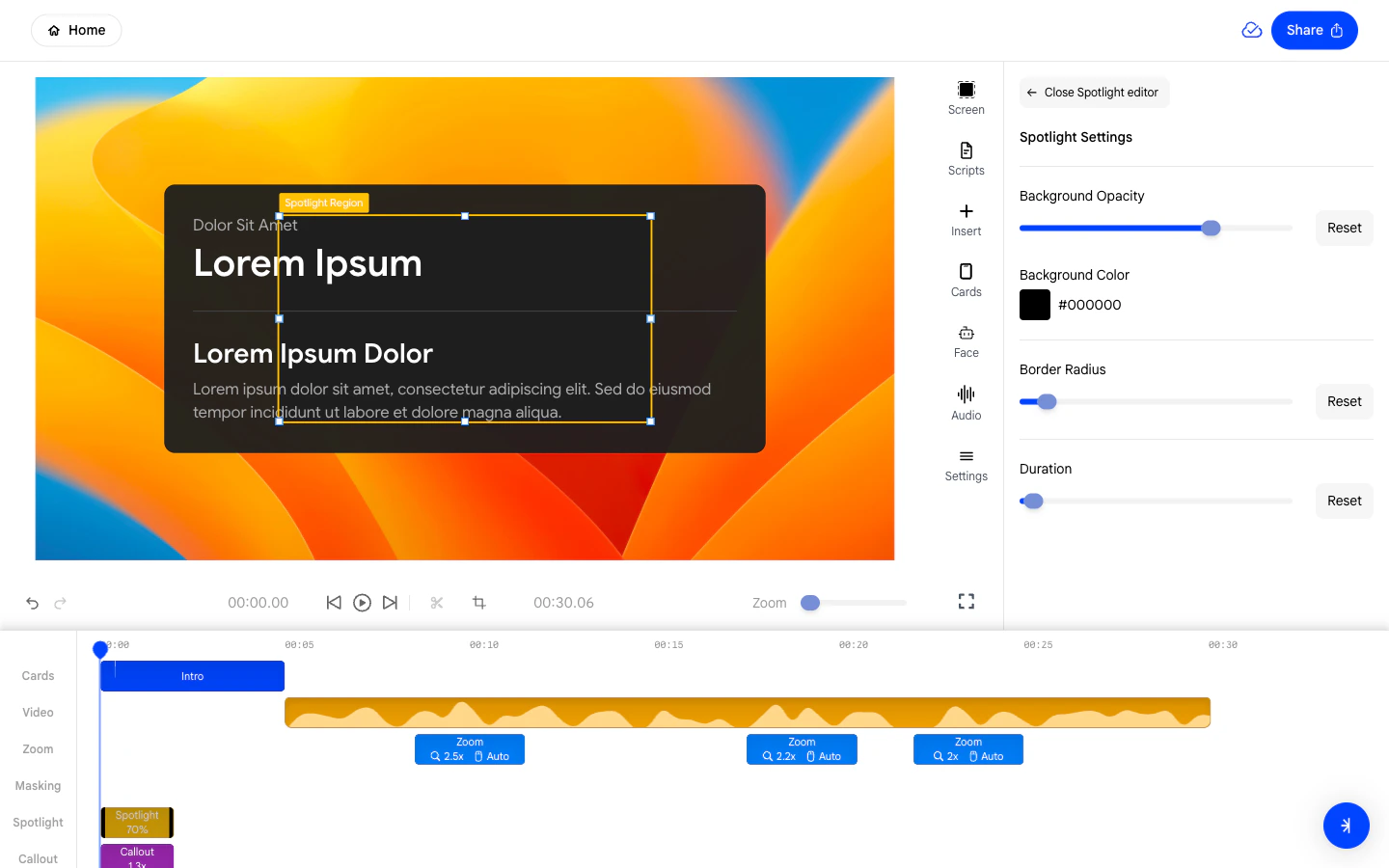
The timeline at the bottom of the editor shows every layer of your video as a horizontal track. As you play the video, the playhead moves from left to right across all tracks simultaneously.- Drag the playhead to jump to any point in the video.
- Use the Zoom slider in the toolbar to expand or compress the timeline horizontally for finer or broader edits.

2. Understanding the Tracks
The timeline is made up of six tracks, each controlling a different layer of your video:- Camera - Purple blocks representing your VeloTwin face overlay segments.
- Video - The orange waveform of your screen recording. This is the base layer of the video.
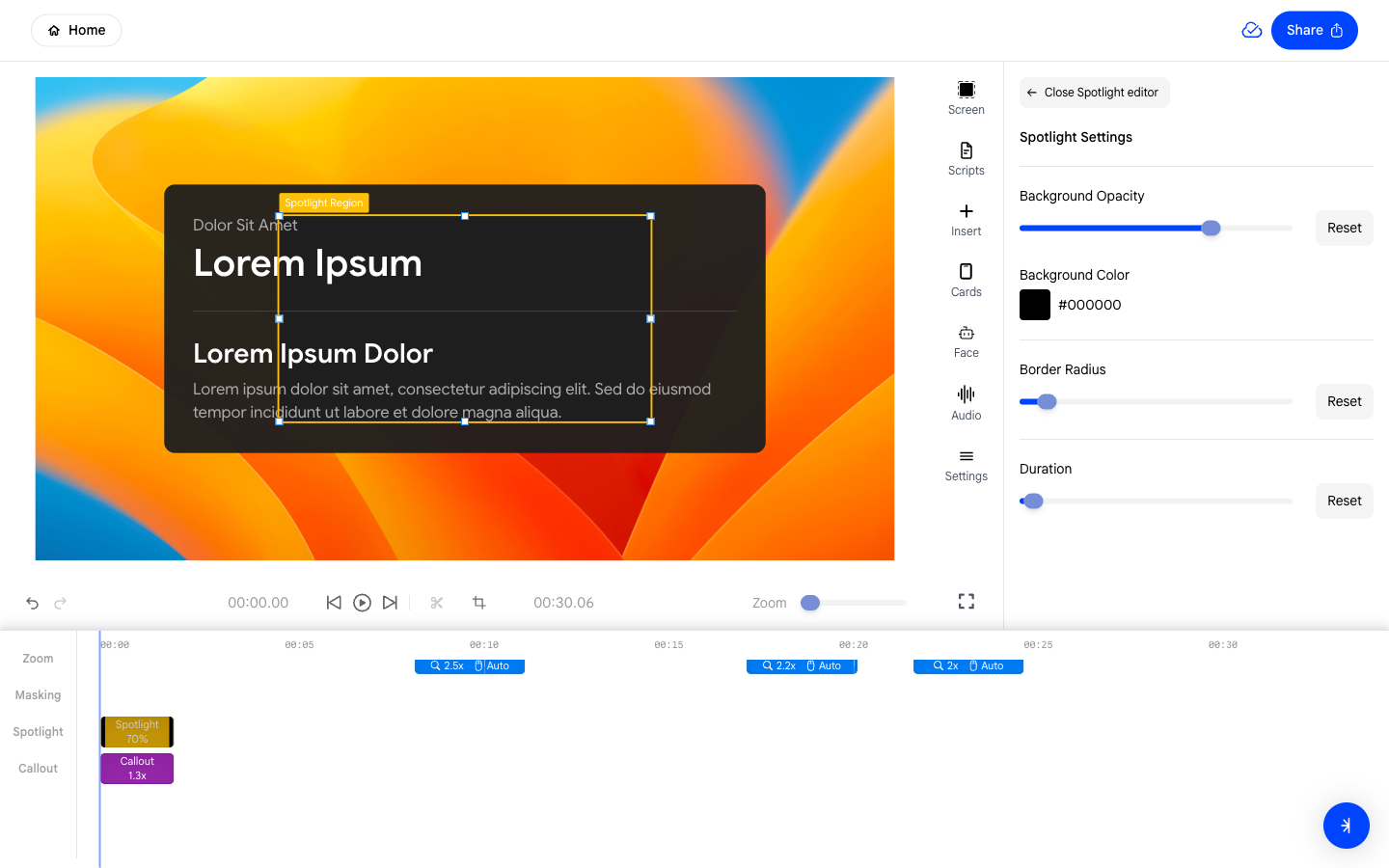
- Zoom - Blue zoom blocks (e.g., 🔍 2x 🎥 Auto) that control when the camera zooms in and at what level.
- Masking - Segments that hide sensitive screen regions such as passwords or private data.
- Spotlight - Amber blocks that dim the surrounding area to focus attention on a highlighted region.
- Callout - Purple blocks that draw a highlighted box around a specific on-screen area.

3. Selecting and Editing a Block
Click any block in the timeline to select it. When selected:- Its settings appear in the right sidebar.
- You can drag the block left or right to change when it starts.
- Drag the edges of the block to extend or shorten its duration.

4. Adding New Blocks
New blocks are added to the timeline when you use the Insert panel to add effects or focus tools. For example:- Clicking Zoom in Insert adds a new zoom block at the playhead position in the Zoom track.
- Clicking Callout adds a new callout block in the Callout track.
- Clicking Spotlight adds a new spotlight block in the Spotlight track.
5. Navigating Long Videos
For longer recordings, use the following techniques to navigate the timeline efficiently:- Zoom in on the timeline using the Zoom slider in the toolbar to see shorter segments in more detail.
- Zoom out to get a bird’s-eye view of the full recording.
- Scrub by clicking and dragging the playhead to the desired position.