

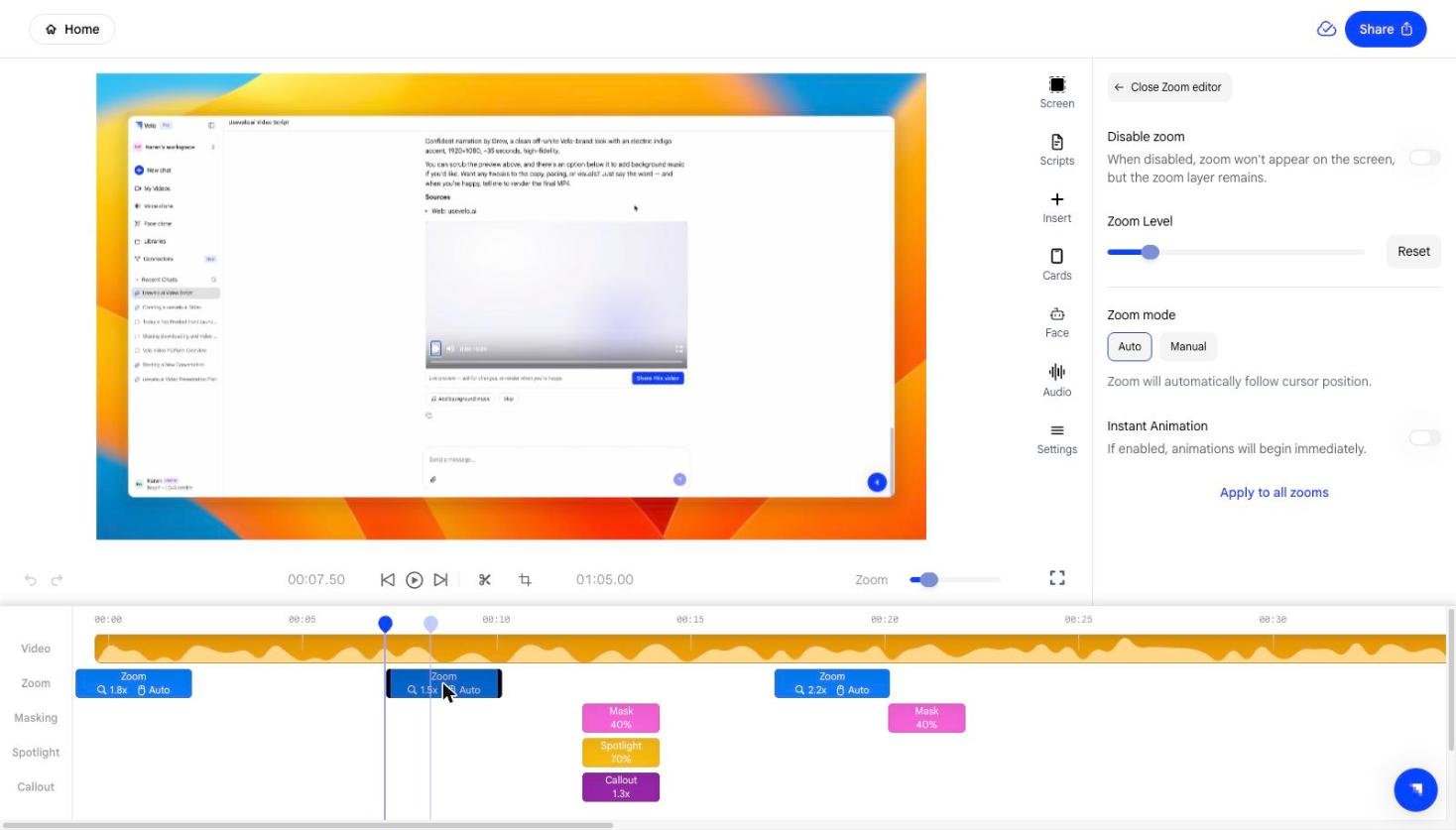
1. Adding Automatic Zooms to a video Video
Velo adds automatically generated new zoom points once the video has been synthesised. However, you can control the behavior of existing zooms using Zoom mode. In Auto mode, the camera will automatically move to maintain visibility of your mouse cursor as it navigates the page.2. Zoom Level Adjustment
Within the Zoom editor, use the Zoom Level slider to adjust how closely the camera focuses on your screen.- You can set a specific zoom percentage (e.g., 50%) to ensure clear visibility.
- If you want to return to the standard view, click the Reset button next to the slider.
3. Manual Zoom Functionality on Velo
You can also add zooms manually by clicking on the zoom in effects section or by clicking on the zoom timeline.- This allows you to highlight a specific UI element or section of the page, even if the cursor moves elsewhere.
- You can select the exact portion of the frame you want to zoom into directly on the preview window.
4. Adjusting Zoom Effects in Velo
You have several options to customize how transitions appear:- Instant Animation: Toggle this switch to make the camera jump immediately to the zoomed-in view rather than using a smooth transition.
- Disable Zoom: If you want to keep your zoom settings but prevent them from appearing in the final video, enable the Disable zoom toggle. The zoom layer will remain saved, but the camera will stay at a standard distance.