

Changing the format
Open the Screen panel from the right sidebar and find Output Format.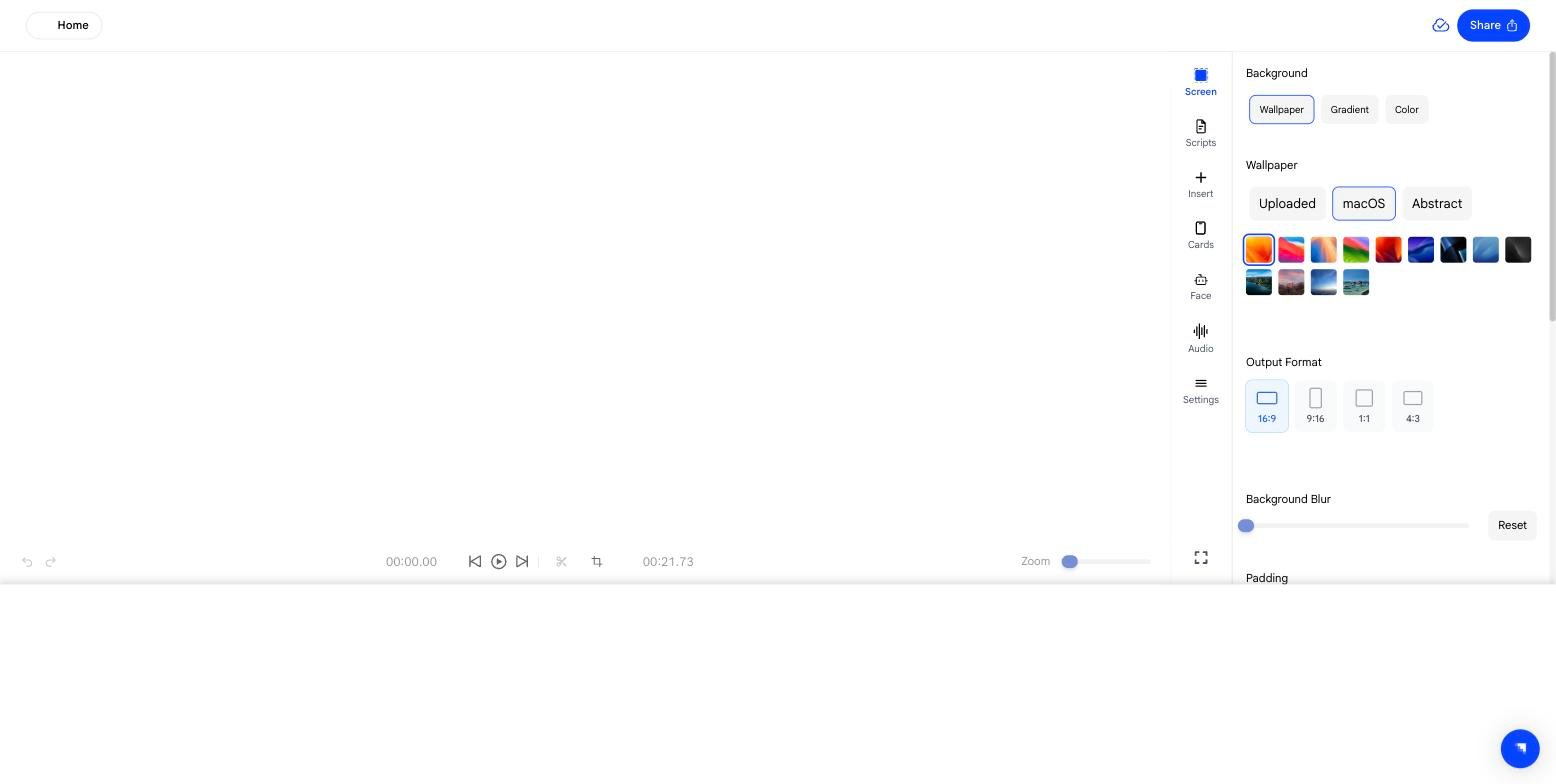
The canvas updates as soon as you select a format, so you can see how the recording sits inside the new frame before rendering.
Framing after a format change
Changing the shape changes how much of your recording fits. The other controls in the Screen panel are what you use to recompose it:- Background — wallpaper, gradient, or solid colour fills the space around the recording
- Background Blur and Padding — adjust how tightly the recording sits in the frame