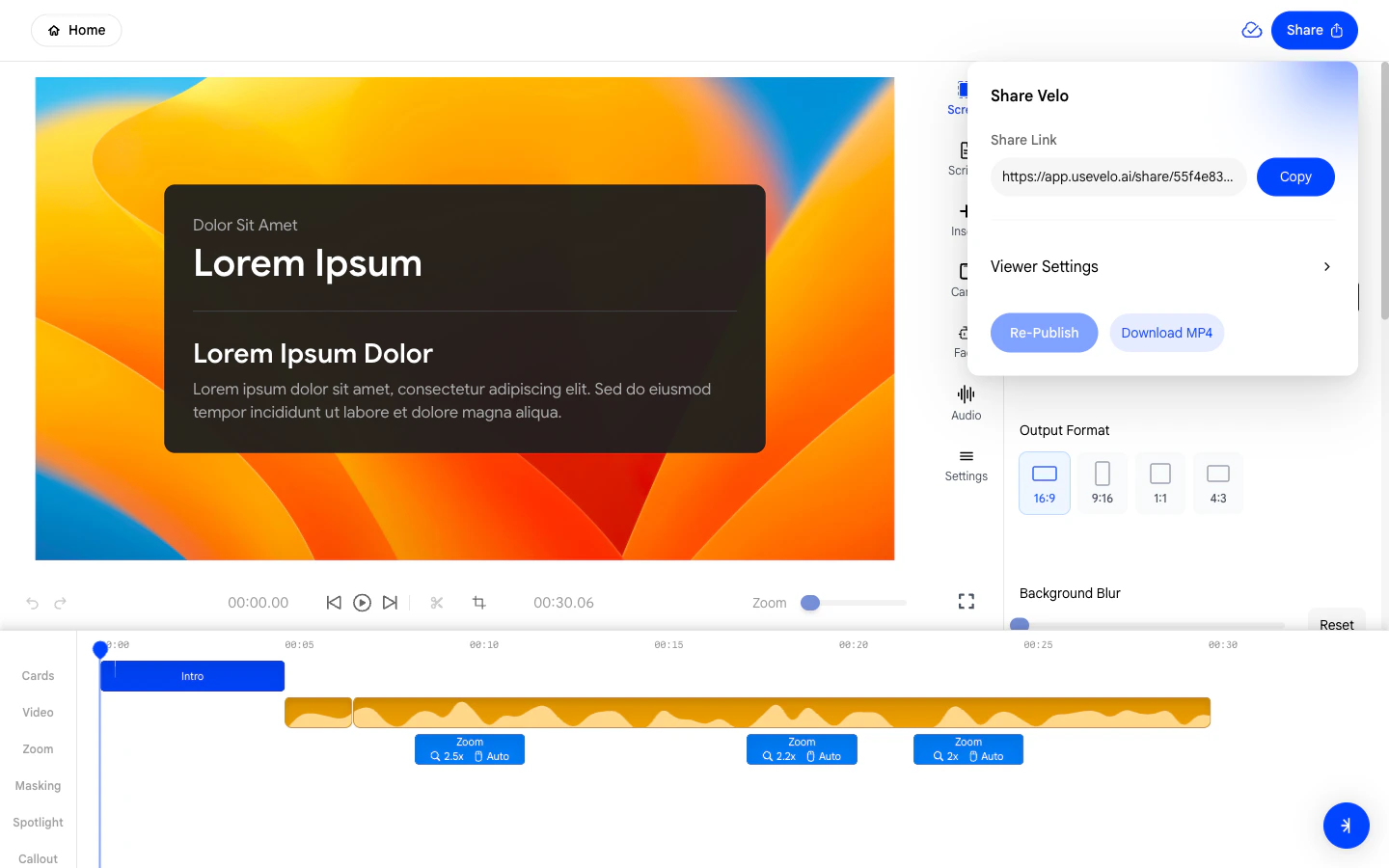
1. Where to Find the Publish Button
The Publish button is accessible from two places:- The editor page - in the top-right area of the editor while you are still making changes.
- The preview page - after you have finished editing and are reviewing the final result.
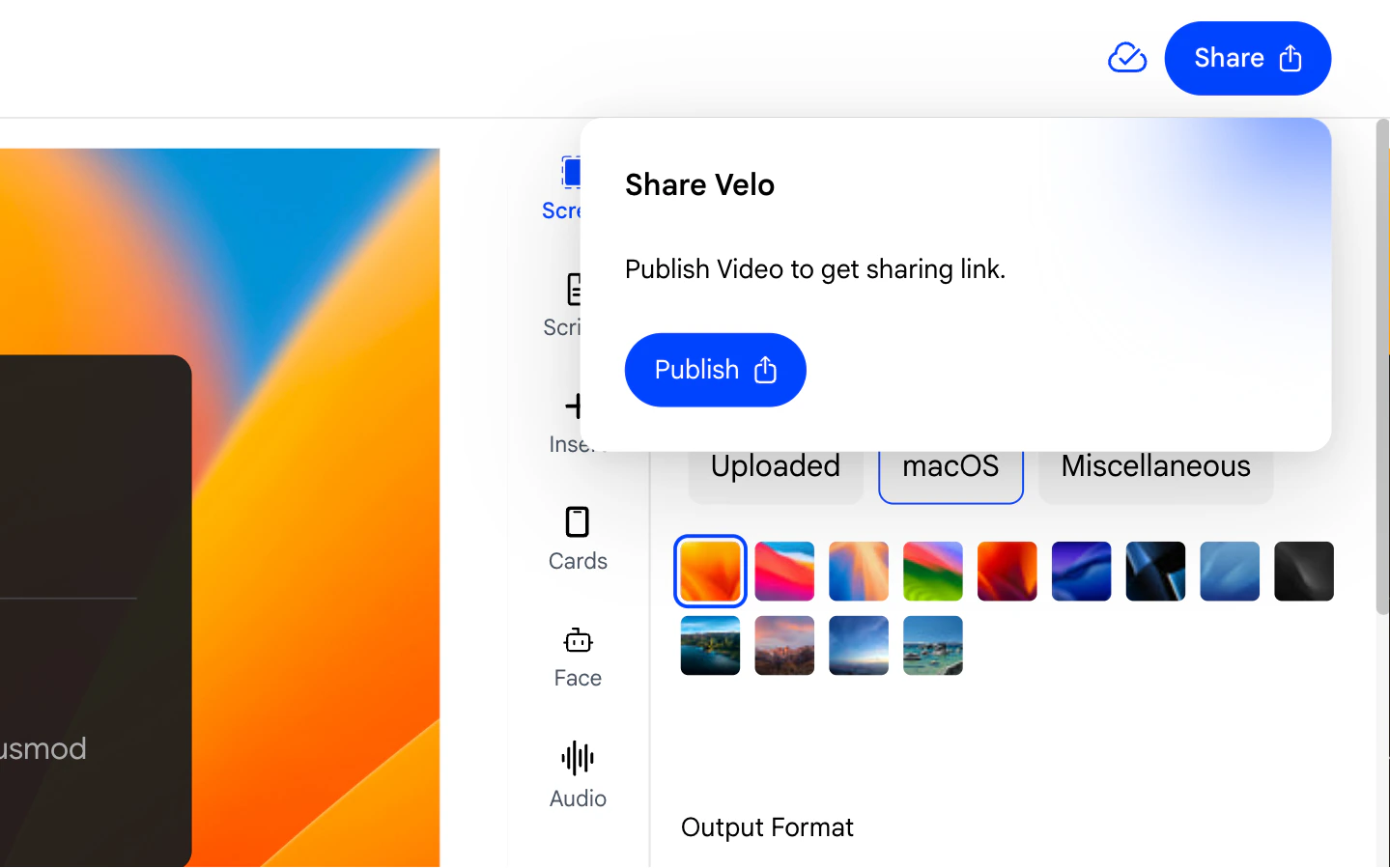
2. What Happens When You Click Publish
After clicking Publish, Velo begins rendering your video. This includes compositing all layers - your screen recording, VeloTwin face, background, effects, and audio - into a single output file.- Rendering takes a moment depending on the length of your video.
- Do not close the tab while rendering is in progress.
- A progress indicator will show you the current status.
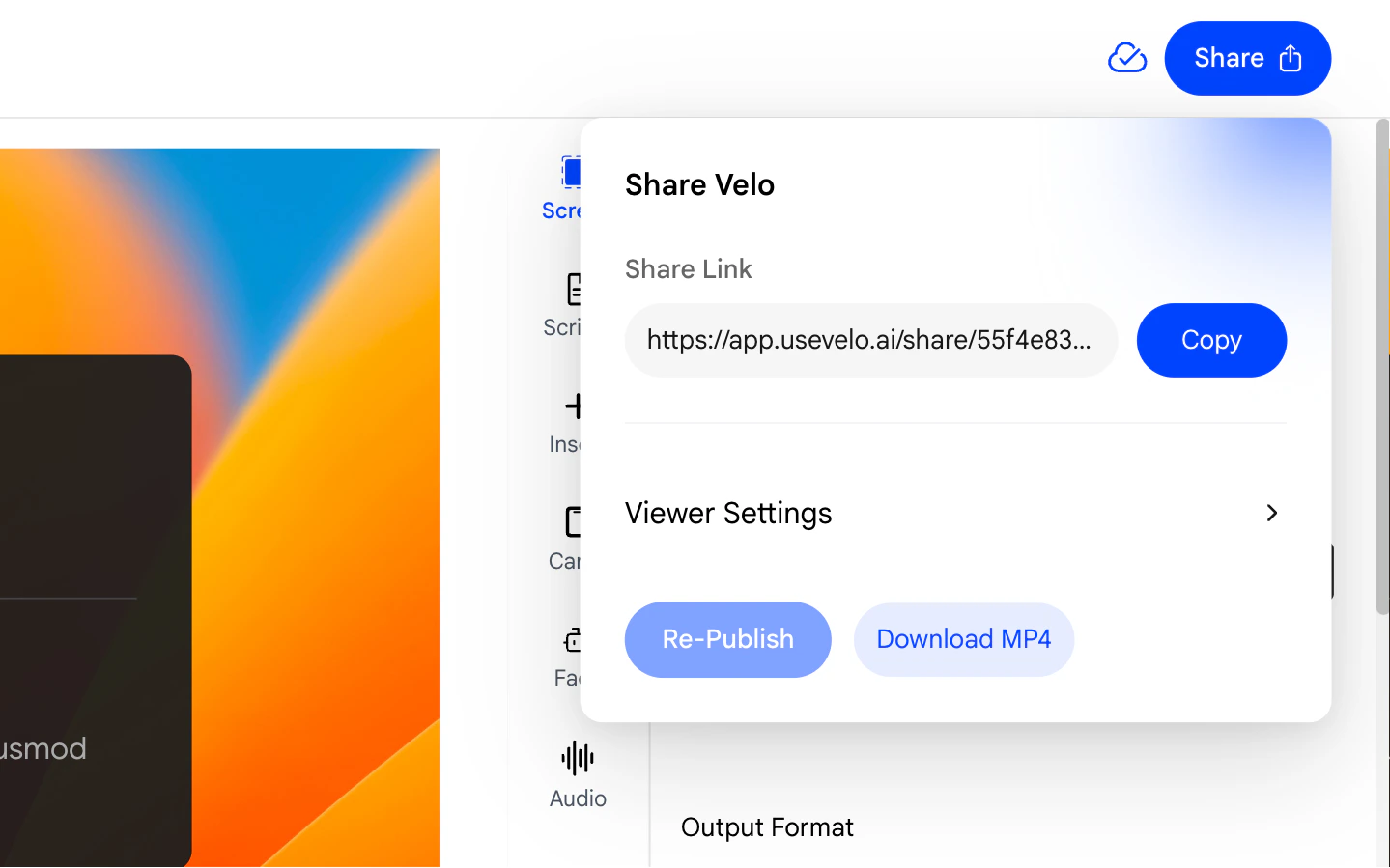
3. Getting Your Shareable Link
Once rendering completes successfully, your Velo is published and a shareable link becomes available.- Copy the link and send it directly to your audience.
- Recipients can watch the Velo in their browser without needing to install anything.
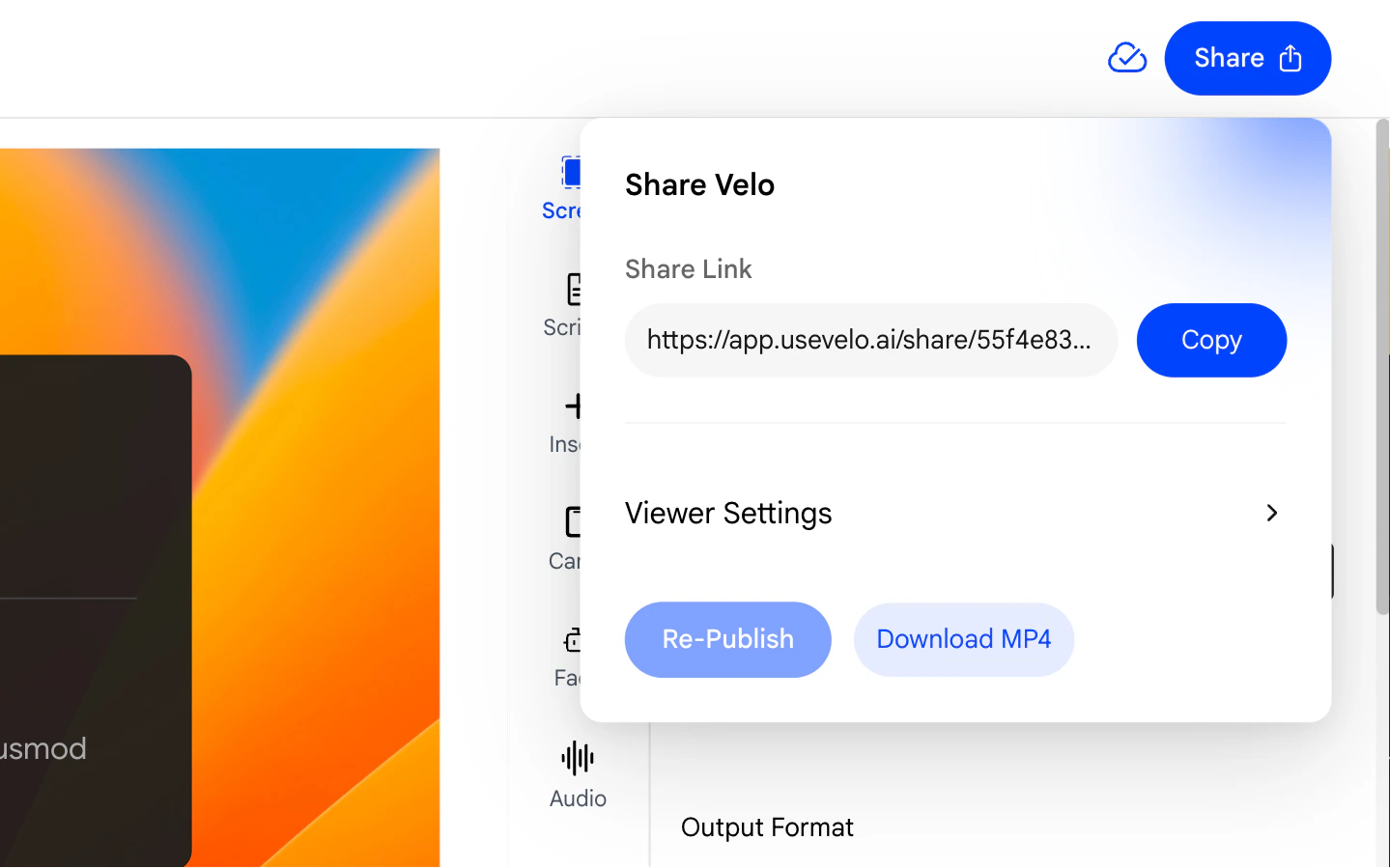
4. Link Settings
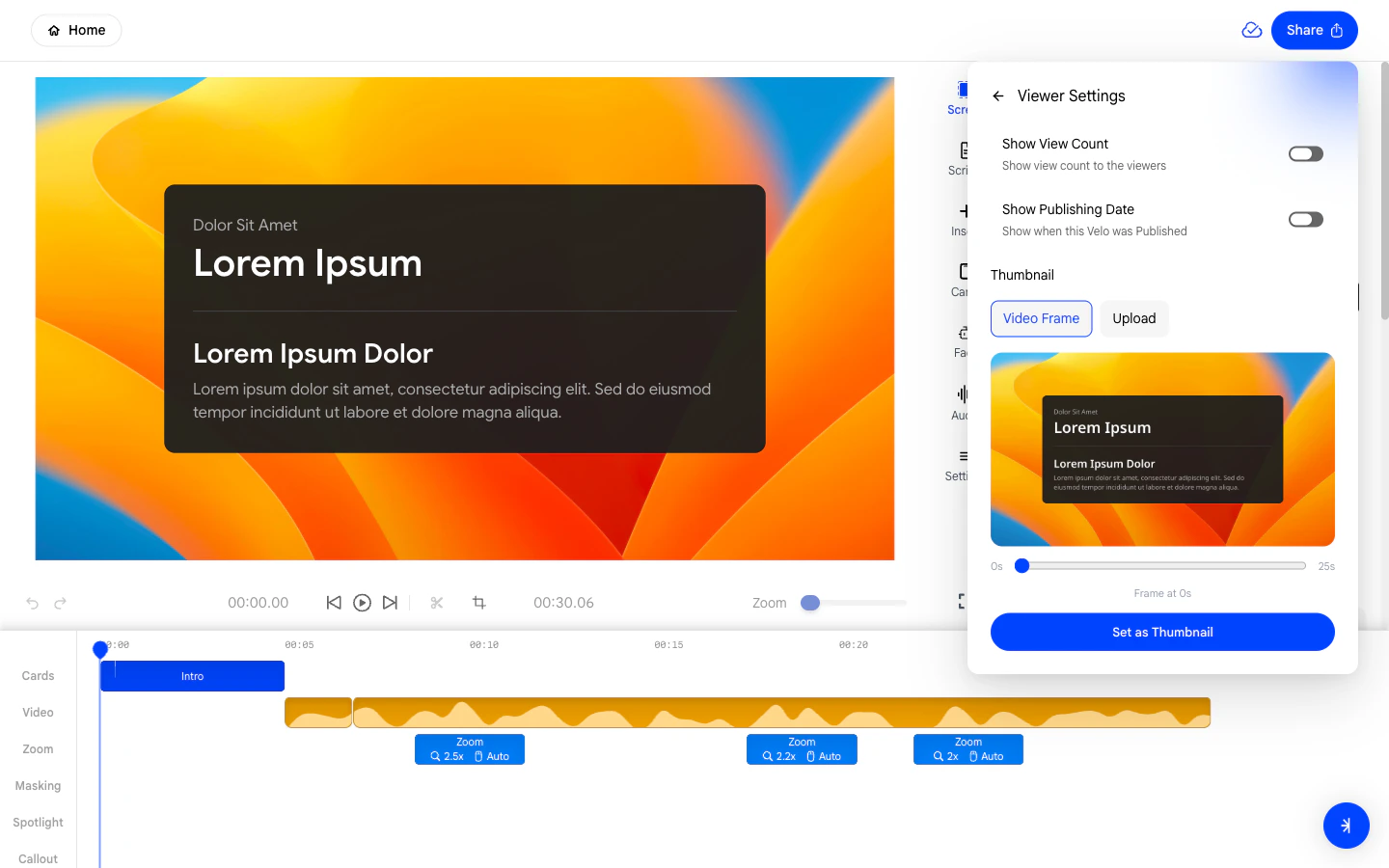
After publishing, you will see link settings alongside your shareable URL. These let you control how your Velo is accessed and presented to viewers.- Adjust settings such as access controls, visibility, and display preferences directly from the share panel.
5. What If Publishing Fails?
Occasionally the video upload step may fail (for example, due to a network issue). If this happens:- Velo will show a download-only state instead of a shareable link.
- You can still download the rendered video file to your computer and share it manually.
- See the Download page for instructions.