Use this method when you want to record your video in real time. You walk through it, Velo captures everything - screen, cursor, and audio - and turns it into a polished Velo. Best for: Web apps, desktop tools, or anything live that you can navigate in your device. Requires: Chrome Extension installed.

How it works

1

Start a recording

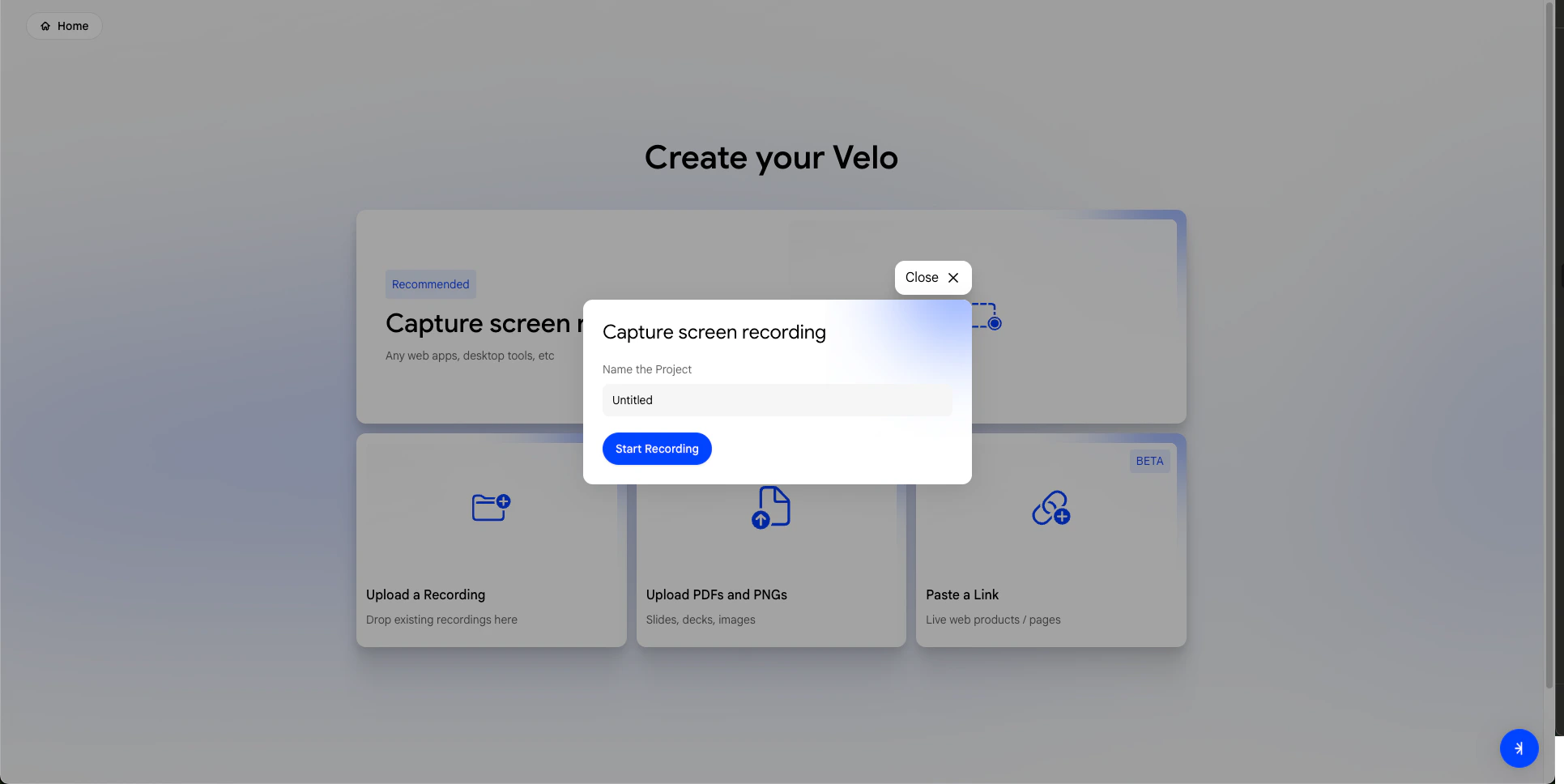
On the dashboard click Generate a Velo, then select Capture Screen Recording. Velo will launch your screen recording via the Chrome Extension.Start a recording
2

Record your screen

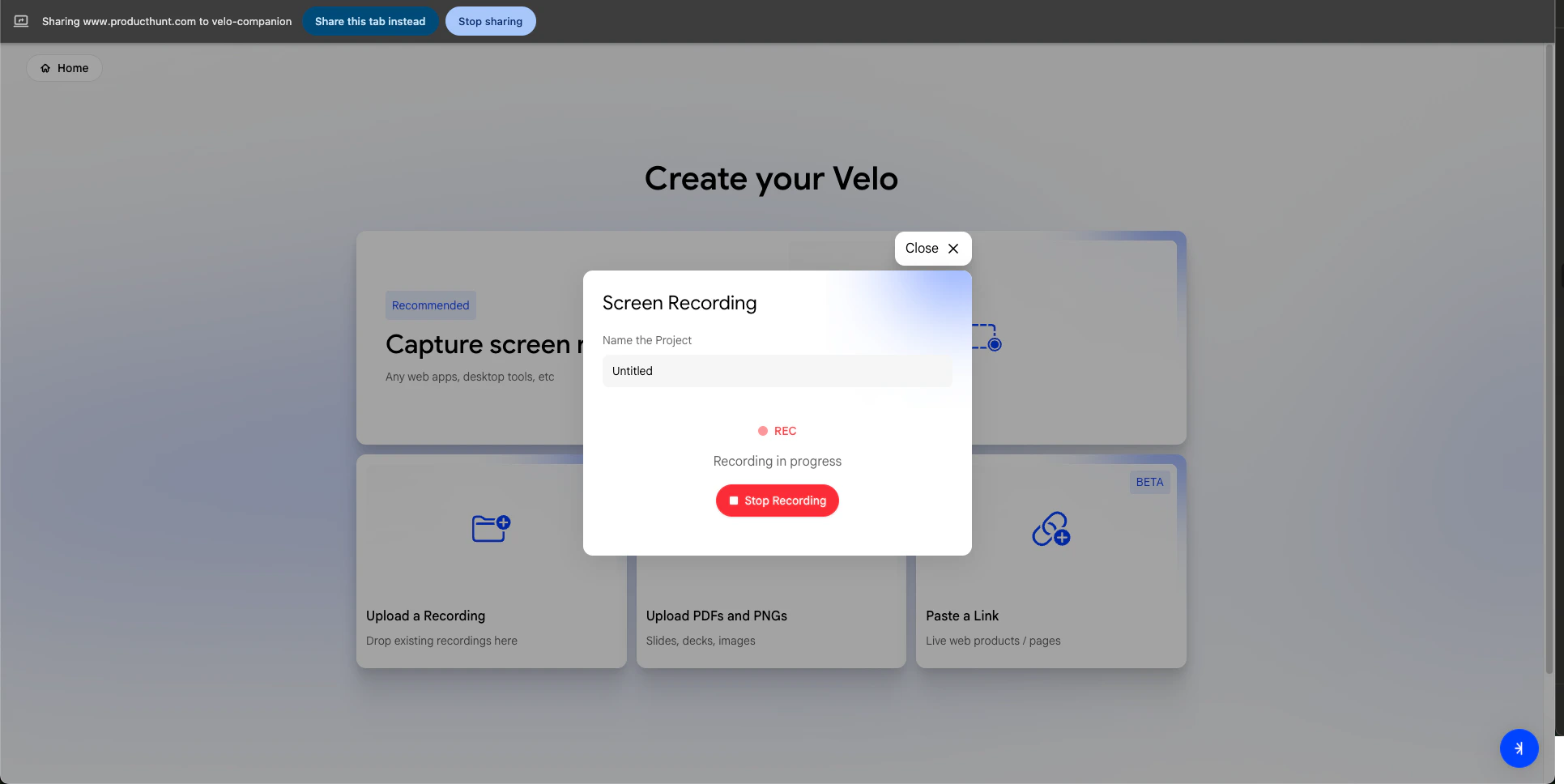
Walk through your product naturally. Speak out loud as you go - Velo captures your audio and on-screen actions together.Recording in progress
3

Select your voice

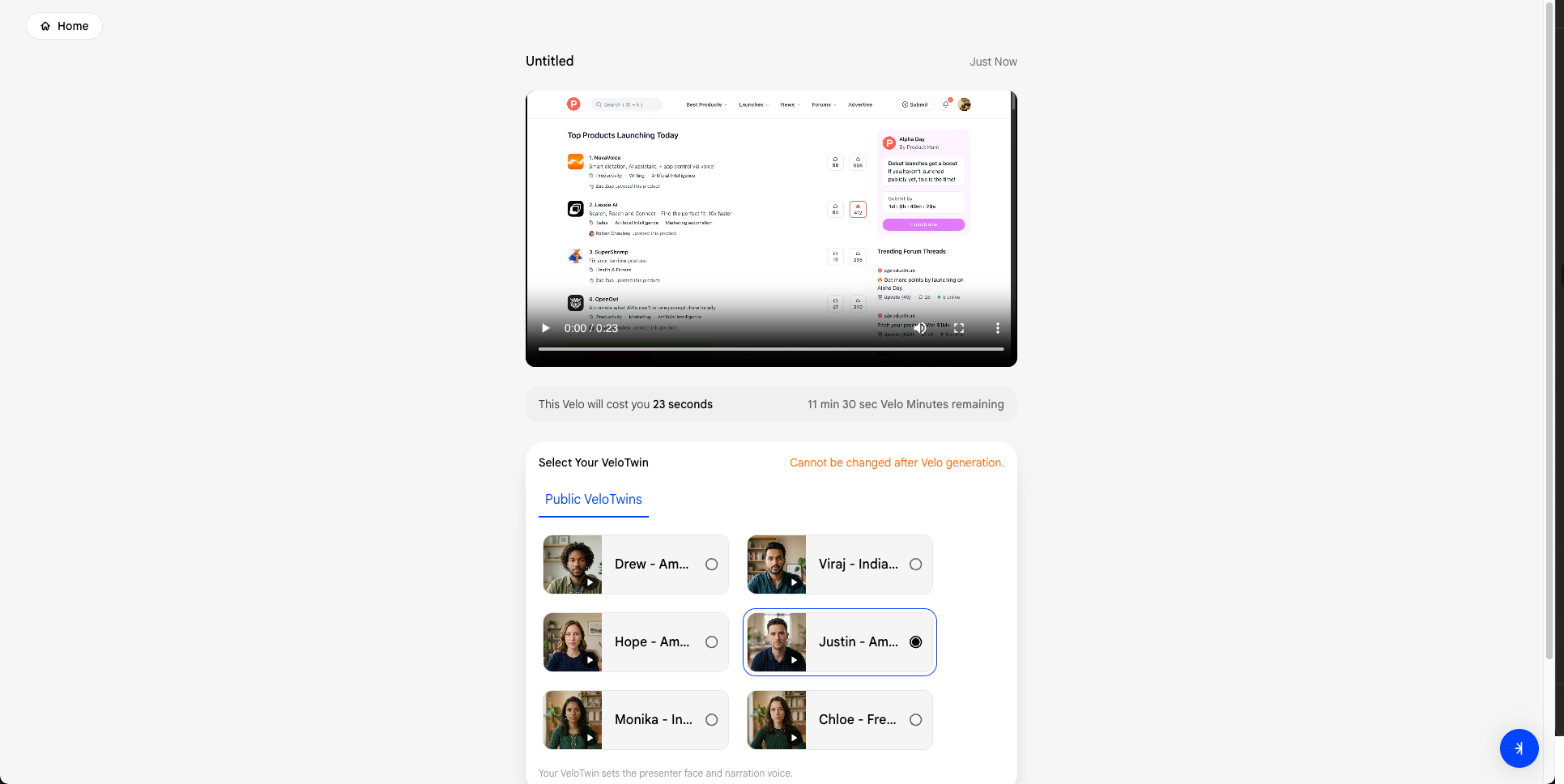
Once recording stops, preview your clip and choose a VeloTwin to narrate your Velo.Select voice
4

Review and edit your script

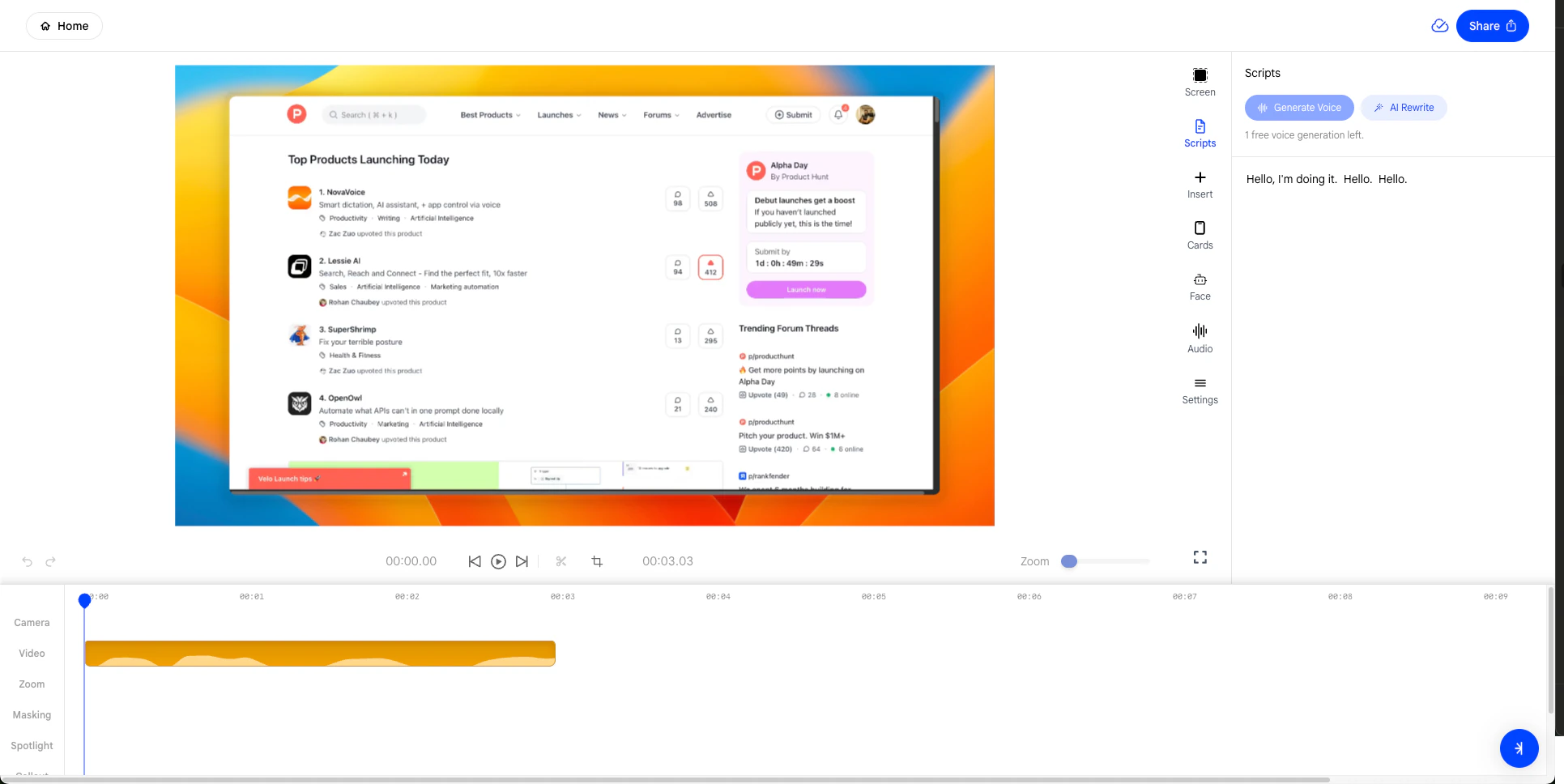
The editor opens automatically. Open the Scripts panel on the right sidebar to review the generated narration. Edit any line manually or use AI Rewrite to refine it.Script review in editor Scripts panel

Full guide: Capture Screen Recording

Read the complete step-by-step guide for this method.