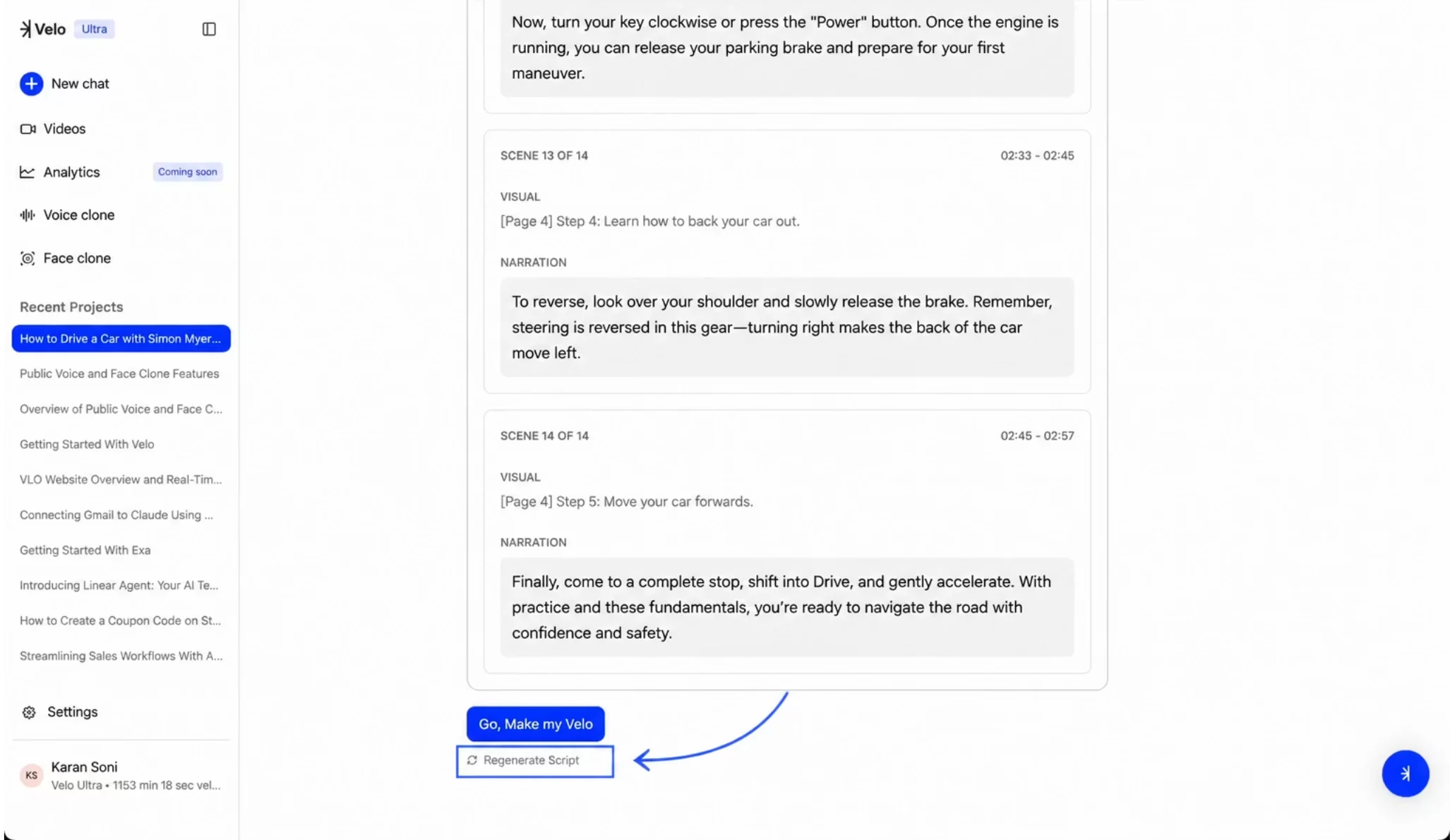
Review Scene Details
Scroll through the script cards to see the breakdown of your project. Each card represents a scene and contains two primary components: Visual describes the imagery or text that will appear on screen, and Narration contains the exact script that will be spoken by the selected voice. Each card also displays a timestamp range to indicate the duration of that specific segment.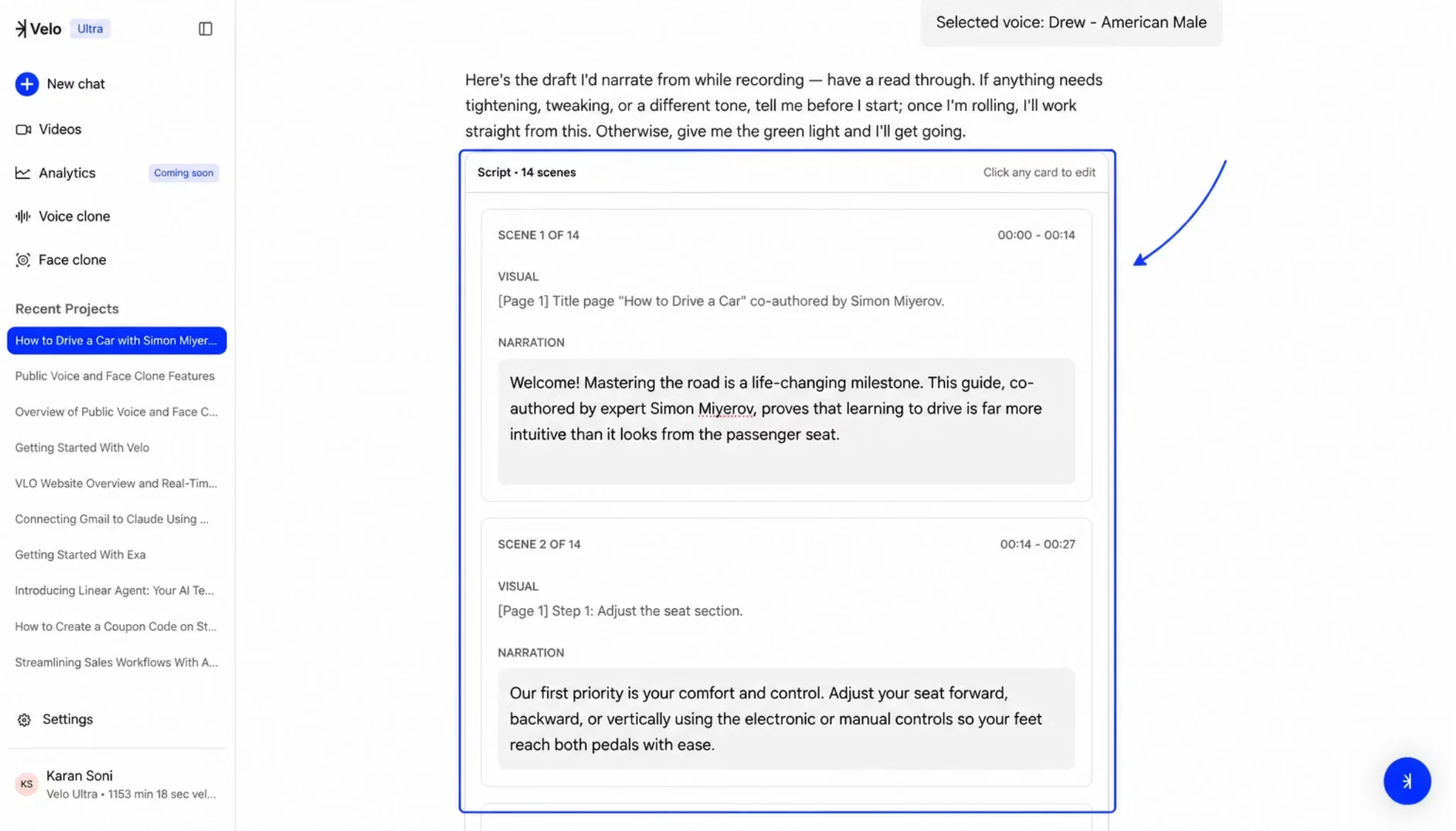
Adjust the Content
If the generated script does not meet your requirements, you can rewrite it entirely rather than editing individual cards. Step 1: Navigate to the bottom of the script list. Step 2: Select Regenerate Script. Step 3: Provide specific feedback in the prompt box to guide the AI on the required changes, such as adjusting the tone or tightening the dialogue.