Modify Scene Narration
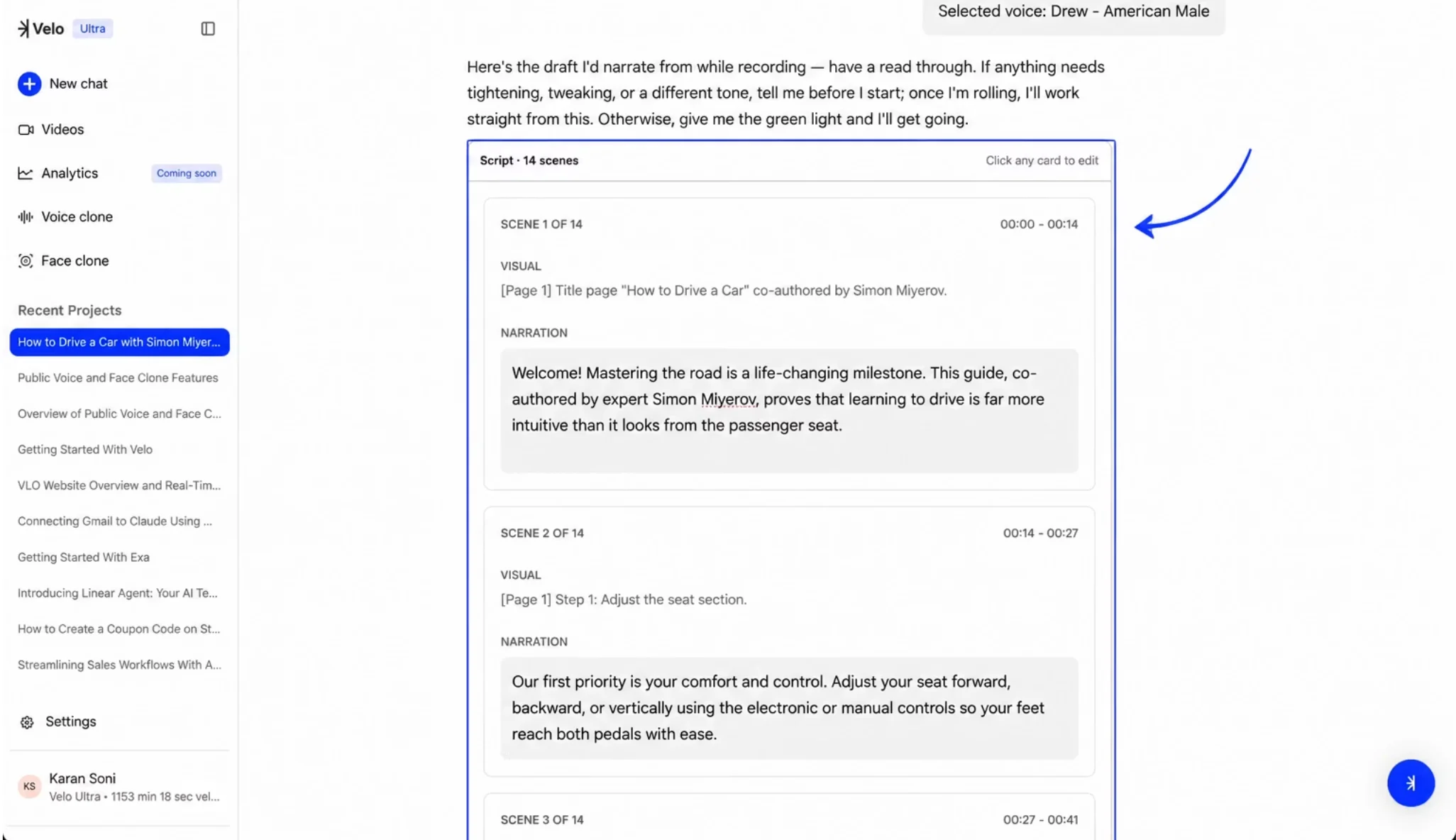
Step 1: Navigate to the Script section and select the scene card you wish to modify. Step 2: Click directly into the NARRATION text box to begin typing. Step 3: Add or remove text as needed. A small number in the bottom-right corner of the text area will update to reflect your changes relative to the character limit.Manage Character Limits
To maintain video sync integrity, Velo enforces a strict character limit for edits. You can increase or decrease the original character count by a maximum of 20%. For example, if a scene is generated with 100 characters, you can adjust it to any length between 80 and 120 characters. If you exceed these limits, the character counter will display a red negative value. In this state, changes cannot be saved — you must either trim the text or use the Reset button to return to the original version.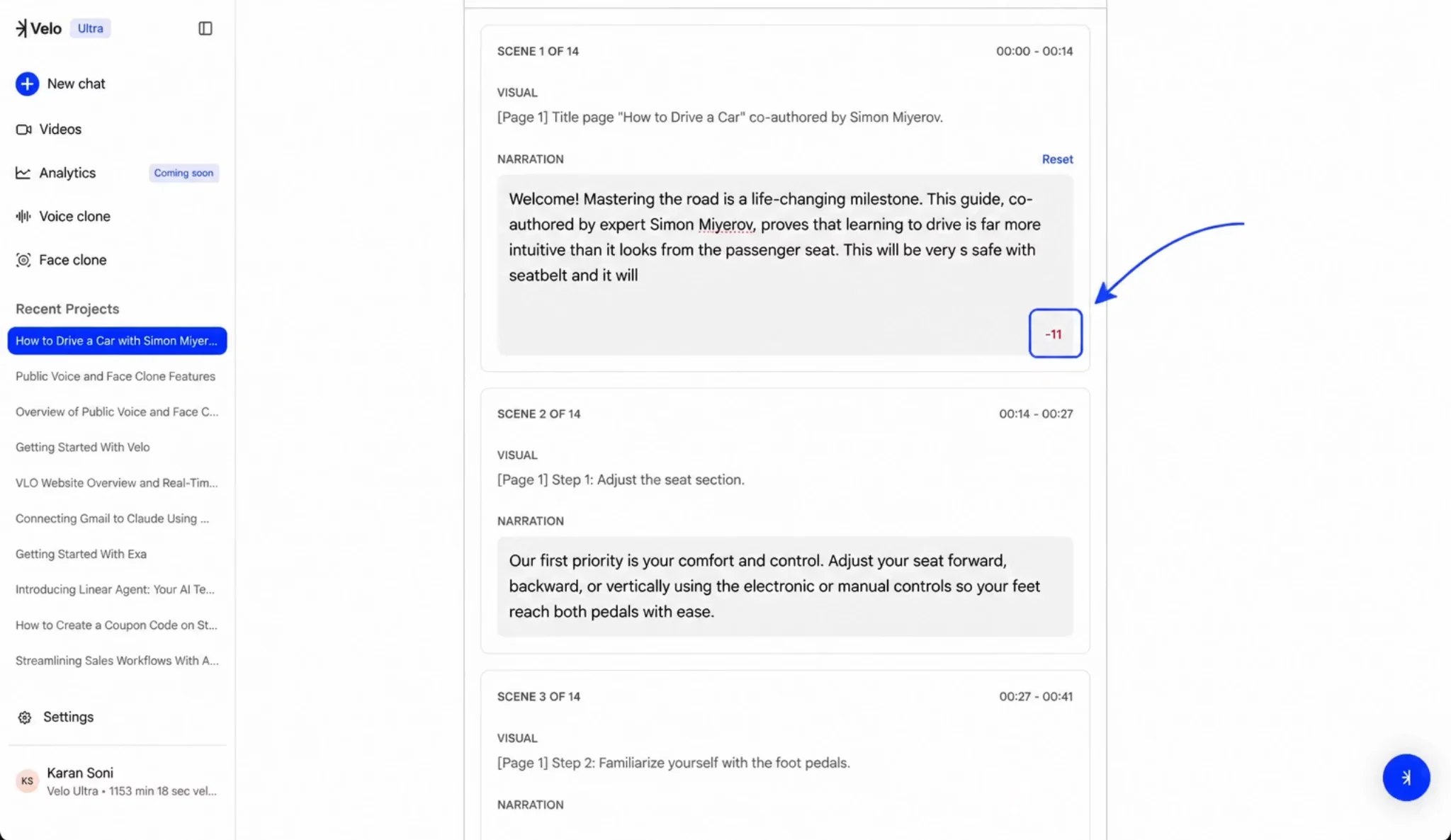
Save Your Changes
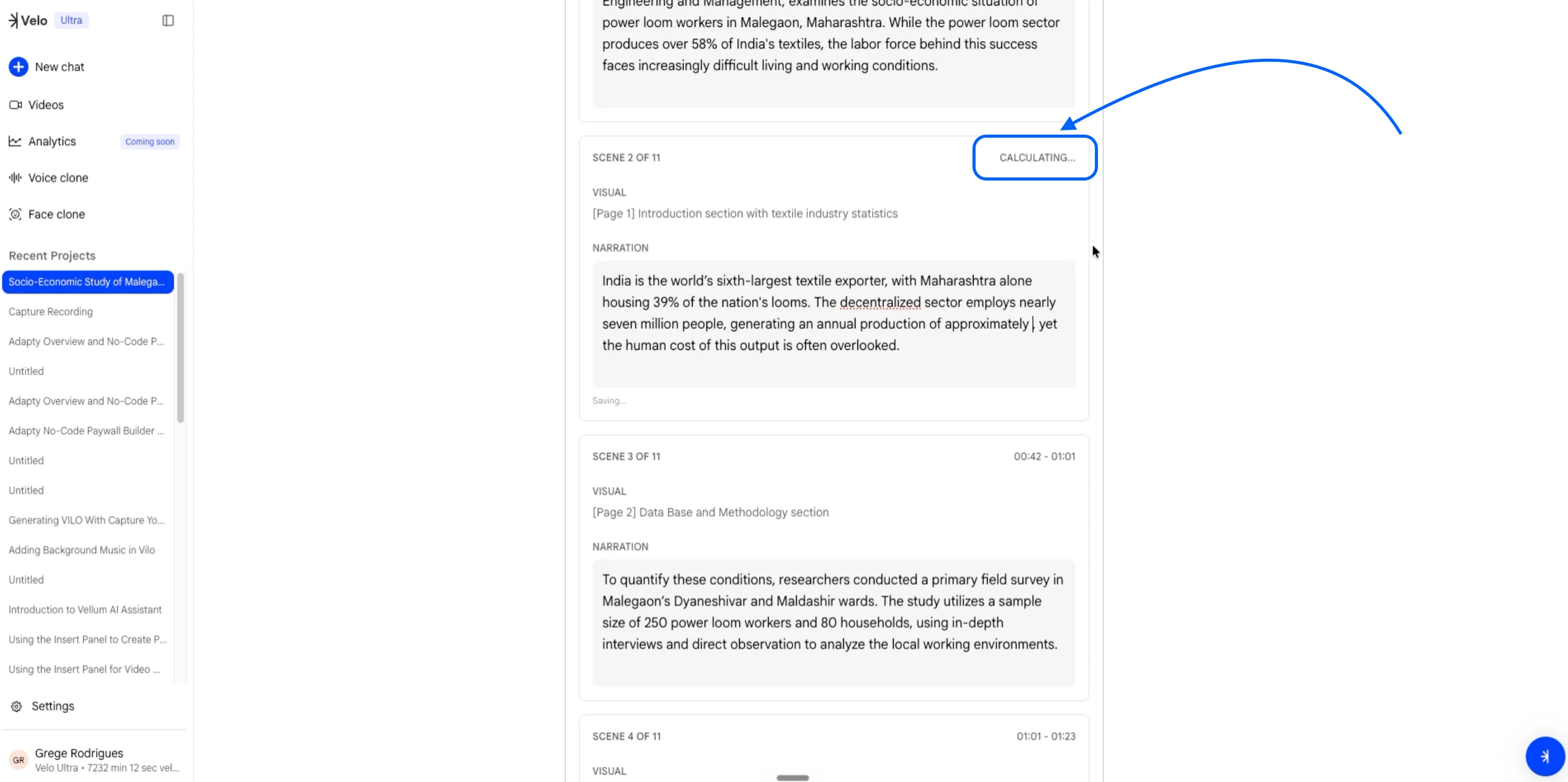
The editor handles synchronization and storage in real-time. Once you make an edit within the allowed character range, the system will display a CALCULATING… status in the top right of the card. Your changes are automatically saved once the calculation is complete - no manual save needed.