1. Updating the Title and Description for your Velo
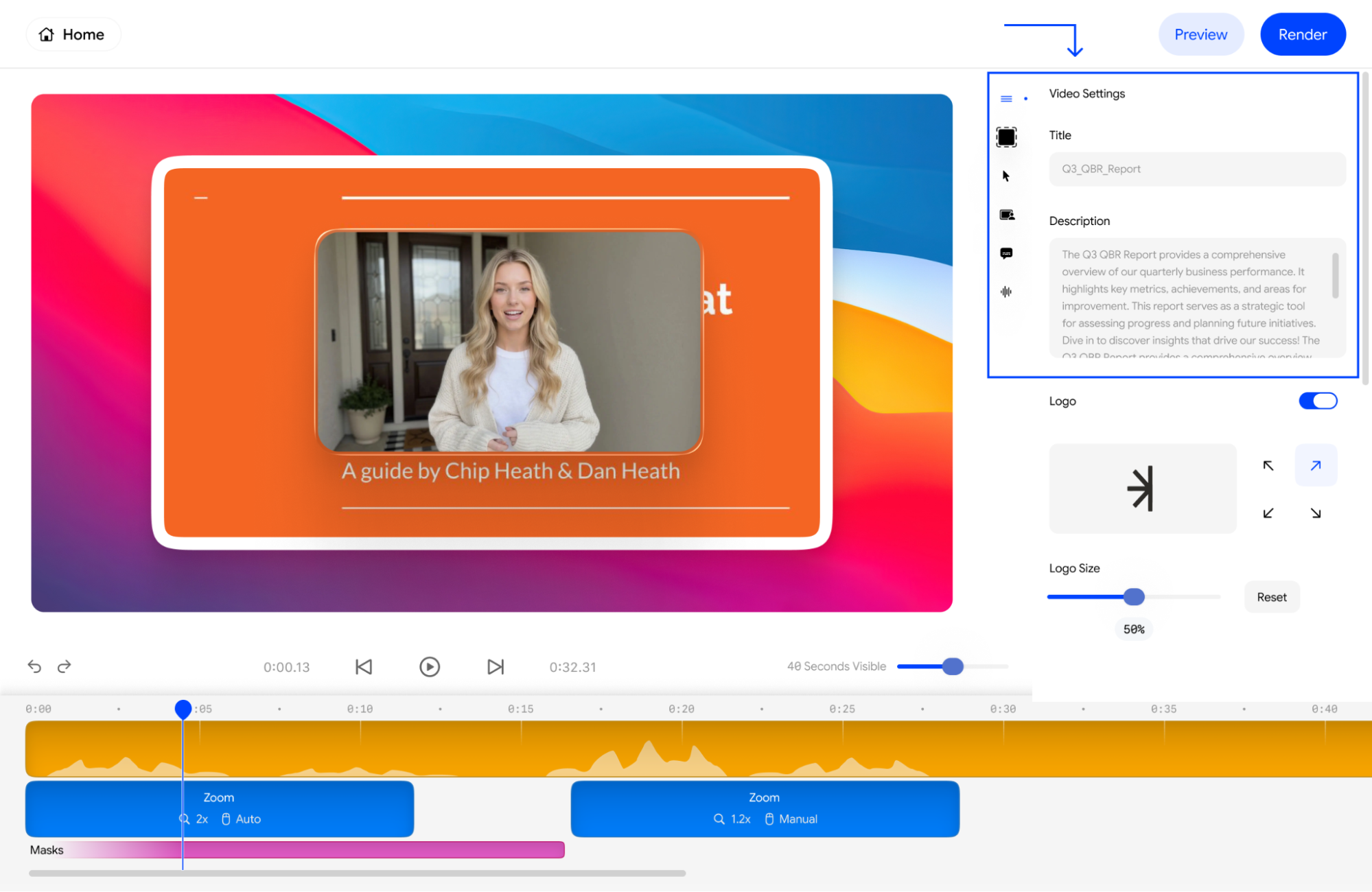
You can update your project’s identity directly in the Video Settings:- Title: Click the text box under Title to rename your project (e.g., “Q3_QBR_Report”).
- Description: Use the Description field to provide a detailed overview of the video’s content. This metadata helps viewers understand the context before they hit play.
2. Incorporating Your Company Logo into a Video
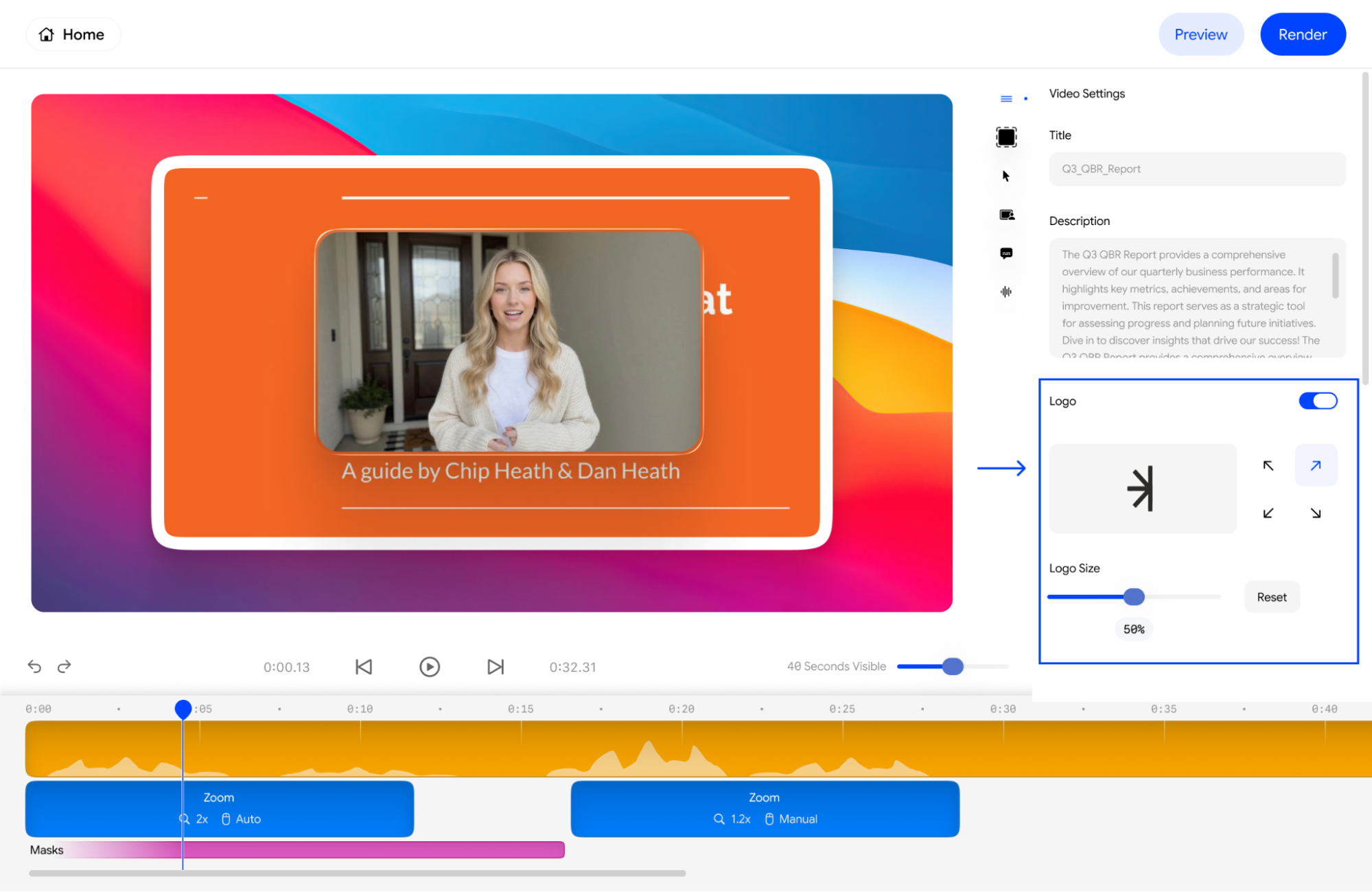
To add your branding, simply toggle the Logo switch to the “on” position. This will overlay your uploaded logo onto the video canvas, ensuring every shared Velo link carries your brand identity.3. Customizing Logo Placement
Yes. Once the logo is enabled, you will see a positioning grid with four arrows. Click on any of the arrows to snap your logo to the top-left, top-right, bottom-left, or bottom-right corner of the video.4. Adjusting Logo Size
If your logo feels too dominant or too small, use the Logo Size slider.- Slide to the right to increase visibility or to the left for a more subtle watermark effect.
- The current size percentage (e.g., 50%) is displayed below the slider for easy reference.
- Click Reset at any time to return to the default logo dimensions.