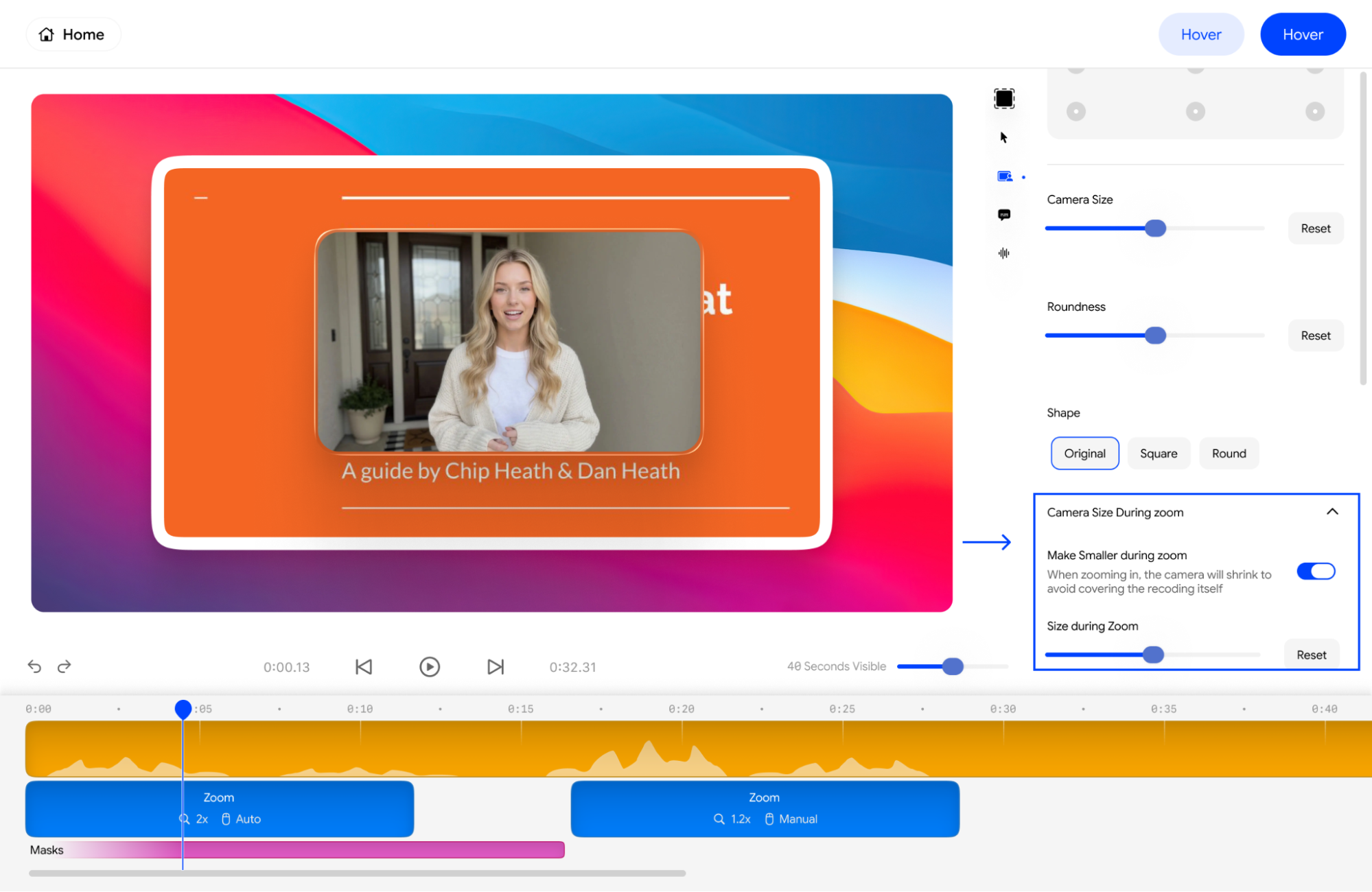
1. Adjusting the Camera Position on Your Velo
- Use the Camera Position grid to snap your avatar to any of the nine standard positions on the screen.
- Simply click a circle on the grid to instantly move your camera to that corner, side, or the center of the frame.
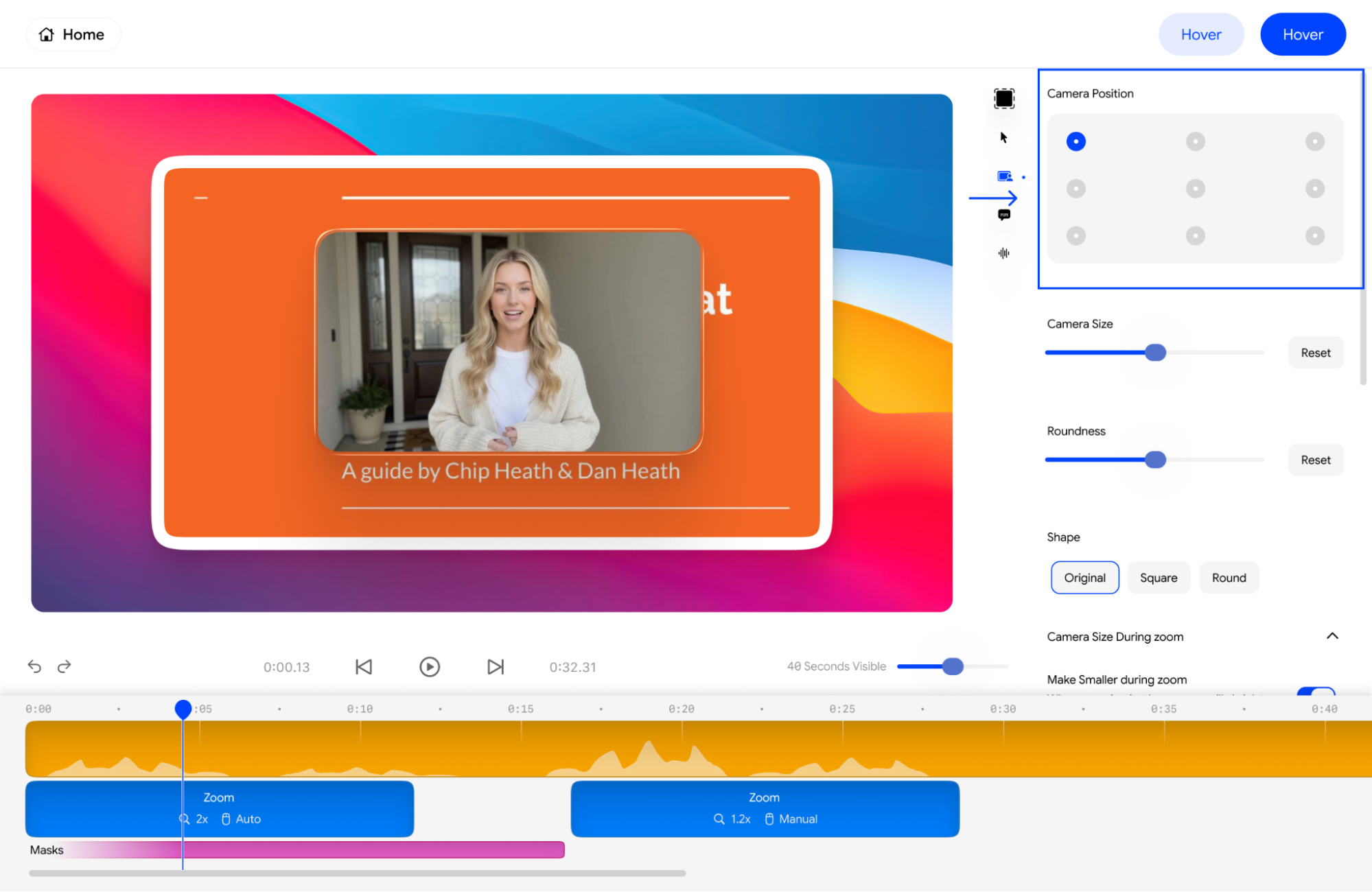
2. Adjusting Camera Video Resolution
- Use the Camera Size slider to scale your avatar up or down.
- Moving the slider to the right increases your visibility, while sliding it to the left makes the camera more discreet.
3. Adjusting the Roundness of Your Camera Video
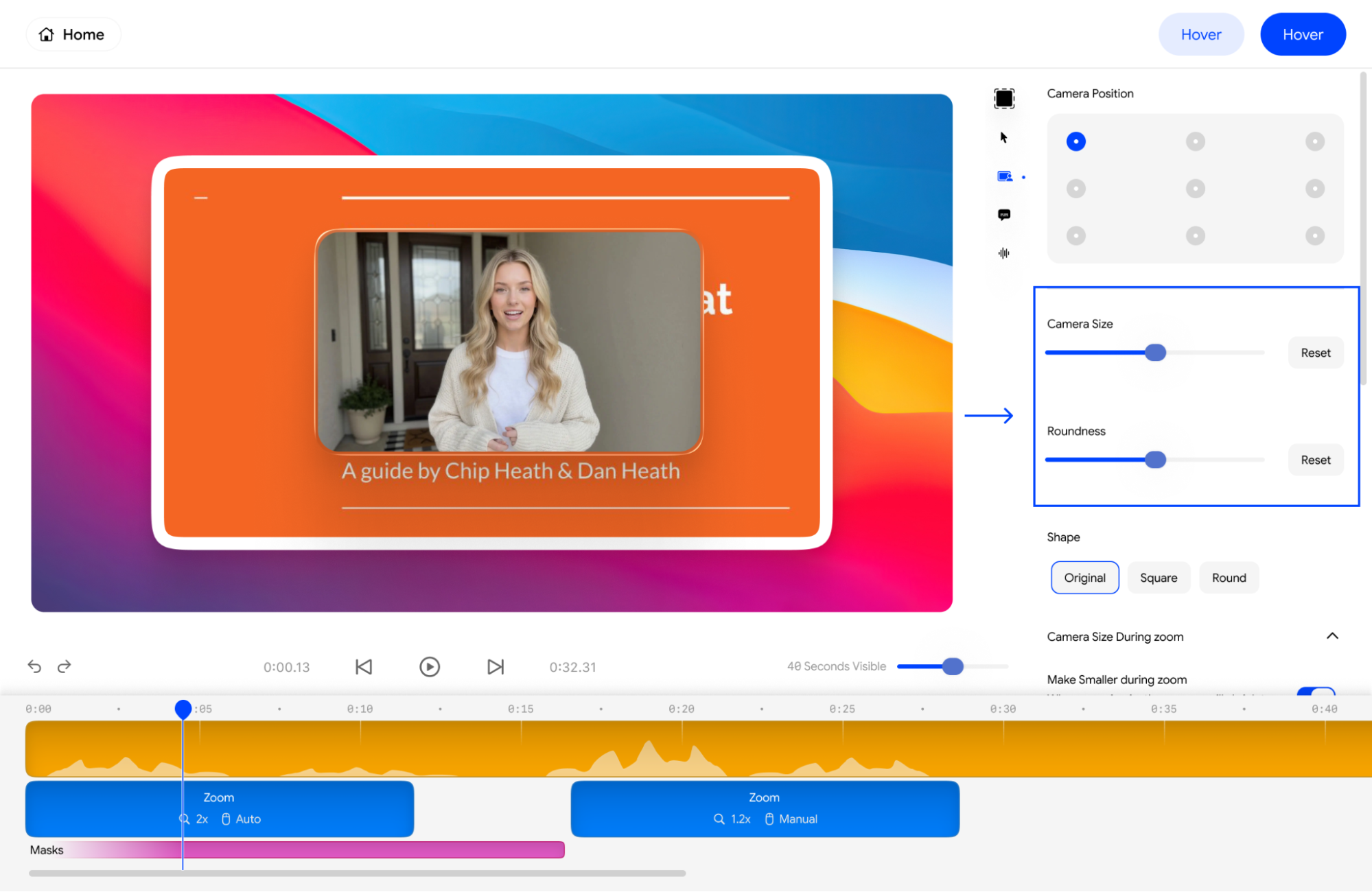
- Adjust the Roundness slider to modify the corner radius of your camera frame.
- Sliding this to the right will gradually turn a square frame into a rounded one.
4. Adjusting the Video Shape of Your Camera Feed
-
In the Shape section, you can quickly toggle between three
presets:
- Original: Your default captured frame.
- Square: A perfectly even four-sided frame.
- Round: A circular “bubble” look.
5. Zoom Effects on Camera Video: Is It Possible?
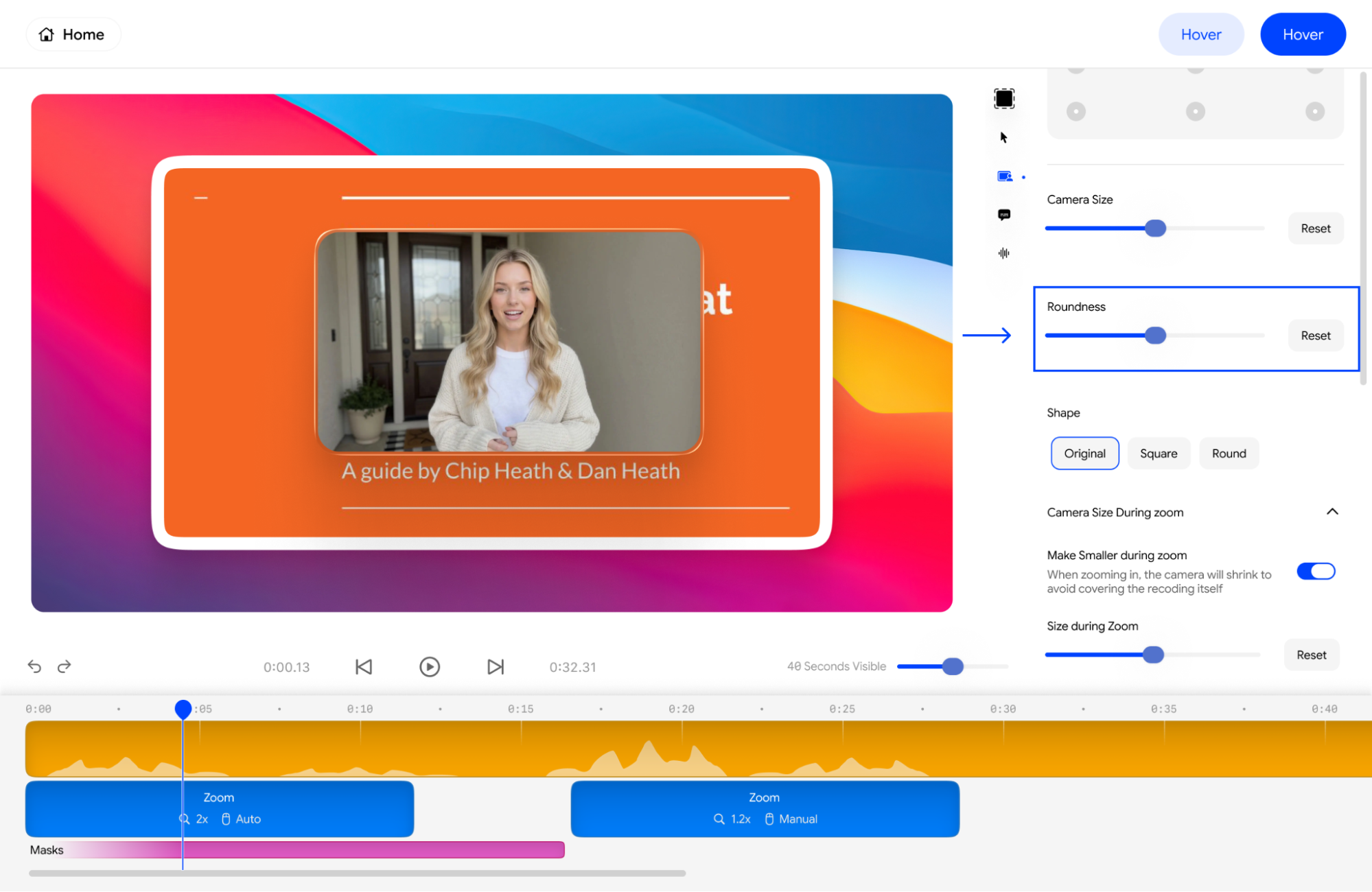
Yes, dynamic zoom effects can be incorporated directly into the output of your camera video stream.- Velo includes an intelligent Camera Size During zoom feature.
- By enabling the Make Smaller during zoom toggle, your camera will automatically shrink when the video zooms into your screen recording. This ensures your avatar never blocks the content being highlighted.
6. Camera Zoom Effect Customization
- You can control exactly how much your camera shrinks during a zoom event.
- Use the Size during Zoom slider to set the specific scale for your avatar when a zoom is active.
- Click Reset at any time to return to the default zoom behavior.