1. Adding Background Music to a Velo
You can add background music by enabling the Background Music toggle at the top of the menu. Velo provides a library of tracks, which you can preview and select to set the right mood for your walkthrough.2. Background Music Upload Functionality
The current version of the Velo editor does not support custom music uploads. You can choose from the pre-selected library available in the Audio tab.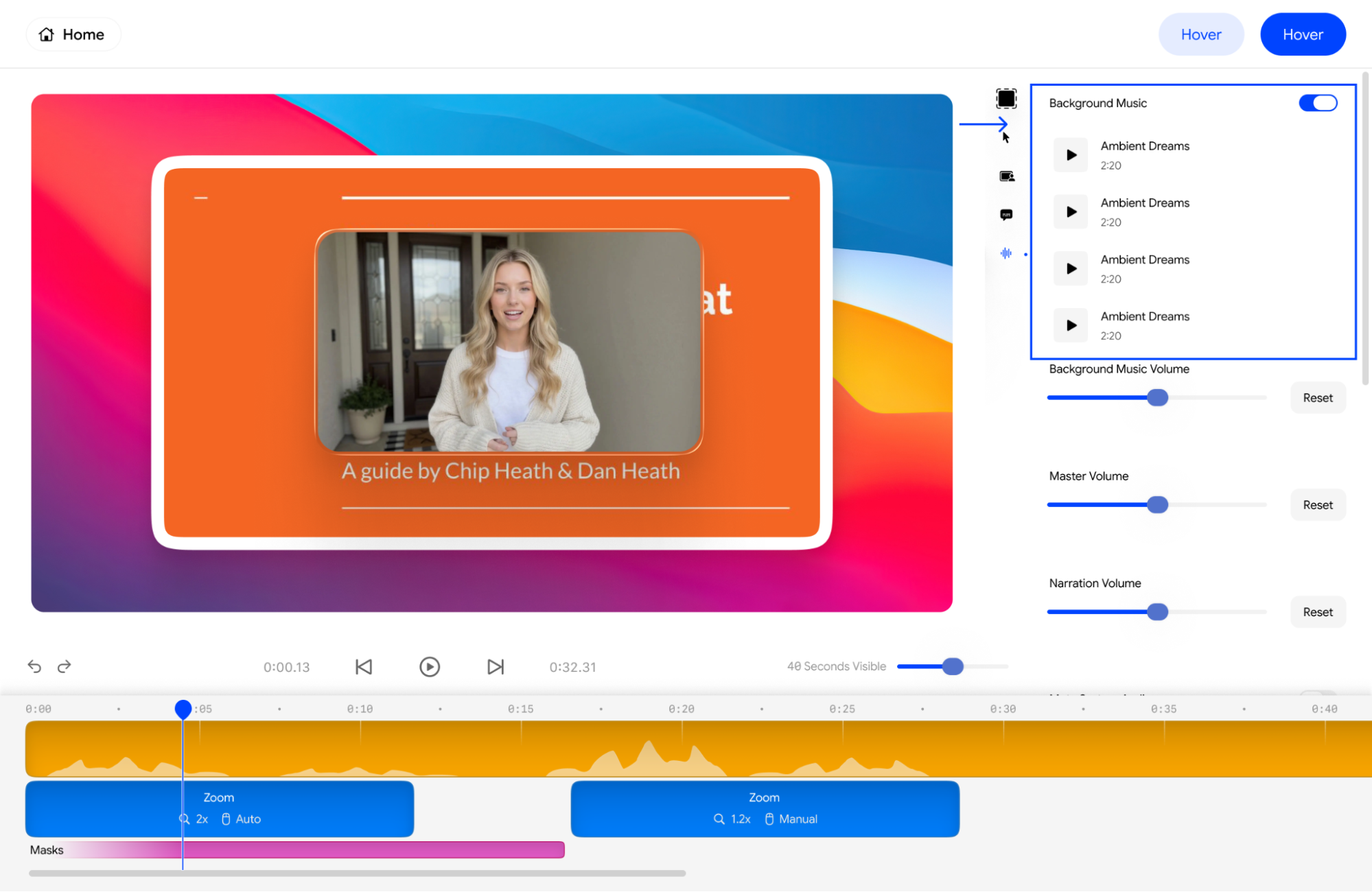
3. Adjusting Background Music Volume
Once background music is enabled, use the Background Music Volume slider to find the perfect balance. This allows the music to play softly in the background without overpowering your voice.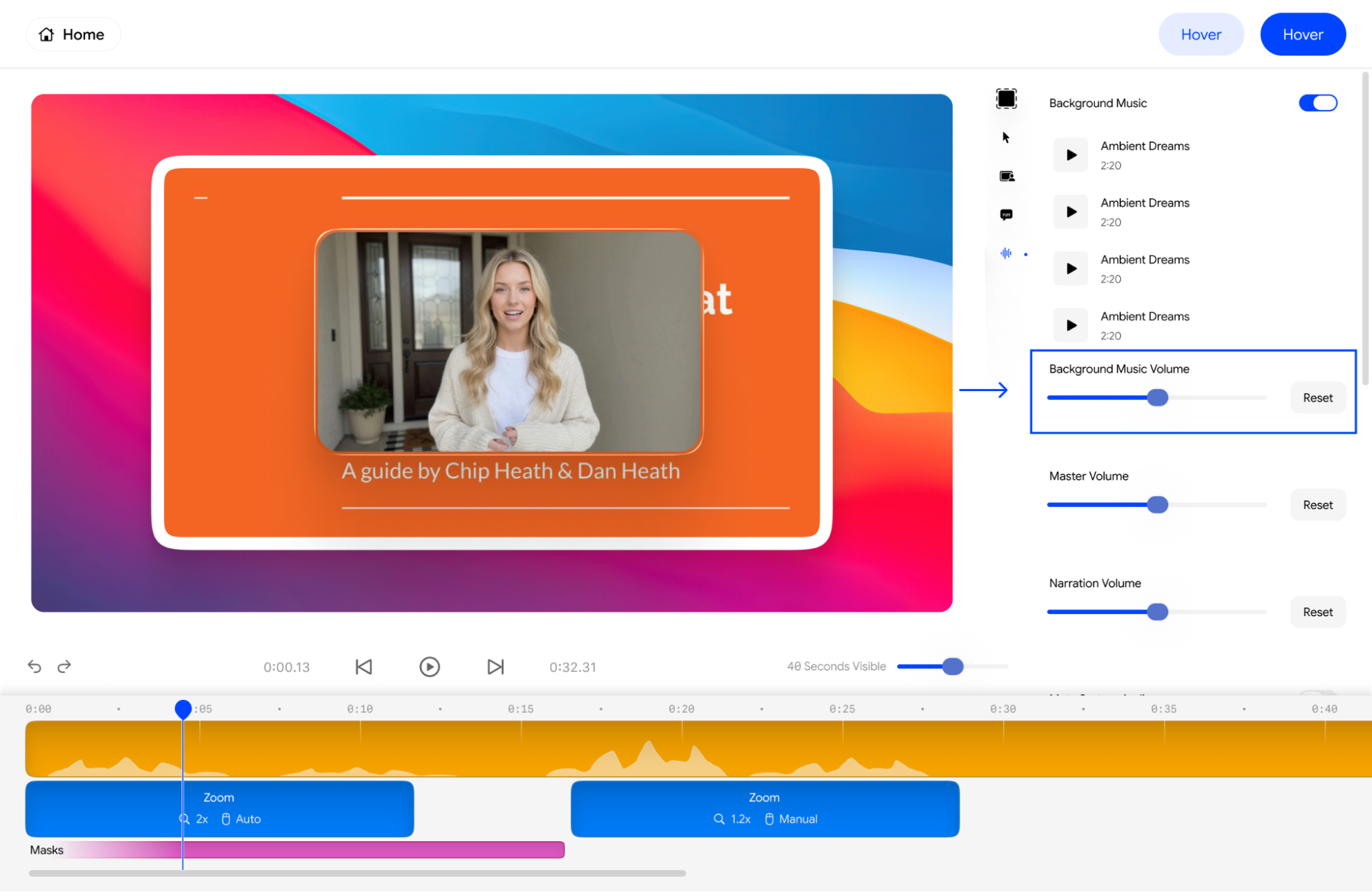
4. Adjusting the Master Volume on Velo
The Master Volume slider allows you to increase or decrease the overall sound level of your entire project. This affects everything from your voice clone to the background music simultaneously.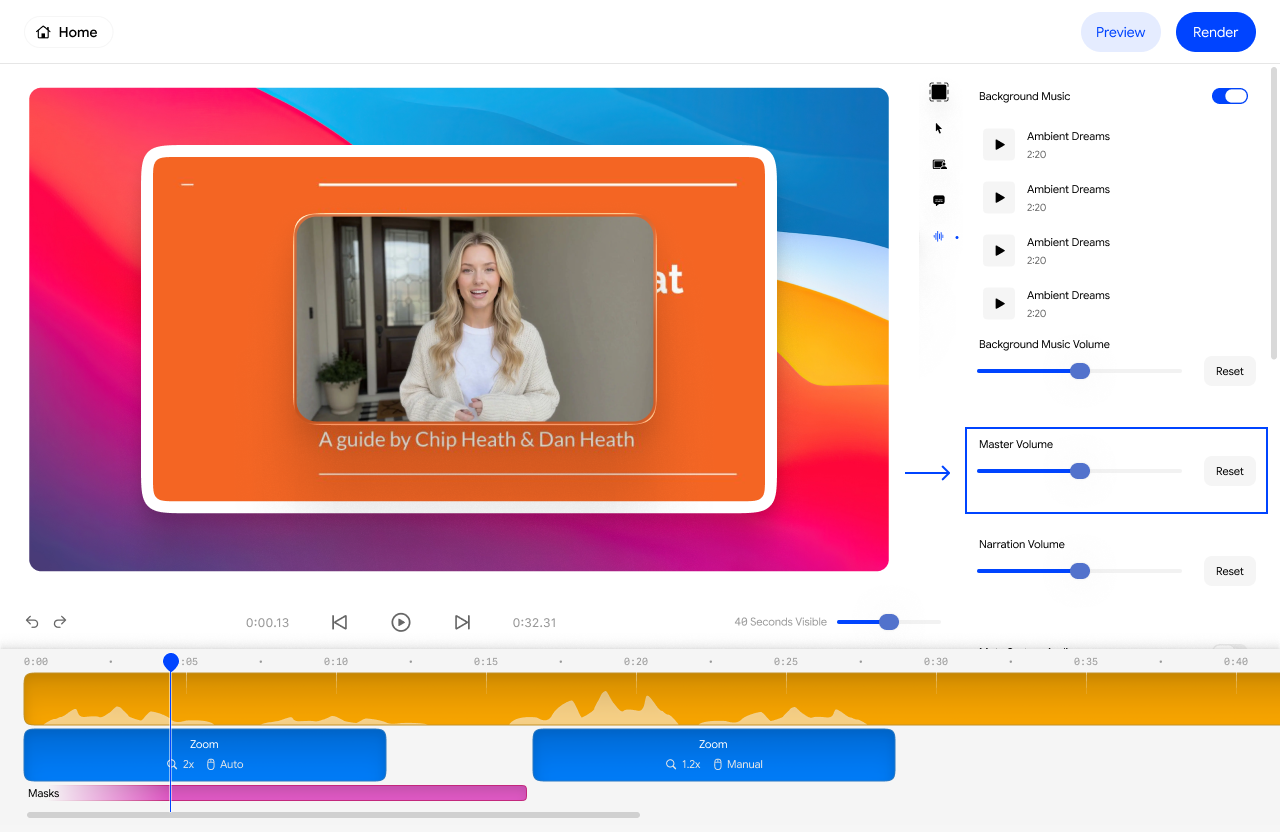
5. Adjusting Narration Volume After Velo Creation
You can adjust your voice clone’s loudness specifically using the Narration Volume slider. This is helpful if you want your voice to be more prominent over the system audio or music.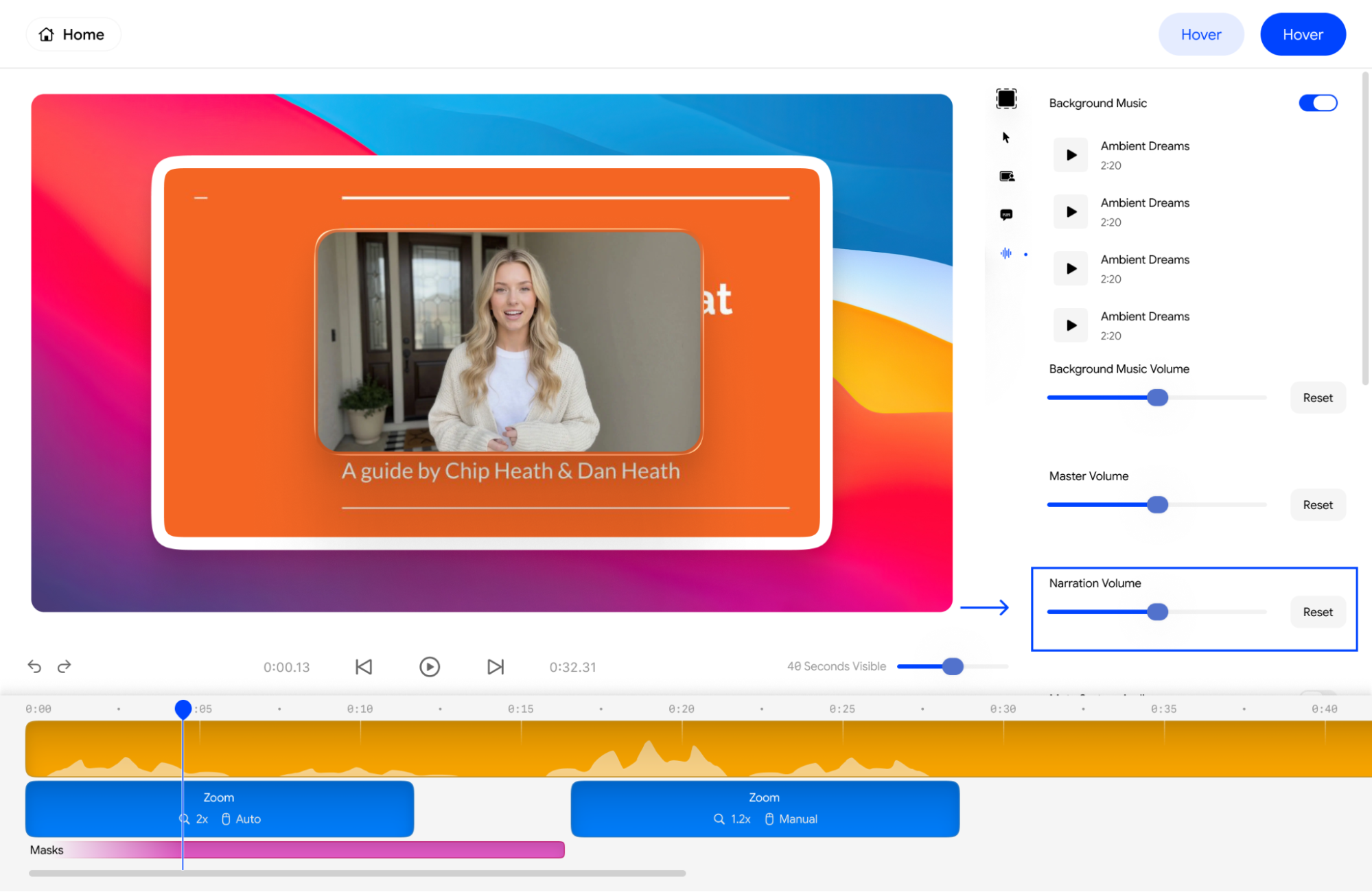
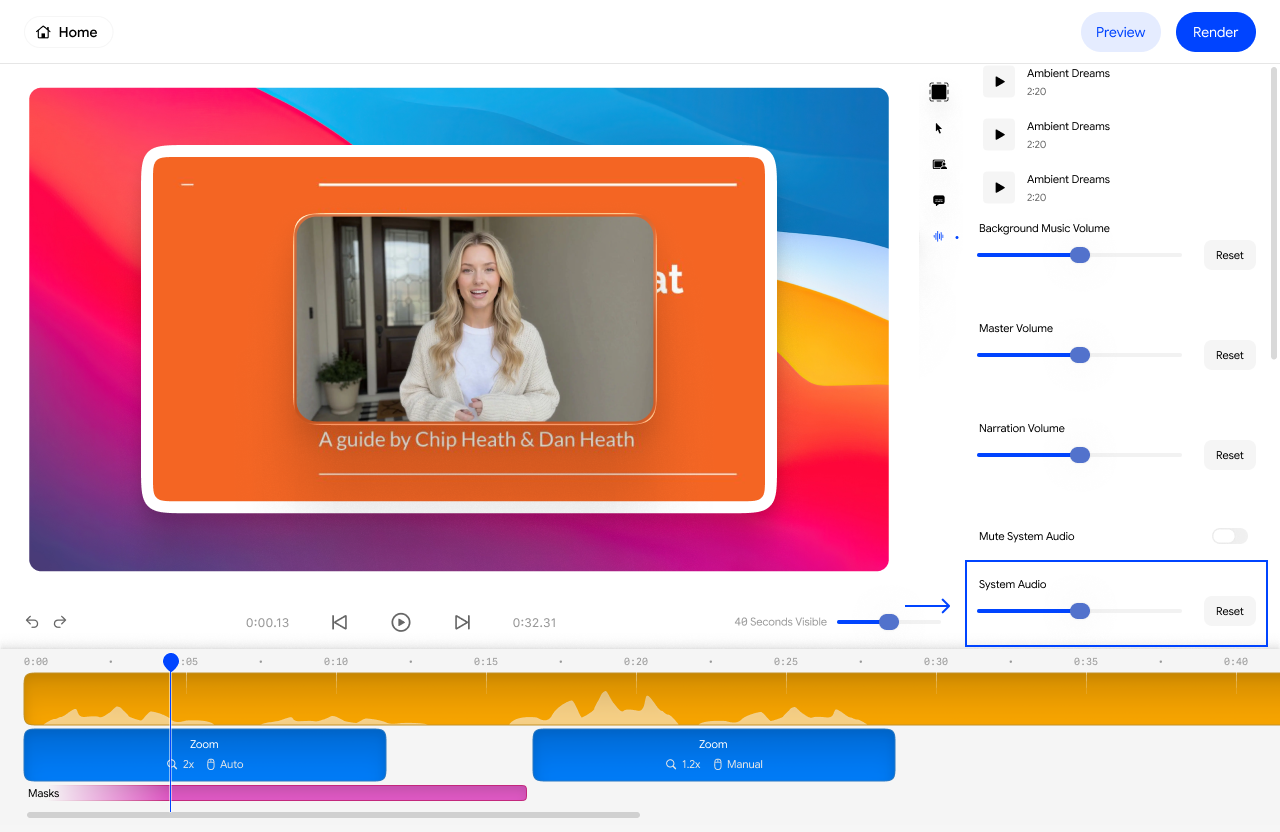
6. System Audio Management Post-Velo Creation
Velo allows for the management of system audio settings even after a Velo is generated. If your screen recording captured unwanted sounds from your computer, you can enable the Mute System Audio toggle. Alternatively, you can use the System Audio slider to lower the volume of those specific sounds without muting them completely.