> ## Documentation Index
> Fetch the complete documentation index at: https://docs.usevelo.ai/llms.txt
> Use this file to discover all available pages before exploring further.
# Workspaces
> Workspaces are shared environments where your team creates, manages, and shares videos together.
A **workspace** is your team's home in Velo. Everything lives inside a workspace — videos, libraries, brand settings, members, and your shared minute pool.
 ## Key concepts
| Concept | Description |
| --------------- | ------------------------------------------------------------------------------------------------------- |
| **Workspace** | A shared environment for your team. Each workspace has its own videos, libraries, brand kit, and plan. |
| **Members** | People who belong to the workspace. Each member has a role — Owner, Admin, or Member. |
| **Seats** | The number of members allowed in a workspace. Free includes 3 seats, Pro includes 5, Ultra includes 20. |
| **Shared Pool** | All workspace members draw from the same pool of Velo minutes. |
| **Libraries** | Collections of videos that can be organized and shared as a group — internally or externally. |
| **Brand Kit** | A default logo and color that automatically applies to every video created in the workspace. |
## Workspace sidebar
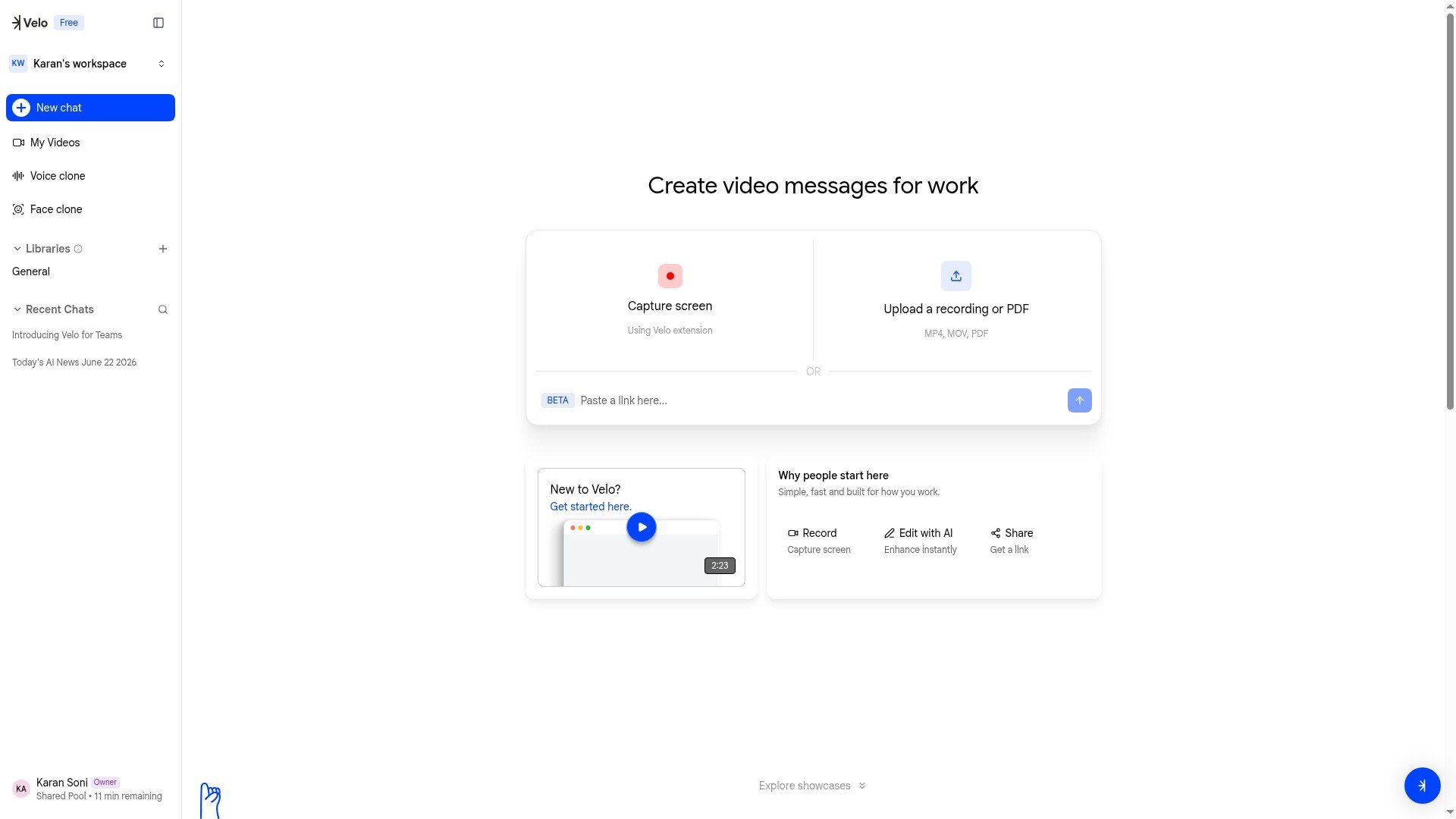
The sidebar gives you quick access to everything in your workspace:
* **New chat** — start creating a new video
* **My Videos** — view all videos you've created in this workspace
* **Voice clone** — manage your custom and public AI voices
* **Face clone** — manage your custom and public AI faces
* **Libraries** — browse and manage video collections
* **Recent Chats** — pick up where you left off
At the bottom of the sidebar, you'll see your name, role badge (Owner / Admin / Member), and the workspace's remaining shared minutes.
## Switching workspaces
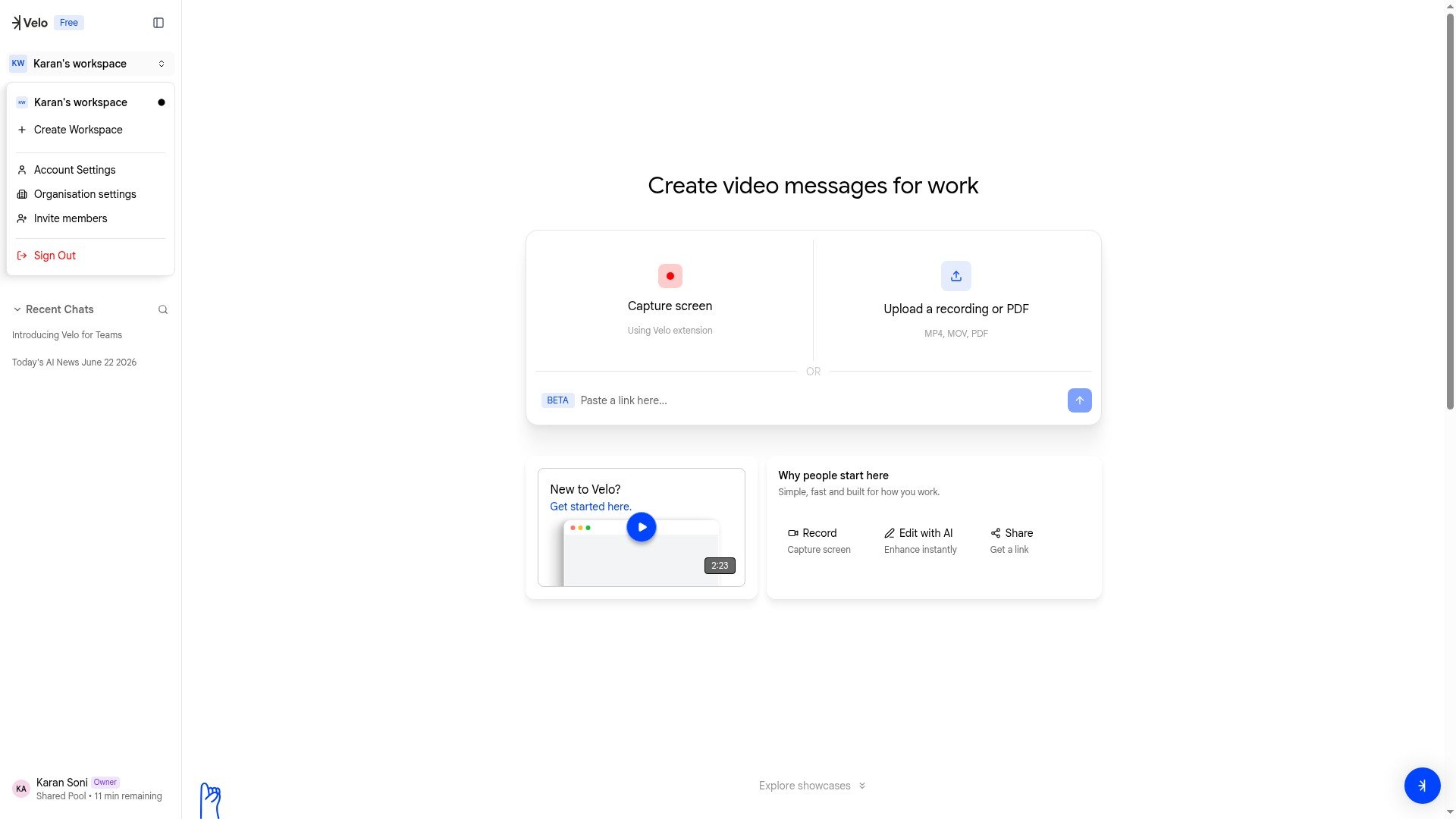
Click the workspace name at the top of the sidebar to open the workspace dropdown. From here you can:
* Switch to another workspace you belong to
* [Create a new workspace](/workspaces/create-workspace)
* Access **Account Settings** (Profile, My Usage)
* Access **Organisation Settings** (General, Members, Plans & Billing, Usage, Brand Kit)
* Invite members
* Sign out
## Key concepts
| Concept | Description |
| --------------- | ------------------------------------------------------------------------------------------------------- |
| **Workspace** | A shared environment for your team. Each workspace has its own videos, libraries, brand kit, and plan. |
| **Members** | People who belong to the workspace. Each member has a role — Owner, Admin, or Member. |
| **Seats** | The number of members allowed in a workspace. Free includes 3 seats, Pro includes 5, Ultra includes 20. |
| **Shared Pool** | All workspace members draw from the same pool of Velo minutes. |
| **Libraries** | Collections of videos that can be organized and shared as a group — internally or externally. |
| **Brand Kit** | A default logo and color that automatically applies to every video created in the workspace. |
## Workspace sidebar
The sidebar gives you quick access to everything in your workspace:
* **New chat** — start creating a new video
* **My Videos** — view all videos you've created in this workspace
* **Voice clone** — manage your custom and public AI voices
* **Face clone** — manage your custom and public AI faces
* **Libraries** — browse and manage video collections
* **Recent Chats** — pick up where you left off
At the bottom of the sidebar, you'll see your name, role badge (Owner / Admin / Member), and the workspace's remaining shared minutes.
## Switching workspaces
Click the workspace name at the top of the sidebar to open the workspace dropdown. From here you can:
* Switch to another workspace you belong to
* [Create a new workspace](/workspaces/create-workspace)
* Access **Account Settings** (Profile, My Usage)
* Access **Organisation Settings** (General, Members, Plans & Billing, Usage, Brand Kit)
* Invite members
* Sign out
 ## Multiple workspaces
You can belong to multiple workspaces — for example, one for your company and another for a side project. Each workspace has its own plan, minute pool, and member list. A single account can belong to workspaces on different plans.
Use the workspace dropdown to switch between them.
## What's next?
Set up a new workspace for your team.
Add teammates and assign roles.
## Multiple workspaces
You can belong to multiple workspaces — for example, one for your company and another for a side project. Each workspace has its own plan, minute pool, and member list. A single account can belong to workspaces on different plans.
Use the workspace dropdown to switch between them.
## What's next?
Set up a new workspace for your team.
Add teammates and assign roles.