> ## Documentation Index
> Fetch the complete documentation index at: https://docs.usevelo.ai/llms.txt
> Use this file to discover all available pages before exploring further.
# Libraries
> Organize published videos into collections that your team can browse — or share externally with a single link.
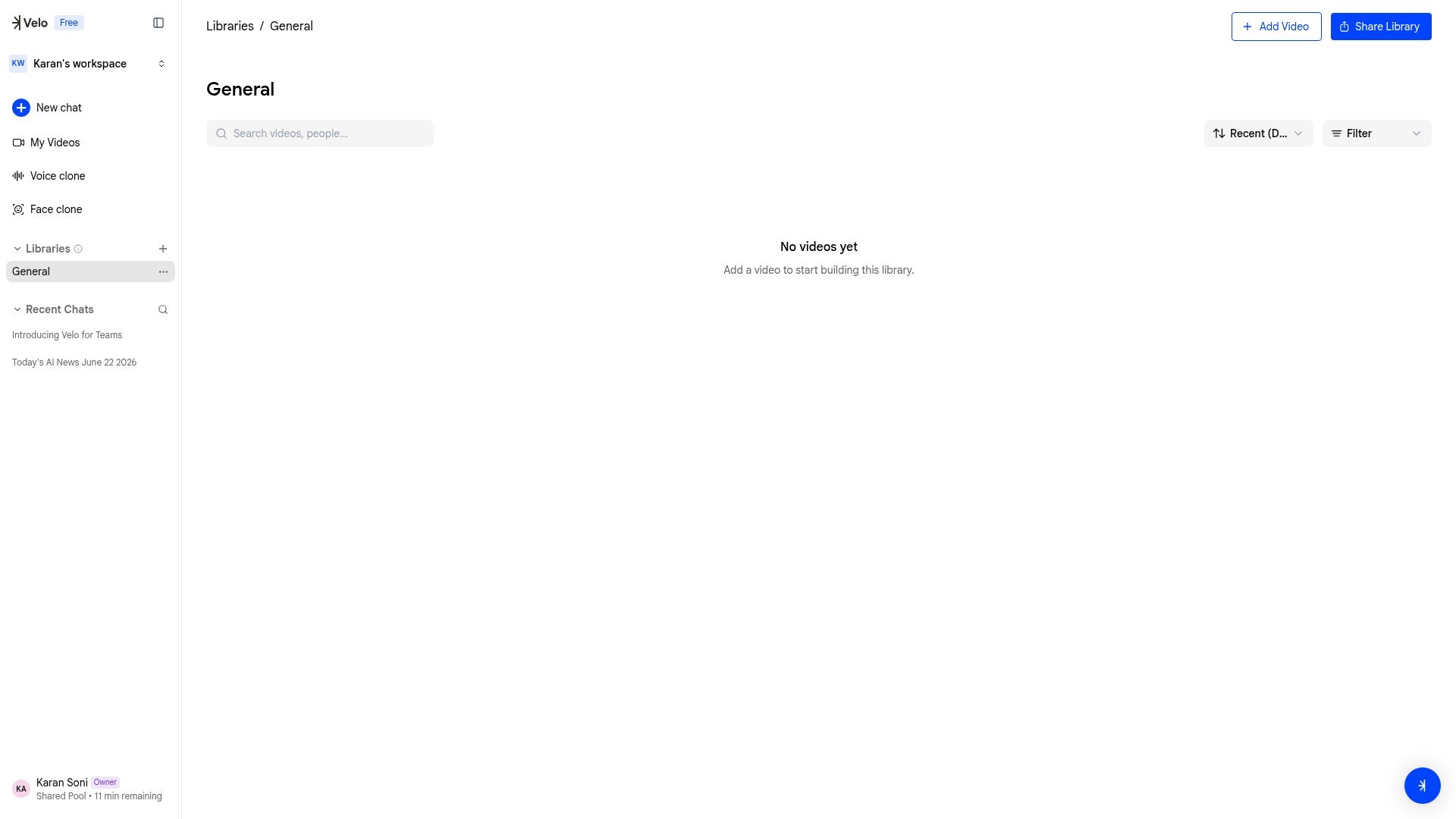
Libraries are workspace-level collections of published videos. They are the primary way teammates discover and watch each other's work.
 ## How libraries work
* Libraries are *flat* — one level only. No sub-libraries or nesting.
* Every workspace starts with a default **General** library that all members can publish to immediately.
* All the members can create additional libraries regardless of roles.
* A single video can be published to *multiple* libraries simultaneously.
## Public vs Private libraries
Each library has a visibility setting:
| Type | Who can see it | Who can add videos |
| ----------- | --------------------- | -------------------- |
| **Public** | All workspace members | Any workspace member |
| **Private** | Only invited members | Only invited members |
Private libraries are completely hidden from non-members of library — they don't appear in the sidebar or library list for anyone who isn't invited.
## Creating a library
**Step 1:** Click **Libraries** in the sidebar to expand the section.
**Step 2:** Click the **Create library** button.
**Step 3:** Name your library and choose its visibility (Public or Private).
## Publishing videos to a library
Publishing and sharing are two independent actions in Velo:
* **Publish** adds a video to one or more libraries so teammates can find it
* **Share** generates a public link for external viewers (see [Sharing](/creating-a-velo/sharing))
Neither requires the other. You can publish without sharing, or share without publishing.
To publish, select a video from **My Videos** or the chat panel, choose **Publish**, and select which libraries to add it to. Published videos remain in your **My Videos** as well.
## Browsing a library
Click a library name in the sidebar to view its contents. Videos are displayed as a grid showing the thumbnail, title, creator, duration, date, and view count.
Each video in a library has its own page with a video player and a **Docs** tab — an AI-generated written summary you can generate on demand.
## Managing libraries
From the library view, you can:
* Remove videos from the library
* Rename or delete the library (via the three-dot menu)
* Manage private library membership
## Sharing libraries
A library can be directly shared externally by generating a link. All the videos present inside the library will be visible to anyone who has access to the link.
## How libraries work
* Libraries are *flat* — one level only. No sub-libraries or nesting.
* Every workspace starts with a default **General** library that all members can publish to immediately.
* All the members can create additional libraries regardless of roles.
* A single video can be published to *multiple* libraries simultaneously.
## Public vs Private libraries
Each library has a visibility setting:
| Type | Who can see it | Who can add videos |
| ----------- | --------------------- | -------------------- |
| **Public** | All workspace members | Any workspace member |
| **Private** | Only invited members | Only invited members |
Private libraries are completely hidden from non-members of library — they don't appear in the sidebar or library list for anyone who isn't invited.
## Creating a library
**Step 1:** Click **Libraries** in the sidebar to expand the section.
**Step 2:** Click the **Create library** button.
**Step 3:** Name your library and choose its visibility (Public or Private).
## Publishing videos to a library
Publishing and sharing are two independent actions in Velo:
* **Publish** adds a video to one or more libraries so teammates can find it
* **Share** generates a public link for external viewers (see [Sharing](/creating-a-velo/sharing))
Neither requires the other. You can publish without sharing, or share without publishing.
To publish, select a video from **My Videos** or the chat panel, choose **Publish**, and select which libraries to add it to. Published videos remain in your **My Videos** as well.
## Browsing a library
Click a library name in the sidebar to view its contents. Videos are displayed as a grid showing the thumbnail, title, creator, duration, date, and view count.
Each video in a library has its own page with a video player and a **Docs** tab — an AI-generated written summary you can generate on demand.
## Managing libraries
From the library view, you can:
* Remove videos from the library
* Rename or delete the library (via the three-dot menu)
* Manage private library membership
## Sharing libraries
A library can be directly shared externally by generating a link. All the videos present inside the library will be visible to anyone who has access to the link.