> ## Documentation Index
> Fetch the complete documentation index at: https://docs.usevelo.ai/llms.txt
> Use this file to discover all available pages before exploring further.
# Profile
> Manage your personal account details, security, and devices.
Your profile settings apply to your personal account across all workspaces. Navigate to **Settings → Profile** to manage them.
You can also get here by clicking the workspace dropdown and selecting **Account Settings**.
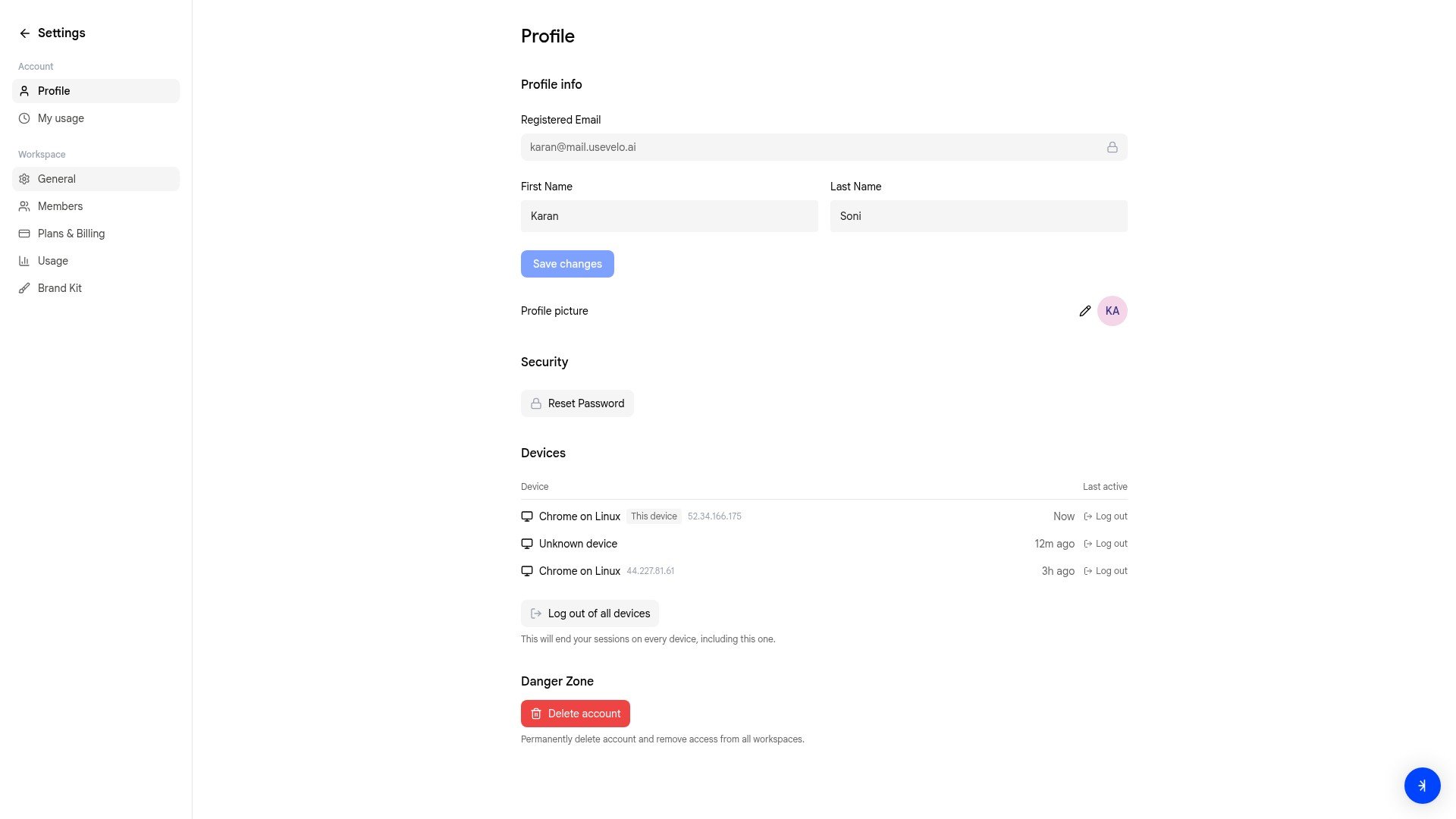 ## Profile info
Update your first name, last name, and profile picture. Your registered email is shown but cannot be changed from this page.
Click **Save changes** after making edits.
## Security
Click **Reset Password** to change your account password. You'll receive an email with a reset link.
## Devices
View all devices where your account is currently signed in. Each entry shows the browser, operating system, IP address, and last active time.
* **Log out** — end a single device session
* **Log out of all devices** — end every session, including the one you're currently using
## Danger Zone
Click **Delete account** to permanently remove your account and lose access to all workspaces. This action cannot be undone.
## Profile info
Update your first name, last name, and profile picture. Your registered email is shown but cannot be changed from this page.
Click **Save changes** after making edits.
## Security
Click **Reset Password** to change your account password. You'll receive an email with a reset link.
## Devices
View all devices where your account is currently signed in. Each entry shows the browser, operating system, IP address, and last active time.
* **Log out** — end a single device session
* **Log out of all devices** — end every session, including the one you're currently using
## Danger Zone
Click **Delete account** to permanently remove your account and lose access to all workspaces. This action cannot be undone.