> ## Documentation Index
> Fetch the complete documentation index at: https://docs.usevelo.ai/llms.txt
> Use this file to discover all available pages before exploring further.
# Script Generation Steps
Once you have completed Assisted Recording, a Script is generated and
you will be taken to the Script editor. Velo uses mouse movements,
microphone input and additional prompts to draft a script.
With the script editor, you can:
1. Review the Scene Cards:
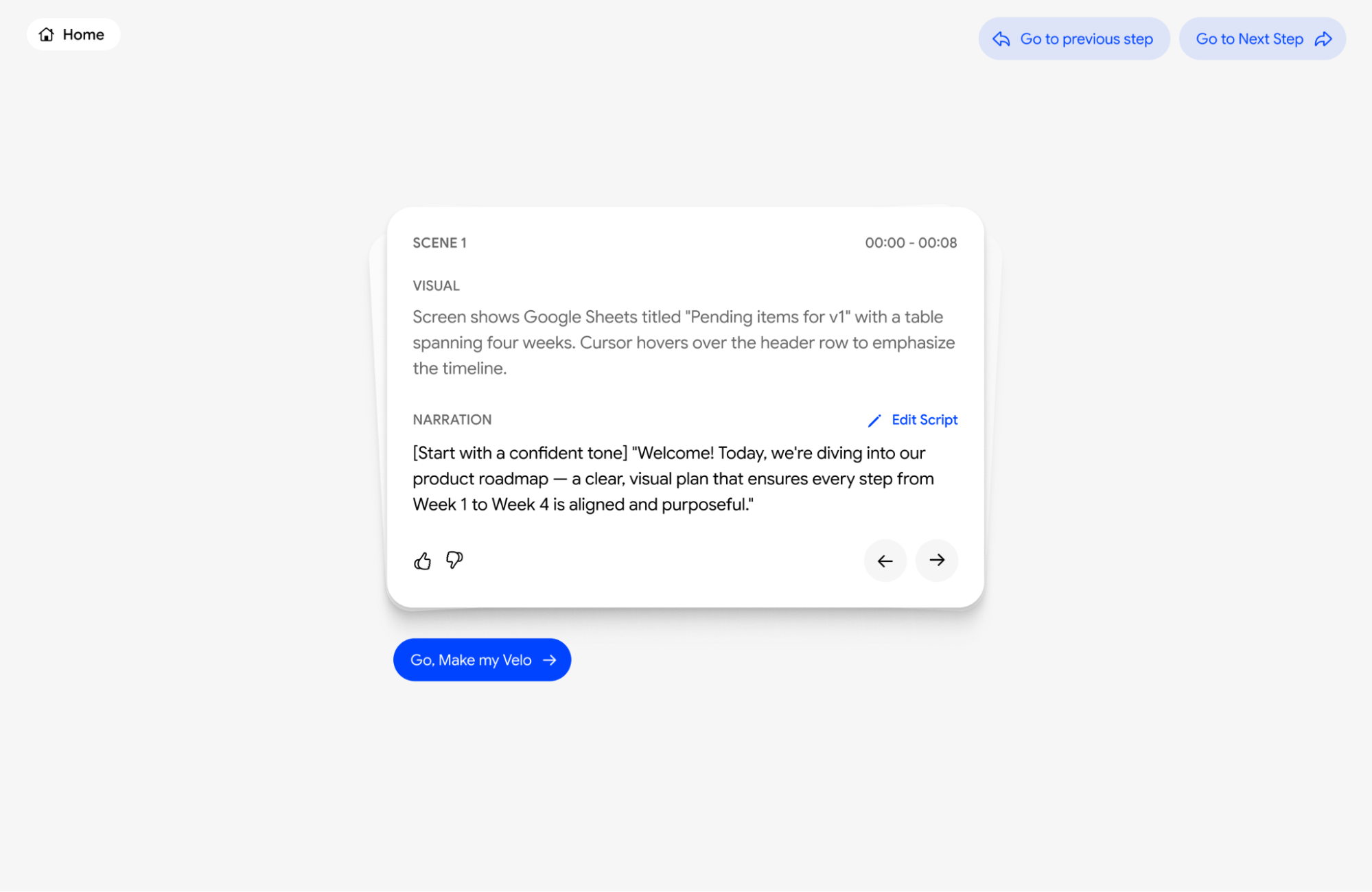
> Your walkthrough is broken down into small, manageable scenes. Each
> card shows the scene number, the exact timestamp (for example,
> 00:00--00:15), the visual action, and the script.
 2. Direct Ending:
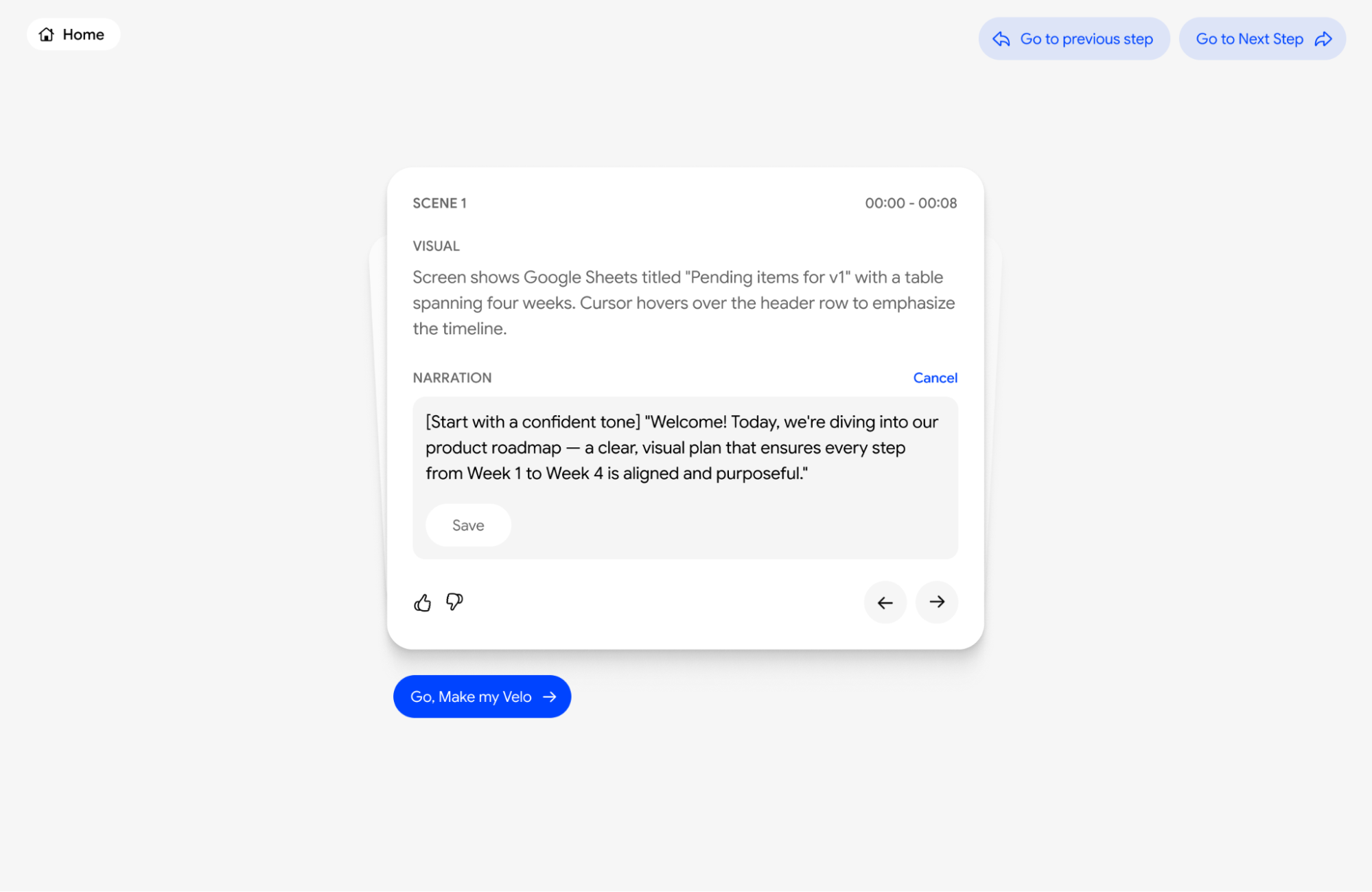
> You can start typing right in the narration box whenever you want to
> make a change. There's no need to hunt for an "Edit" button, the
> boxes are already open and ready for your updates. If you don't like
> your changes, just hit the Reset button to go back to the original
> AI-generated script instantly.
2. Direct Ending:
> You can start typing right in the narration box whenever you want to
> make a change. There's no need to hunt for an "Edit" button, the
> boxes are already open and ready for your updates. If you don't like
> your changes, just hit the Reset button to go back to the original
> AI-generated script instantly.