> ## Documentation Index
> Fetch the complete documentation index at: https://docs.usevelo.ai/llms.txt
> Use this file to discover all available pages before exploring further.
# Scripts
### **1. Viewing Your Narration Script**
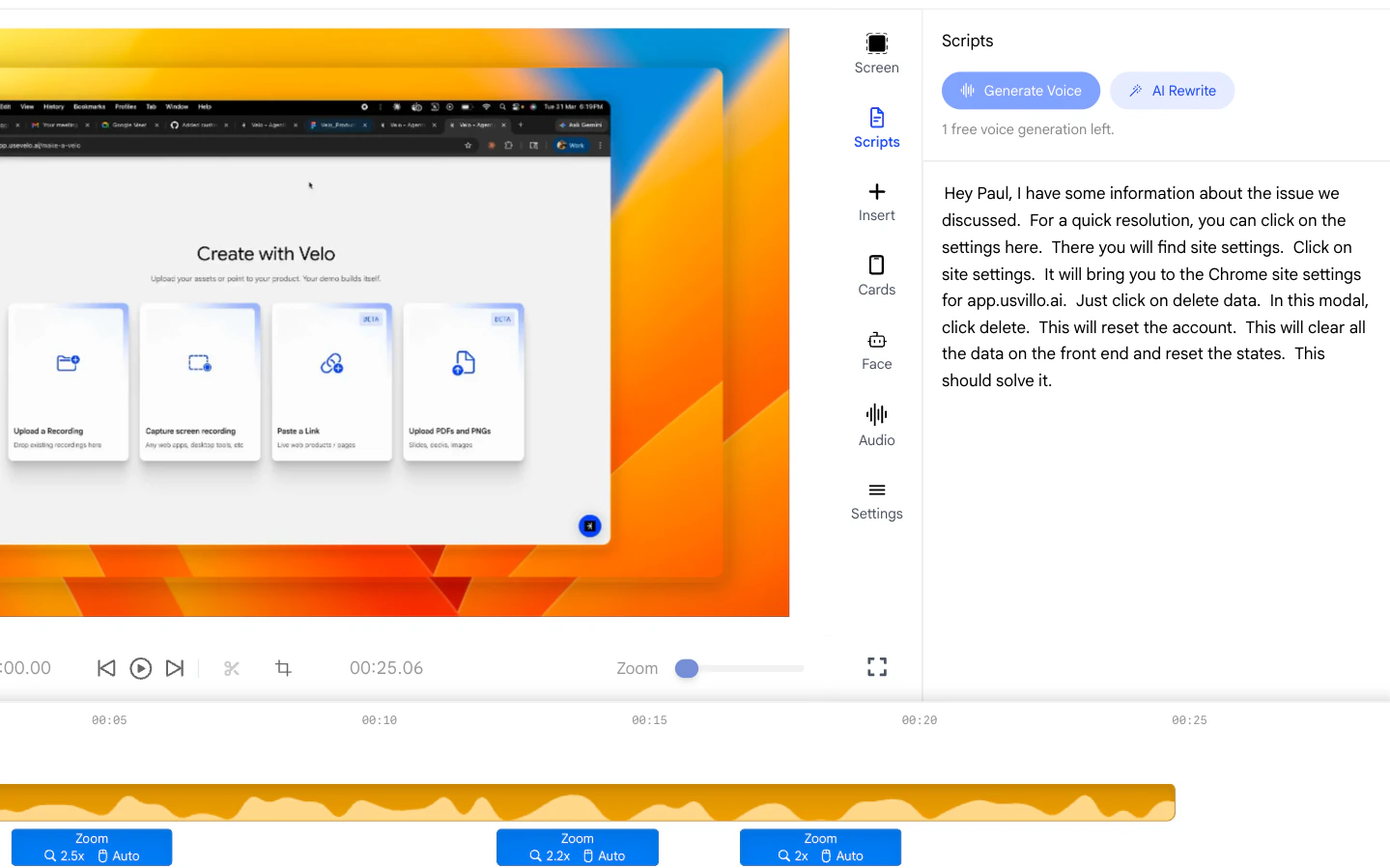
Open the **Scripts** panel from the right sidebar to see the full
narration script that was generated for your Velo. The script is
displayed as a scrollable transcript, organized to reflect the flow of
your Velo.
* Each line of narration corresponds to a segment of the video.
* Use this panel to review exactly what was said at each point in
your recording.
 ### **2. Editing the Script**
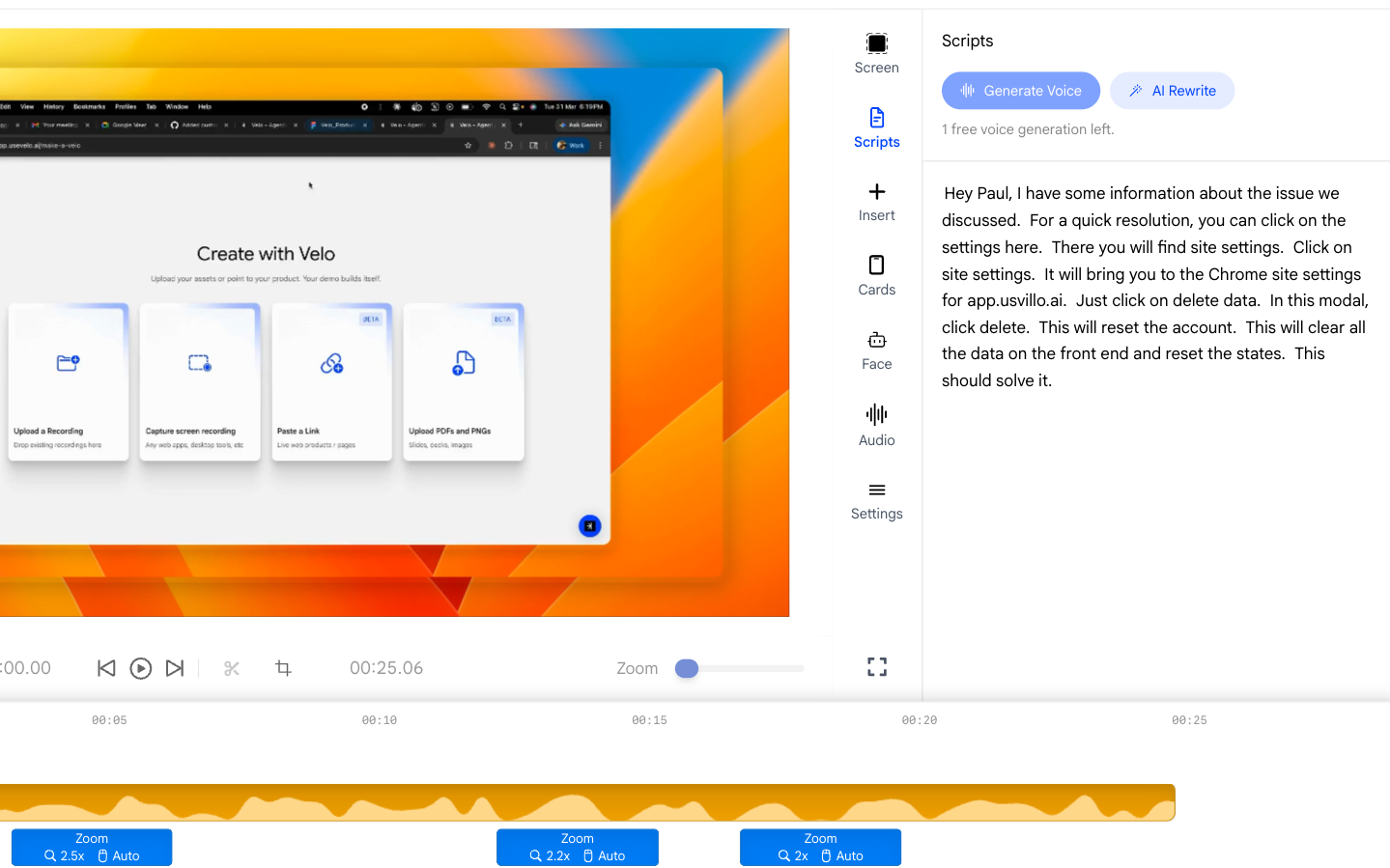
You can make changes to your narration script directly in the Scripts
panel.
* Click any line of text to place your cursor and begin editing.
* If you already locked the script, then you won't be able to edit it.
### **2. Editing the Script**
You can make changes to your narration script directly in the Scripts
panel.
* Click any line of text to place your cursor and begin editing.
* If you already locked the script, then you won't be able to edit it.
 ### **3. How Script Changes Affect Your Video**
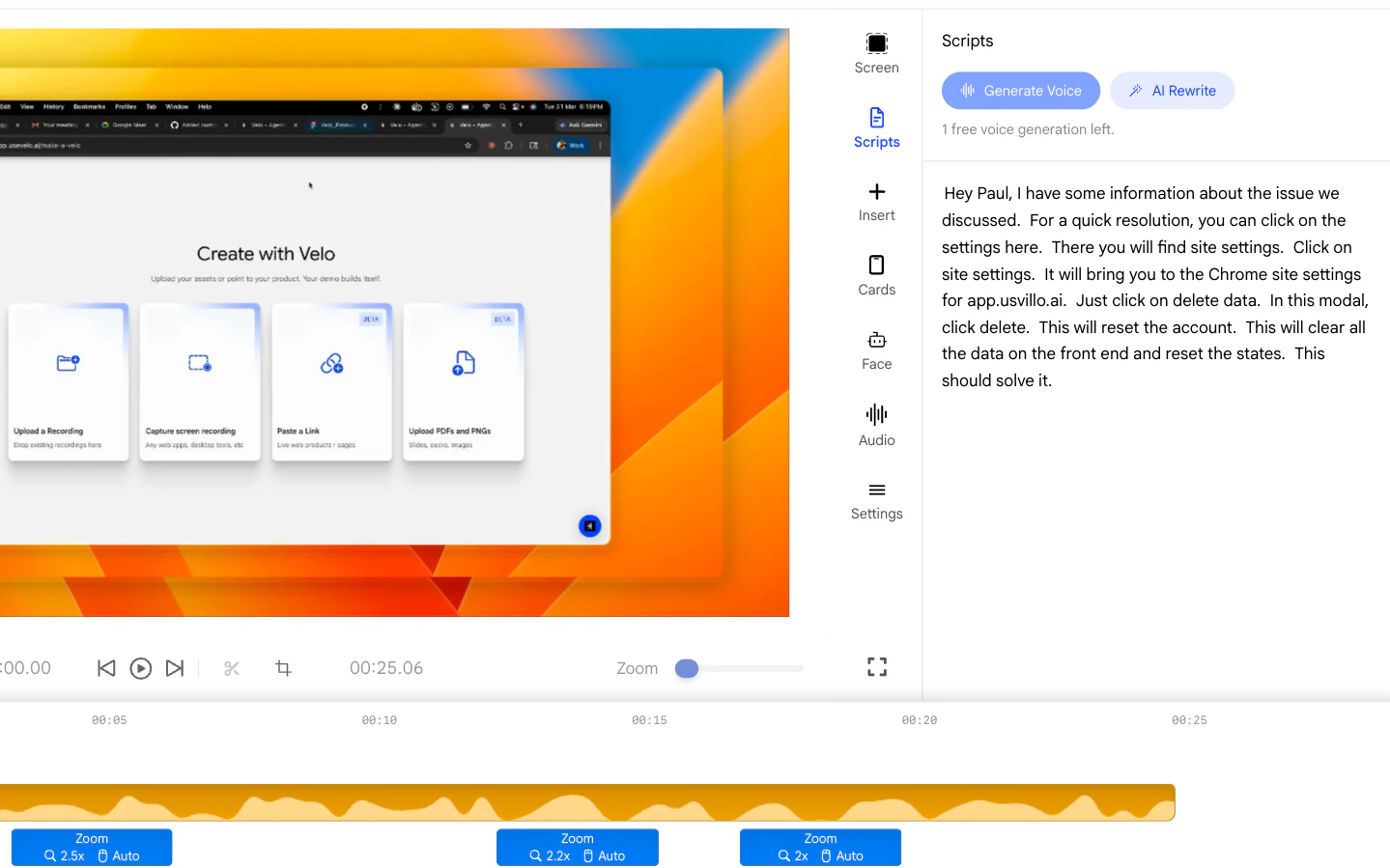
Editing the script text updates the narration content, but does not
automatically re-generate the AI voice. Use script editing to keep your
documentation accurate and in sync with what viewers hear.
* If you need the voice to reflect your changes, you will need to
click on Generate Voice button.
### **3. How Script Changes Affect Your Video**
Editing the script text updates the narration content, but does not
automatically re-generate the AI voice. Use script editing to keep your
documentation accurate and in sync with what viewers hear.
* If you need the voice to reflect your changes, you will need to
click on Generate Voice button.