> ## Documentation Index
> Fetch the complete documentation index at: https://docs.usevelo.ai/llms.txt
> Use this file to discover all available pages before exploring further.
# Output format
> Set the aspect ratio a video renders at — 16:9, 9:16, 1:1, or 4:3.
A video renders at 16:9 by default. If the video is going somewhere with a different shape — a phone-first feed, a square social post, an in-app help panel — change the output format before you render.
## Changing the format
Open the **Screen** panel from the right sidebar and find **Output Format**.
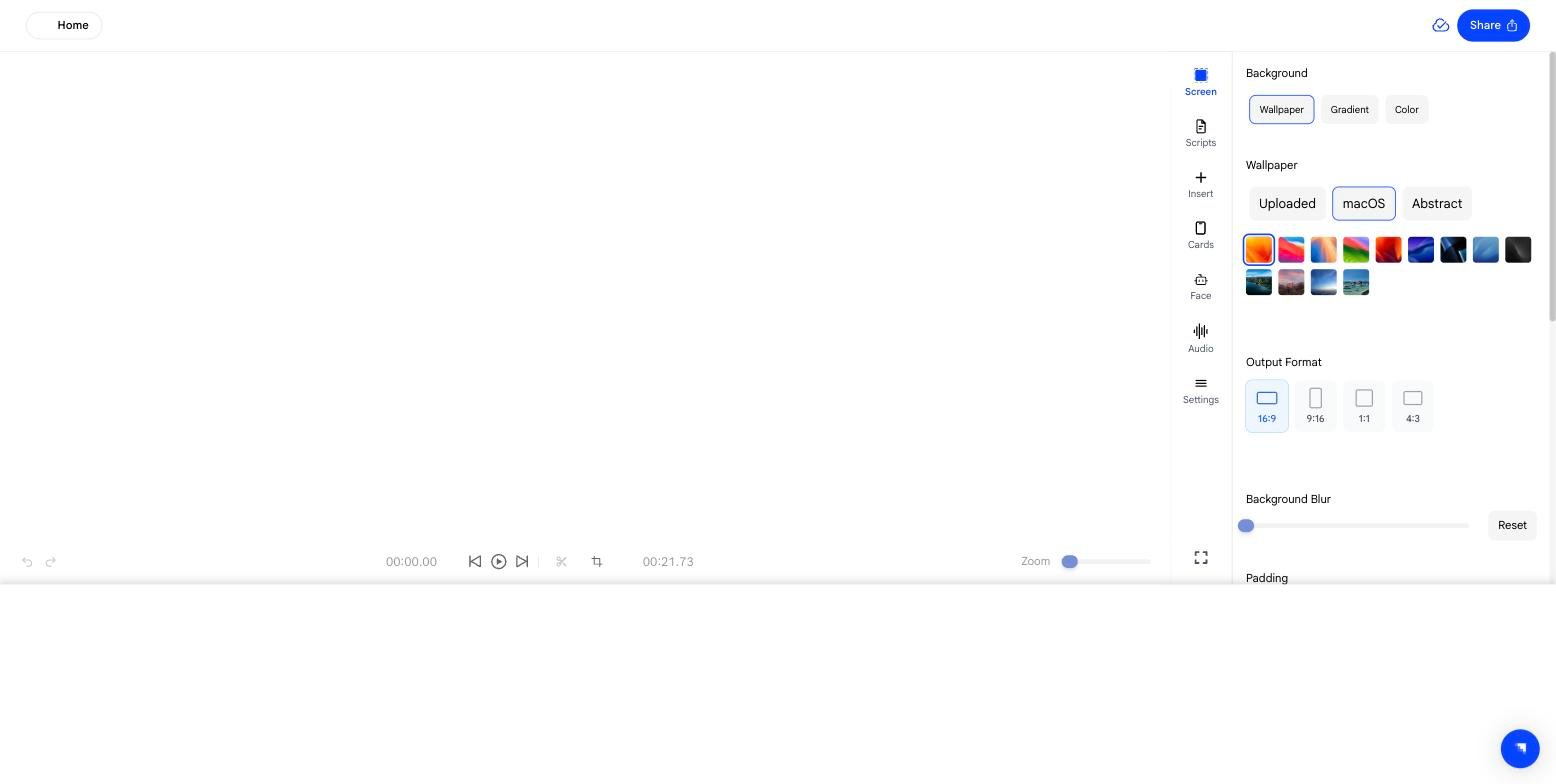 | Format | Shape | Typical use |
| -------- | ---------- | --------------------------------------------- |
| **16:9** | Widescreen | Default. Embeds, share pages, desktop viewing |
| **9:16** | Vertical | Phone-first feeds and stories |
| **1:1** | Square | Social posts that crop to a square |
| **4:3** | Classic | Slide-shaped content and older displays |
The canvas updates as soon as you select a format, so you can see how the recording sits inside the new frame before rendering.
## Framing after a format change
Changing the shape changes how much of your recording fits. The other controls in the **Screen** panel are what you use to recompose it:
* **Background** — wallpaper, gradient, or solid colour fills the space around the recording
* **Background Blur** and **Padding** — adjust how tightly the recording sits in the frame
For vertical and square formats especially, check any [zooms](/editing-velo/zooms) you have set. A zoom framed for 16:9 may cut differently once the aspect ratio changes.
| Format | Shape | Typical use |
| -------- | ---------- | --------------------------------------------- |
| **16:9** | Widescreen | Default. Embeds, share pages, desktop viewing |
| **9:16** | Vertical | Phone-first feeds and stories |
| **1:1** | Square | Social posts that crop to a square |
| **4:3** | Classic | Slide-shaped content and older displays |
The canvas updates as soon as you select a format, so you can see how the recording sits inside the new frame before rendering.
## Framing after a format change
Changing the shape changes how much of your recording fits. The other controls in the **Screen** panel are what you use to recompose it:
* **Background** — wallpaper, gradient, or solid colour fills the space around the recording
* **Background Blur** and **Padding** — adjust how tightly the recording sits in the frame
For vertical and square formats especially, check any [zooms](/editing-velo/zooms) you have set. A zoom framed for 16:9 may cut differently once the aspect ratio changes.