> ## Documentation Index
> Fetch the complete documentation index at: https://docs.usevelo.ai/llms.txt
> Use this file to discover all available pages before exploring further.
# Insert
### **1. Overview of the Insert Panel**
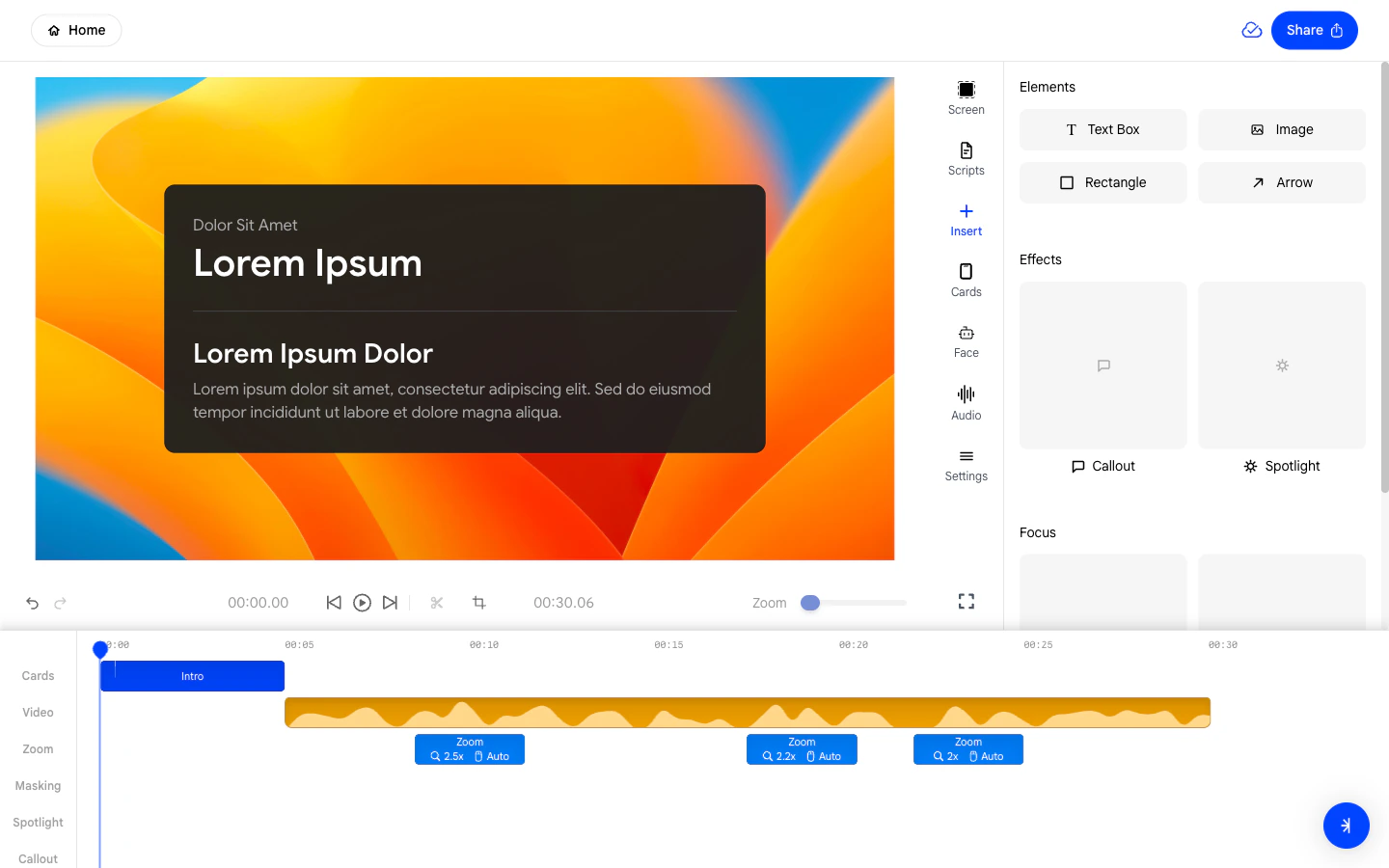
The **Insert** panel gives you access to all the overlay elements and
effects you can add to your Velo. Open it by clicking the **Insert**
icon in the right sidebar.
The panel is divided into three sections:
* **Elements** - Static visual additions like text, images, and shapes.
* **Effects** - Attention-directing overlays like Callout and Spotlight.
* **Focus** - Precision tools like Mask and Zoom.
 ### **2. Adding Elements**
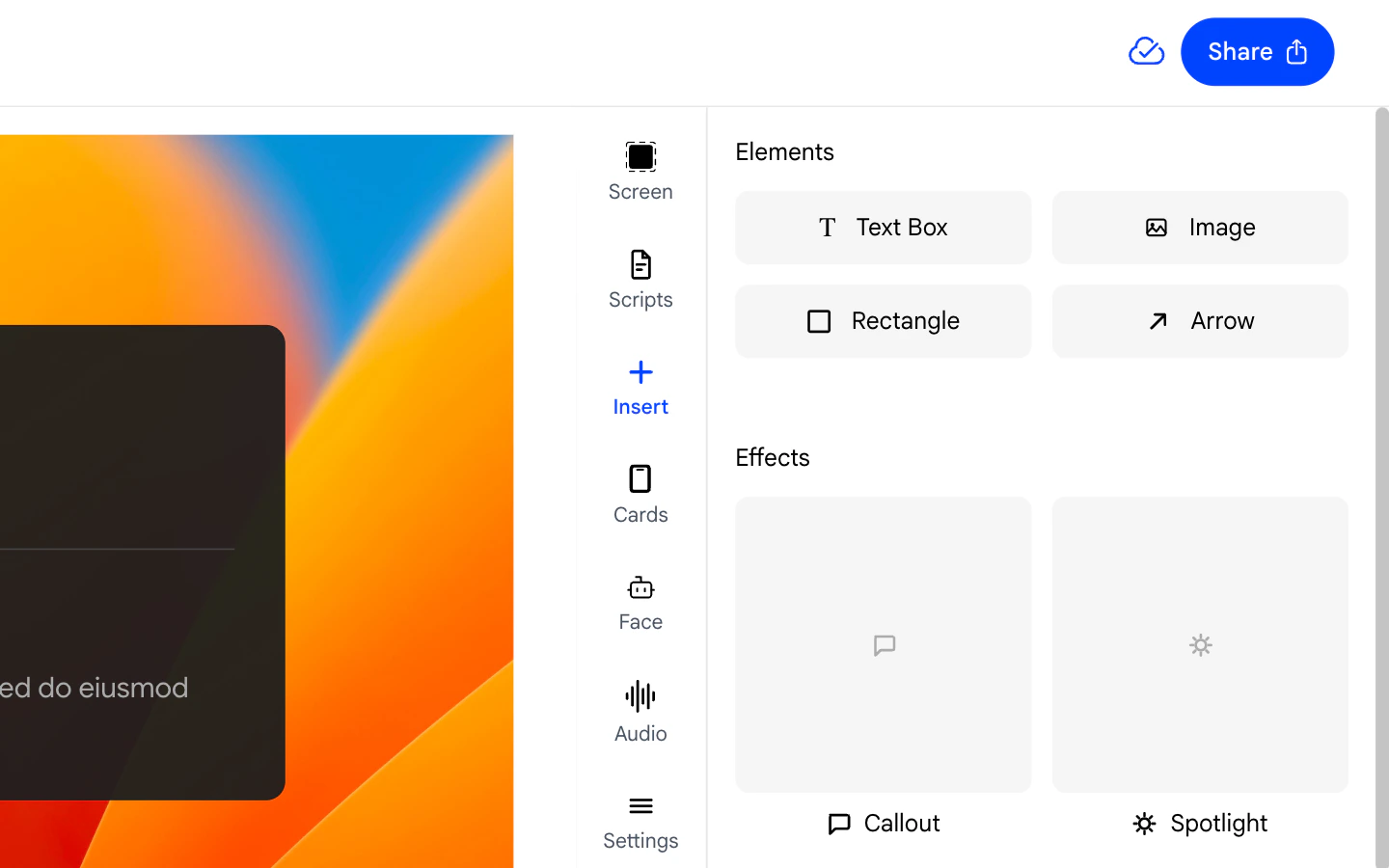
The **Elements** section contains the following items you can add
directly to the canvas:
* **Text Box** - Adds an editable text label you can drag anywhere on
the frame.
* **Image** - Inserts an image file from your computer onto the canvas.
* **Rectangle** - Adds a filled or outlined rectangle shape.
* **Arrow** - Adds a directional arrow you can point at anything on
screen.
Click any item to add it to the current frame. Once added, drag to
reposition and use the handles to resize.
### **2. Adding Elements**
The **Elements** section contains the following items you can add
directly to the canvas:
* **Text Box** - Adds an editable text label you can drag anywhere on
the frame.
* **Image** - Inserts an image file from your computer onto the canvas.
* **Rectangle** - Adds a filled or outlined rectangle shape.
* **Arrow** - Adds a directional arrow you can point at anything on
screen.
Click any item to add it to the current frame. Once added, drag to
reposition and use the handles to resize.
 ### **3. Adding Effects**
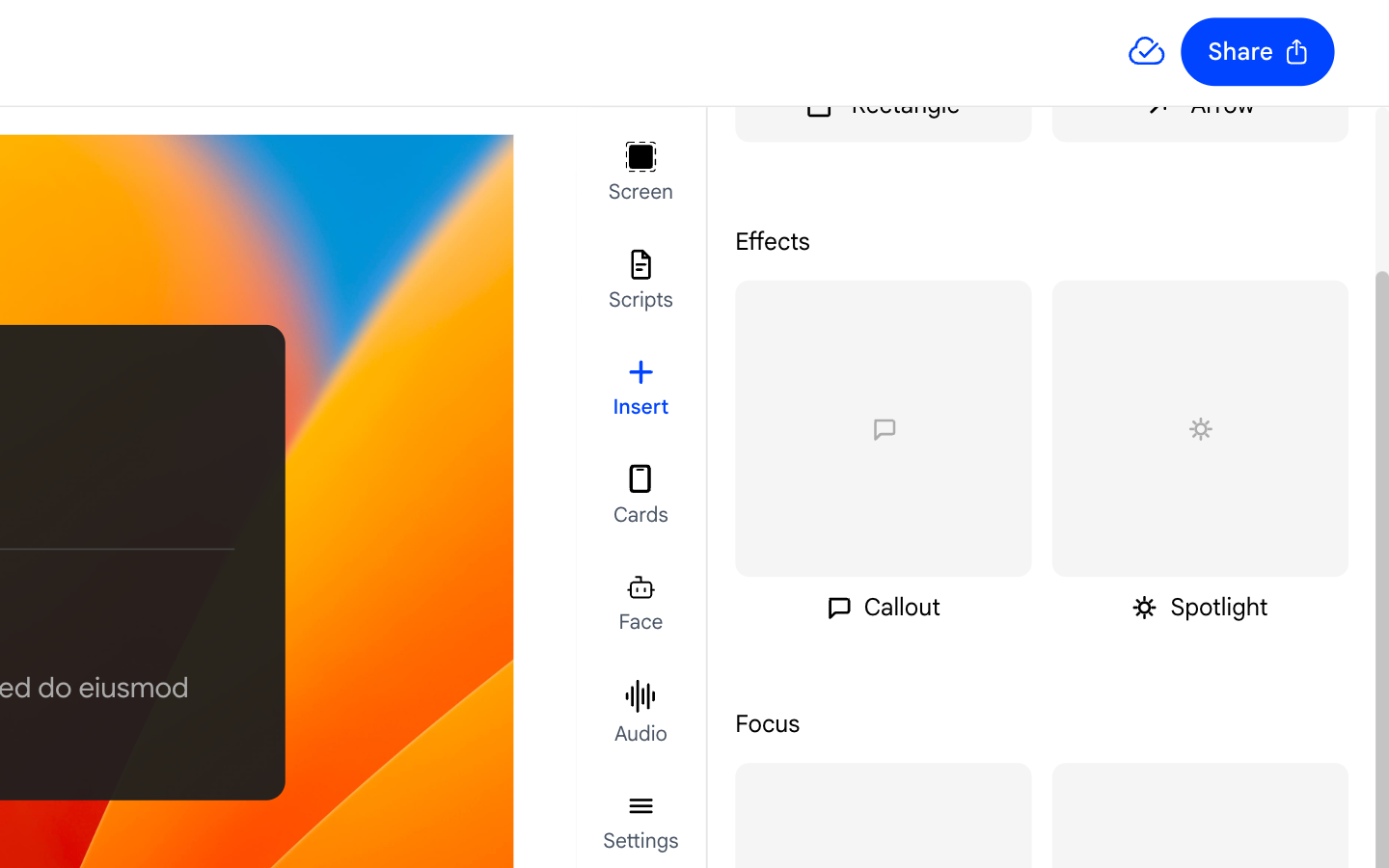
The **Effects** section contains overlay effects that direct viewer
attention:
* **Callout** - Draws a highlighted box around a region on screen.
See the [Callout](/editing-velo/callout) page for full settings.
* **Spotlight** - Dims the area surrounding a focused region. See the
[Spotlight](/editing-velo/spotlight) page for full settings.
Clicking an effect adds it to the canvas and creates a new block in the
corresponding timeline track.
### **3. Adding Effects**
The **Effects** section contains overlay effects that direct viewer
attention:
* **Callout** - Draws a highlighted box around a region on screen.
See the [Callout](/editing-velo/callout) page for full settings.
* **Spotlight** - Dims the area surrounding a focused region. See the
[Spotlight](/editing-velo/spotlight) page for full settings.
Clicking an effect adds it to the canvas and creates a new block in the
corresponding timeline track.
 ### **4. Adding Focus Tools**
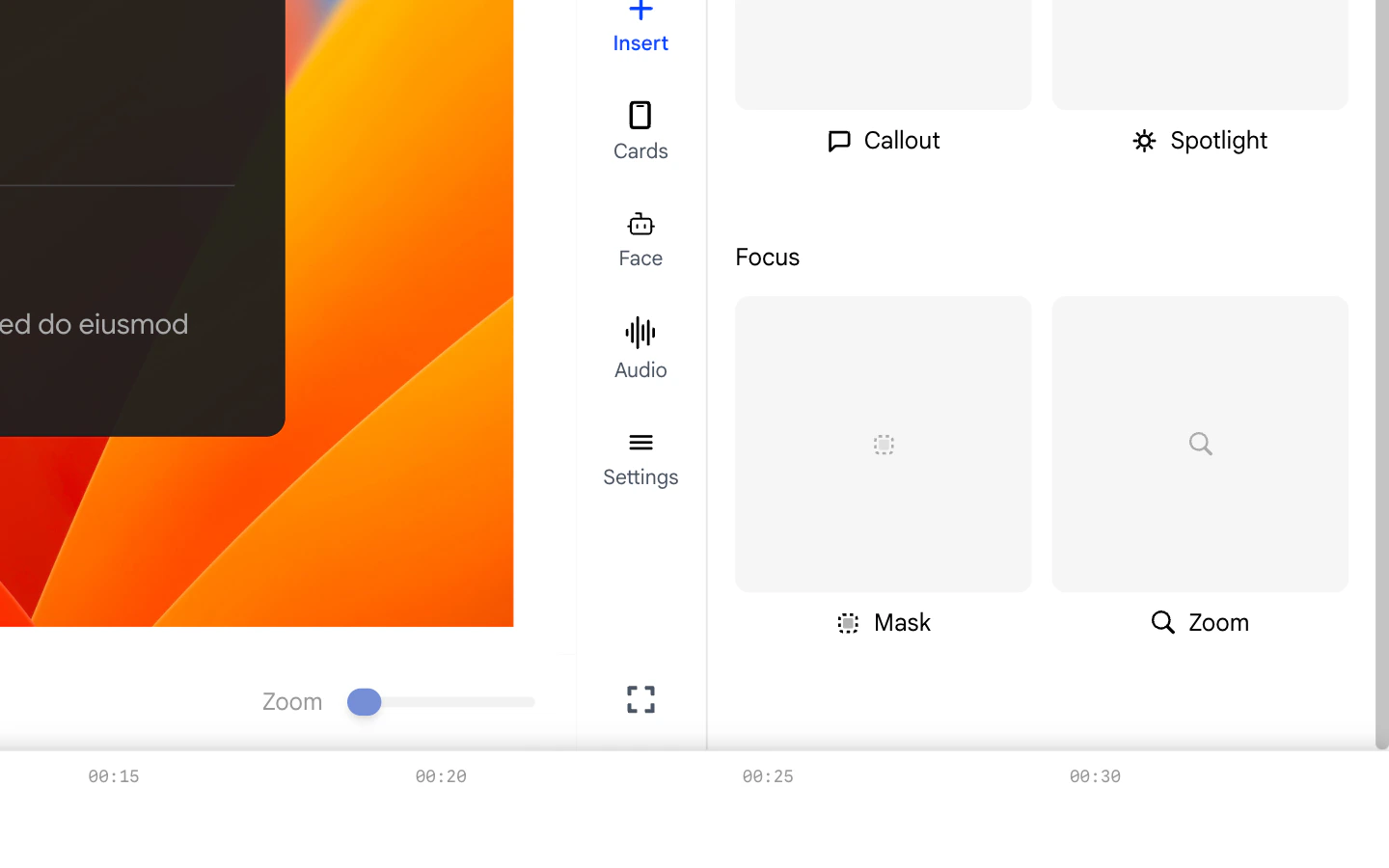
The **Focus** section contains two precision tools:
* **Mask** - Covers a sensitive area of the screen (such as a password
or private email) with a blur or solid block. See the
[Masks](/editing-velo/masks) page for details.
* **Zoom** - Adds a new zoom block to the timeline at the current
playhead position. See the [Zooms](/editing-velo/zooms) page for
details.
### **4. Adding Focus Tools**
The **Focus** section contains two precision tools:
* **Mask** - Covers a sensitive area of the screen (such as a password
or private email) with a blur or solid block. See the
[Masks](/editing-velo/masks) page for details.
* **Zoom** - Adds a new zoom block to the timeline at the current
playhead position. See the [Zooms](/editing-velo/zooms) page for
details.