> ## Documentation Index
> Fetch the complete documentation index at: https://docs.usevelo.ai/llms.txt
> Use this file to discover all available pages before exploring further.
# Cut and Crop
### **1. What Is the Difference Between Cut and Crop?**
Velo provides two distinct tools for trimming your recording:
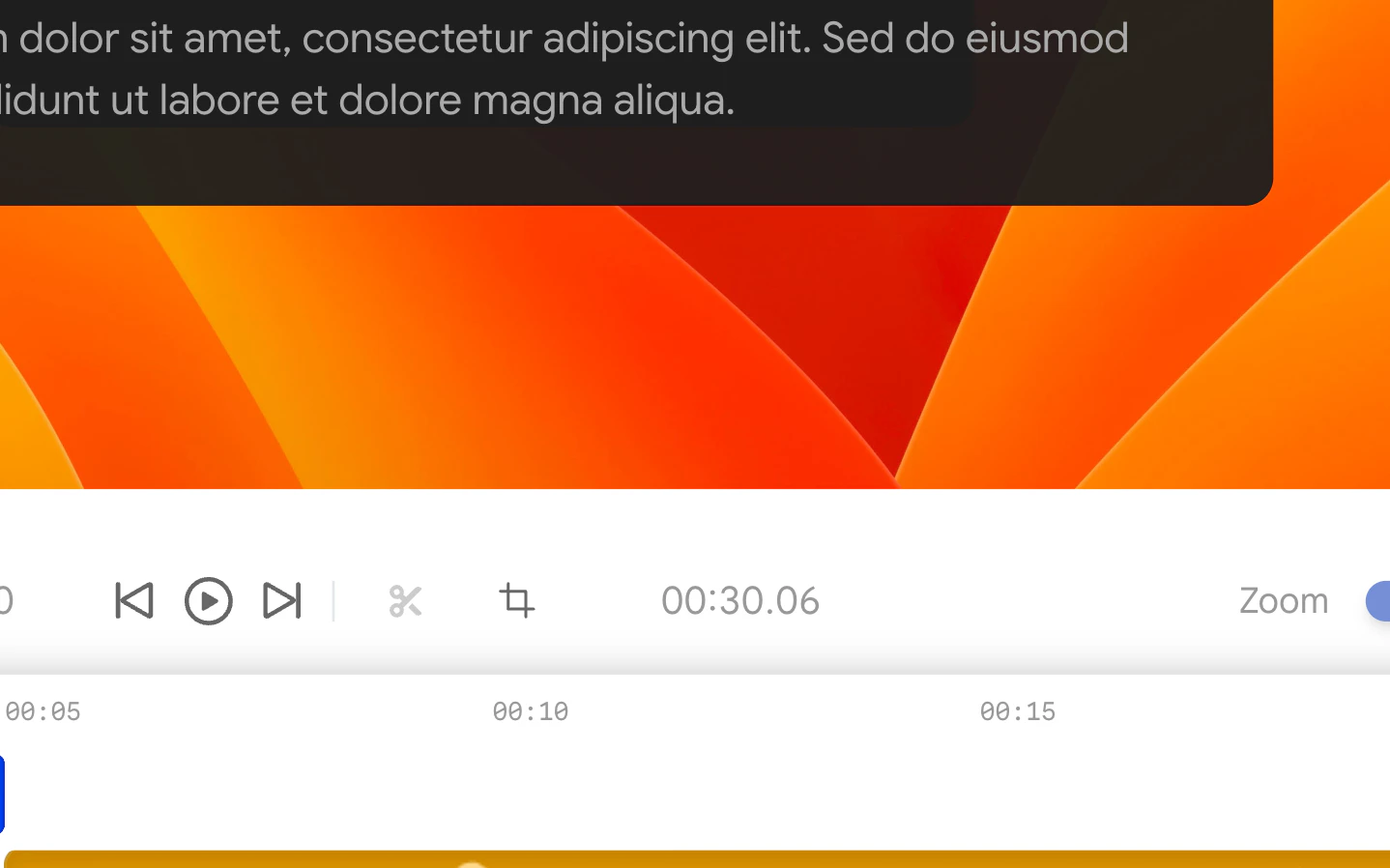
* **Cut (✂)** - Splits the video at the exact position of the playhead,
dividing it into two separate segments. Use this to remove a middle
section of your recording.
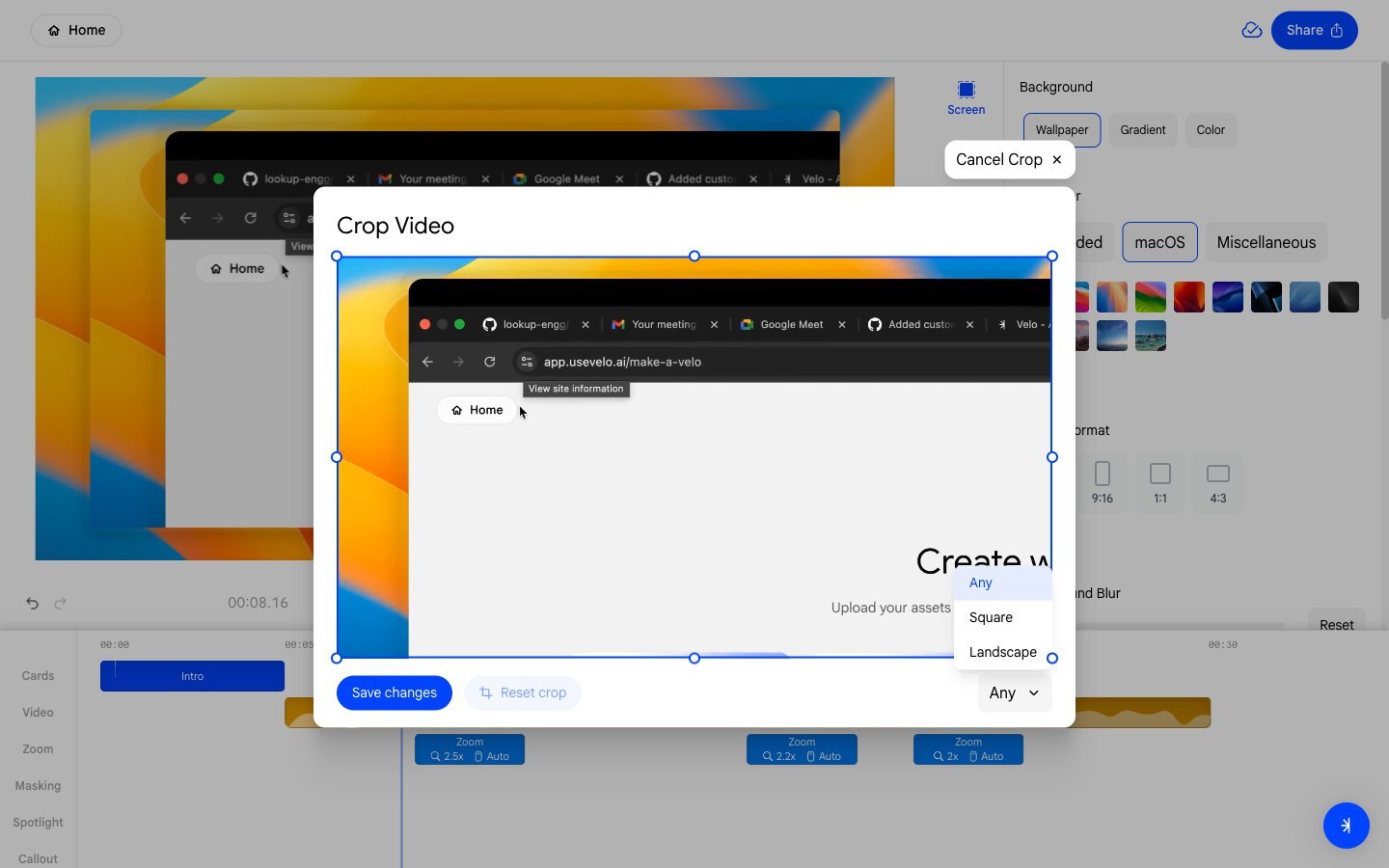
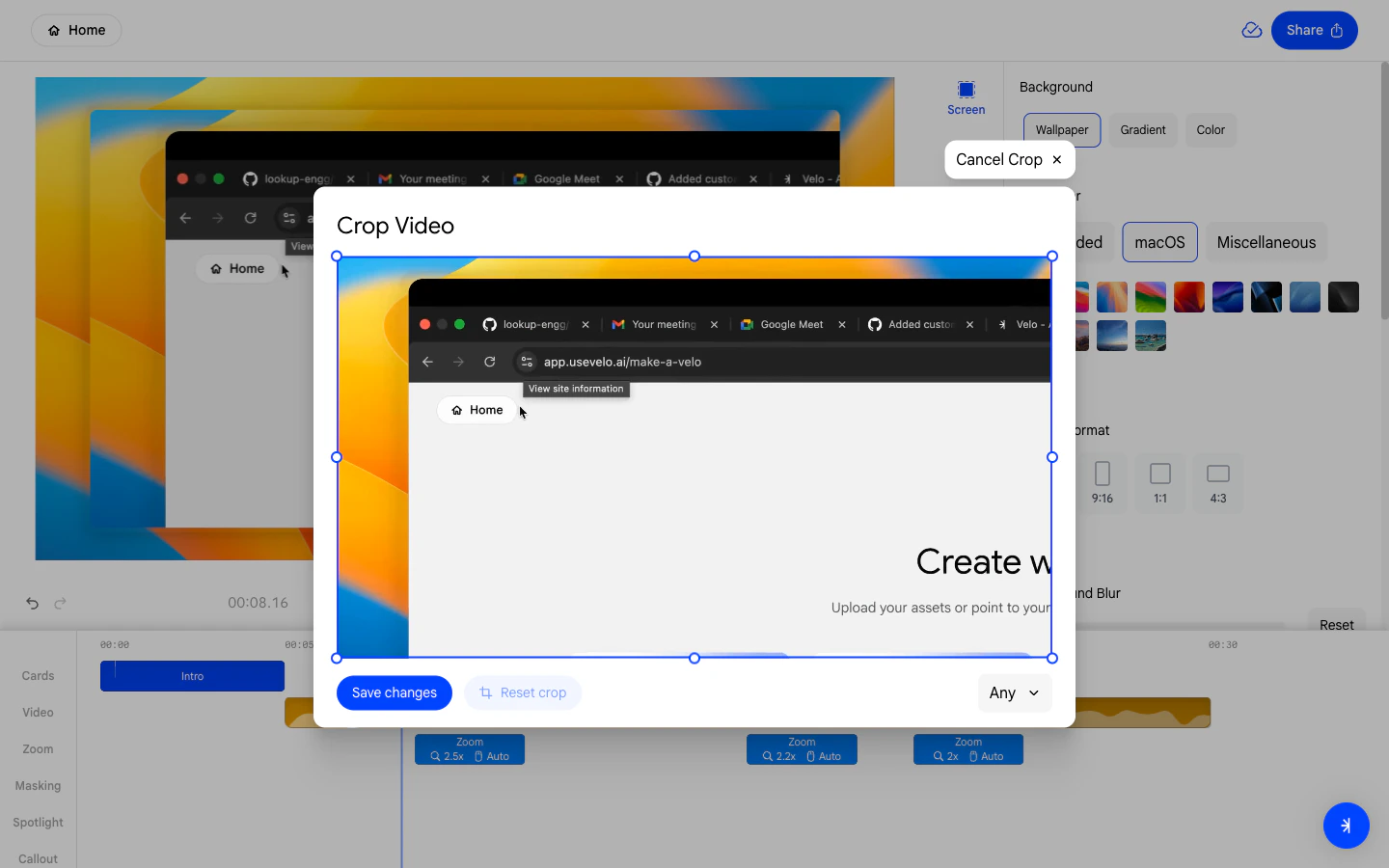
* **Crop (⊡)** - Opens a modal where you can crop the height and width of the video using the drag handles.
 ### **2. Using Cut to Split Your Video**
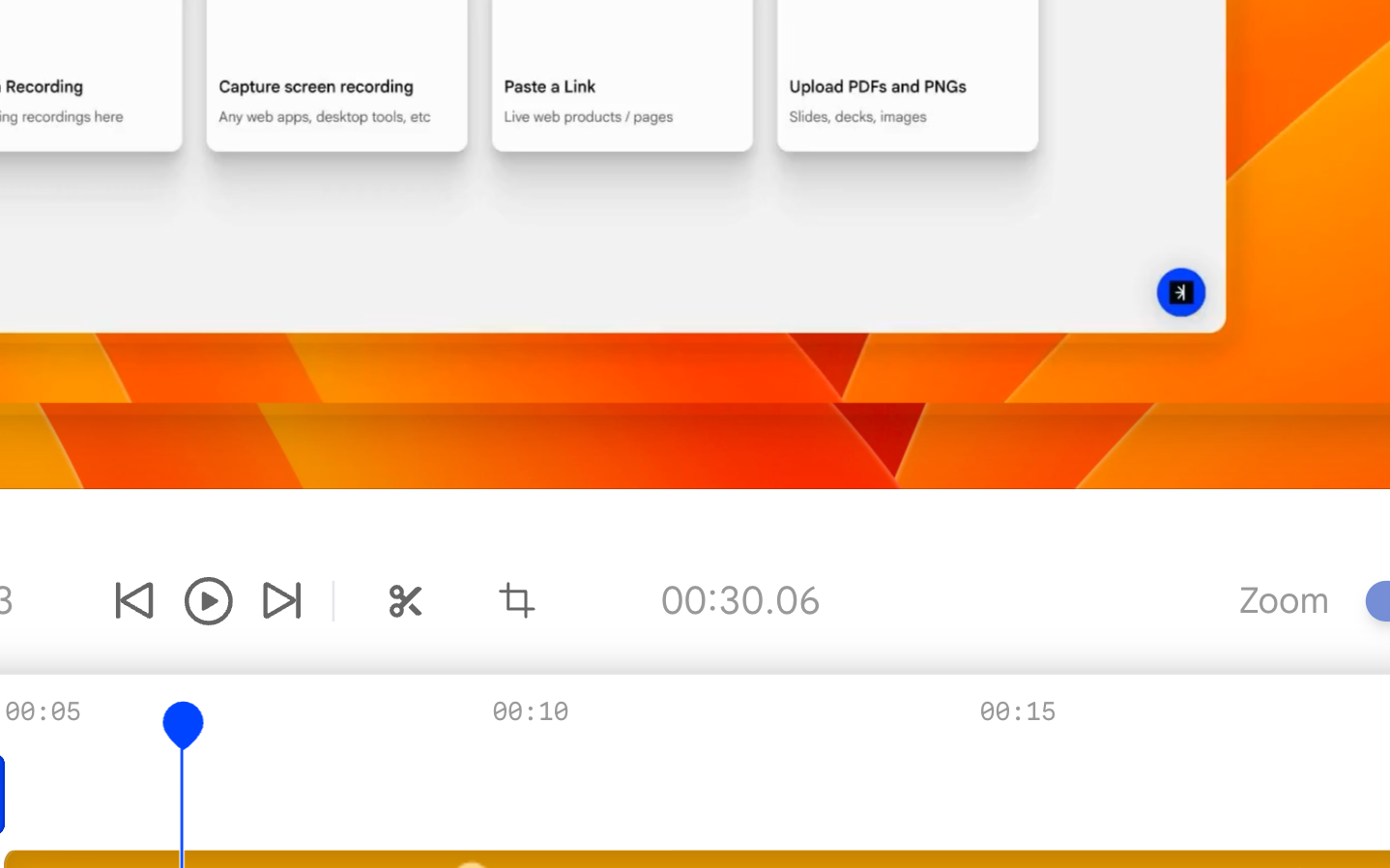
The Cut tool splits the video at the current playhead position.
* Move the playhead to the exact moment where you want to make the
cut.
* Click the **✂ Cut** button in the toolbar.
* The video is divided into two segments at that point.
* Select either segment to move, delete, or trim it independently.
### **2. Using Cut to Split Your Video**
The Cut tool splits the video at the current playhead position.
* Move the playhead to the exact moment where you want to make the
cut.
* Click the **✂ Cut** button in the toolbar.
* The video is divided into two segments at that point.
* Select either segment to move, delete, or trim it independently.
 ### **3. Removing a Section Using Cut**
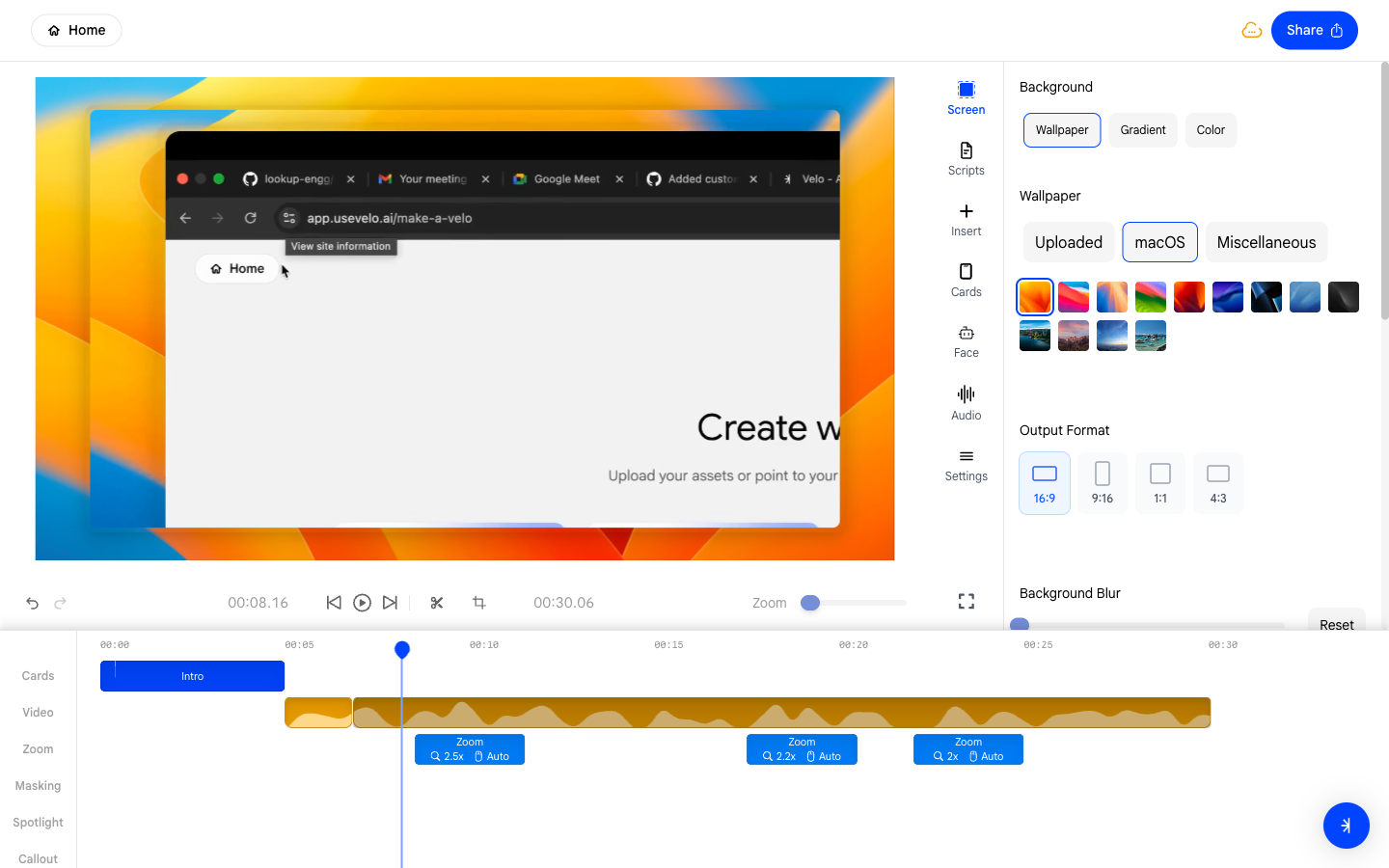
To remove a middle portion of your video:
1. Move the playhead to the start of the unwanted section and click
**Cut**.
2. Move the playhead to the end of the unwanted section and click
**Cut** again.
3. Select the segment between the two cuts and delete it.
### **3. Removing a Section Using Cut**
To remove a middle portion of your video:
1. Move the playhead to the start of the unwanted section and click
**Cut**.
2. Move the playhead to the end of the unwanted section and click
**Cut** again.
3. Select the segment between the two cuts and delete it.
 ### **4. Using Crop to Trim the Start or End**
The Crop tool lets you crop the height and width of video.
* Click the **⊡ Crop** button in the toolbar to open the crop modal.
* Drag the handles to select the region to keep in video.
* The preview updates in real time so you can see exactly how to cropped video will look like.
### **4. Using Crop to Trim the Start or End**
The Crop tool lets you crop the height and width of video.
* Click the **⊡ Crop** button in the toolbar to open the crop modal.
* Drag the handles to select the region to keep in video.
* The preview updates in real time so you can see exactly how to cropped video will look like.
 ### **5. Setting a Custom Aspect Ratio in the Crop Modal**
Inside the crop modal, an **Aspect Ratio** dropdown is available.
* The default is **Any**, which lets you crop freely without
constraints.
* Select a specific ratio to lock the crop region to a fixed proportion
as you adjust the handles.
### **5. Setting a Custom Aspect Ratio in the Crop Modal**
Inside the crop modal, an **Aspect Ratio** dropdown is available.
* The default is **Any**, which lets you crop freely without
constraints.
* Select a specific ratio to lock the crop region to a fixed proportion
as you adjust the handles.