> ## Documentation Index
> Fetch the complete documentation index at: https://docs.usevelo.ai/llms.txt
> Use this file to discover all available pages before exploring further.
# Cursor
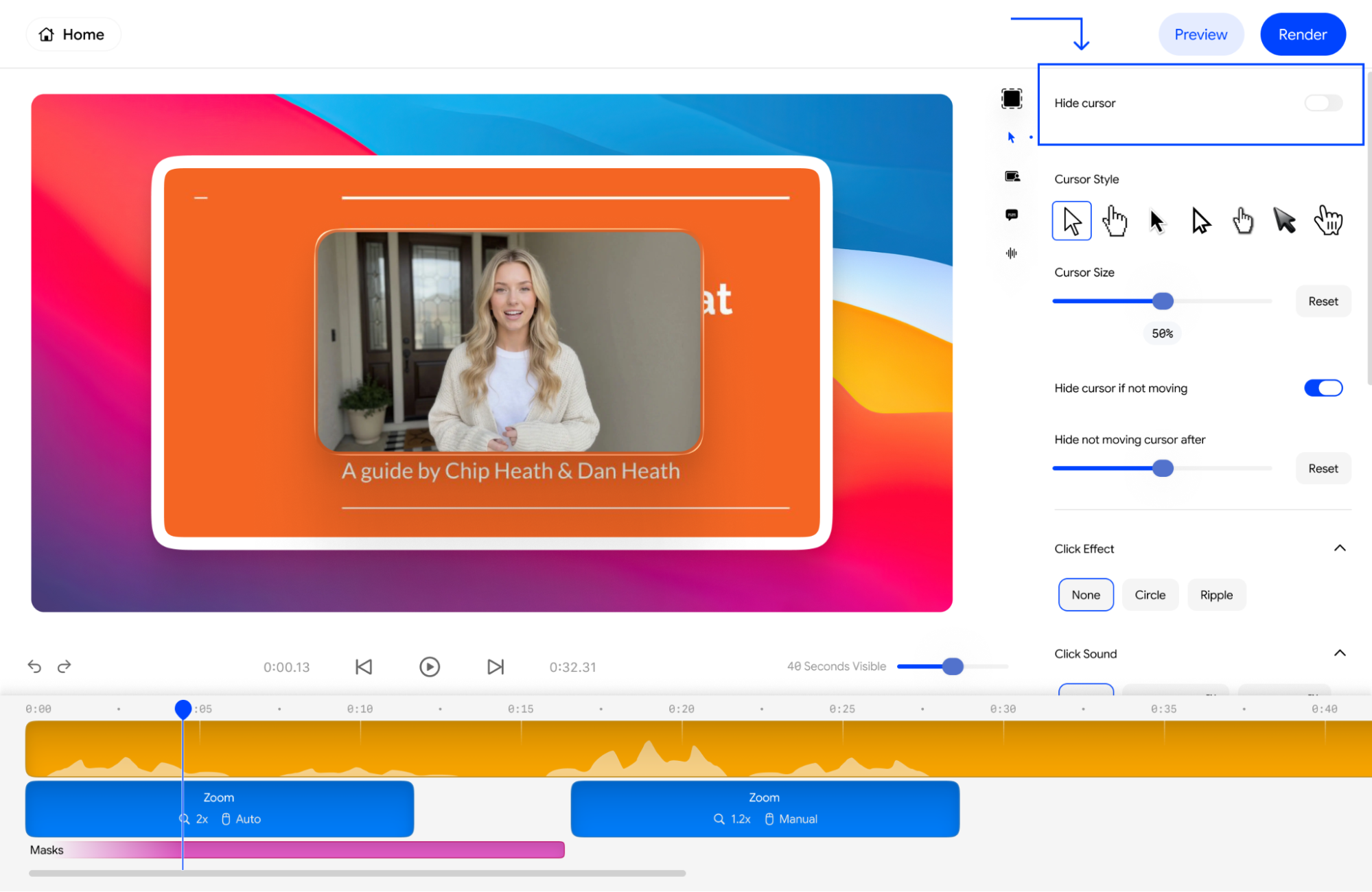
### **1. Hiding the cursor in Velo**
* Toggle the **Hide cursor** switch at the top of the menu to completely
remove the mouse from your video.
 ### **2. Changing the cursor in Velo**
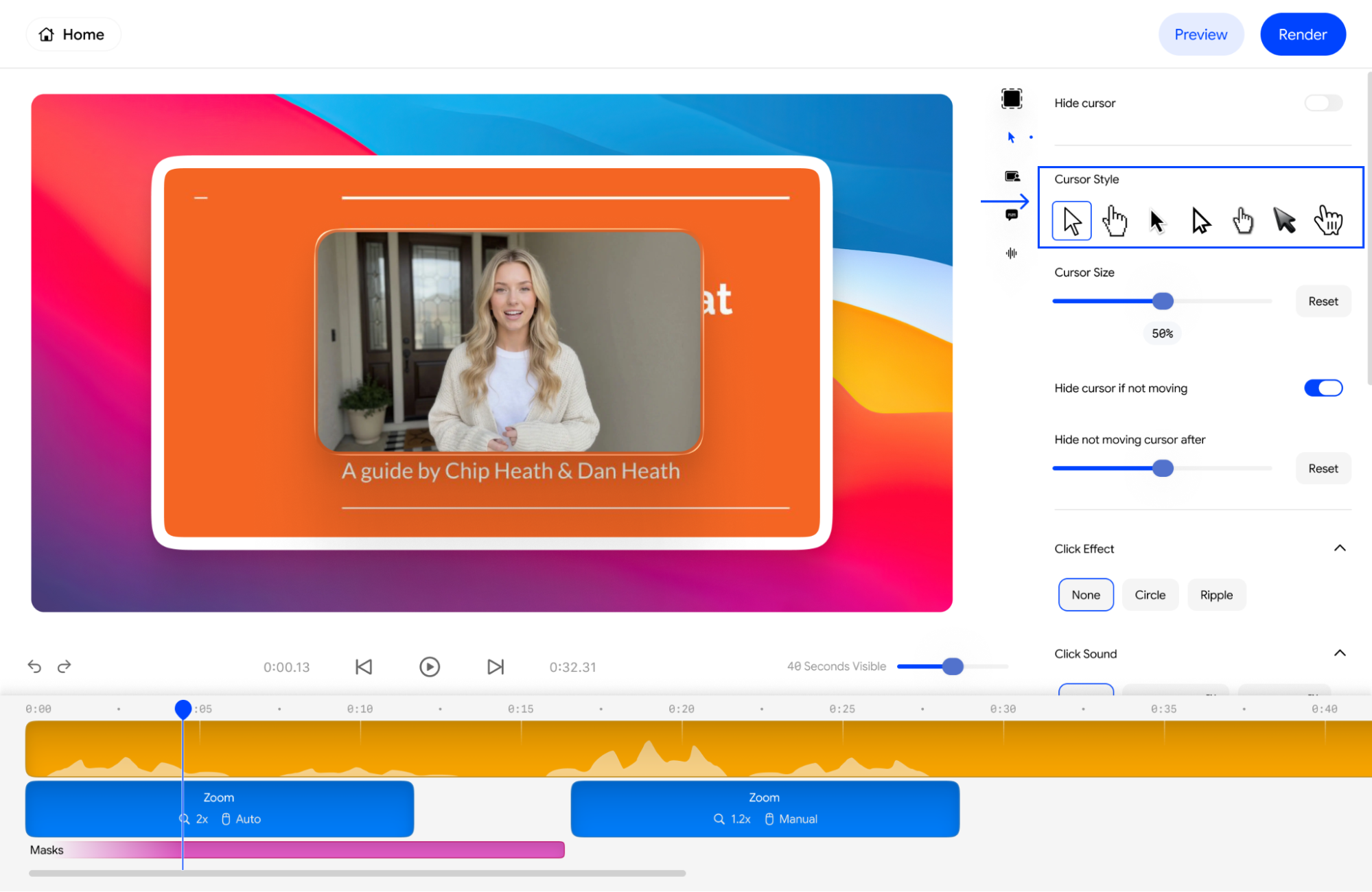
* In the **Cursor Style** section, click on any of the provided icons to
change your pointer to a classic arrow, a hand, or a high-contrast
style.
### **2. Changing the cursor in Velo**
* In the **Cursor Style** section, click on any of the provided icons to
change your pointer to a classic arrow, a hand, or a high-contrast
style.
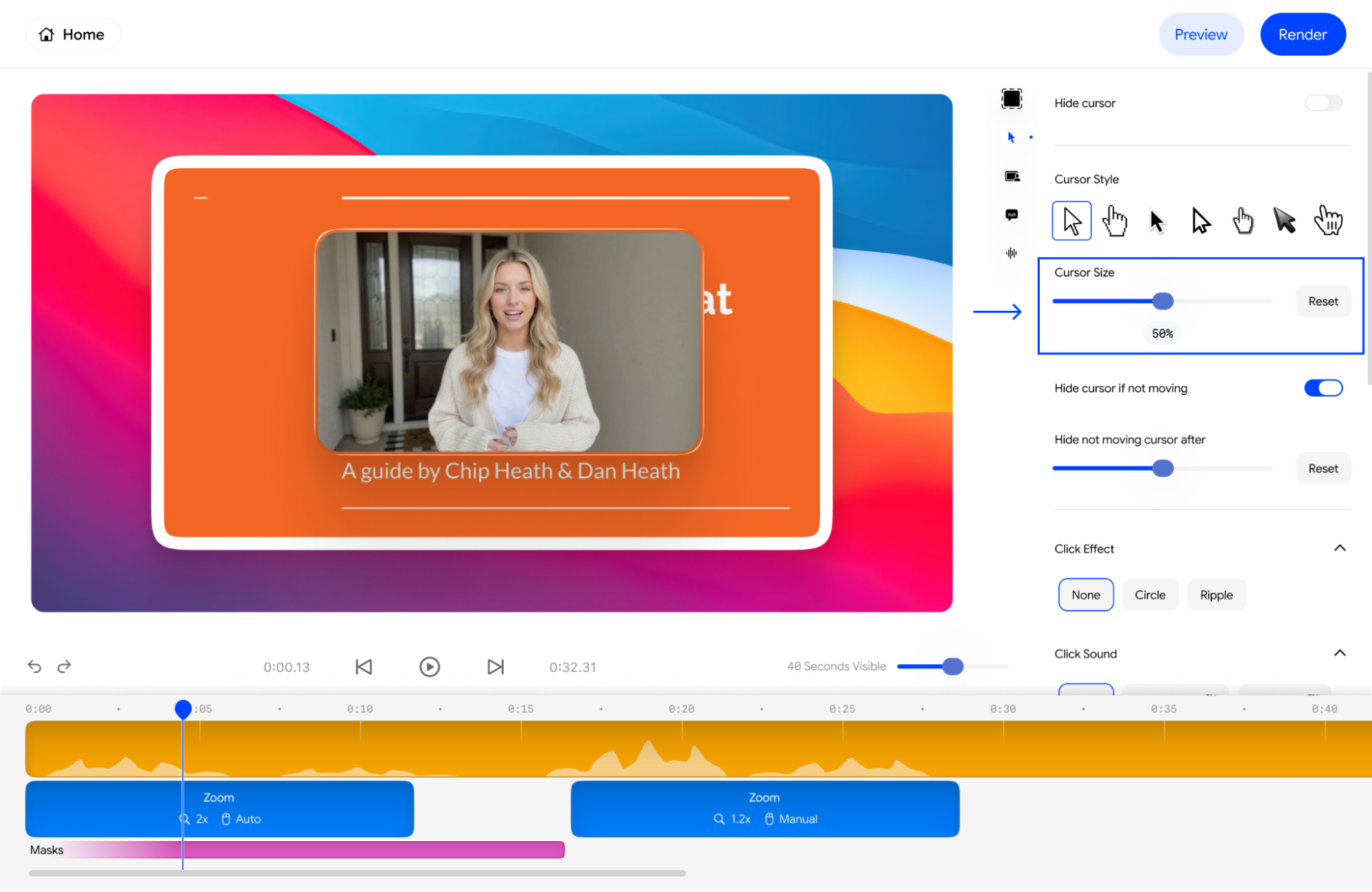
 ### **3. Changing cursor size in Velo**
* Adjust the **Cursor Size** slider to make your pointer larger or
smaller.
* The current percentage (e.g., **50%**) is displayed directly below the
slider for precision.
### **3. Changing cursor size in Velo**
* Adjust the **Cursor Size** slider to make your pointer larger or
smaller.
* The current percentage (e.g., **50%**) is displayed directly below the
slider for precision.
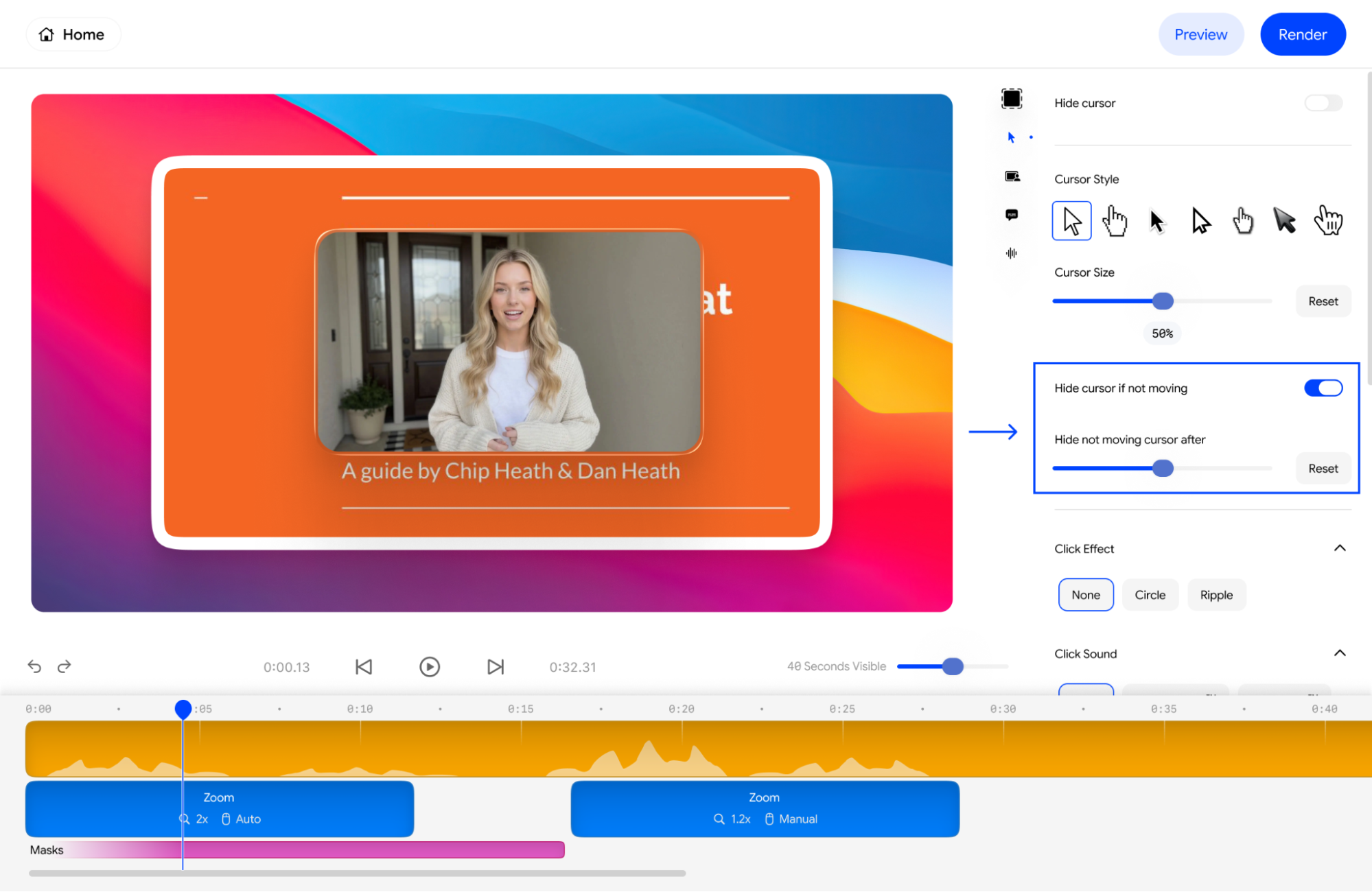
 ### **4. Hiding static cursor in my Velo**
* Enable the **Hide cursor if not moving** toggle to ensure the mouse
disappears when it is idle.
* You can also adjust the **Hide not moving cursor after** slider to
control exactly how many seconds of inactivity should pass before the
cursor fades away.
### **4. Hiding static cursor in my Velo**
* Enable the **Hide cursor if not moving** toggle to ensure the mouse
disappears when it is idle.
* You can also adjust the **Hide not moving cursor after** slider to
control exactly how many seconds of inactivity should pass before the
cursor fades away.
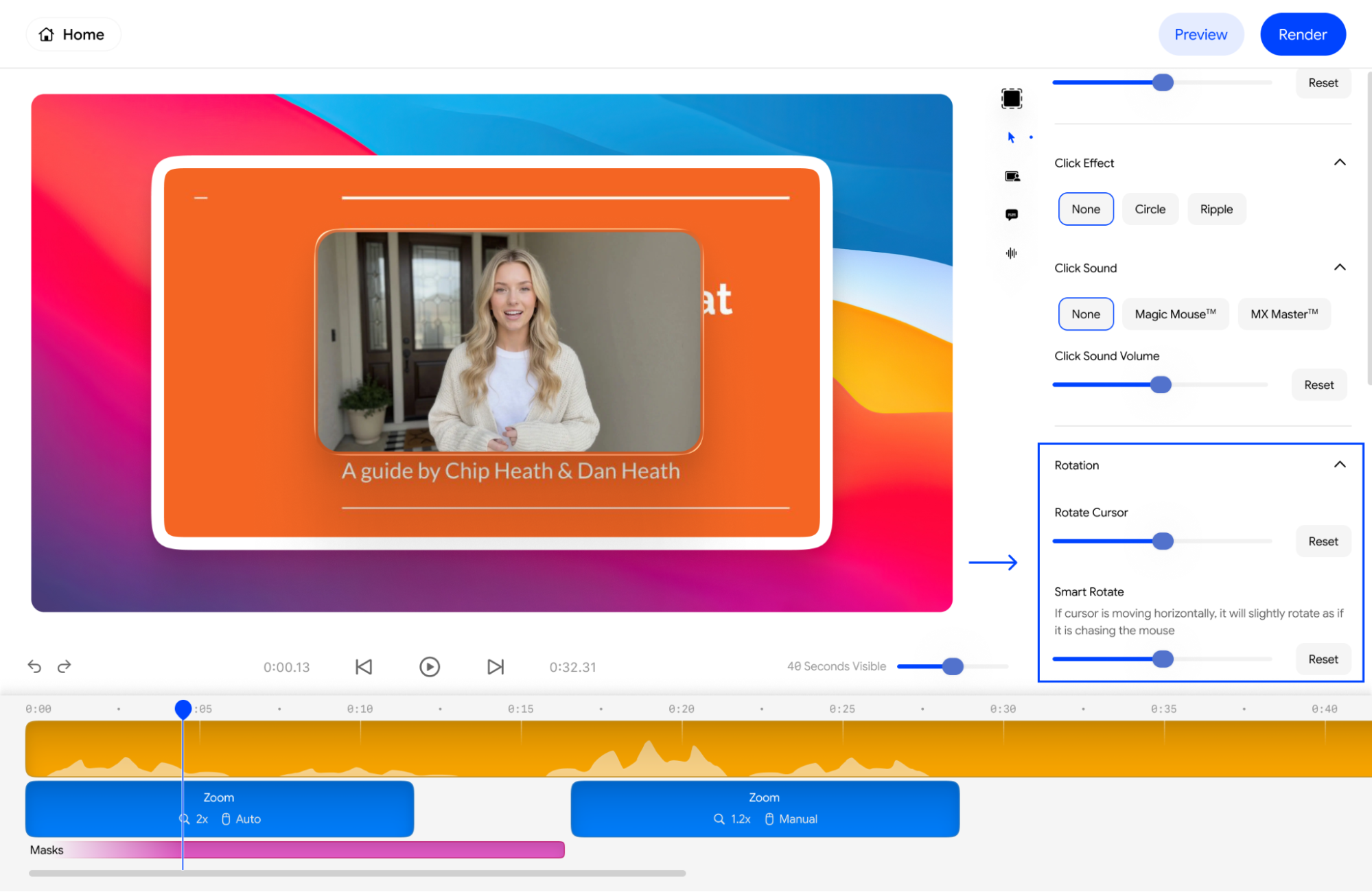
 ### **5. Implementing Rotation Effects within Velo**
* Expand the **Rotation** menu and move the **Rotate Cursor** slider to
set a fixed angle.
* Enable **Smart Rotate** to make the cursor slightly tilt automatically
as it moves, giving it a more natural "chasing" look.
### **5. Implementing Rotation Effects within Velo**
* Expand the **Rotation** menu and move the **Rotate Cursor** slider to
set a fixed angle.
* Enable **Smart Rotate** to make the cursor slightly tilt automatically
as it moves, giving it a more natural "chasing" look.
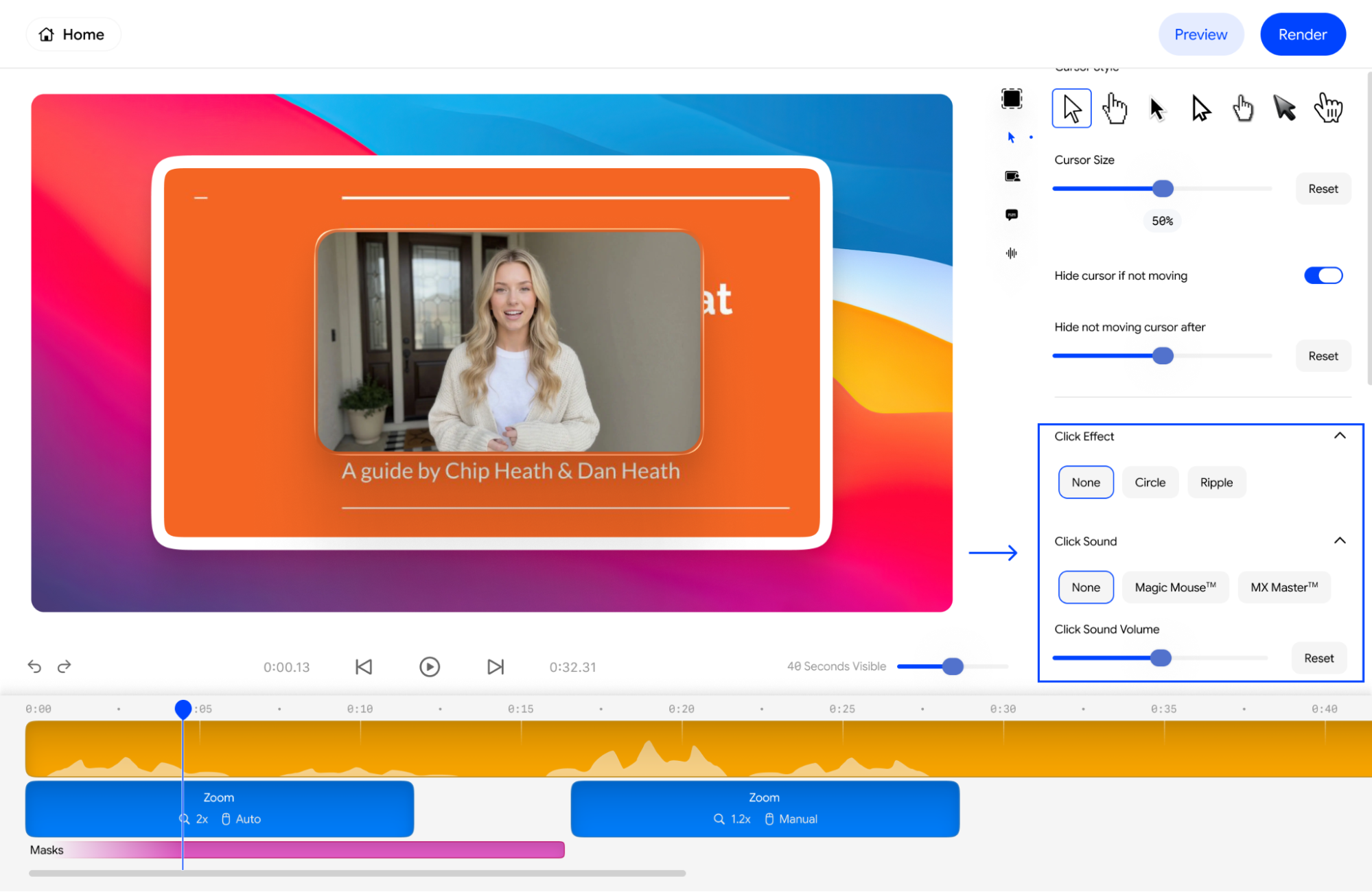
 ### **6. Integrating Click Effects and Sound in Velo**
* **Click Effects:** Open the **Click Effect** dropdown and select
**Circle** or **Ripple** to visually highlight every time a click
occurs.
* **Click Sounds:** Open the **Click Sound** dropdown to choose an audio
cue like **Magic Mouse™** or **MX Master™**.
* **Volume:** Use the **Click Sound Volume** slider to adjust how loud
these clicks are in your final video
### **6. Integrating Click Effects and Sound in Velo**
* **Click Effects:** Open the **Click Effect** dropdown and select
**Circle** or **Ripple** to visually highlight every time a click
occurs.
* **Click Sounds:** Open the **Click Sound** dropdown to choose an audio
cue like **Magic Mouse™** or **MX Master™**.
* **Volume:** Use the **Click Sound Volume** slider to adjust how loud
these clicks are in your final video