> ## Documentation Index
> Fetch the complete documentation index at: https://docs.usevelo.ai/llms.txt
> Use this file to discover all available pages before exploring further.
# Callout
### **1. What Is the Callout Effect?**
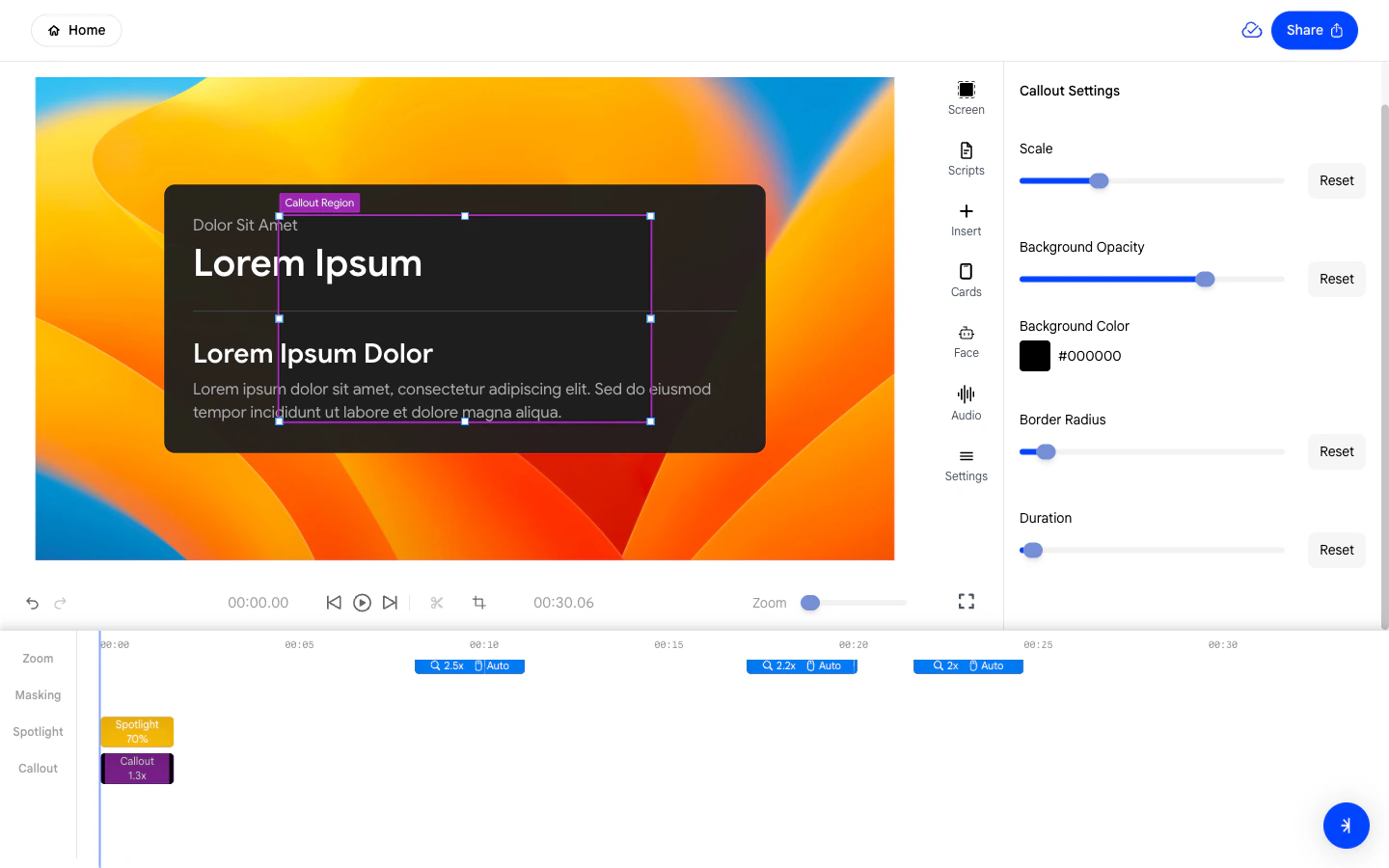
The Callout effect draws a highlighted box around a specific area of
your screen, making it easy for viewers to see exactly where to look.
Unlike Spotlight, Callout adds a visible zoom effect to help viewers focus on the specific section.
 ### **2. Adding a Callout to Your Velo**
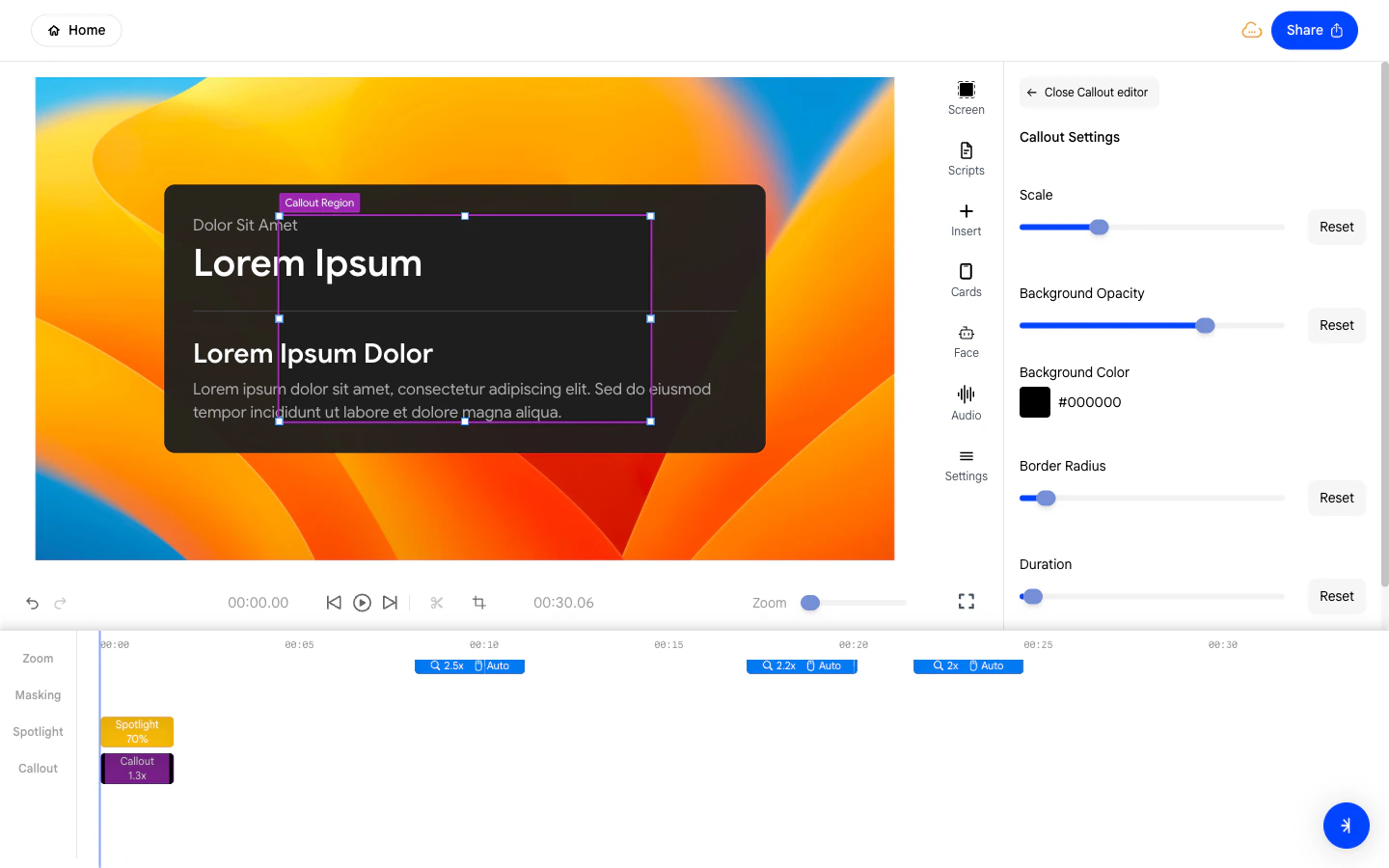
To add a Callout:
* Open the **Insert** panel from the right sidebar.
* Under the **Effects** section, click **Callout**.
* A draggable callout region will appear on the canvas and a
corresponding block will be added to the **Callout** track in the
timeline.
* Drag and resize the region on the canvas to frame the area you want
to highlight.
### **2. Adding a Callout to Your Velo**
To add a Callout:
* Open the **Insert** panel from the right sidebar.
* Under the **Effects** section, click **Callout**.
* A draggable callout region will appear on the canvas and a
corresponding block will be added to the **Callout** track in the
timeline.
* Drag and resize the region on the canvas to frame the area you want
to highlight.
 ### **3. Adjusting the Callout Scale**
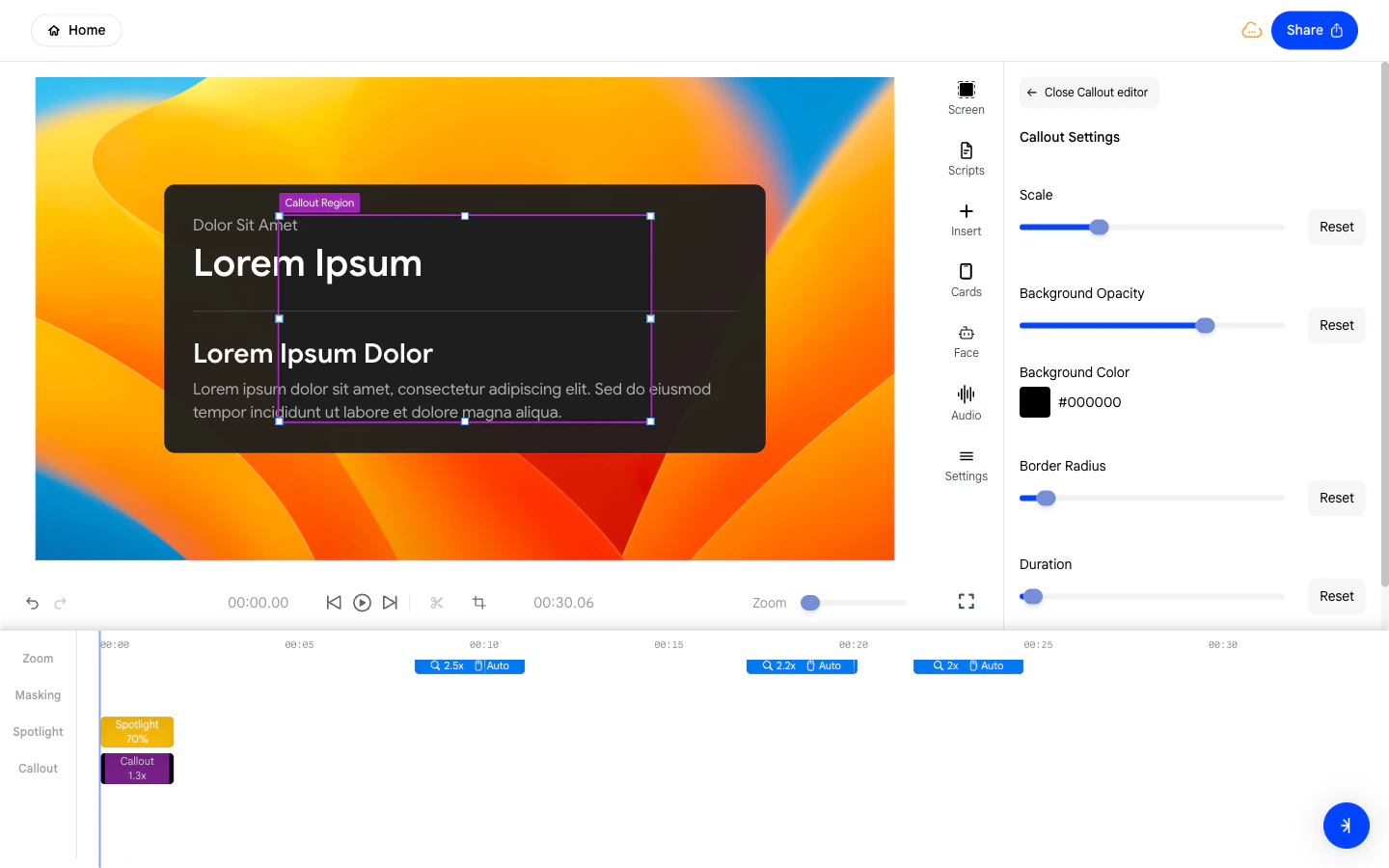
The **Scale** slider controls the overall size of the callout region
relative to the canvas.
* Slide right to increase the scale of the callout.
* Slide left to shrink it.
This is distinct from dragging the region on the canvas - Scale adjusts
the proportional size of the callout box itself.
### **3. Adjusting the Callout Scale**
The **Scale** slider controls the overall size of the callout region
relative to the canvas.
* Slide right to increase the scale of the callout.
* Slide left to shrink it.
This is distinct from dragging the region on the canvas - Scale adjusts
the proportional size of the callout box itself.
 ### **4. Adjusting Background Opacity**
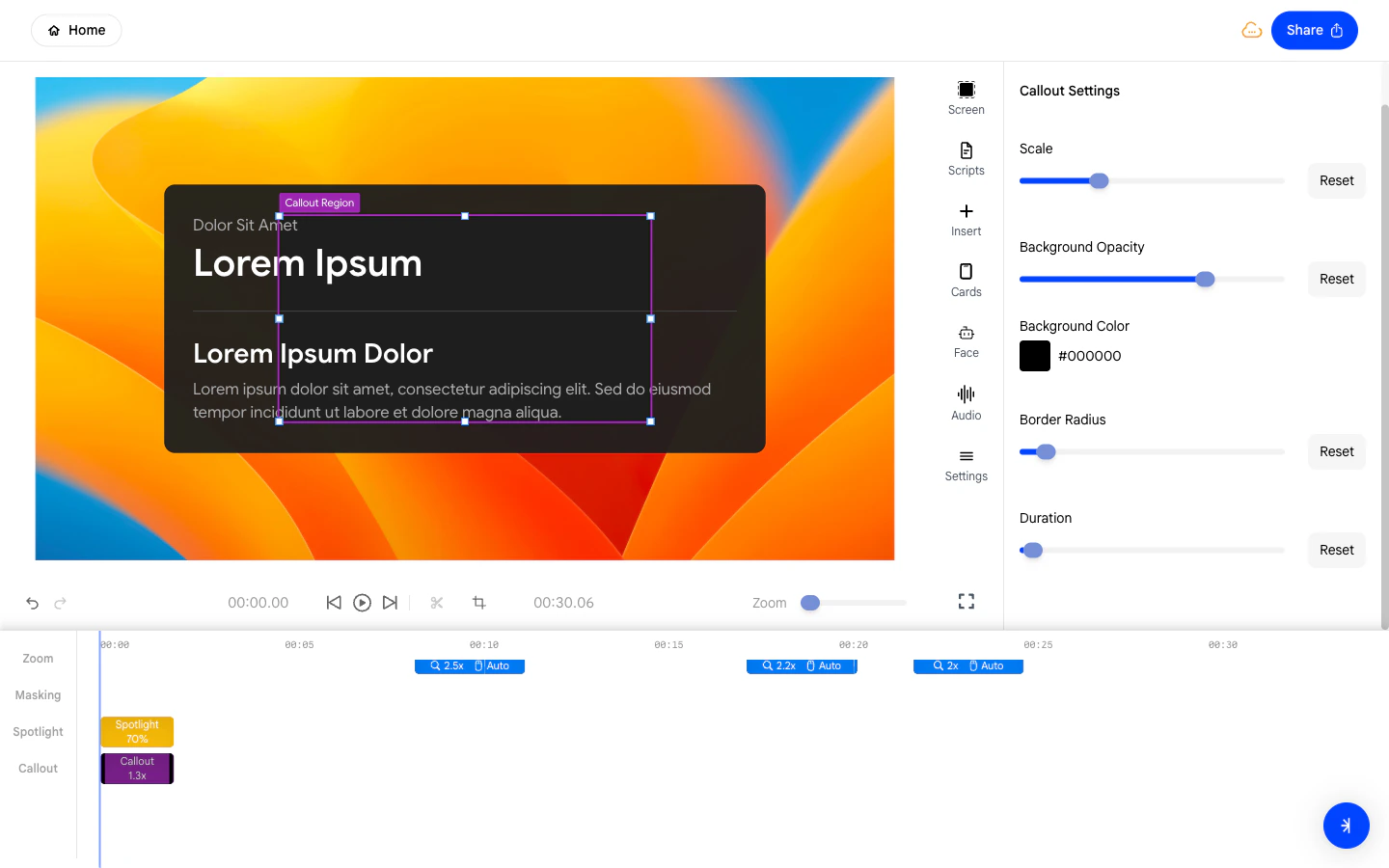
The **Background Opacity** slider controls how visible the fill color
inside the callout region appears.
* A higher value creates a more solid filled box.
* A lower value makes the fill transparent, showing only the border.
### **4. Adjusting Background Opacity**
The **Background Opacity** slider controls how visible the fill color
inside the callout region appears.
* A higher value creates a more solid filled box.
* A lower value makes the fill transparent, showing only the border.
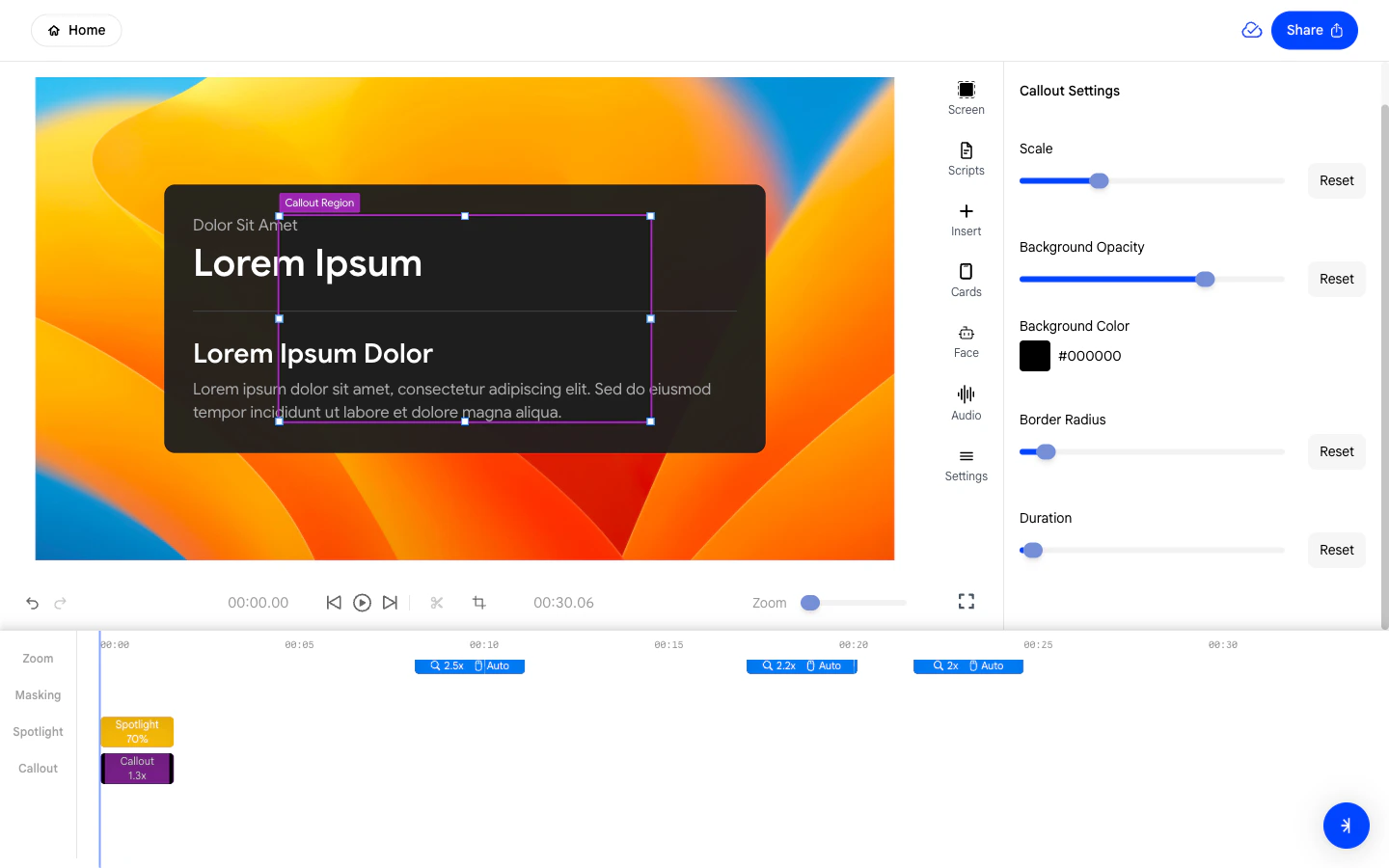 ### **5. Changing the Callout Background Color**
The **Background Color** picker lets you choose the fill color of the
callout box.
* Click the color swatch to open the picker and select your preferred
highlight color.
### **5. Changing the Callout Background Color**
The **Background Color** picker lets you choose the fill color of the
callout box.
* Click the color swatch to open the picker and select your preferred
highlight color.
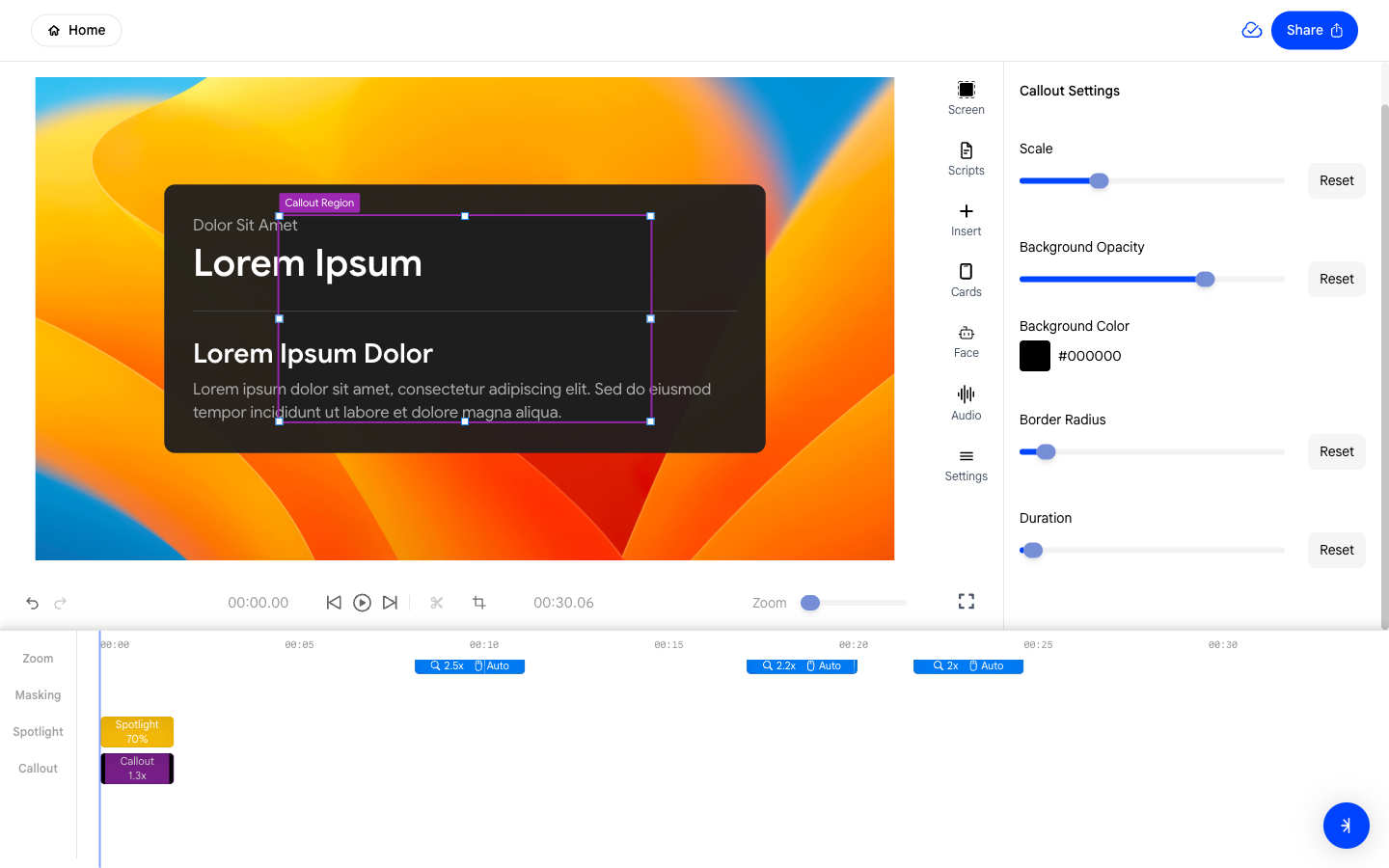 ### **6. Rounding the Callout Corners**
Use the **Border Radius** slider to round the corners of your callout
region.
* Slide right for a softer, rounded look.
* Slide left to keep sharp rectangular corners.
### **6. Rounding the Callout Corners**
Use the **Border Radius** slider to round the corners of your callout
region.
* Slide right for a softer, rounded look.
* Slide left to keep sharp rectangular corners.
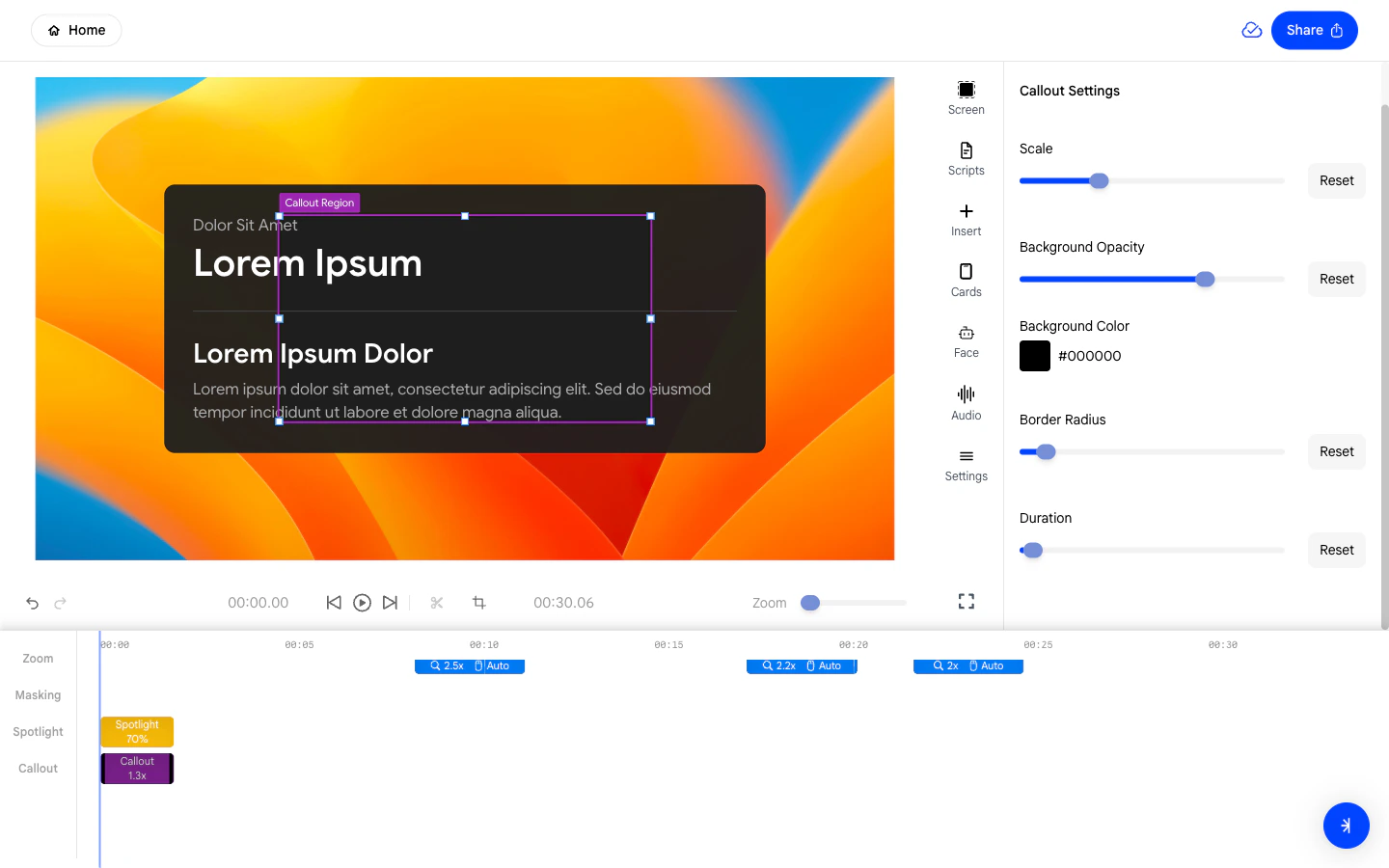 ### **7. Setting the Callout Duration**
The **Duration** field controls how long the callout remains visible in
your video.
* Enter a specific value or drag the edges of the Callout block
directly in the timeline to adjust its length.
### **7. Setting the Callout Duration**
The **Duration** field controls how long the callout remains visible in
your video.
* Enter a specific value or drag the edges of the Callout block
directly in the timeline to adjust its length.