> ## Documentation Index
> Fetch the complete documentation index at: https://docs.usevelo.ai/llms.txt
> Use this file to discover all available pages before exploring further.
# Audio
### **1. Adding Background Music to Your Velo**
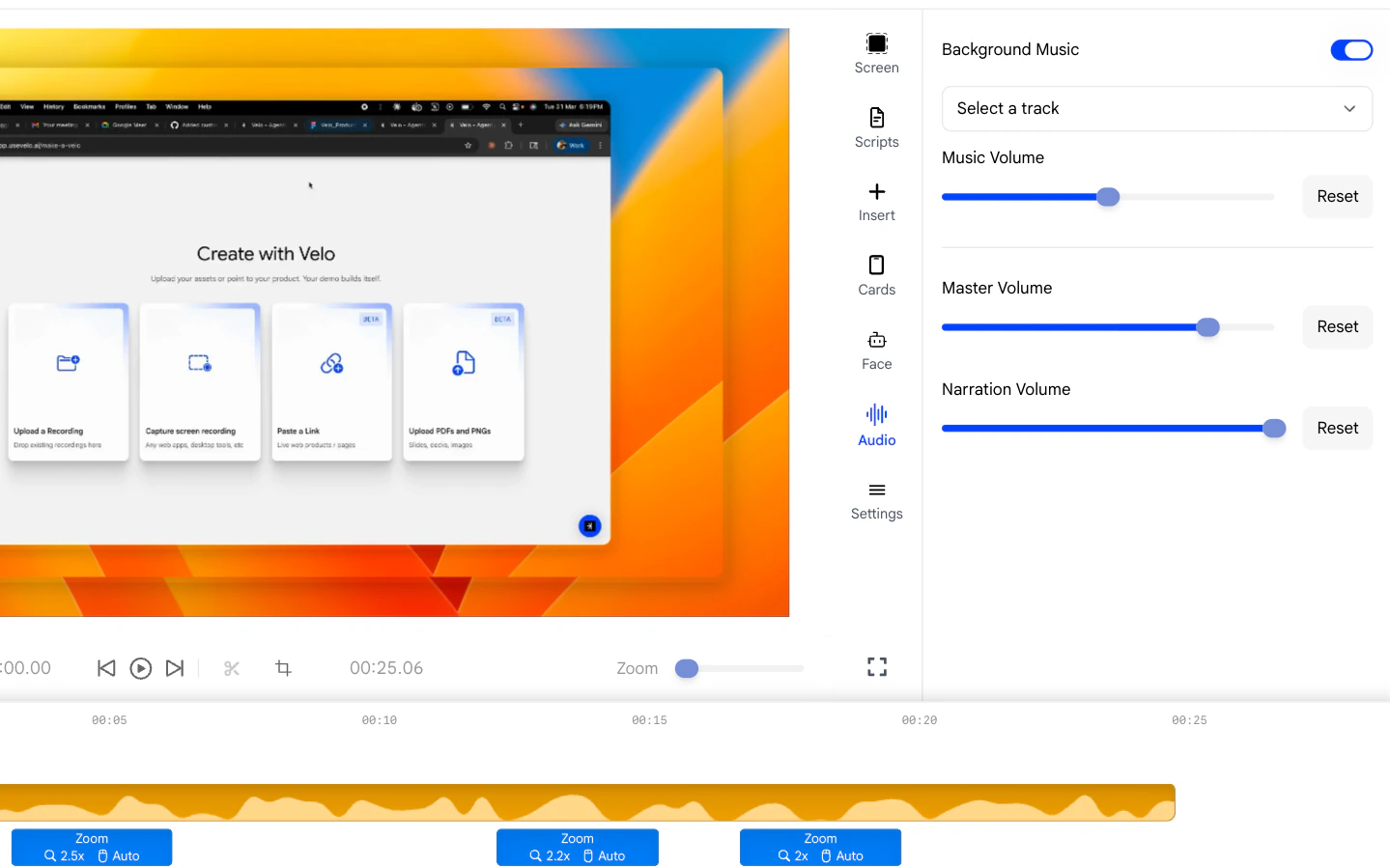
Open the **Audio** panel from the right sidebar. Enable the **Background
Music** toggle to turn on background music for your video.
* Velo provides a built-in library of tracks you can preview and
select.
* Custom music uploads are not currently supported - you can only
choose from the pre-built library.
 ### **2. Adjusting the Master Volume**
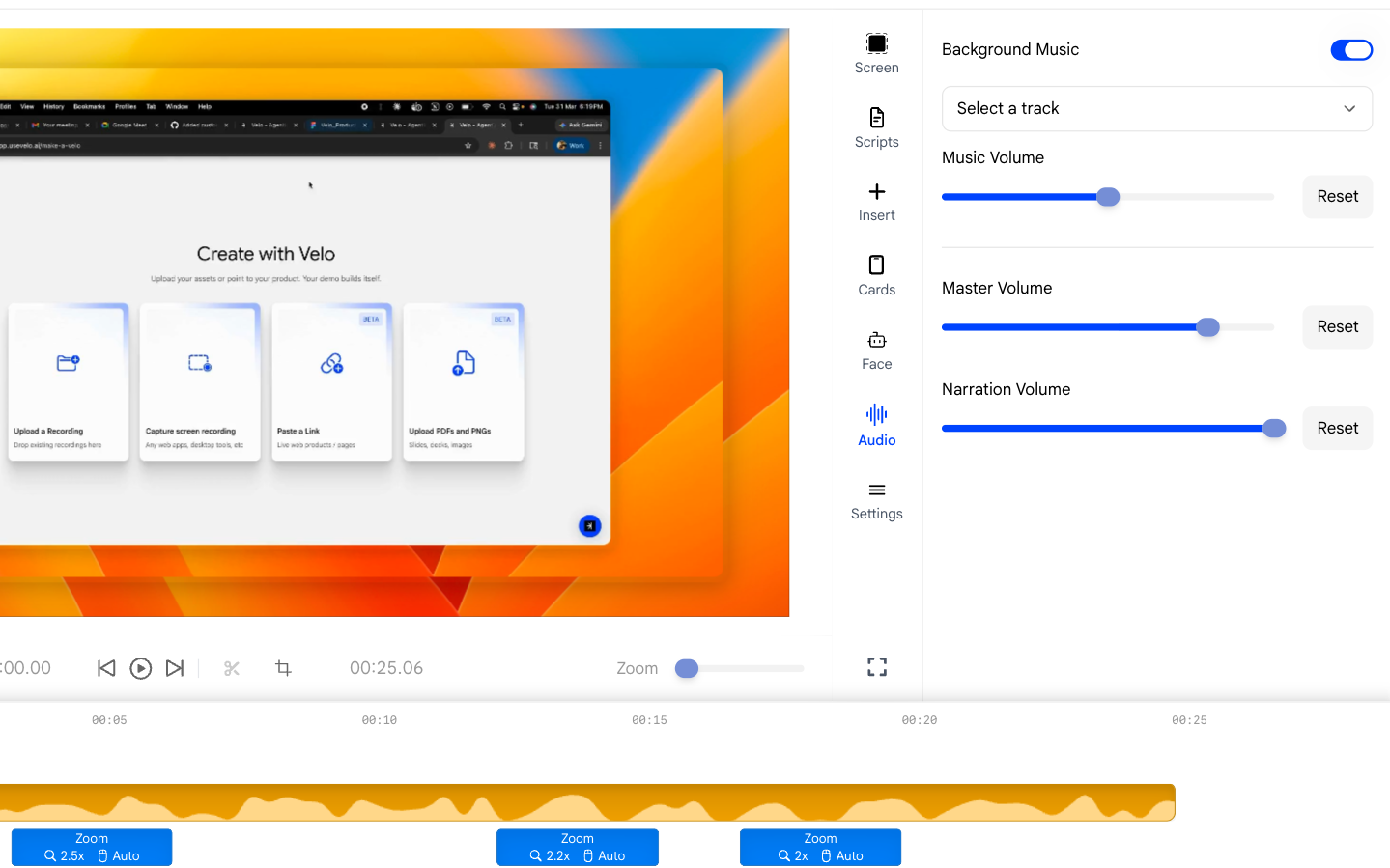
The **Master Volume** slider controls the overall loudness of your
entire project, affecting all audio layers simultaneously.
* Slide right to increase the overall volume.
* Slide left to reduce it.
### **2. Adjusting the Master Volume**
The **Master Volume** slider controls the overall loudness of your
entire project, affecting all audio layers simultaneously.
* Slide right to increase the overall volume.
* Slide left to reduce it.
 ### **3. Adjusting the Narration Volume**
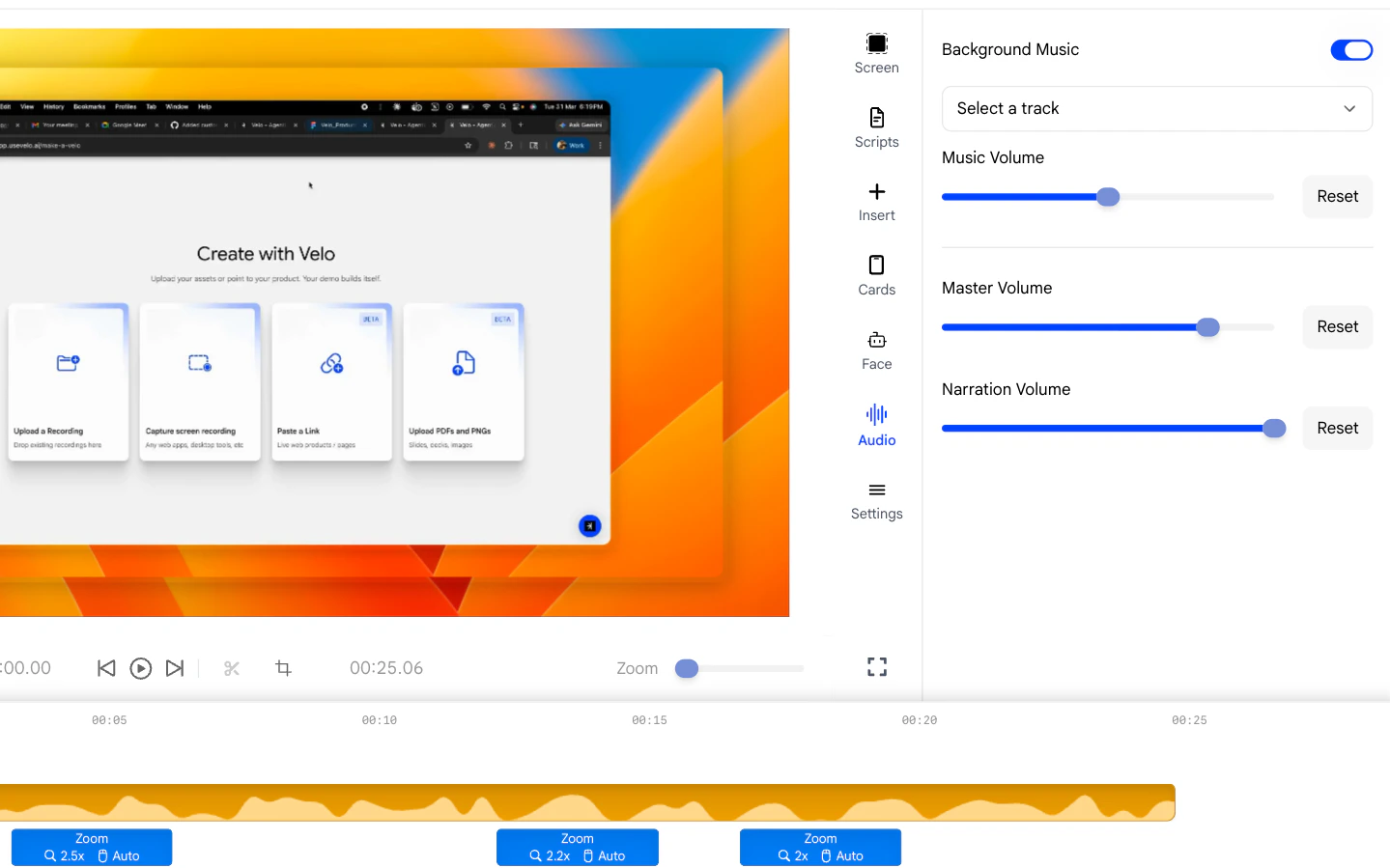
The **Narration Volume** slider lets you independently control how loud
your AI voice clone sounds relative to other audio in the video.
* Increase it if your narration feels too quiet compared to the
background music or system audio.
* Decrease it for a more subtle voiceover effect.
### **3. Adjusting the Narration Volume**
The **Narration Volume** slider lets you independently control how loud
your AI voice clone sounds relative to other audio in the video.
* Increase it if your narration feels too quiet compared to the
background music or system audio.
* Decrease it for a more subtle voiceover effect.