> ## Documentation Index
> Fetch the complete documentation index at: https://docs.usevelo.ai/llms.txt
> Use this file to discover all available pages before exploring further.
# Generating a Doc
> Automatically transform your video content into written documentation.
Velo allows you to automatically transform video content into written documentation, providing a readable companion for your recordings that captures every UI action and insight.
## Access the Docs interface
Navigate to the top-right corner of the Velo interface, next to the **Video** preview, and select the **Docs** tab. If a document has not been created for the current project yet, the screen will display a "No doc yet" status.
.png?fit=max&auto=format&n=Rr1R_9ovDeX34qDf&q=85&s=2d8a5257a6a0b323a92396e9752b98c3)
.png) The Docs tab is located at the top right of the preview panel.
## Generate the document
Click the **Generate Doc** button. The system will process the video content, a task that typically takes a few seconds. During this time, you will see a "Generating your doc..." status message.
The Docs tab is located at the top right of the preview panel.
## Generate the document
Click the **Generate Doc** button. The system will process the video content, a task that typically takes a few seconds. During this time, you will see a "Generating your doc..." status message.
.png?fit=max&auto=format&n=Rr1R_9ovDeX34qDf&q=85&s=f142388076716595df71064a78055ab7)
.png) Initiate document creation using the Generate Doc button.
## Review and edit content
Once the document appears, you can perform manual edits to refine the text. Both the title and the body of the doc are fully editable to ensure the final output meets your specific needs. The generated document includes detailed annotations and captions that correspond to specific actions within the video.
Initiate document creation using the Generate Doc button.
## Review and edit content
Once the document appears, you can perform manual edits to refine the text. Both the title and the body of the doc are fully editable to ensure the final output meets your specific needs. The generated document includes detailed annotations and captions that correspond to specific actions within the video.
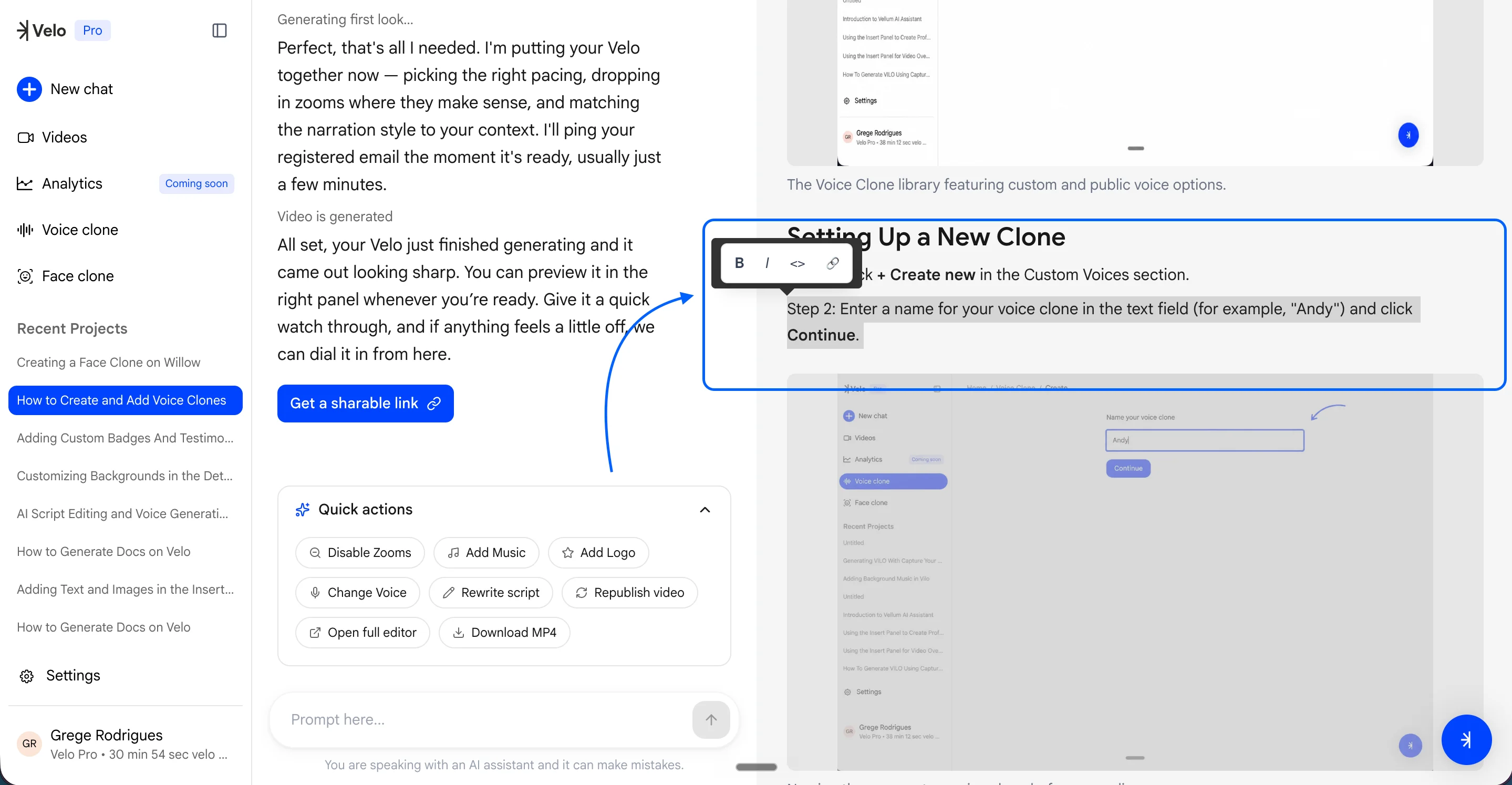 Review and edit the generated headings, text, and screenshots.
## Share and export
After verifying the content and making any necessary formatting changes, click **Save** to preserve your edits. To distribute the document:
1. Click the **Share** button in the top-right corner.
2. Select your preferred export format from the **Share Velo** modal.
3. Choose **PDF** for a fixed-layout document or **Markdown** for use in other documentation tools.
Review and edit the generated headings, text, and screenshots.
## Share and export
After verifying the content and making any necessary formatting changes, click **Save** to preserve your edits. To distribute the document:
1. Click the **Share** button in the top-right corner.
2. Select your preferred export format from the **Share Velo** modal.
3. Choose **PDF** for a fixed-layout document or **Markdown** for use in other documentation tools.
.png?fit=max&auto=format&n=Rr1R_9ovDeX34qDf&q=85&s=89bcb9b65bbe43a3deca47ce5037451e)
.png) Export the final document as a PDF or Markdown file.
The resulting document provides an easy-to-read, detailed walkthrough that serves as a permanent reference for the video content.
Export the final document as a PDF or Markdown file.
The resulting document provides an easy-to-read, detailed walkthrough that serves as a permanent reference for the video content.