> ## Documentation Index
> Fetch the complete documentation index at: https://docs.usevelo.ai/llms.txt
> Use this file to discover all available pages before exploring further.
# Sharing
> Share your Velo via a public link, publish it to workspace libraries, or export the video and companion documents for offline use.
Once your Velo is generated, you can share it externally via a public link, publish it to workspace libraries for teammates, or export the assets for offline use.
## Publish vs Share
These are two fully independent actions in Velo. Neither requires the other.
| Action | What it does | Who sees it |
| ----------- | ---------------------------------------------------------------------------------------------- | -------------------------------------------------------------- |
| **Publish** | Renders video and now can be added to one or more workspace [libraries](/workspaces/libraries) | Workspace members with access to that library |
| **Share** | Generates a public link to a branded share page | Anyone with the link — including people outside your workspace |
You can publish without sharing, or share without publishing.
## Sharing Externally
**Step 1:** Click the **Share** button in the top right corner of the interface.
**Step 2:** In the **Share Velo** modal, click **Publish** to render the video.
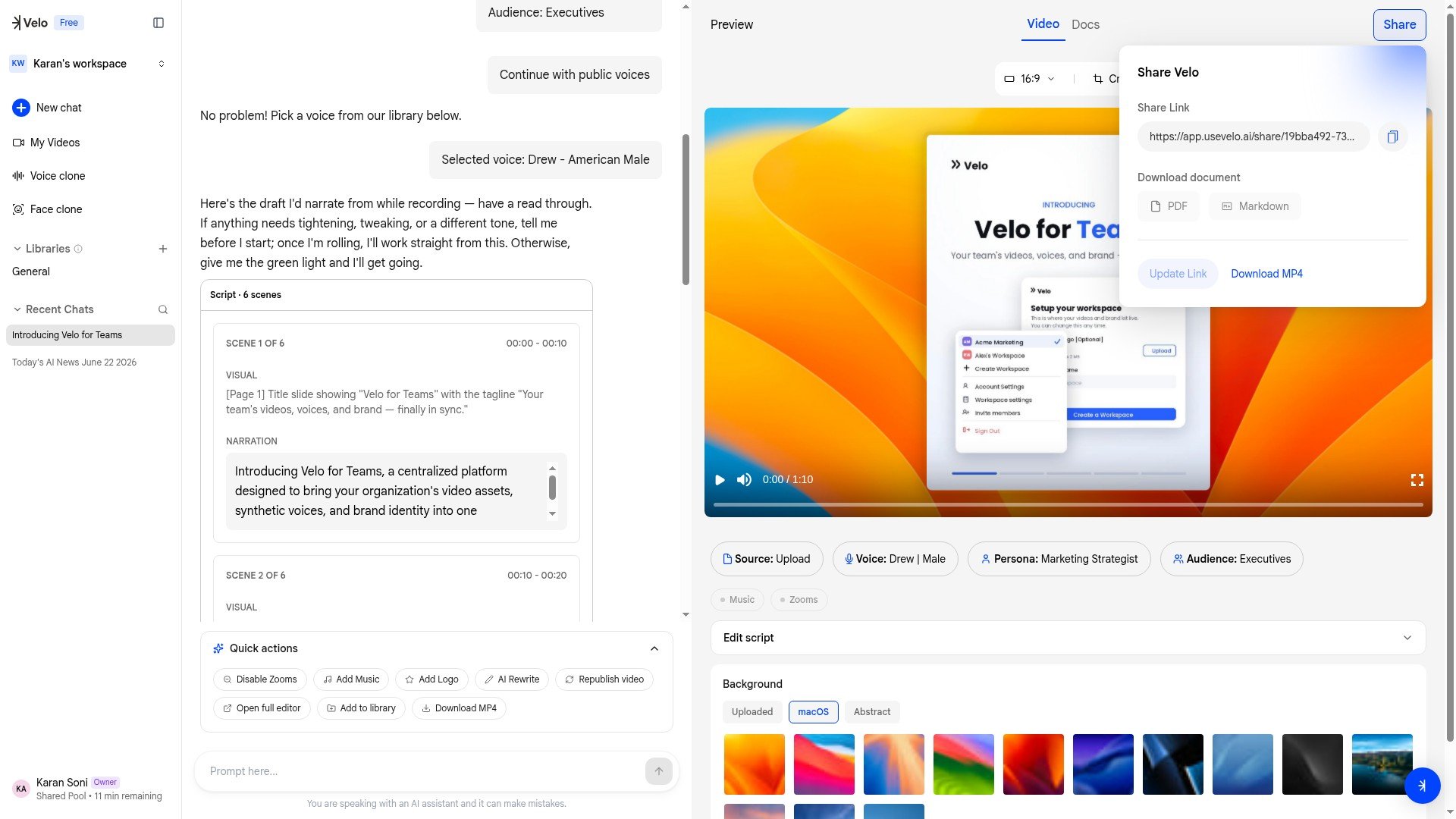 The rendering process typically takes a few minutes, depending on the size and complexity of your project. Once complete, a unique URL is generated. Copy this link to share your Velo with anyone — viewers can watch directly in their browser with no sign-in required.
### The share page
The rendering process typically takes a few minutes, depending on the size and complexity of your project. Once complete, a unique URL is generated. Copy this link to share your Velo with anyone — viewers can watch directly in their browser with no sign-in required.
### The share page
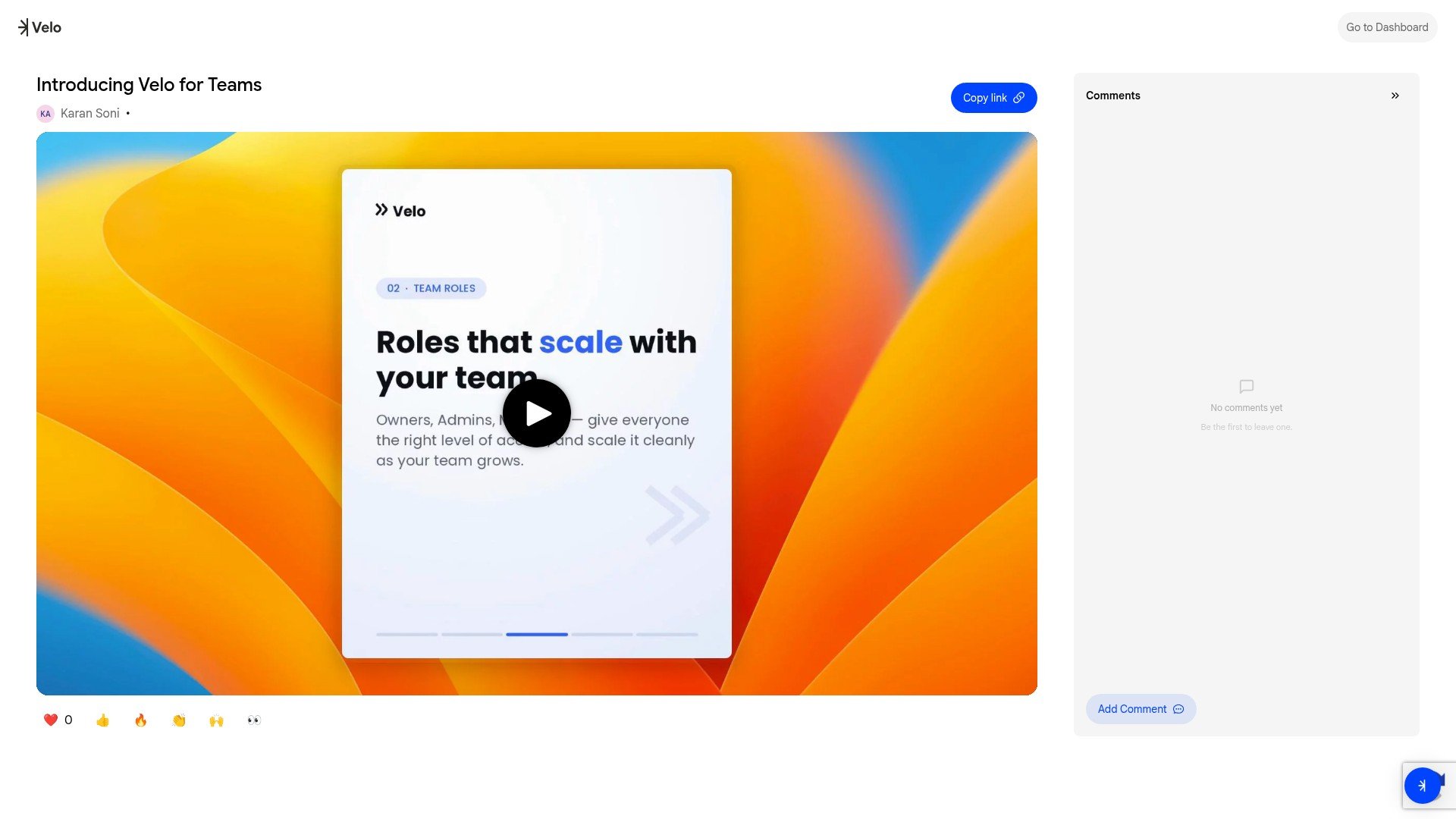 The public share page includes:
* Your workspace's branded header (logo and brand color from the [Brand Kit](/workspaces/brand-kit))
* The video player
* Video title and metadata
* A **CTA button** (if configured by your Admin — e.g., "Book a Demo", "Learn More"). You can toggle the CTA on or off for your individual videos.
* A comments section (only logged-in Velo users can comment; external viewers can watch but not comment)
## Adding to Libraries
To add a video to a library, select **Publish** and wait for rendering to complete. Then click **Add to library** and choose which libraries to add it to. You must select at least one specific library — there is no "publish to workspace" catch-all.
Published videos remain in your **My Videos** list as well.
For more on how libraries work, see [Libraries](/workspaces/libraries).
## Exporting Documents and Video Files
In addition to the video, Velo generates companion documentation you can download in multiple formats. Use the **PDF** or **Markdown** buttons to save the written companion to your project, or use the **Download MP4** button to save the video file to your device.
On the free plan, downloaded videos will include a watermark. This watermark is removed for users on paid plans.
The public share page includes:
* Your workspace's branded header (logo and brand color from the [Brand Kit](/workspaces/brand-kit))
* The video player
* Video title and metadata
* A **CTA button** (if configured by your Admin — e.g., "Book a Demo", "Learn More"). You can toggle the CTA on or off for your individual videos.
* A comments section (only logged-in Velo users can comment; external viewers can watch but not comment)
## Adding to Libraries
To add a video to a library, select **Publish** and wait for rendering to complete. Then click **Add to library** and choose which libraries to add it to. You must select at least one specific library — there is no "publish to workspace" catch-all.
Published videos remain in your **My Videos** list as well.
For more on how libraries work, see [Libraries](/workspaces/libraries).
## Exporting Documents and Video Files
In addition to the video, Velo generates companion documentation you can download in multiple formats. Use the **PDF** or **Markdown** buttons to save the written companion to your project, or use the **Download MP4** button to save the video file to your device.
On the free plan, downloaded videos will include a watermark. This watermark is removed for users on paid plans.