> ## Documentation Index
> Fetch the complete documentation index at: https://docs.usevelo.ai/llms.txt
> Use this file to discover all available pages before exploring further.
# Review and edit your script
> Check the generated script, rewrite it, and regenerate the voice — from the chat, whichever path you started from.
Every video is narrated from a script Velo writes for you. You review it in the chat, before or after the video generates, and the same controls apply no matter which path you started from.
## Where you edit the script
**Edit script** in the preview panel on the right is available on every path, whichever way you started. It lists the narration against the timestamps it lands on, and it is where the controls live.
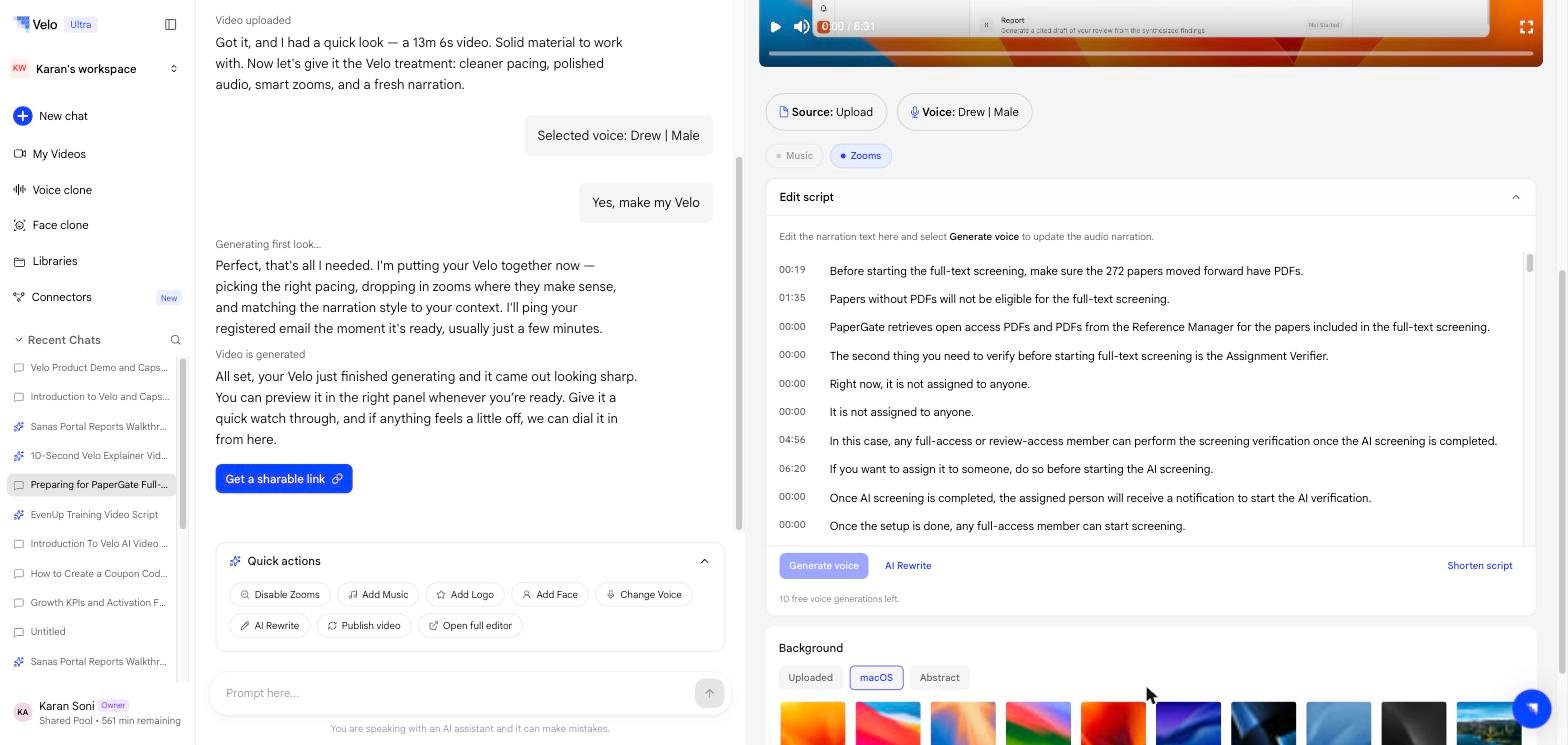 If you only learn one place to change a script, learn this one — it works everywhere.
## Scene cards
Three paths also show the script as **scene cards** in the conversation, because Velo is building the visuals as well as the narration:
* [Upload a PDF](/creating-a-velo/write-a-prompt)
* [Paste a link](/creating-a-velo/paste-a-link)
* [Write a prompt](/prompt-to-video/overview)
Screen recordings and uploaded videos do not get scene cards — Velo already has the visuals, so there are no scenes to plan.
If you only learn one place to change a script, learn this one — it works everywhere.
## Scene cards
Three paths also show the script as **scene cards** in the conversation, because Velo is building the visuals as well as the narration:
* [Upload a PDF](/creating-a-velo/write-a-prompt)
* [Paste a link](/creating-a-velo/paste-a-link)
* [Write a prompt](/prompt-to-video/overview)
Screen recordings and uploaded videos do not get scene cards — Velo already has the visuals, so there are no scenes to plan.
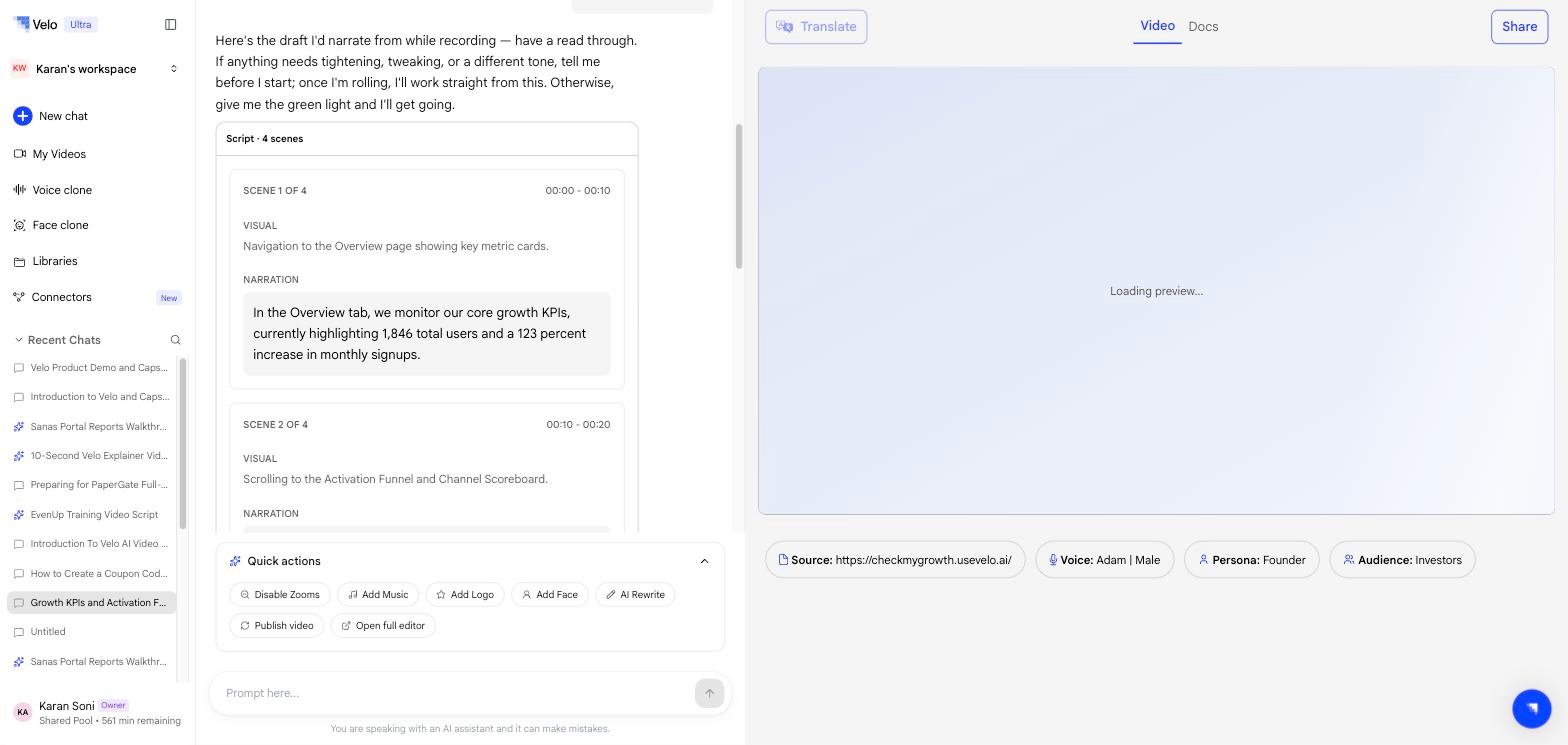 Each card carries:
| Field | What it holds |
| ---------------- | ---------------------------------------------------- |
| **SCENE n OF N** | Its position in the sequence |
| Timestamp range | When the scene starts and ends, e.g. `00:00 - 00:10` |
| **VISUAL** | What appears on screen during the scene |
| **NARRATION** | The exact words that will be spoken |
Scene cards are a planning view — they show what Velo intends to build. The **Edit script** panel remains available on these paths too, and is still where you regenerate the voice.
## Changing the script
Three controls sit under the script itself:
| Control | What it does |
| ------------------ | ------------------------------------------------------------------------------------------------ |
| **Generate voice** | Re-renders the narration audio from the current text. Nothing you hear changes until you do this |
| **AI Rewrite** | Rewrites the script, then asks about persona and audience in the chat |
| **Shorten script** | Tightens the script without changing what it covers |
**AI Rewrite** is also in the **Quick actions** menu below the conversation, alongside Disable Zooms, Add Music, Add Logo, Add Face, Change Voice, Publish video, and Open full editor.
Each card carries:
| Field | What it holds |
| ---------------- | ---------------------------------------------------- |
| **SCENE n OF N** | Its position in the sequence |
| Timestamp range | When the scene starts and ends, e.g. `00:00 - 00:10` |
| **VISUAL** | What appears on screen during the scene |
| **NARRATION** | The exact words that will be spoken |
Scene cards are a planning view — they show what Velo intends to build. The **Edit script** panel remains available on these paths too, and is still where you regenerate the voice.
## Changing the script
Three controls sit under the script itself:
| Control | What it does |
| ------------------ | ------------------------------------------------------------------------------------------------ |
| **Generate voice** | Re-renders the narration audio from the current text. Nothing you hear changes until you do this |
| **AI Rewrite** | Rewrites the script, then asks about persona and audience in the chat |
| **Shorten script** | Tightens the script without changing what it covers |
**AI Rewrite** is also in the **Quick actions** menu below the conversation, alongside Disable Zooms, Add Music, Add Logo, Add Face, Change Voice, Publish video, and Open full editor.
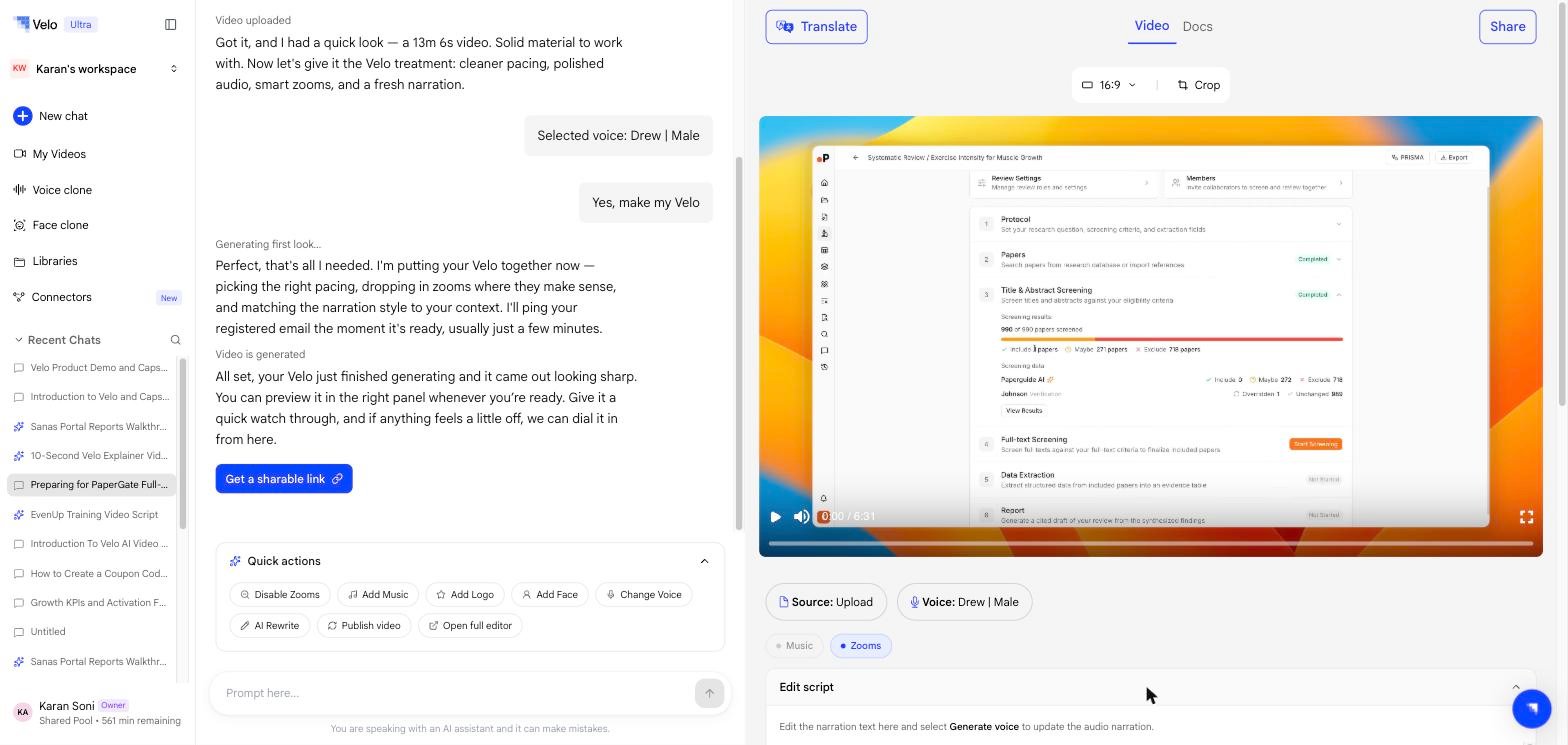 You can also just say what you want in the chat — *"make the intro shorter"*, *"say Hi Sam at the start"* — and Velo rewrites from there.
Voice generations are metered per video. The panel shows how many you have left, and switches to **Free limit reached — upgrade to continue** once they are used. See [Plans & billing](/settings/plans-billing).
## Persona and audience
**AI Rewrite** asks two questions before rewriting: which **persona** the voice should carry (Founder, Marketer, Designer, Sales person, Marketing Strategist, Product Manager, Engineering, Customer Support, Data Analyst) and who the **audience** is. Both are shown as chips under the preview once set, and you can skip either.
## Editing in the full editor
For finer control, select **Open full editor** from Quick actions and use the [Scripts panel](/editing-velo/scripts) in the right-hand sidebar. It carries the same **Generate Voice** and **AI Rewrite** controls.
## What happens next
Once the script reads the way you want, select **Generate voice**. Velo re-renders the narration and updates the preview. Until then the video keeps the audio it already had.
You can also just say what you want in the chat — *"make the intro shorter"*, *"say Hi Sam at the start"* — and Velo rewrites from there.
Voice generations are metered per video. The panel shows how many you have left, and switches to **Free limit reached — upgrade to continue** once they are used. See [Plans & billing](/settings/plans-billing).
## Persona and audience
**AI Rewrite** asks two questions before rewriting: which **persona** the voice should carry (Founder, Marketer, Designer, Sales person, Marketing Strategist, Product Manager, Engineering, Customer Support, Data Analyst) and who the **audience** is. Both are shown as chips under the preview once set, and you can skip either.
## Editing in the full editor
For finer control, select **Open full editor** from Quick actions and use the [Scripts panel](/editing-velo/scripts) in the right-hand sidebar. It carries the same **Generate Voice** and **AI Rewrite** controls.
## What happens next
Once the script reads the way you want, select **Generate voice**. Velo re-renders the narration and updates the preview. Until then the video keeps the audio it already had.