> ## Documentation Index
> Fetch the complete documentation index at: https://docs.usevelo.ai/llms.txt
> Use this file to discover all available pages before exploring further.
# Record My Intent
> Narrate your instructions directly to the AI agent to generate a video from a PDF, instead of typing a text prompt.
Velo allows you to transform static PDF documents into dynamic video messages by providing natural language intent to an AI agent. This workflow covers everything from page selection to voice cloning and script generation.
## Uploading and Configuring the PDF
**Step 1:** From the dashboard, select **Upload a recording or PDF**. Choose a PDF file from your local storage to begin the upload process.
.png?fit=max&auto=format&n=Rr1R_9ovDeX34qDf&q=85&s=6506af30e10c65f7da04998e843fcdc6) The Velo dashboard with the upload option highlighted.
**Step 2:** Once the file is uploaded, choose which pages to include in the video. You can select **All pages** or **Specific pages** - toggle specific thumbnails to include only the pages you need.
The Velo dashboard with the upload option highlighted.
**Step 2:** Once the file is uploaded, choose which pages to include in the video. You can select **All pages** or **Specific pages** - toggle specific thumbnails to include only the pages you need.
.png?fit=max&auto=format&n=Rr1R_9ovDeX34qDf&q=85&s=a15a006b26c1456370b18358deab2e63)
.png) Selecting specific pages from the uploaded PDF.
## Recording Your Intent
**Step 3:** Choose the "**Record my intent"** option. This allows you to narrate your instructions directly to the agent rather than typing a text prompt.
**Step 4:** Grant microphone permissions when prompted. Start the recording and explain the specific elements you want the video to highlight.
**Step 5:** Click **Stop** once you have finished describing your requirements.
Selecting specific pages from the uploaded PDF.
## Recording Your Intent
**Step 3:** Choose the "**Record my intent"** option. This allows you to narrate your instructions directly to the agent rather than typing a text prompt.
**Step 4:** Grant microphone permissions when prompted. Start the recording and explain the specific elements you want the video to highlight.
**Step 5:** Click **Stop** once you have finished describing your requirements.
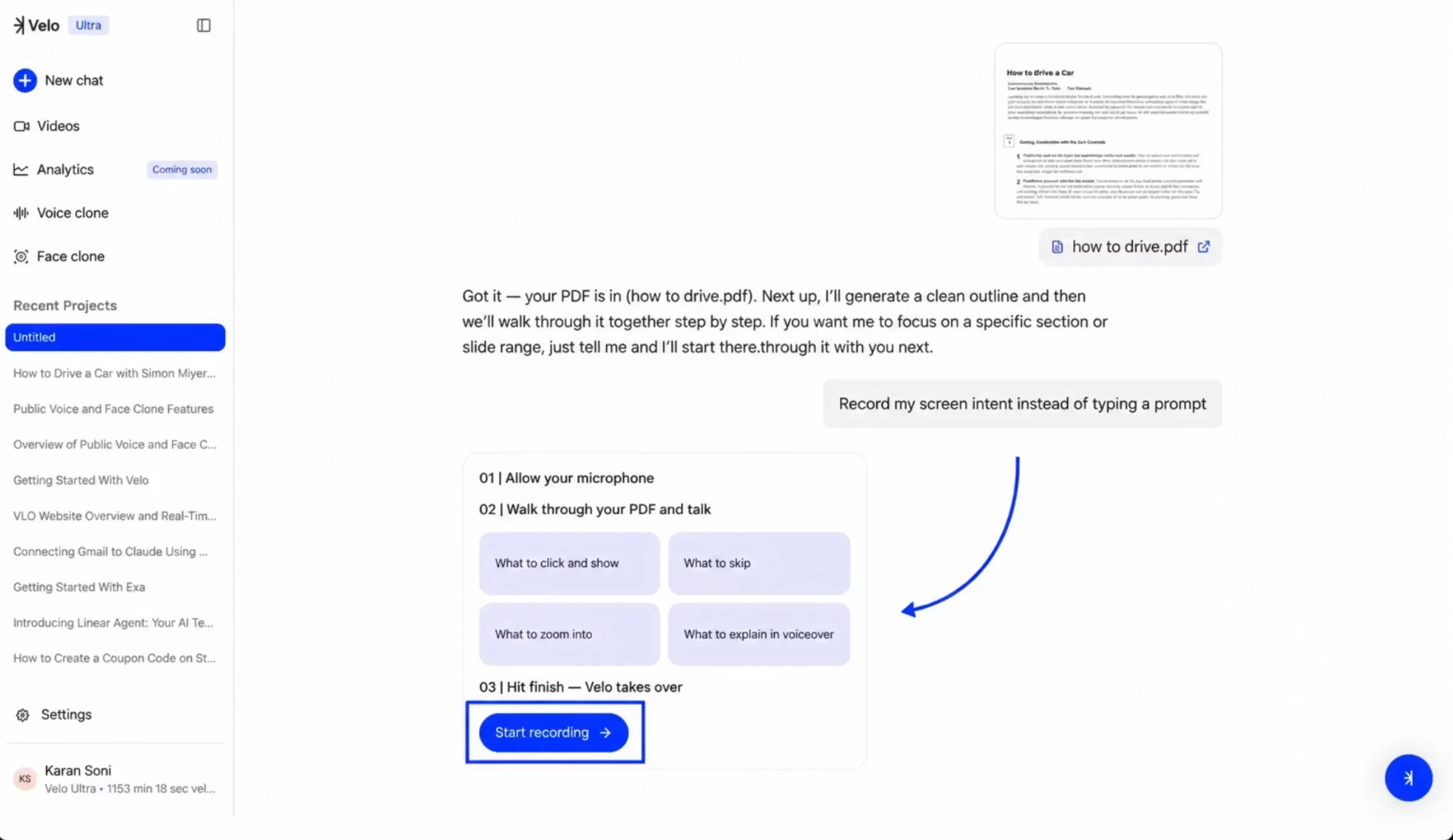 The interface for recording voice instructions for the agent.
## Guiding the Agent Session
**Step 6:** Select **Start Session** to enter the live guidance mode. In this mode, the agent processes the PDF in real-time based on your verbal cues.
**Step 7:** Speak in natural language to direct the script — for example, "Talk about opening the insert panel, applying effects, and managing focus." Velo maps these requests to the document structure and drafts the script accordingly.
**Step 8:** Select **Finish Session** once the agent has captured all relevant points.
The interface for recording voice instructions for the agent.
## Guiding the Agent Session
**Step 6:** Select **Start Session** to enter the live guidance mode. In this mode, the agent processes the PDF in real-time based on your verbal cues.
**Step 7:** Speak in natural language to direct the script — for example, "Talk about opening the insert panel, applying effects, and managing focus." Velo maps these requests to the document structure and drafts the script accordingly.
**Step 8:** Select **Finish Session** once the agent has captured all relevant points.
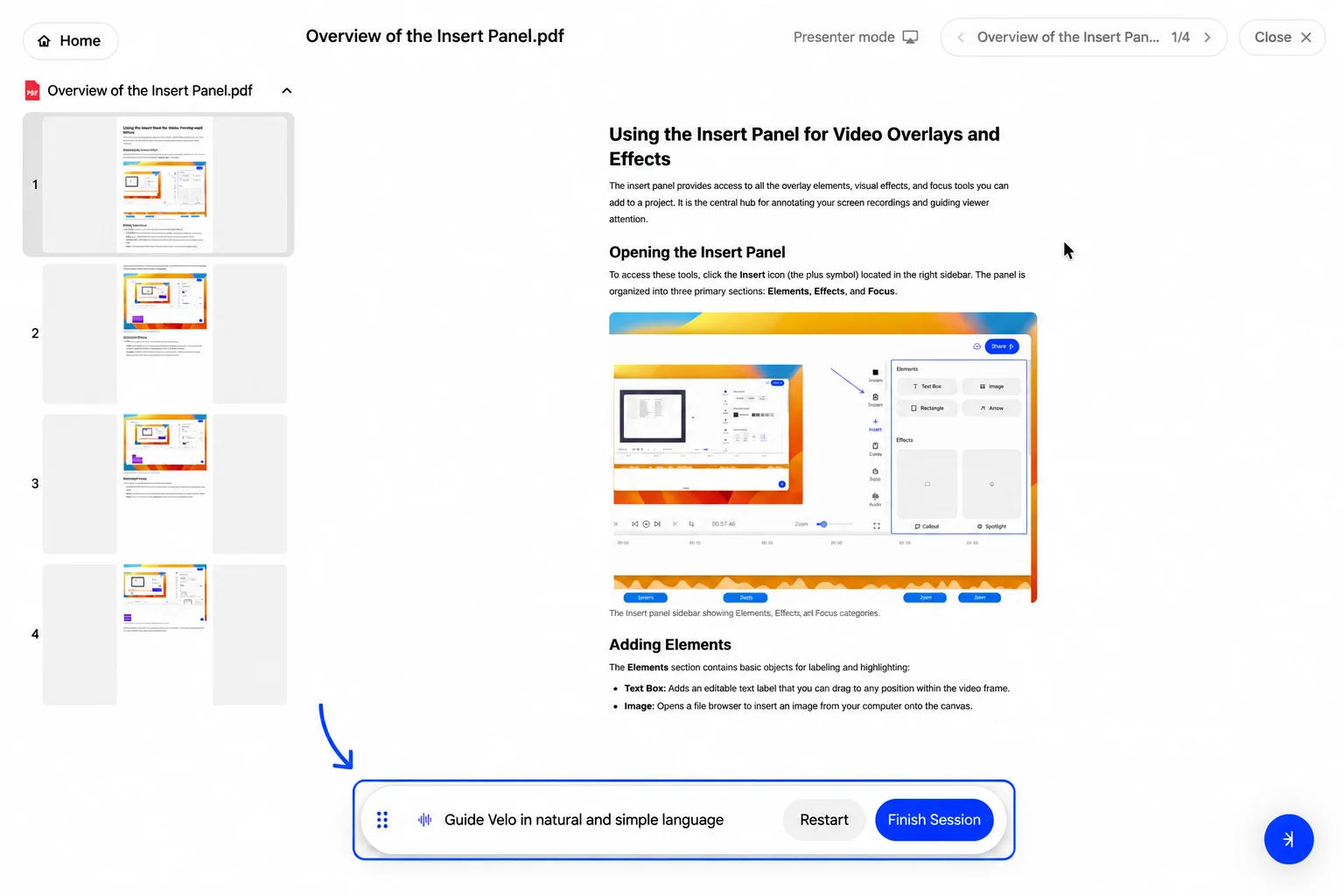 Guiding the agent using natural language during the session.
## Selecting Voice and Persona
**Step 9:** Configure the persona for the video. Choose from options like **Founder**, **Marketer**, or **Customer Support** to set the tone of the communication.
**Step 10:** Choose your voice. Select from a library of **Public Voices** or use a **Voice Clone** to make the narration sound personaliSed.
**Step 11:** Submit your preferences. The agent will then draft a full script based on your inputs and selected persona.
Guiding the agent using natural language during the session.
## Selecting Voice and Persona
**Step 9:** Configure the persona for the video. Choose from options like **Founder**, **Marketer**, or **Customer Support** to set the tone of the communication.
**Step 10:** Choose your voice. Select from a library of **Public Voices** or use a **Voice Clone** to make the narration sound personaliSed.
**Step 11:** Submit your preferences. The agent will then draft a full script based on your inputs and selected persona.
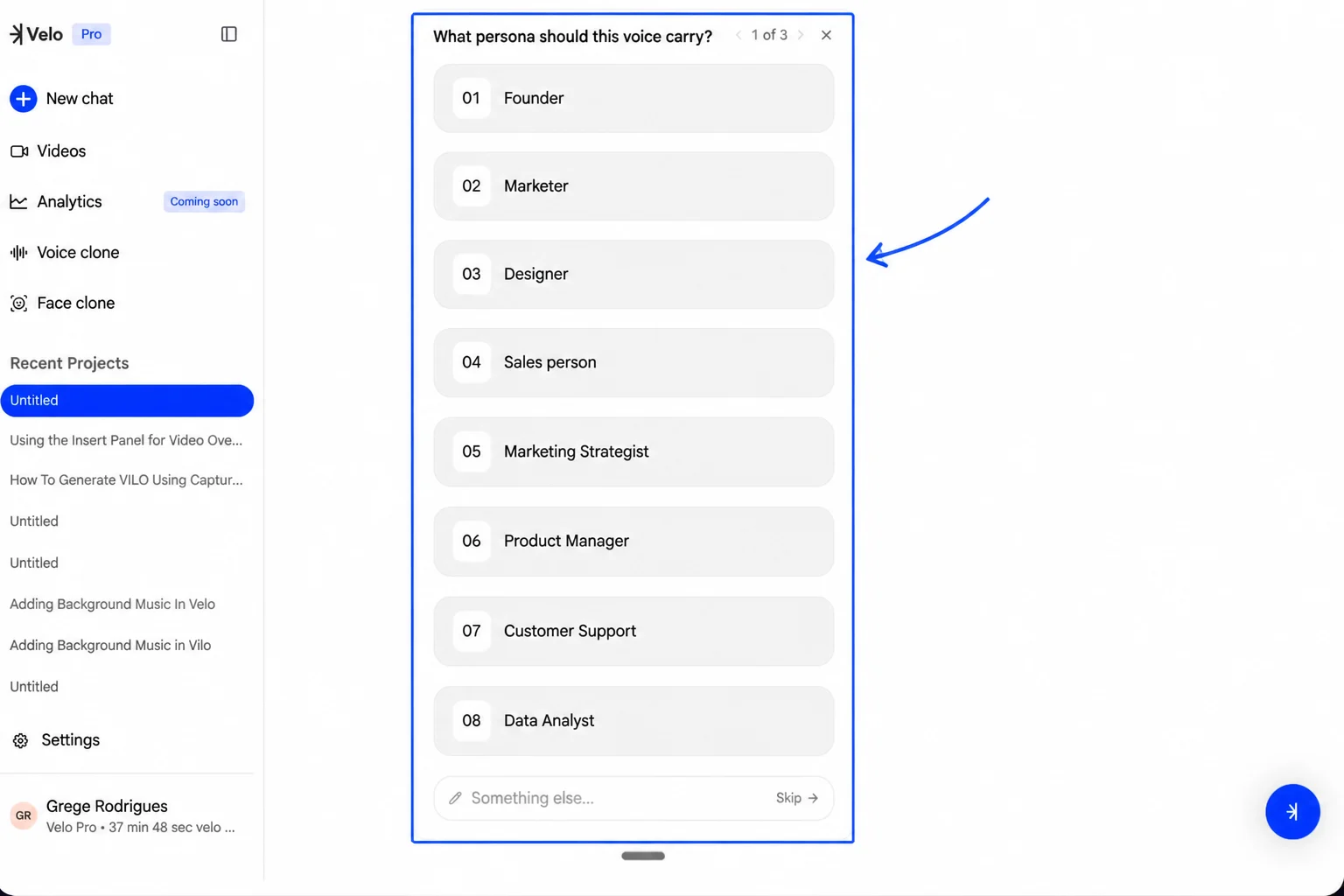 Selecting a persona to define the tone of the video.
## Finalizing the Video
**Step 12:** Review the drafted script. You can edit individual scene descriptions or narration text to ensure a professional tone.
**Step 13:** When satisfied, click **Go, Make my Velo**. The system will process the walkthrough, match the audio to the visuals, and generate the final video file.
Selecting a persona to define the tone of the video.
## Finalizing the Video
**Step 12:** Review the drafted script. You can edit individual scene descriptions or narration text to ensure a professional tone.
**Step 13:** When satisfied, click **Go, Make my Velo**. The system will process the walkthrough, match the audio to the visuals, and generate the final video file.
.png?fit=max&auto=format&n=Rr1R_9ovDeX34qDf&q=85&s=bdd2de34c619e403fb530a0a618367af)
.png) Final video generation and processing progress.
Your video is now ready for review and sharing.
Final video generation and processing progress.
Your video is now ready for review and sharing.