> ## Documentation Index
> Fetch the complete documentation index at: https://docs.usevelo.ai/llms.txt
> Use this file to discover all available pages before exploring further.
# Quick Actions
> Refine your generated video without entering the full editor ,adjust visuals, audio, and script directly from the chat panel.
Once a video is generated, the Velo chat panel provides a suite of quick actions to refine the output without needing to enter the full timeline editor. These tools allow for rapid adjustments to visuals, audio, and the underlying script.
## Customizing Visuals and Audio
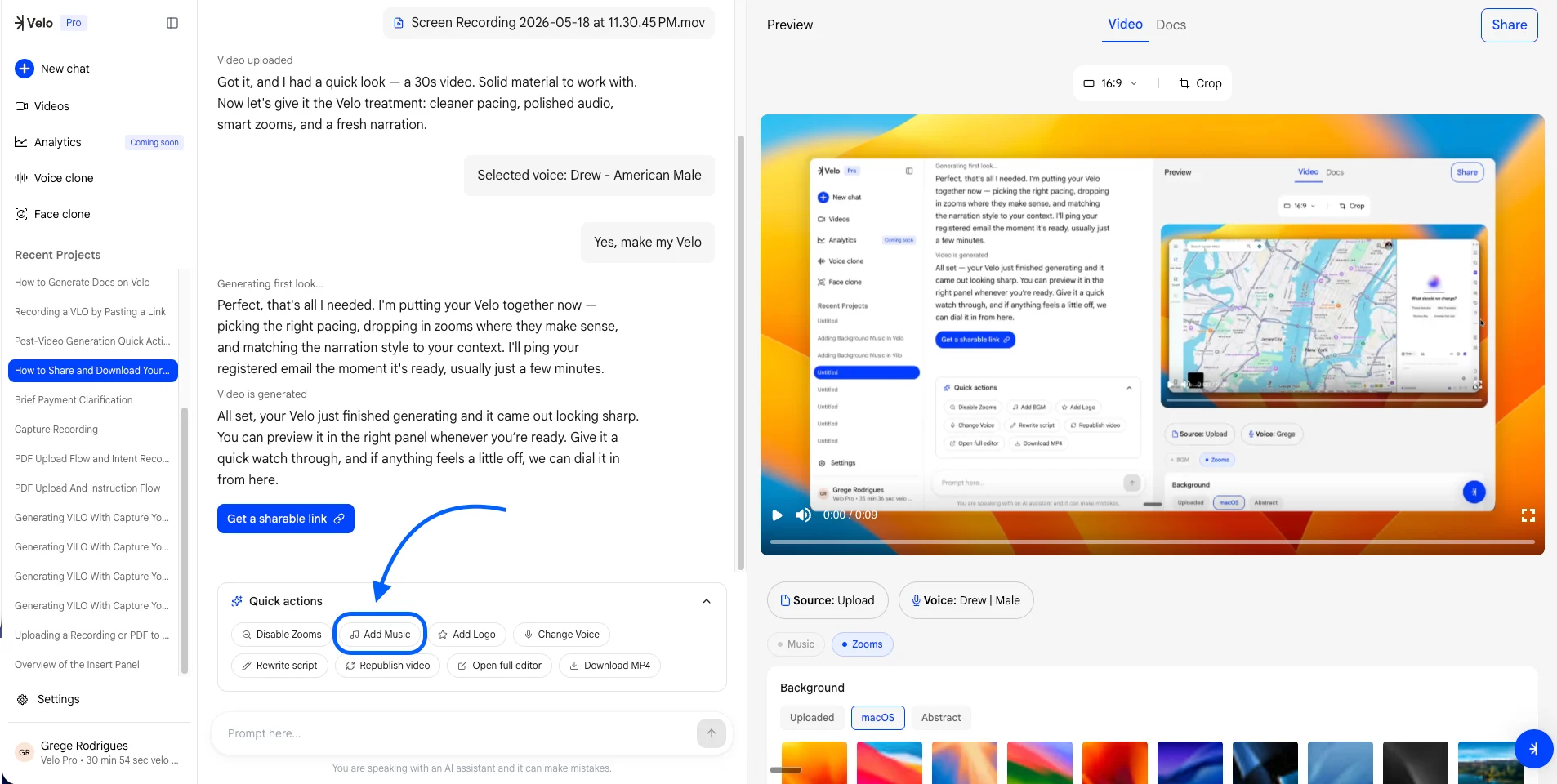
**Step 1:** Access the **Quick actions** menu in the chat panel to see available modifications, including **Disable Zooms**, **Add BGM**, and **Add Logo**.
.png?fit=max&auto=format&n=Rr1R_9ovDeX34qDf&q=85&s=326fb44d68a8bcde493dddce36259411) The Quick actions panel offers one-click shortcuts for common video edits.
**Step 2:** Select "**Add Music"** to open the music library. Choose from tracks like **Momentum**, **Fresh Start**, or **Subtle Touch** to change the mood of the video.
The Quick actions panel offers one-click shortcuts for common video edits.
**Step 2:** Select "**Add Music"** to open the music library. Choose from tracks like **Momentum**, **Fresh Start**, or **Subtle Touch** to change the mood of the video.
 \
The background music menu allows you to preview and apply different audio tracks.
**Step 3:** Update the visual style by choosing a **Background**. Select from **macOS** inspired styles, **Abstract** gradients, or click **Uploaded** to provide your own image.
## Refining Script and Voice
**Step 1:** Use **Change Voice** to swap the narrator or **Rewrite script** to modify the spoken content.
**Step 2:** When rewriting, select a persona - such as **Product Manager**, **Founder**, or **Marketing Strategist** and define the target audience (e.g., **Executives**) to ensure the tone matches your goals.
\
The background music menu allows you to preview and apply different audio tracks.
**Step 3:** Update the visual style by choosing a **Background**. Select from **macOS** inspired styles, **Abstract** gradients, or click **Uploaded** to provide your own image.
## Refining Script and Voice
**Step 1:** Use **Change Voice** to swap the narrator or **Rewrite script** to modify the spoken content.
**Step 2:** When rewriting, select a persona - such as **Product Manager**, **Founder**, or **Marketing Strategist** and define the target audience (e.g., **Executives**) to ensure the tone matches your goals.
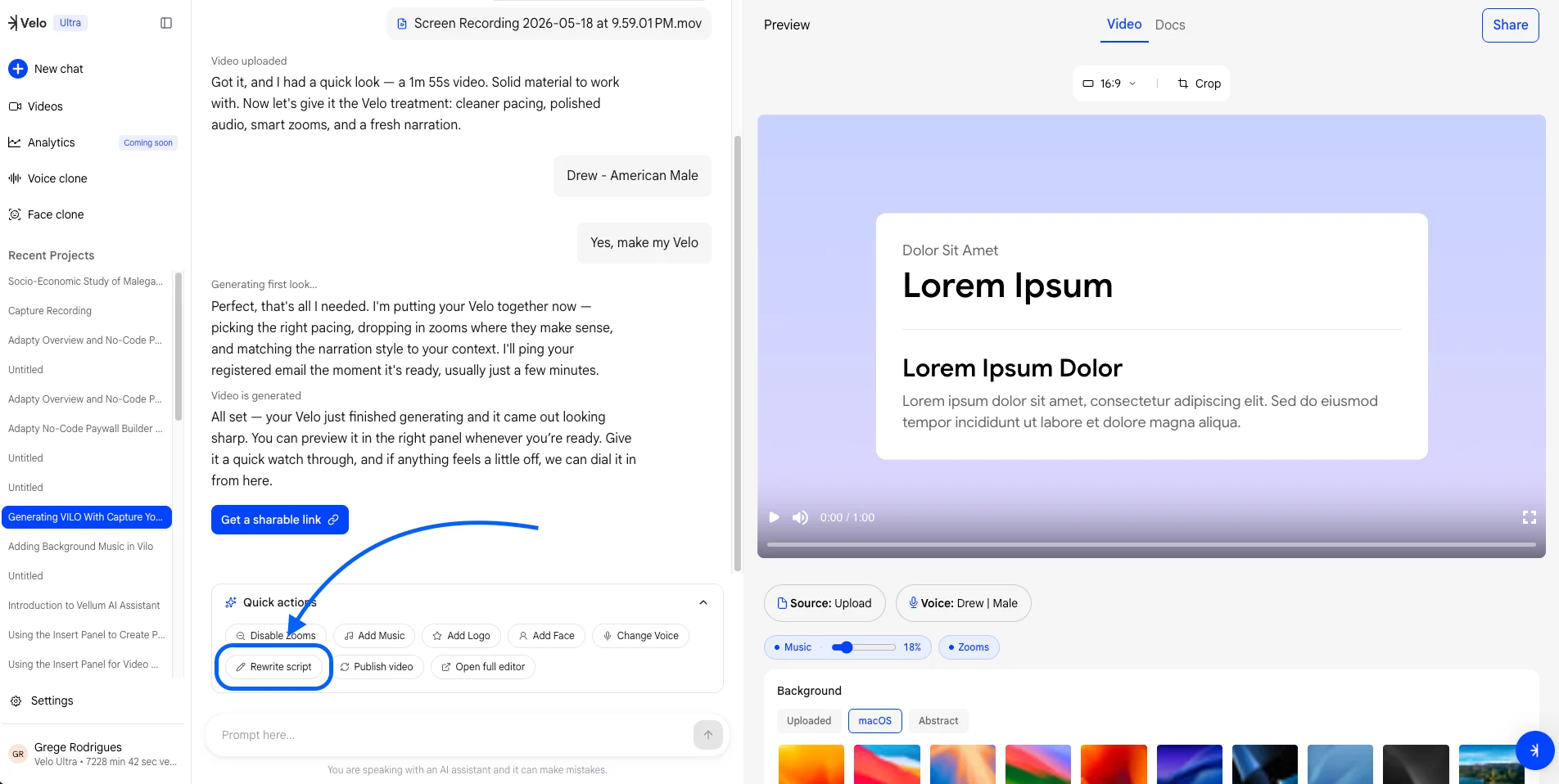 Rewriting the script allows for persona and audience-based tone adjustments.
**Step 3:** Click **Republish video** to apply all changes and generate a new shareable link.
## Exporting and Advanced Editing
**Step 1:** If the quick actions are insufficient, select **Open full editor** to access exhaustive editing tools and more detailed background options.
**Step 2:** Once satisfied with the results, select **Download MP4** to save the final video file locally.
These quick actions provide a streamlined way to iterate on your content directly through the AI assistant interface before finalizing your project.
Rewriting the script allows for persona and audience-based tone adjustments.
**Step 3:** Click **Republish video** to apply all changes and generate a new shareable link.
## Exporting and Advanced Editing
**Step 1:** If the quick actions are insufficient, select **Open full editor** to access exhaustive editing tools and more detailed background options.
**Step 2:** Once satisfied with the results, select **Download MP4** to save the final video file locally.
These quick actions provide a streamlined way to iterate on your content directly through the AI assistant interface before finalizing your project.