> ## Documentation Index
> Fetch the complete documentation index at: https://docs.usevelo.ai/llms.txt
> Use this file to discover all available pages before exploring further.
# Paste a Link (BETA)
> Transform any website into a structured video presentation by providing a destination link and a narrated walkthrough of your intent.
Transform any website into a structured video presentation by providing a destination link and a narrated walkthrough of your intent.
## Initialize the Recording
**Step 1:** Locate the **Paste a link here...** container on the dashboard.
**Step 2:** Paste the URL of the website you wish to create a Velo about and click the submission arrow.
.png?fit=max&auto=format&n=Rr1R_9ovDeX34qDf&q=85&s=1e2c606ebc3cc9e970f32aad020e9fb2)
.png) The initial step of providing a URL for the browser agent to analyze.
**Step 3:** After the system identifies the target page, click **Provide a walkthrough** and then **Open recording window**.
## Guide the Browser Agent
**Step 1:** Click **Start Session** to begin recording your walkthrough.
**Step 2:** Navigate through the website's pages while explaining your goals in natural, simple language. Speak as if talking to a colleague, helping the backend agent map your intent and understand the context of what you are building.
**Step 3:** When you have finished explaining the site and your intent, click **Finish Session** to begin the upload process.
The initial step of providing a URL for the browser agent to analyze.
**Step 3:** After the system identifies the target page, click **Provide a walkthrough** and then **Open recording window**.
## Guide the Browser Agent
**Step 1:** Click **Start Session** to begin recording your walkthrough.
**Step 2:** Navigate through the website's pages while explaining your goals in natural, simple language. Speak as if talking to a colleague, helping the backend agent map your intent and understand the context of what you are building.
**Step 3:** When you have finished explaining the site and your intent, click **Finish Session** to begin the upload process.
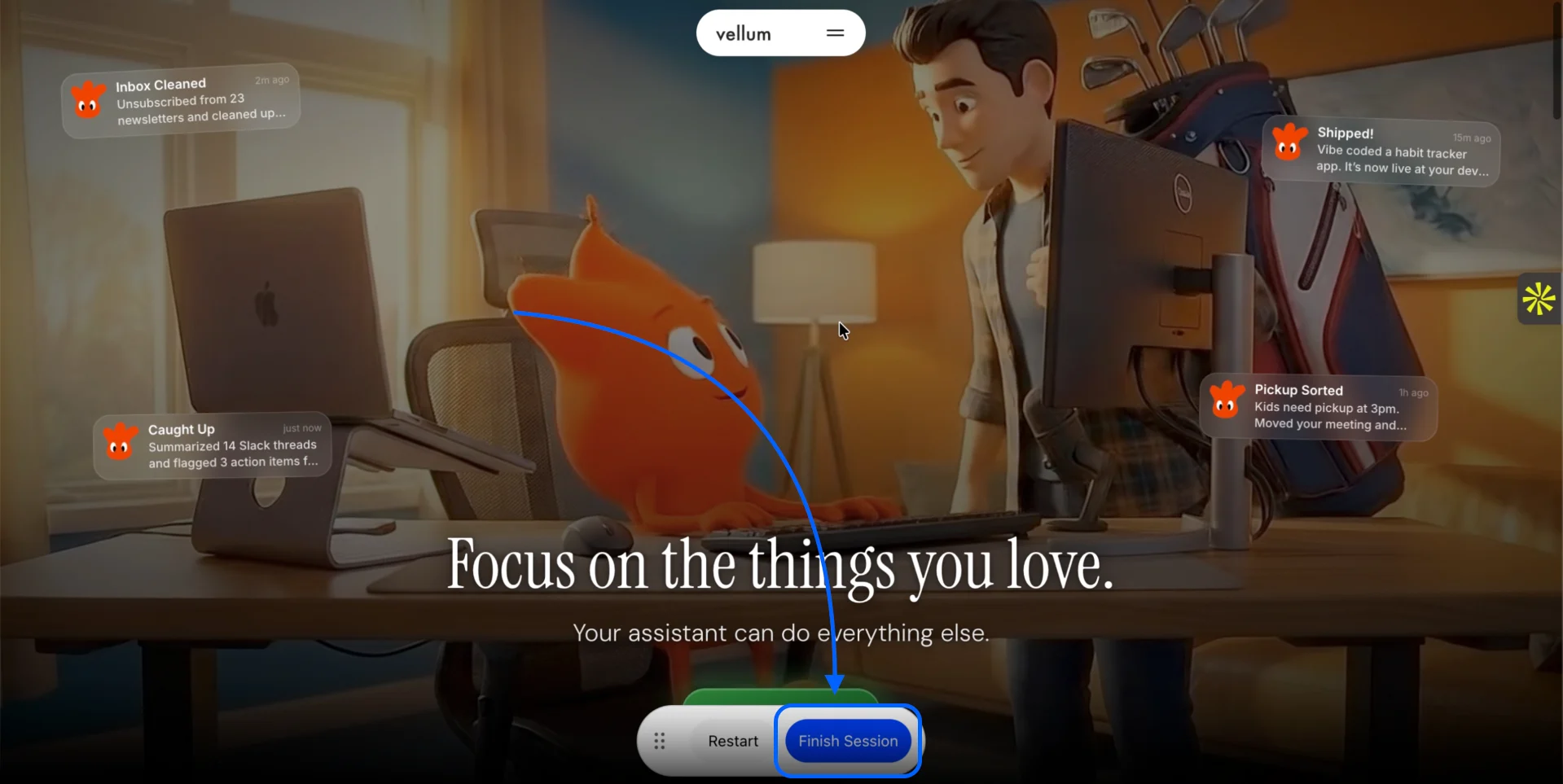 Narrating the intent while the browser session is active.
## Configure Tone and Authority
**Step 1:** Select the desired persona from the provided options. For high-stakes internal communications, choose **Founder**.
**Step 2:** Define the primary audience by selecting **Internal team**.
**Step 3:** Provide specific stylistic requirements in the additional instructions field to ensure the tone matches your intent.
Narrating the intent while the browser session is active.
## Configure Tone and Authority
**Step 1:** Select the desired persona from the provided options. For high-stakes internal communications, choose **Founder**.
**Step 2:** Define the primary audience by selecting **Internal team**.
**Step 3:** Provide specific stylistic requirements in the additional instructions field to ensure the tone matches your intent.
.png?fit=max&auto=format&n=Rr1R_9ovDeX34qDf&q=85&s=d4870de1bfb0b94e88ecb8249e2a9070)
.png) Refining the script generation by specifying a founder persona and internal audience.
## Review and Finalize
**Step 1:** Review the generated script and scene list. Each scene includes a visual description and the corresponding narration mapped to your initial walkthrough.
**Step 2:** Edit the narration or scene details if any adjustments are needed to ensure the tone is correct.
**Step 3:** Click **Go Make My Velo** to start the automated recording.
Refining the script generation by specifying a founder persona and internal audience.
## Review and Finalize
**Step 1:** Review the generated script and scene list. Each scene includes a visual description and the corresponding narration mapped to your initial walkthrough.
**Step 2:** Edit the narration or scene details if any adjustments are needed to ensure the tone is correct.
**Step 3:** Click **Go Make My Velo** to start the automated recording.
.png?fit=max&auto=format&n=Rr1R_9ovDeX34qDf&q=85&s=0b0accf5e04167c0dc3cb0208910c1b2)
.png) Reviewing the multi-scene script before the browser agent records the final video.
The browser agent will then access the URL and record the video based on your confirmed script and walkthrough. You can monitor the progress as the agent takes actions and processes the final exchange.
Reviewing the multi-scene script before the browser agent records the final video.
The browser agent will then access the URL and record the video based on your confirmed script and walkthrough. You can monitor the progress as the agent takes actions and processes the final exchange.