> ## Documentation Index
> Fetch the complete documentation index at: https://docs.usevelo.ai/llms.txt
> Use this file to discover all available pages before exploring further.
# Installation
### **1. Install the Extension from the Chrome Web Store**
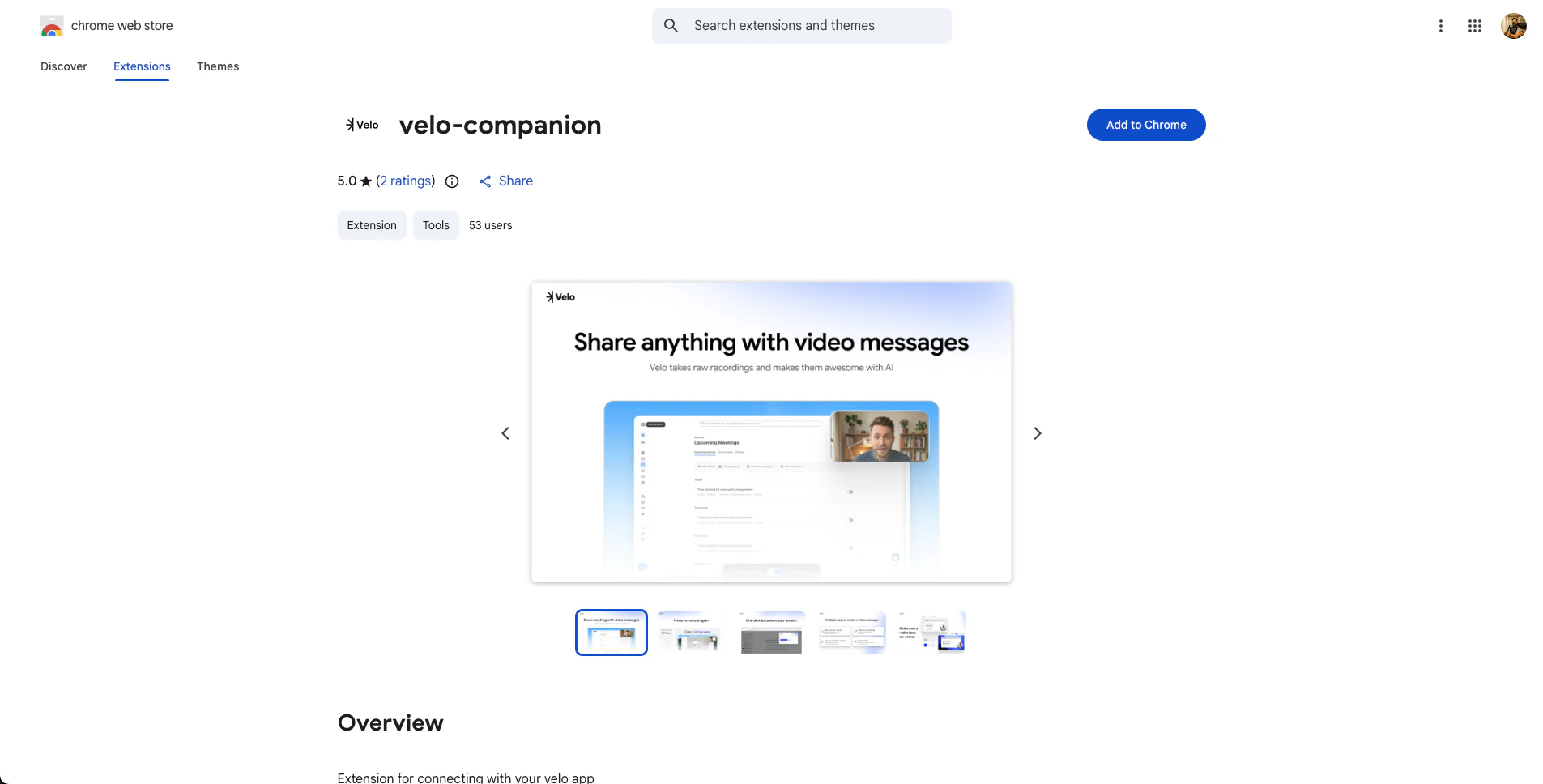
The Velo Chrome extension (**Velo Companion**) enables screen recording directly from your browser - it is required for the **Capture Screen Recording** creation method.
* Open the Chrome Web Store and search for **Velo Companion**, or go directly to the extension page.
* Click **Add to Chrome**, then click **Add extension** in the confirmation dialog.
* Chrome will install the extension and show a confirmation once it is ready.
 ### **2. Pin the Extension to Your Browser Bar**
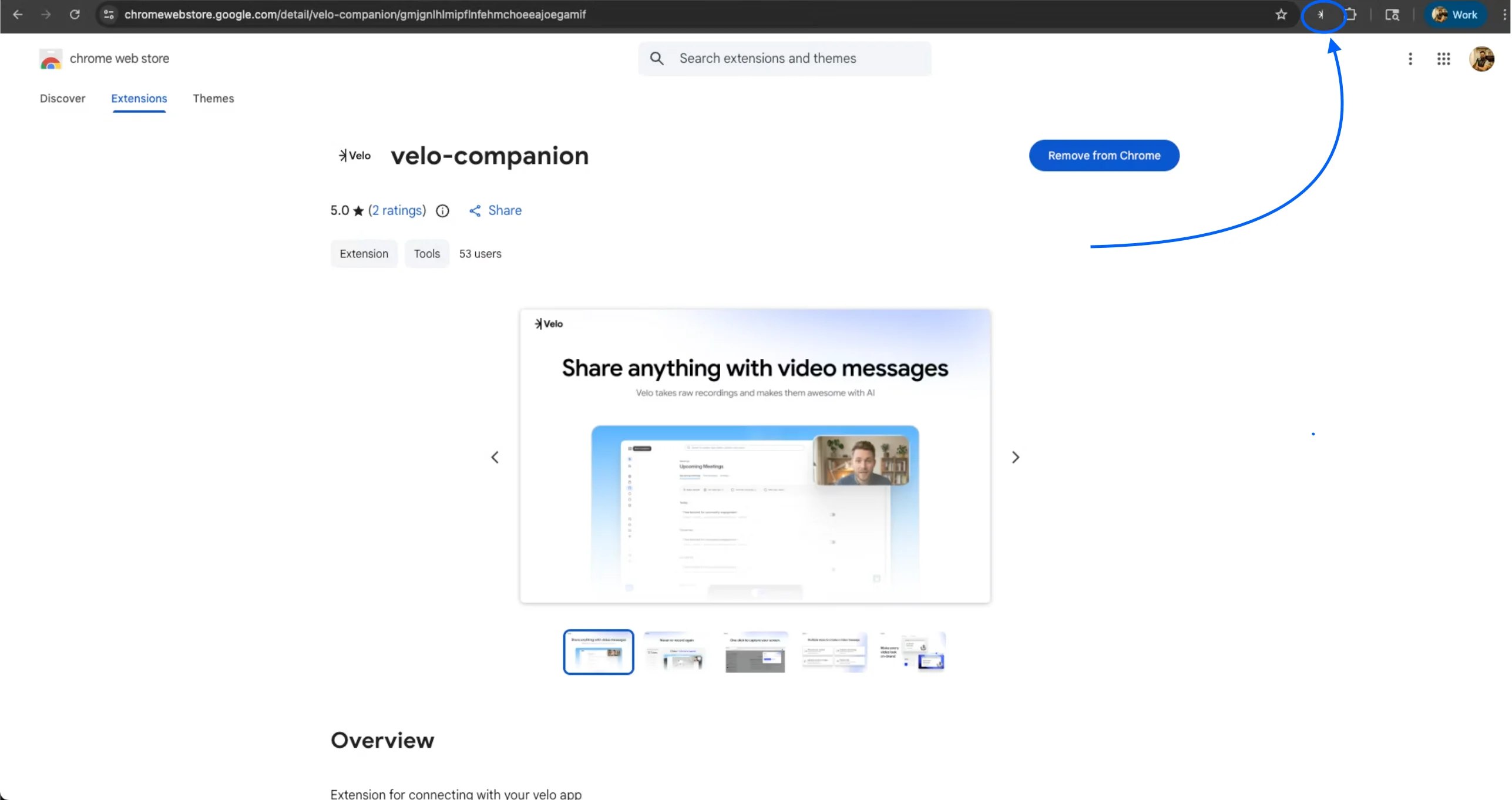
Pinning the extension keeps it visible in your toolbar so you can access it quickly.
* Click the **puzzle piece icon** in the top-right corner of Chrome to open the extensions menu.
* Find **Velo Companion** in the list.
* Click the **pin icon** next to it to pin it to your browser bar.
### **2. Pin the Extension to Your Browser Bar**
Pinning the extension keeps it visible in your toolbar so you can access it quickly.
* Click the **puzzle piece icon** in the top-right corner of Chrome to open the extensions menu.
* Find **Velo Companion** in the list.
* Click the **pin icon** next to it to pin it to your browser bar.
 \
**3. Sign In to the Extension**
After pinning, click the Velo Companion icon in your toolbar.
* Sign in with your Velo account credentials.
* Once signed in, you are ready to start capturing screen recordings.
\
**3. Sign In to the Extension**
After pinning, click the Velo Companion icon in your toolbar.
* Sign in with your Velo account credentials.
* Once signed in, you are ready to start capturing screen recordings.
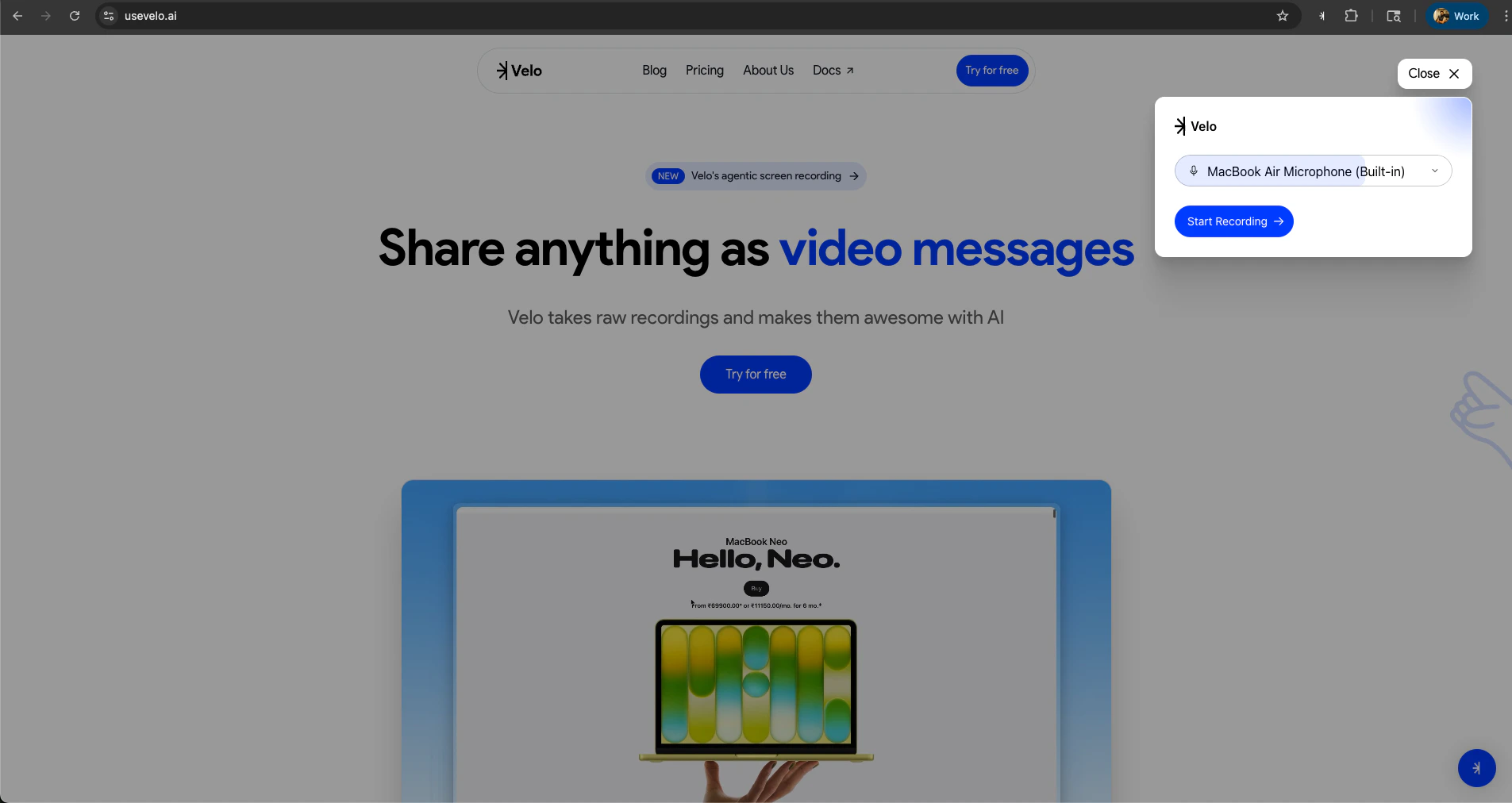 The Velo extension only needs to be installed once. After that, you can start recordings directly from the [make-a-velo](https://app.usevelo.ai/make-a-velo) page - no need to open the extension popup each time.