> ## Documentation Index
> Fetch the complete documentation index at: https://docs.usevelo.ai/llms.txt
> Use this file to discover all available pages before exploring further.
# How It Works
> Guide the AI through a document or website by narrating your requirements instead of typing a prompt.
Assisted recording, or "record my intent," allows you to guide the AI through a document or website by narrating your specific requirements rather than typing a long prompt. This is particularly useful when you need to specify exactly which sections to emphasize, skip, or explain in detail.
## Initializing the Recording
**Step 1:** Select the option to **Record my screen intent instead of typing a prompt** within the chat interface.
**Step 2:** Click **Start recording** to begin the setup process. This triggers the system to load your document or provided link into a workspace canvas.
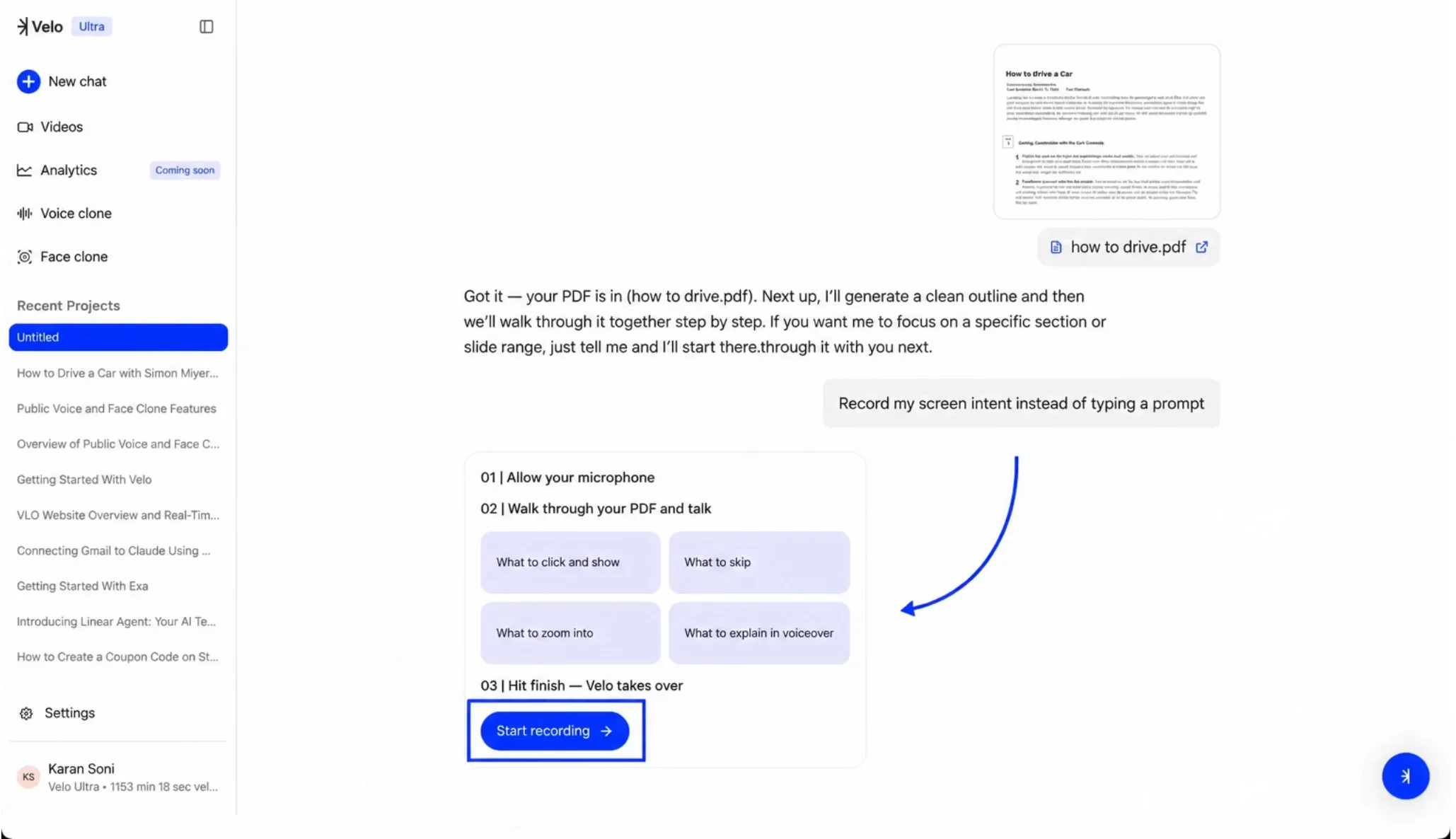 The initial screen to trigger assisted recording.
## Setting Up the Session
**Step 1:** Once the document appears in the canvas, click **Start Session** to prepare the recording environment.
**Step 2:** If prompted, open the browser extensions menu and select the **Velo** extension to grant necessary permissions.
**Step 3:** Wait for the visual countdown to complete. You can click anywhere on the screen to pause the countdown if you need more time to prepare.
The initial screen to trigger assisted recording.
## Setting Up the Session
**Step 1:** Once the document appears in the canvas, click **Start Session** to prepare the recording environment.
**Step 2:** If prompted, open the browser extensions menu and select the **Velo** extension to grant necessary permissions.
**Step 3:** Wait for the visual countdown to complete. You can click anywhere on the screen to pause the countdown if you need more time to prepare.
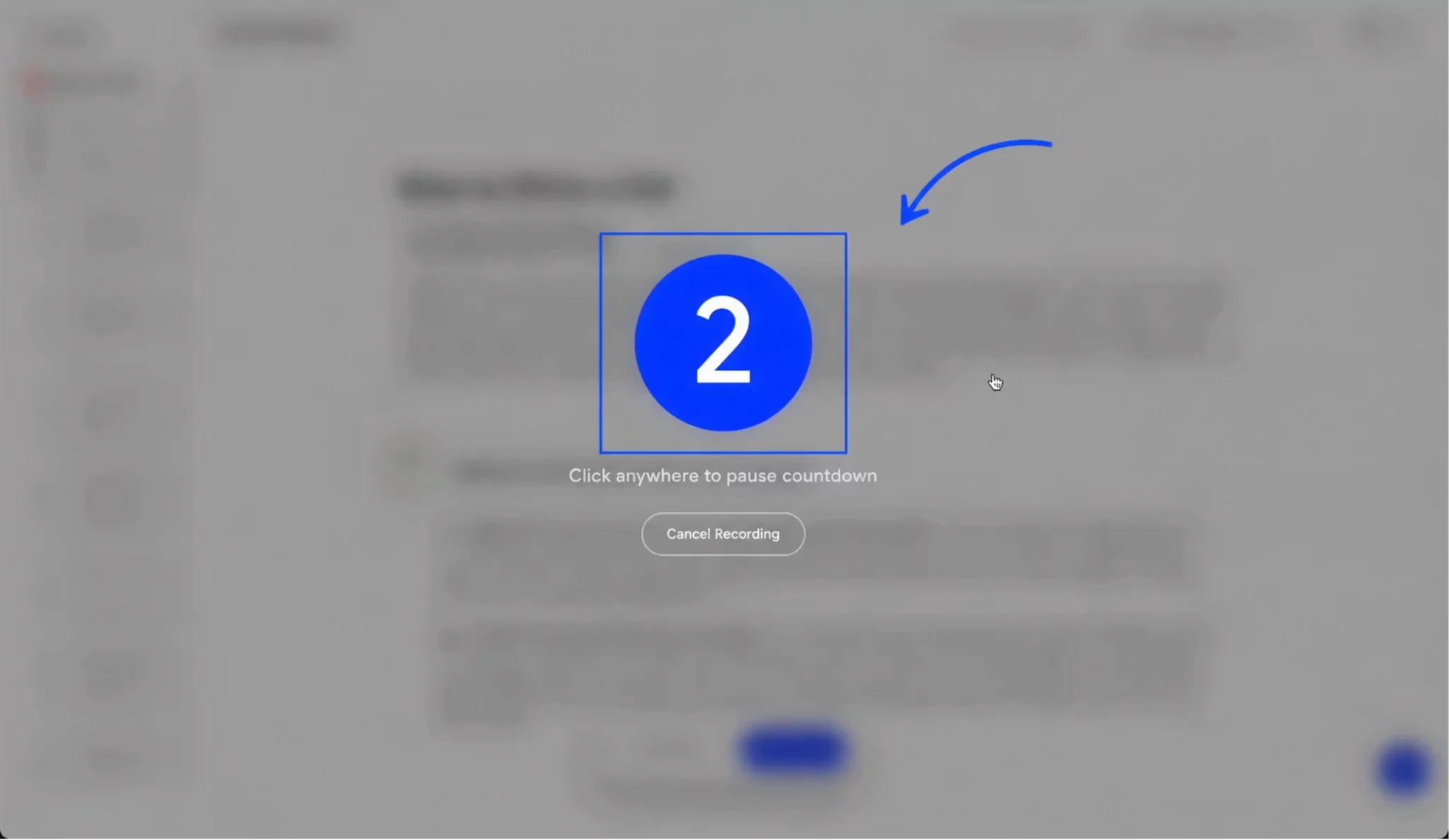 The countdown before the intent recording begins.
## Narrating Your Intent
**Step 1:** Speak clearly to explain what you want the AI to capture - for example, provide a brief overview of the first two pages and specify which subsequent pages should be skipped.
**Step 2:** Navigate through the document as you talk, ensuring your voiceover matches the sections you are referencing.
**Step 3:** When finished, click "**Finish Session"** to stop the recording.
The countdown before the intent recording begins.
## Narrating Your Intent
**Step 1:** Speak clearly to explain what you want the AI to capture - for example, provide a brief overview of the first two pages and specify which subsequent pages should be skipped.
**Step 2:** Navigate through the document as you talk, ensuring your voiceover matches the sections you are referencing.
**Step 3:** When finished, click "**Finish Session"** to stop the recording.
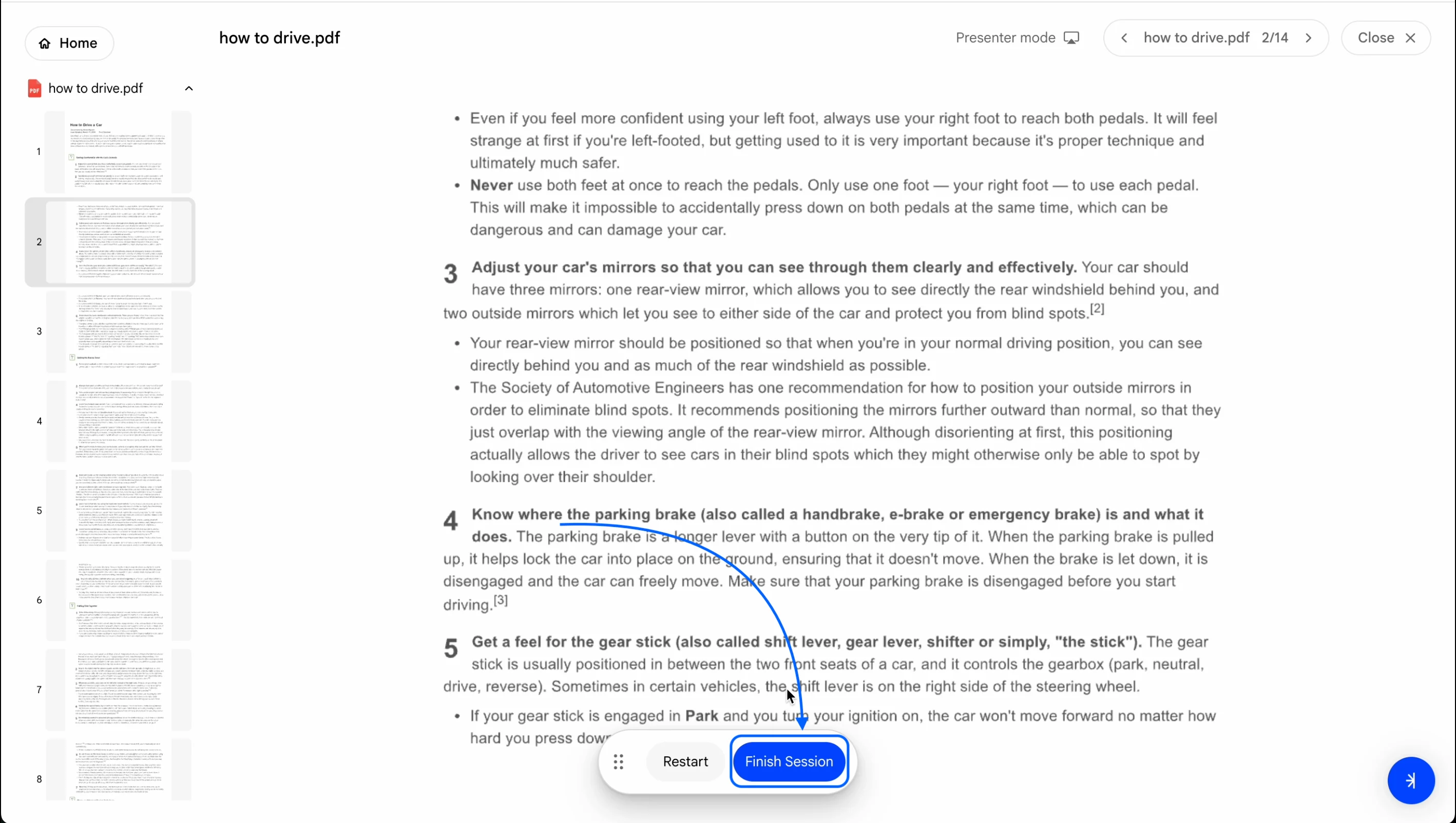 Click on Finish Session after narration is completed.
## Processing the Walkthrough
After finishing the session, a modal will appear indicating **Uploading recording...** do not close the tab during this time. Once the upload is complete, the chat will display **Processing your walkthrough...**.
Click on Finish Session after narration is completed.
## Processing the Walkthrough
After finishing the session, a modal will appear indicating **Uploading recording...** do not close the tab during this time. Once the upload is complete, the chat will display **Processing your walkthrough...**.
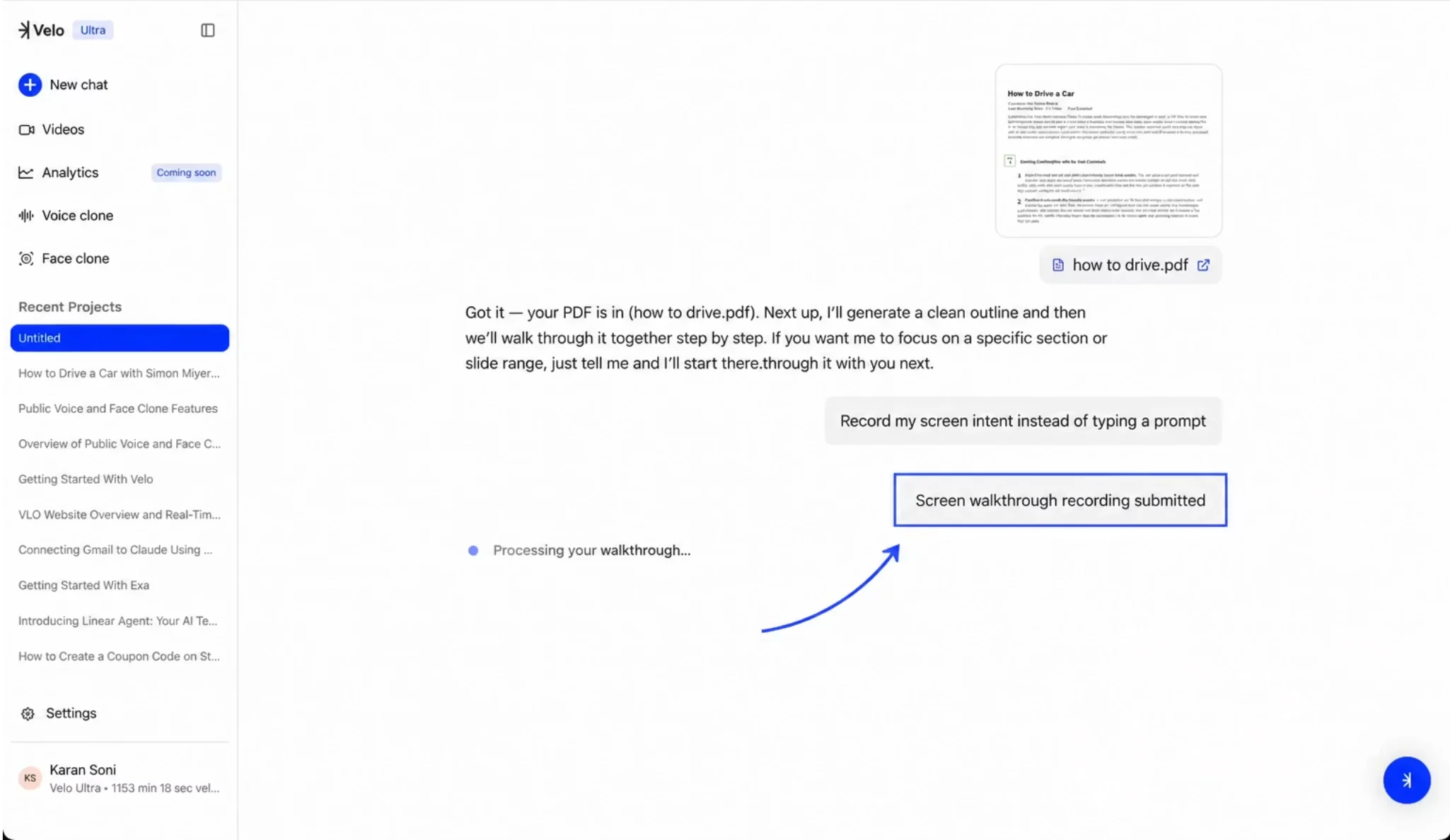 The system processing the submitted walkthrough.
The AI will then use your recorded intent and visual guidance to generate the final output.
The system processing the submitted walkthrough.
The AI will then use your recorded intent and visual guidance to generate the final output.