> ## Documentation Index
> Fetch the complete documentation index at: https://docs.usevelo.ai/llms.txt
> Use this file to discover all available pages before exploring further.
# Editing
> Fine-tune your generated scene card narration while staying within sync limits.
When you upload a PDF or provide a link to generate a Velo, the system automatically writes a script organized into sequential scene cards. These cards allow you to fine-tune the generated text to better fit your voice or specific messaging needs while ensuring the AI narration remains perfectly synced with the visual content.
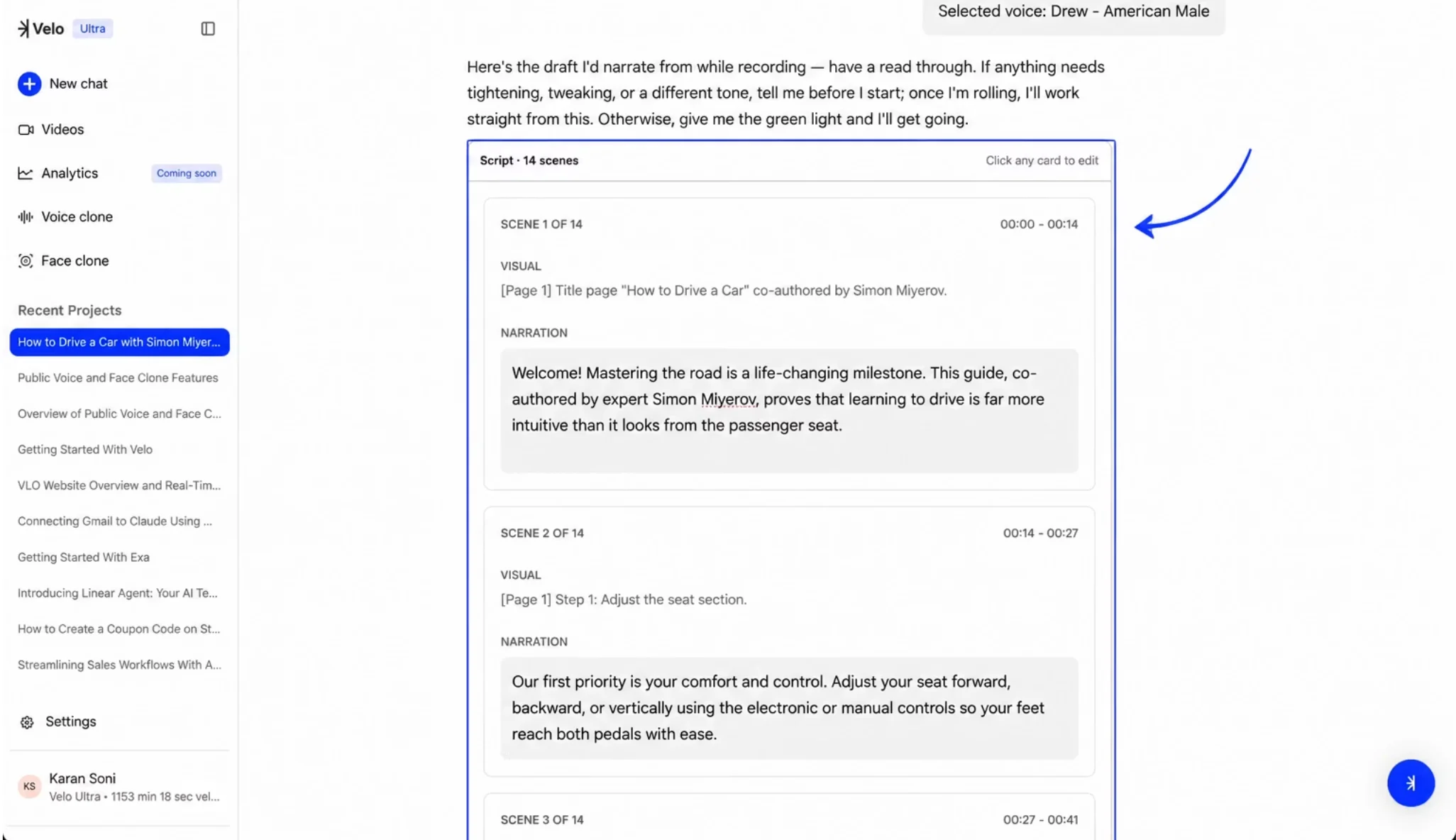 The script editor displays narration and visual cues in a series of scene cards.
## Modify Scene Narration
**Step 1:** Navigate to the **Script** section and select the scene card you wish to modify.
**Step 2:** Click directly into the **NARRATION** text box to begin typing.
**Step 3:** Add or remove text as needed. A small number in the bottom-right corner of the text area will update to reflect your changes relative to the character limit.
## Manage Character Limits
To maintain video sync integrity, Velo enforces a strict character limit for edits. You can increase or decrease the original character count by a maximum of 20%. For example, if a scene is generated with 100 characters, you can adjust it to any length between 80 and 120 characters.
If you exceed these limits, the character counter will display a red negative value. In this state, changes cannot be saved — you must either trim the text or use the **Reset** button to return to the original version.
The script editor displays narration and visual cues in a series of scene cards.
## Modify Scene Narration
**Step 1:** Navigate to the **Script** section and select the scene card you wish to modify.
**Step 2:** Click directly into the **NARRATION** text box to begin typing.
**Step 3:** Add or remove text as needed. A small number in the bottom-right corner of the text area will update to reflect your changes relative to the character limit.
## Manage Character Limits
To maintain video sync integrity, Velo enforces a strict character limit for edits. You can increase or decrease the original character count by a maximum of 20%. For example, if a scene is generated with 100 characters, you can adjust it to any length between 80 and 120 characters.
If you exceed these limits, the character counter will display a red negative value. In this state, changes cannot be saved — you must either trim the text or use the **Reset** button to return to the original version.
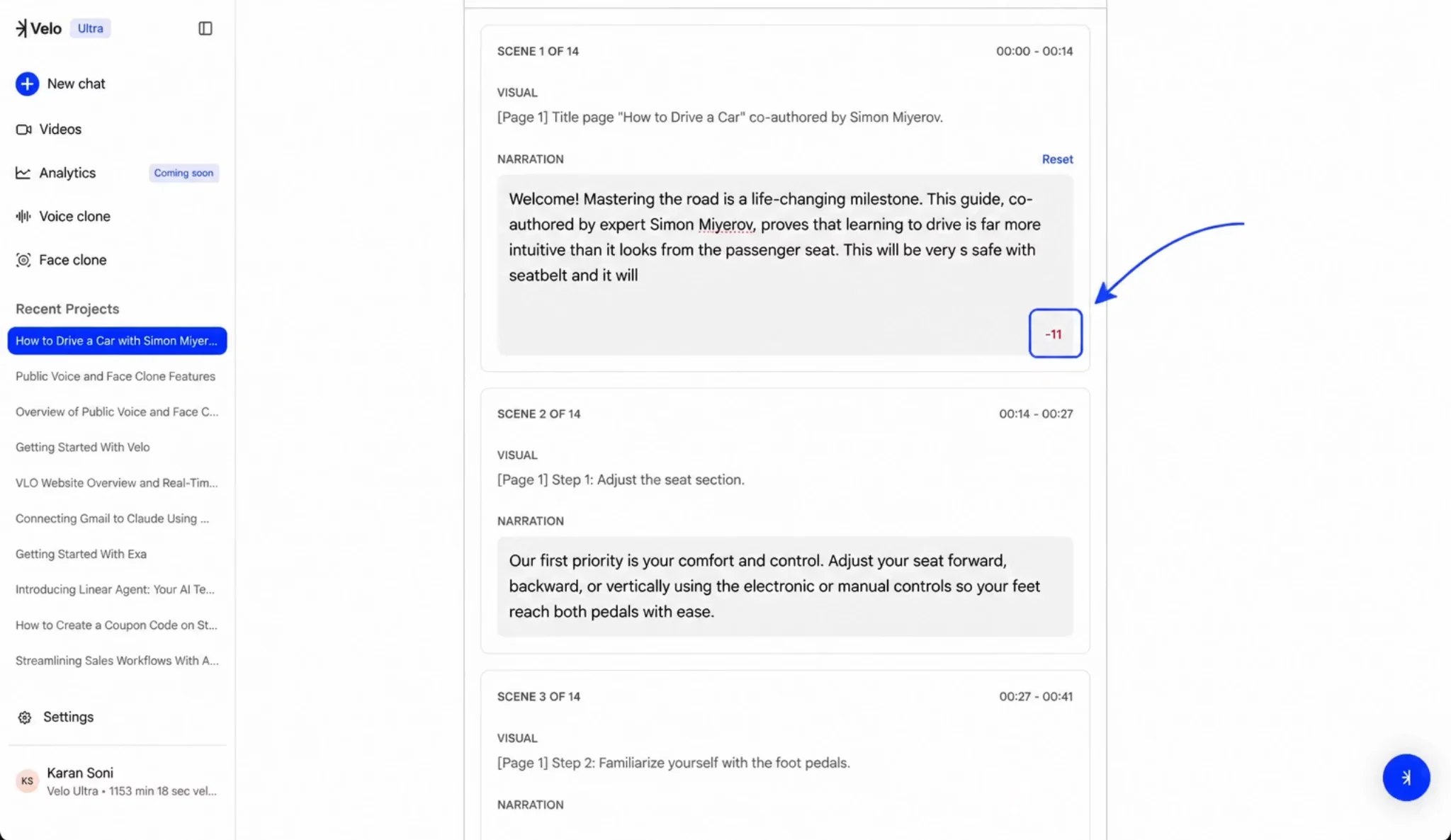 Exceeding the 20% character limit triggers a red error message.
## Save Your Changes
The editor handles synchronization and storage in real-time. Once you make an edit within the allowed character range, the system will display a **CALCULATING...** status in the top right of the card. Your changes are automatically saved once the calculation is complete - no manual save needed.
Exceeding the 20% character limit triggers a red error message.
## Save Your Changes
The editor handles synchronization and storage in real-time. Once you make an edit within the allowed character range, the system will display a **CALCULATING...** status in the top right of the card. Your changes are automatically saved once the calculation is complete - no manual save needed.
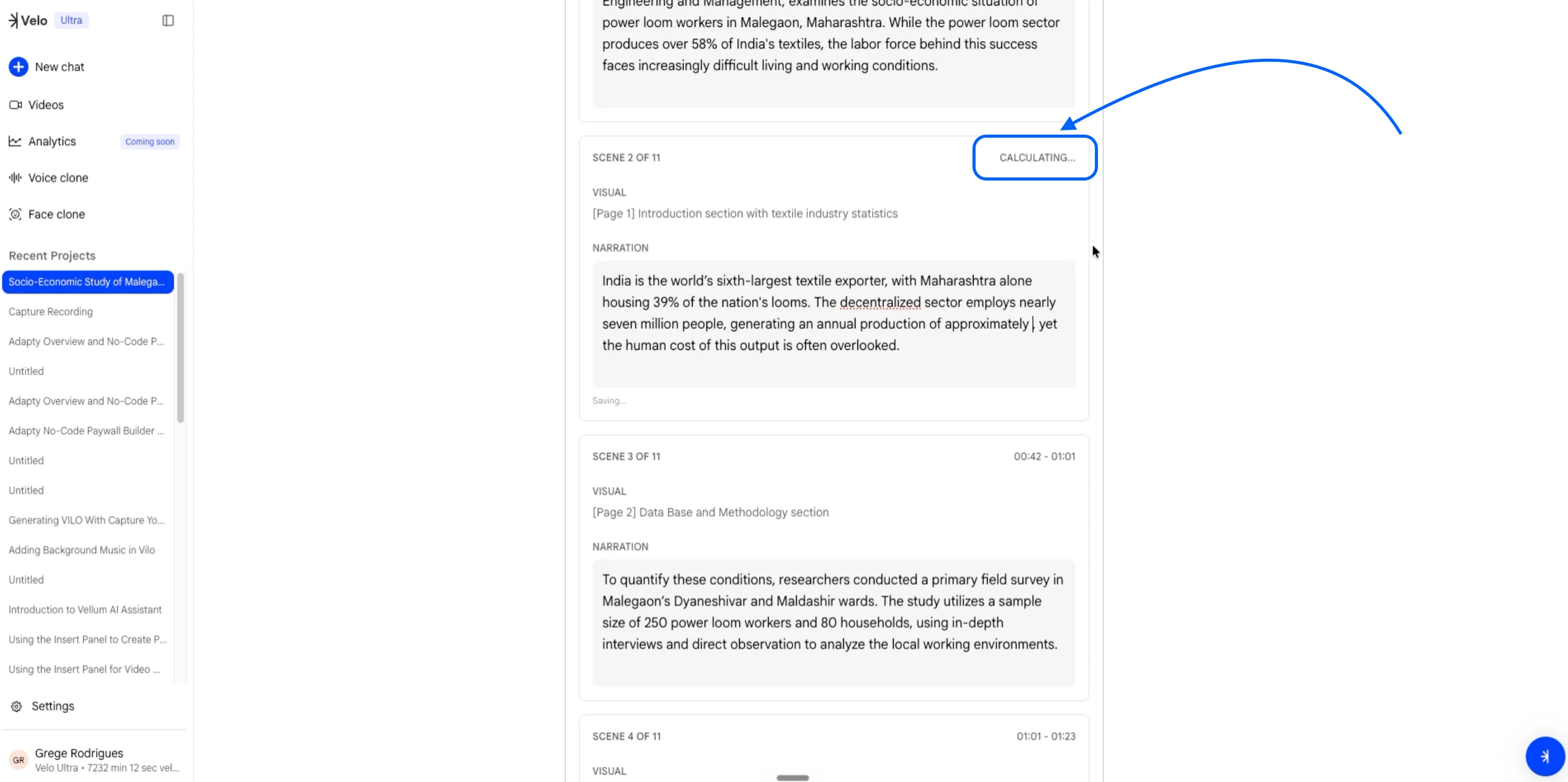 The interface displays a "CALCULATING..." status while automatically saving edits.
By staying within the 20% threshold, your revised narration remains safely aligned with the visual timing of your Velo.
The interface displays a "CALCULATING..." status while automatically saving edits.
By staying within the 20% threshold, your revised narration remains safely aligned with the visual timing of your Velo.