> ## Documentation Index
> Fetch the complete documentation index at: https://docs.usevelo.ai/llms.txt
> Use this file to discover all available pages before exploring further.
# Review Your Script
> Check your transcribed script in the editor to catch errors before proceeding with voice generation.
After uploading a recording or using the capture screen option, it is essential to review the transcribed text. Checking your script ensures that technical terms, names, and spoken phrases are captured accurately and helps identify any words that may have been mispronounced by the AI.
## Navigating to the Script Editor
**Step 1:** Open the project in the editor interface.
**Step 2:** Click the **Scripts** icon in the right-hand menu, located between **Screen** and **Insert**.
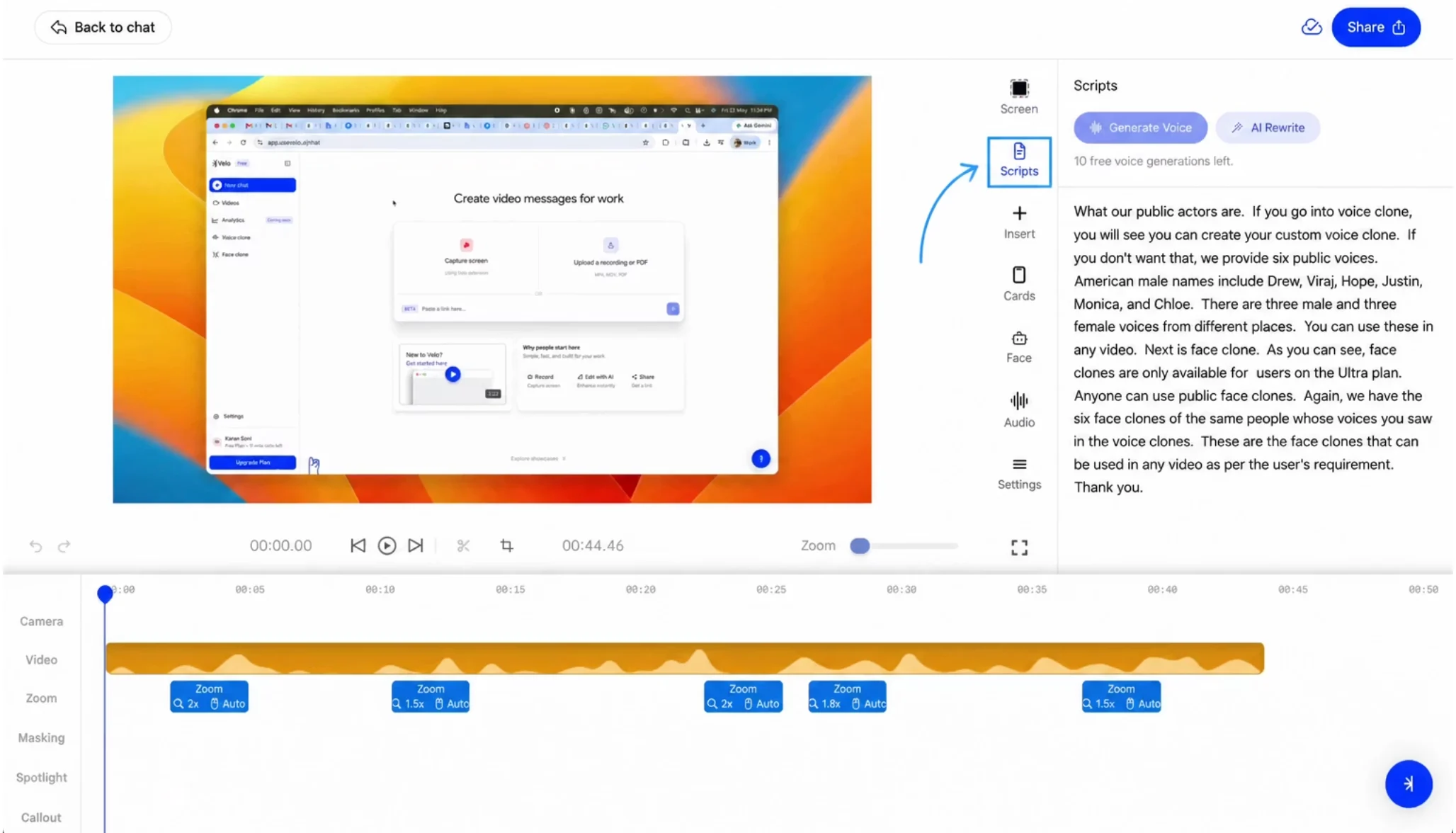 The Scripts panel displays the generated text for review.
## Verifying Transcription Accuracy
**Step 3:** Read through the entire script in the sidebar, looking for errors in proper nouns, names, or lists.
**Step 4:** Cross-reference the text with your original intent to ensure nothing you said was omitted from the transcription.
This review process helps confirm that the final video reflects your exact words before you proceed with further edits or voice generation.
The Scripts panel displays the generated text for review.
## Verifying Transcription Accuracy
**Step 3:** Read through the entire script in the sidebar, looking for errors in proper nouns, names, or lists.
**Step 4:** Cross-reference the text with your original intent to ensure nothing you said was omitted from the transcription.
This review process helps confirm that the final video reflects your exact words before you proceed with further edits or voice generation.