> ## Documentation Index
> Fetch the complete documentation index at: https://docs.usevelo.ai/llms.txt
> Use this file to discover all available pages before exploring further.
# Editing Your Script
> Refine your narration using AI rewriting or manual text adjustments to match your persona and audience.
When generating a Velo from an uploaded recording or screen capture, you can refine your narration using automated AI rewriting or manual text adjustments. These tools ensure your voiceover matches your intended persona and audience while maintaining high video quality.
## Rewriting with AI via Quick Actions
The fastest way to overhaul your script is through the AI rewrite tool in the main chat interface.
**Step 1:** Select **Rewrite script** from the **Quick actions** menu.
**Step 2:** Choose a persona for the voice, such as **Founder**, **Product Manager**, or **Engineering team**.
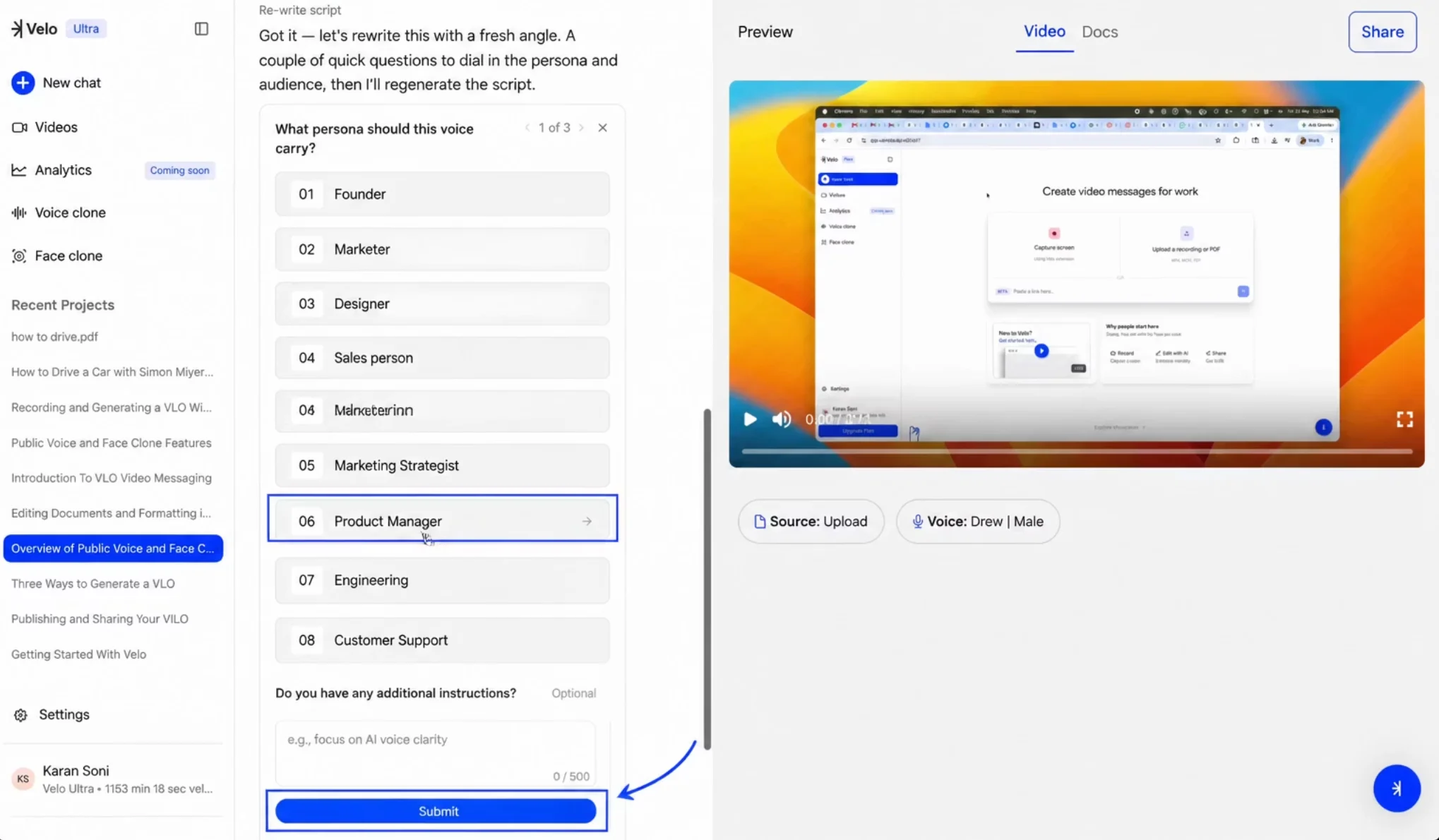 Select the persona that best fits your video's context.
**Step 3:** Define your primary audience, choosing from options like **Stakeholders**, **Executives**, or **Customers**.
**Step 4:** Enter any **additional instructions** in the text field and click **Submit**. The AI will generate a fresh script based on these parameters.
## Manual Editing and Character Constraints
You can manually tweak specific words or sentences in a rewritten script to perfect the messaging. To preserve the timing and flow of the original video, Velo enforces a character limit for manual changes. Edits are restricted to plus or minus 20% of the original character count between sync points, and the interface displays the allowed range (e.g., "64–96 allowed") to help you stay within limits.
Select the persona that best fits your video's context.
**Step 3:** Define your primary audience, choosing from options like **Stakeholders**, **Executives**, or **Customers**.
**Step 4:** Enter any **additional instructions** in the text field and click **Submit**. The AI will generate a fresh script based on these parameters.
## Manual Editing and Character Constraints
You can manually tweak specific words or sentences in a rewritten script to perfect the messaging. To preserve the timing and flow of the original video, Velo enforces a character limit for manual changes. Edits are restricted to plus or minus 20% of the original character count between sync points, and the interface displays the allowed range (e.g., "64–96 allowed") to help you stay within limits.
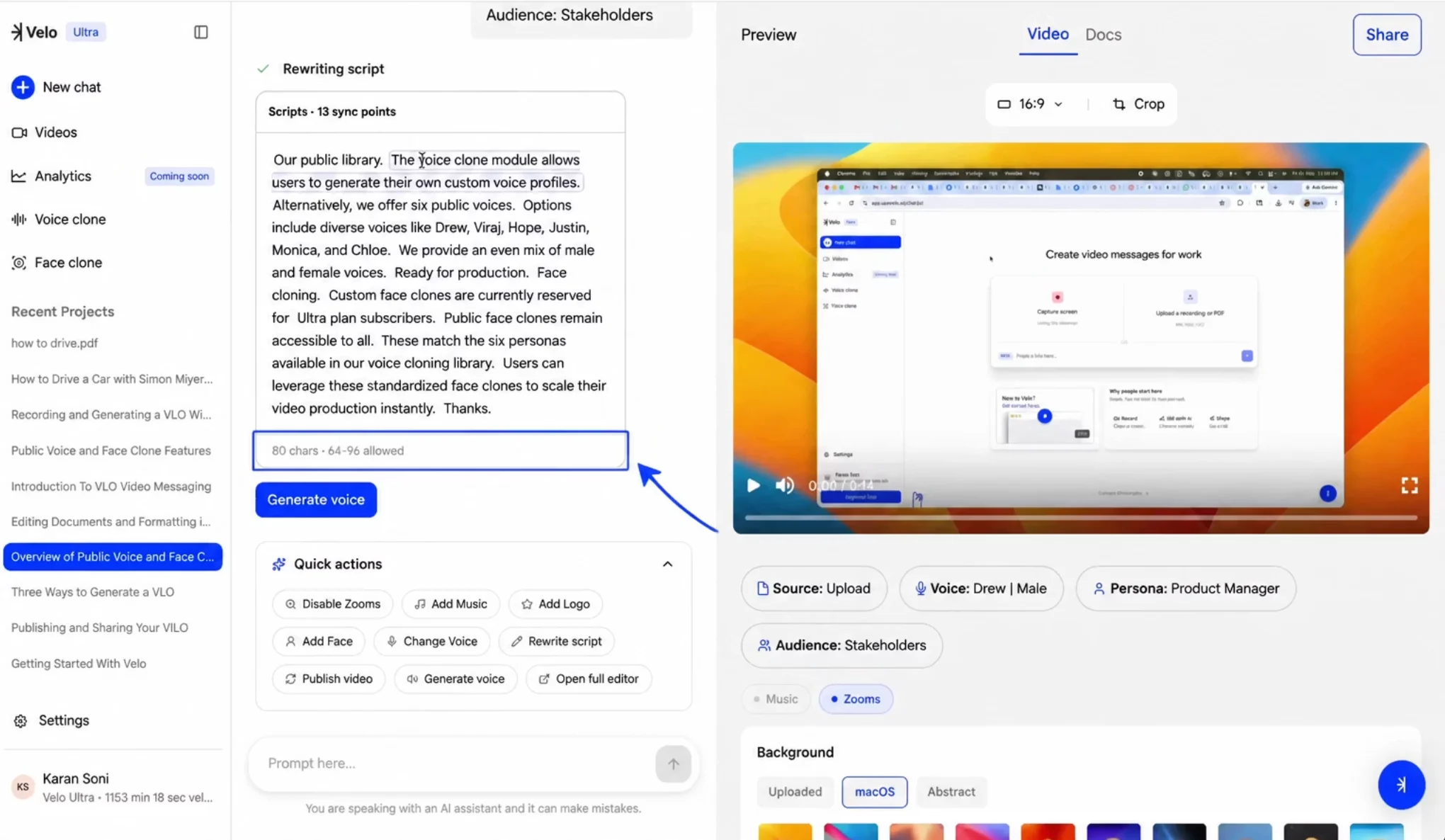 The editor highlights character limits to maintain video sync.
## Using the Scripts Panel in the Full Editor
For more granular control, access script tools within the comprehensive editing suite.
**Step 1:** Click **Open full editor** from the Quick actions menu.
**Step 2:** Select the **Scripts** icon in the right-hand vertical sidebar.
**Step 3:** Click **AI Rewrite** at the top of the panel to trigger the automated rewrite flow, or click directly into the script blocks to make manual changes.
The editor highlights character limits to maintain video sync.
## Using the Scripts Panel in the Full Editor
For more granular control, access script tools within the comprehensive editing suite.
**Step 1:** Click **Open full editor** from the Quick actions menu.
**Step 2:** Select the **Scripts** icon in the right-hand vertical sidebar.
**Step 3:** Click **AI Rewrite** at the top of the panel to trigger the automated rewrite flow, or click directly into the script blocks to make manual changes.
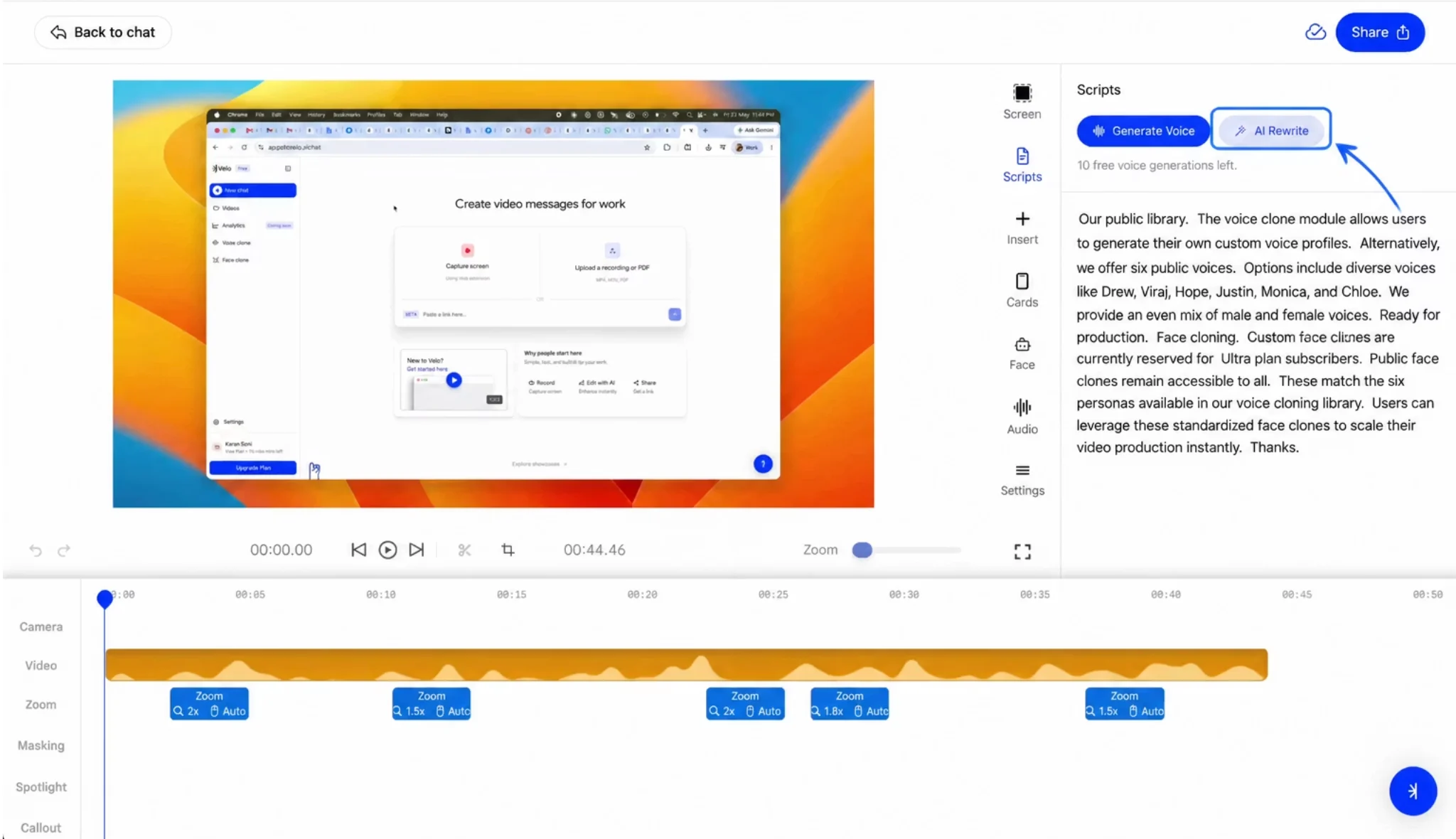 Access AI Rewrite and manual editing tools within the Scripts panel.
Once you have finished your edits or the AI has completed the rewrite, click the **Generate voice** button. The script and video will not update with the new narration until the voice is regenerated.
Access AI Rewrite and manual editing tools within the Scripts panel.
Once you have finished your edits or the AI has completed the rewrite, click the **Generate voice** button. The script and video will not update with the new narration until the voice is regenerated.